---
updatedAt: 2026-07-28T17:31:25.000Z
agentTools:
siteIndex: https://documentation.advsol.com/llms.txt
projectIndex: https://documentation.advsol.com/imis/llms.txt
---
# Canadian taxation (GST and HST)
iMIS supports calculation for Canadian federal taxes:
* **GST** - Goods and Services Tax. This is a federal tax and is 5%.
* **PST** - Provincial Sales Tax. This is determined by each Province.
* **HST** - Harmonized Sales Tax. This tax combines both the PST and GST into a single amount.
Applicable taxes are calculated automatically based on the default Canadian tax authority and customer province. The tax codes for the GST/HST calculation method need to be set up in iMIS before they can be used. If these tax codes are not defined, any taxes calculated equal zero.
## Define Base GST and Base HST
Define a set of global base settings:
* **BASE\_GST**: Define only one global **Base GST**. The **Base GST** specifies the GL account and tax rate for the national tax.
* **BASE\_HST**: Define at least one global **Base HST** per each HST rate that is charged. The global **Base HST** tax codes specify the GL account and tax rate for harmonized tax. For multiple rates, create codes for each, for example, BASE\_HST12, BASE\_HST13, BASE\_HST15 (for 12%, 13%, and 15% respectively).
### Note
Verify current tax rates for [Canada](http://www.cra-arc.gc.ca/tx/bsnss/tpcs/gst-tps/rts-eng.html) and [Quebec](http://www.revenuquebec.ca/en/entreprise/taxes/tvq_tps/) before implementing tax codes.
### Defining BASE\_GST
The **BASE\_GST** is used as the related taxation authority when calculating the primary GST and PST. Because it is the basis for tax calculation and tracking, the **BASE\_GST** must contain the correct **Rate** and GL **Account** number.
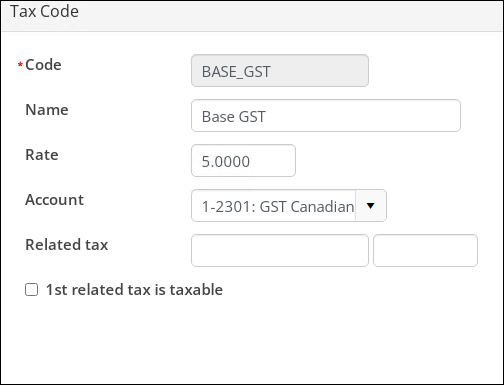
Do the following:
1. Go to **Settings > Finance > Tax codes**.
2. Select **Add new tax code**.
3. In the **Code** field, enter **BASE\_GST**.
4. In the **Name** field, enter **Base GST**.
5. Enter the tax **Rate**.
6. Select the GL **Account** number. Do not enter a **Related tax** because this is the base tax.
7. Click **Save**.
### Defining BASE\_HST
The BASE\_HST is used as the related taxation authority when calculating tax for provinces using HST. Because it is the basis for tax calculation and tracking, the code must contain the correct **Rate** and GL **Account** number.
For multiple rates, create additional codes: BASE\_HST12, BASE\_HST13, BASE\_HST15 (for 12%, 13%, and 15% respectively).
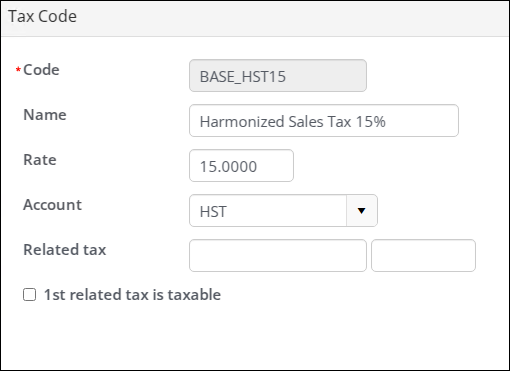
Do the following to create **Base HST** tax codes:
1. Go to **Settings > Finance > Tax codes**.
2. Select **Add new tax code**.
3. In the **Code** field, enter **BASE\_HST**. If you are creating multiple **BASE\_HST** rates, add the rate number to the end of the **Code**, for example **BASE\_HST15**.
4. In the **Name** field, enter **Base HST**. If you are creating multiple **BASE\_HST** rates, add the rate number to the end of the **Name**, for example **Harmonized Sales Tax 15%**.
5. Enter the tax **Rate**.
6. Select the GL **Account** number. Do not enter a **Related tax** because this is the base tax.
7. Click **Save**.
8. (optional) For multiple rates, continue creating the rates until all rates are accounted for.
## Define the primary tax codes
The base tax codes **(BASE\_GST** and **BASE\_HST**) are not used directly and should only be used as reference tax codes from the primary tax codes.
The following primary tax codes must be defined:
* **GST** - (required) Primary GST, which relates back to the **BASE\_GST**.
* **PST** - Provincial tax code that is cross-referenced as the primary taxation authority for an organization. This is related to **BASE\_GST** or **BASE\_HST** and might indicate that PST tax is also applied to the GST tax amount. Define a tax code for each province in which the tax code is the same value as the two character province abbreviation.
For all tax codes, reference one of the base taxes created in the first step:
* The single base GST, or
* The base HST tax code that contains the instructions for a particular tax that should be charged
The following table is an example of how you might define tax codes across provinces.
Table 1: Example - Defining tax codes across provinces
| Code | Title | Notes | Rate | GL Acct | Related tax |
| ----------- | -------- | ------------------------ | ----- | ------- | ----------- |
| BASE\_GST | Base GST | | 5 | GST | |
| GST | GST | | | | BASE\_GST |
| BASE\_HST12 | HST 12% | | 12 | HST | |
| QC | Quebec | GST at 5%, PST at 9.975% | 9.975 | | BASE\_GST |
### Defining Primary GST
Define a tax code for the primary **GST**:
1. Go to **Settings > Finance > Tax codes**.
2. Select **Add new tax code**.
3. In the **Code** field, enter **GST**.
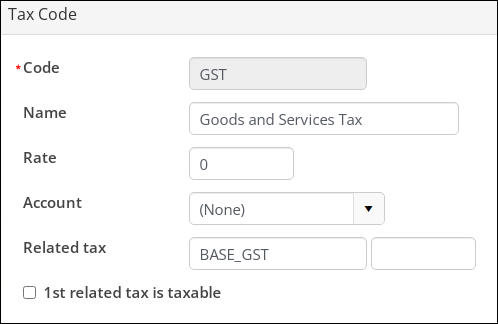
4) In the **Name** field, enter **Goods and Services Tax**.
5) Leave the **Rate** and **Account** fields empty.
6) Enter **BASE\_GST** in the first **Related tax** field.
7) Click **Save**.
### Defining a provincial tax code (PST)
### Note
Organizations that do not charge provincial taxes, such as PST exempt Canadian organizations, do not need to define provincial tax codes.
Define a code for each province for which taxes will be calculated. A provincial tax code is cross-referenced as the primary taxation authority for an organization. Do the following define a provincial tax code (PST):
1. Go to **Settings > Finance > Tax codes**.
2. Select **Add new tax code**.
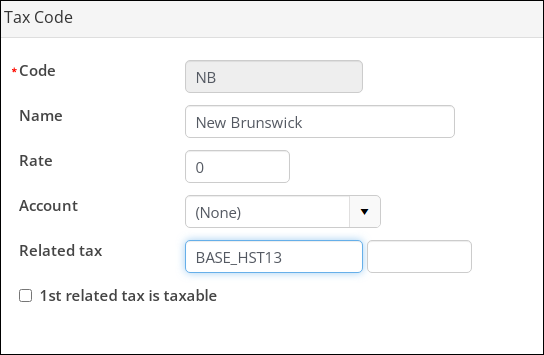
3. In the **Code** field, enter the province abbreviation, such as **NB** for *New Brunswick*.
4. In the **Name** field, enter the province name.
5. Populate the **Rate** and GL **Account** only if there is a separate provincial tax charged in additional to the GST (national tax).
6. Enter the **Related tax** (i.e., the single base GST or one of the base HST tax codes that contains the instructions for the particular tax that should be charged).
7) Click **Save**.
## Configure the default financial entity for Canadian taxation
The **Canadian** taxation method must be enabled for the default organization.
### Warning
Do not change the **Taxation method** for existing financial entities. Instead, [create a new financial entity](https://documentation.advsol.com/imis/docs/financial-entities) with the appropriate tax method.
Do the following to enable **Canadian** taxation for the default organization:
1. Go to **Settings > Finance > Financial entities**.
2. Select **Add new financial entity**.
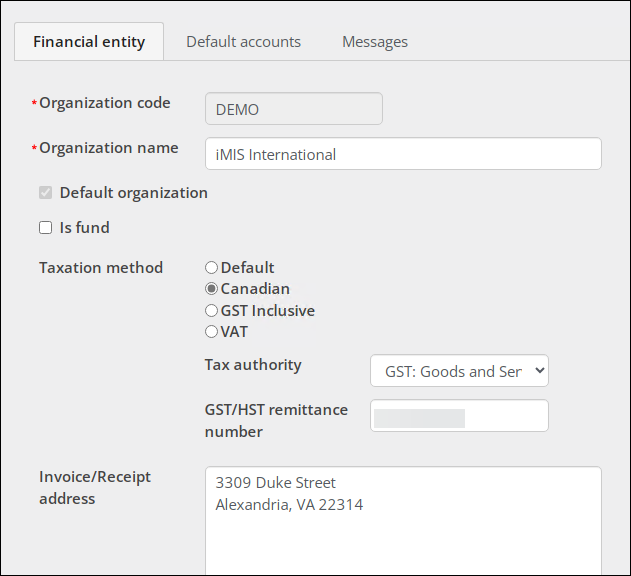
3. Enter a unique**Organization code** and **Organization name**.
4. Enable **Default organization**.
5. Select **Canadian** for the **Taxation method**:
* **Tax authority** - Select the GST tax authority to be used by the organization.
### Note
Never use the **BASE_GST** as the primary taxation authority.
* **GST/HST remittance number** - (required) Enter the **GST/HST remittance number**.
6. (optional) Enter the registration number in the **Registration number** field.
7) Click **Save & Exit**.
## Implementing Canadian taxation for commerce transactions
GST calculation for commerce transactions involves enabling the **Canadian** taxation method option for countries and applying GST taxes to product categories, individual products, and shipping and handling charges. Shipping and handling taxes are charged in addition to any other taxes that are applied to products sold in the country using GST calculation, and shipping and handling taxes are calculated on both taxable and nontaxable product purchases.
### Enabling Canadian taxation for countries
When setting up GST and PST calculations for commerce transactions, you must enable **Use GST/HST/GSTINC style taxation** for each country for which taxes are collected. When the **Use GST/HST/GSTINC style taxation** option is enabled for a country, GST and PST are calculated for orders that ship to customers within that country. If you ship orders to customers in multiple countries that use the Canadian taxation method, enable the **Use GST/HST/GSTINC style taxation** option for each of those countries.
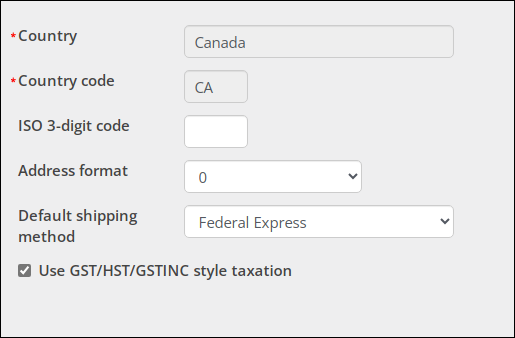
Do the following to enable taxation for a country:
1. Go to **Settings > Addresses > Countries**.
2. [Add a new country](https://documentation.advsol.com/imis/docs/settings-countries), or **Select** an existing country.
3. Enable **Use GST/HST/GSTINC style taxation**.
### Note
This option is only available if the default organization's taxation method is set to **Canadian**.
4) Click **Save**.
5) Repeat all necessary countries.
### Enable or disable charging tax on shipping and handling
Enabling the shipping and handling sales tax settings impacts all tax codes, meaning both GST and PST are charged when the settings are enabled. If the settings are disabled, no tax is charged toward shipping and handling. This is the only place iMIS does not allow users to flex the taxable settings.
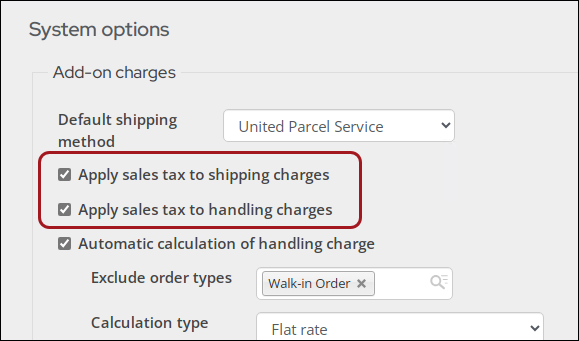
To charge sales tax on shipping and handling charges, do the following:
1. Go to **Settings > Commerce > System options**.
2. Enable **Apply sales tax to shipping charges** and/or **Apply sales tax to handling charges**.
3. Click **Save**.
### Enable or disable taxable options on product categories
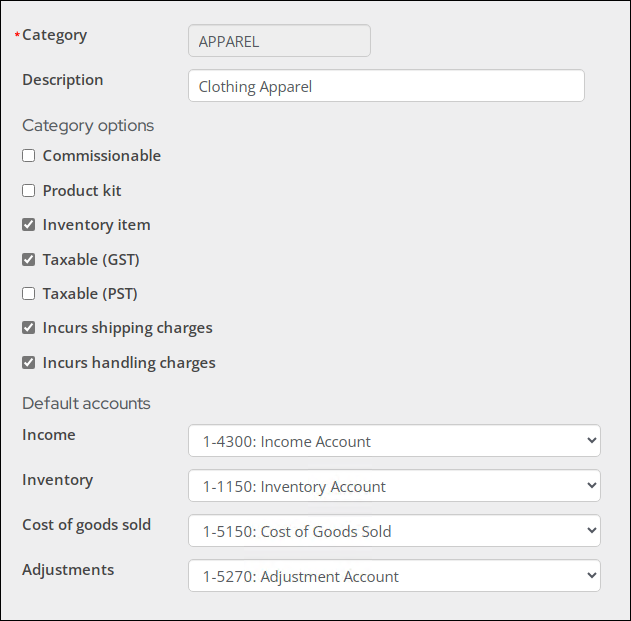
For each commerce product category, enable or disable the taxable options for GST (which includes HST) and PST (only applies if the tax code used to calculate the tax has a non-zero rate). When defining a new product with the selected category, these become the default settings that can be overridden.
### Note
Tax settings at the product level override those at the category level. If you enable taxes for a category but not for a product in that category, no taxes are calculated. If you disable taxes for a category but enable taxes for a product in that category, taxes are calculated.
Do the following to apply taxation to a product category:
1. Go to **Settings > Commerce > Product categories**.
2. Select the edit icon for an existing **Product Category**.
3. Enable **Taxable (GST)** and/or **Taxable (PST)**.
4. Click **Save**.
5. Repeat for each product category.
### Update the default tax options for commerce products
For each commerce product, update the default taxable options for **GST/HST** and **PST**.
### Note
Each province that charges a state tax must have a tax code already configured before **PST** is added to a product purchase. When **PST** is enabled and the purchaser's **Ship to** address is in a province that charges **PST**, the purchaser is charged **PST** at checkout.
The **Taxable** checkboxes are initially set according to the settings for the product category that is assigned to the product. This only provides a shortcut, as the user can opt to change them for any given product, either when initially defining the product or upon subsequent editing.
Do the following to apply taxation to a product:
1. Go to **Commerce > Find products**.
2. Select the product, then select **Edit**.
3. Click the **Accounting** tab.
4. Enable the **Taxable (GST/HST)** and/or **(PST)** options.
5. Click **Save & Close**.
6. Repeat for each product.
## Implementing Canadian taxation for events
Canadian taxation for events involves applying appropriate taxes to individual events and event functions. After defining GST/HST tax codes, you can enter the tax codes for individual events and event functions.
For each event, assign one of the following:
* **Tax authority** - Select the **Tax code** to assign to the event, so that all registrants are charged the tax based upon that specified tax code.
* **Tax by address** - When enabled, taxes are derived from the registrant's address.
### Note
Because services are consumed in the country in which they are delivered, all customers are considered taxable. Only customers with a nontaxable status are exempt.
### Assigning taxation to event registrations
To apply taxation to registrations, do the following:
1. Open the event for edit:
1. Go to **Events > Find events**.
2. Search for and open the desired event.
3. Select the edit icon.
2. Click the **Pricing** tab.
3. From the **Tax authority** drop-down, select the appropriate tax code.
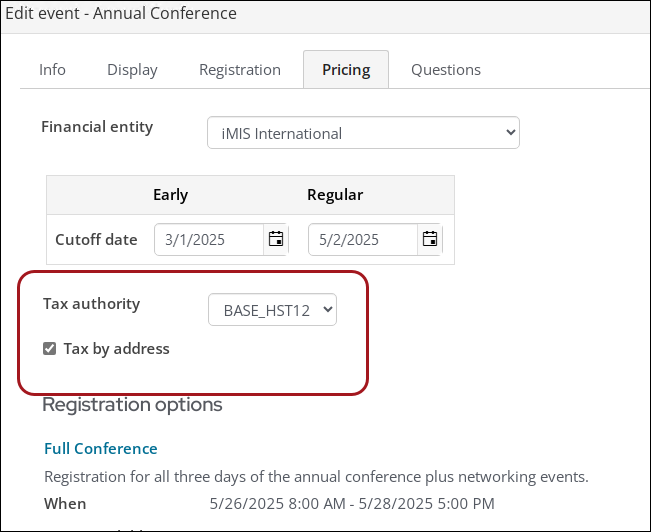
4) The **Tax by address** option causes the appropriate tax to be charged based on the province specified in the registrant's preferred shipping address. If that is unavailable, iMIS defaults to the tax authority of the event. Registrants see the HST amounts itemized in their carts and receipts.
5) Click **Save**.
6) Repeat for all necessary events.
### Assigning taxation to an event function
Do the following to assign taxation to an event function:
1. Navigate to the event.
2. Open a program item or registration option:
* **Program items** - From the event **Showcase** tab, scroll down to the **Program** section, select a program item, then select **Edit**.
* **Registration options** - From the event **Showcase** tab, select **Edit**, then click the **Pricing** tab. From the **Registration options** section, select a registration option.
3. Click the **Accounting** tab.
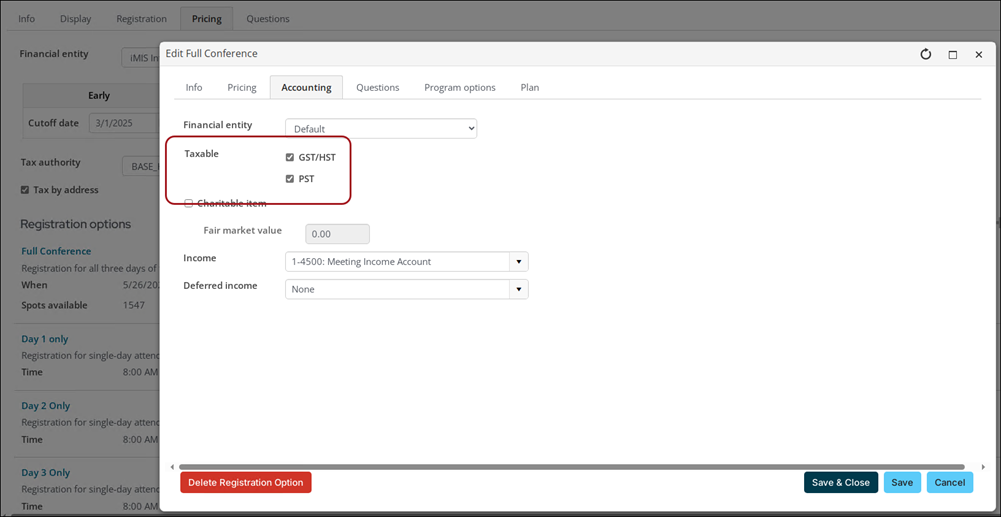
4. Enable the **GST/HST** and/or **PST** taxable options.
5) Click **Save & Close**.
6) Repeat for all necessary event functions.
When a customer registers for an event function, the system will automatically calculate the tax based upon the tax options you have defined for the specific function.
### Understanding which tax codes apply
When the **Default** organization is set to Canadian tax, the customer is charged based on the tax code that matches their State/Province code of their shipping address.
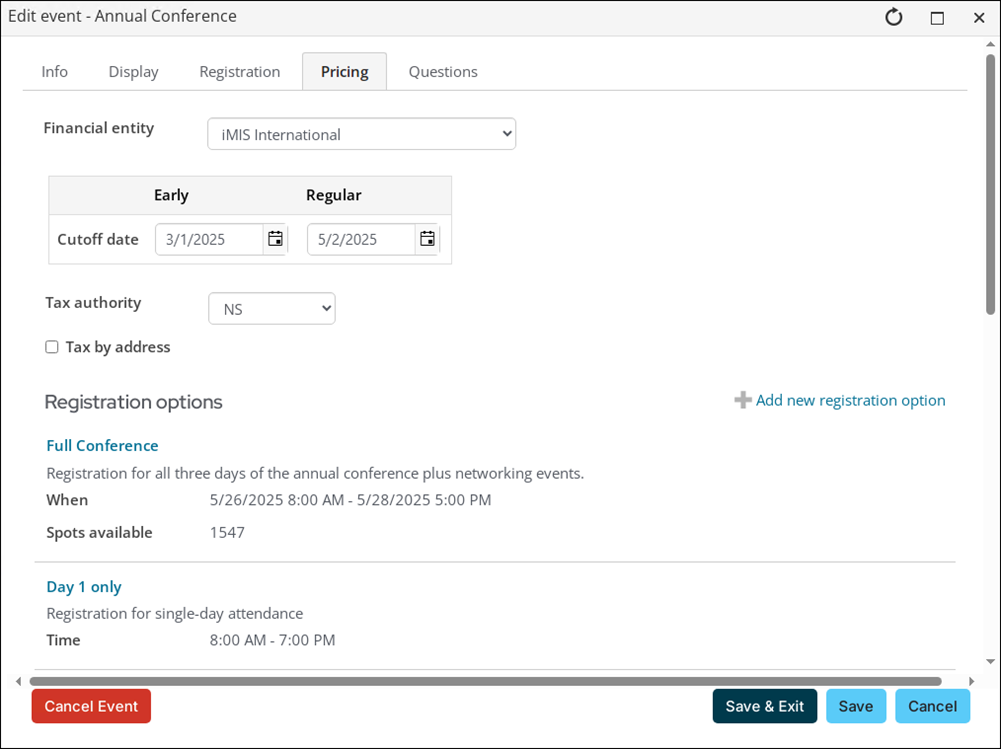
The only exception is for events that are configured to charge taxes based on a specific **Tax authority** (tax code) instead of the customer's address (**Tax by address**). When a specific tax code is selected for an event, all customers are charged that tax, regardless of their address.
## Examples
Review the following examples to better understand how to configure PST for specific provinces.
### Note
There should only be one BASE_GST, because there is only one GST tax (currently a 5% rate). There are some provinces that only collect GST, and for those, the rate for the PST is left at zero, since they do not collect any provincial tax and do not fall under the set of provinces that charge HST.
### British Columbia: Province in which GST and PST are collected
British Columbia charges a 7% PST along with the 5% GST:
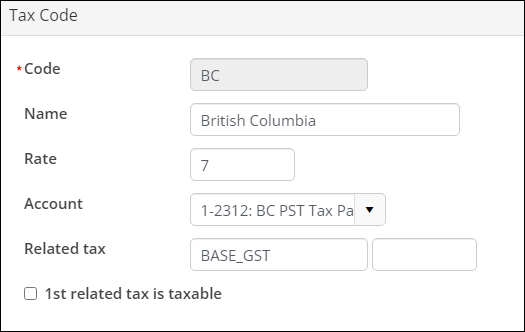
To account for the 5% GST, the **Related tax** field must be populated with **BASE\_GST**, which references the following tax code:

#### Example
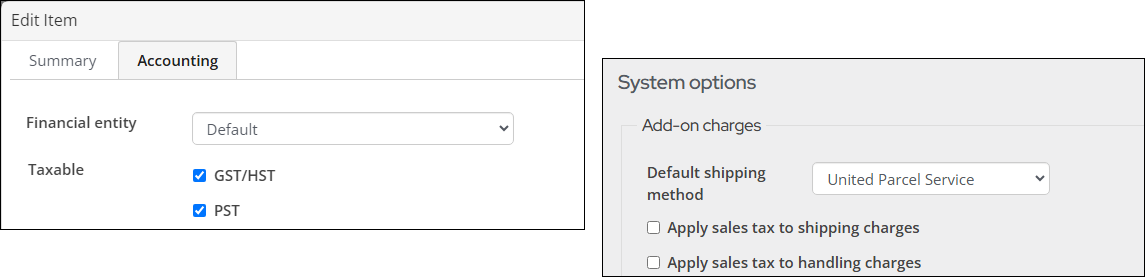
The product is configured with GST/HST and PST enabled. The system settings to charge tax for shipping and handling are disabled.
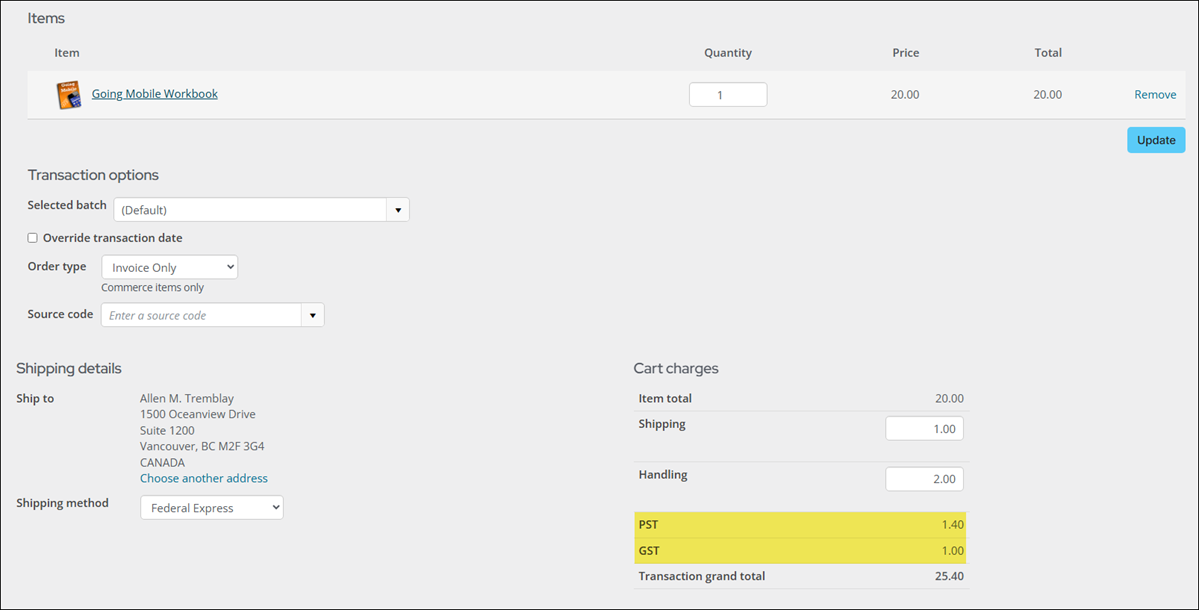
After the 20.00 product is added to the cart, the following displays:
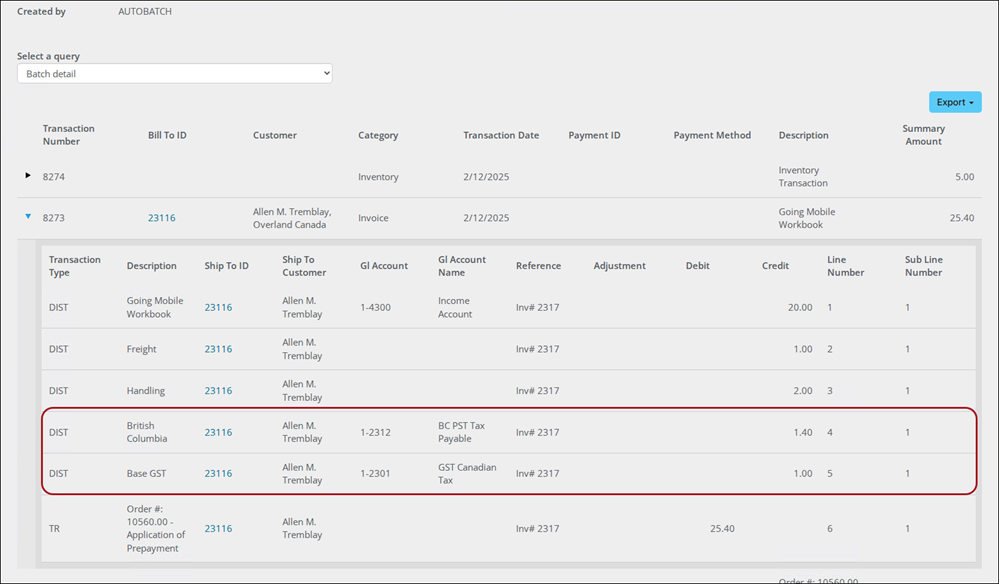
* **PST**: Calculated at 7% of the 20.00 total only (not on shipping and handling)
* **GST**: Calculated at 5% of the 20.00 item total
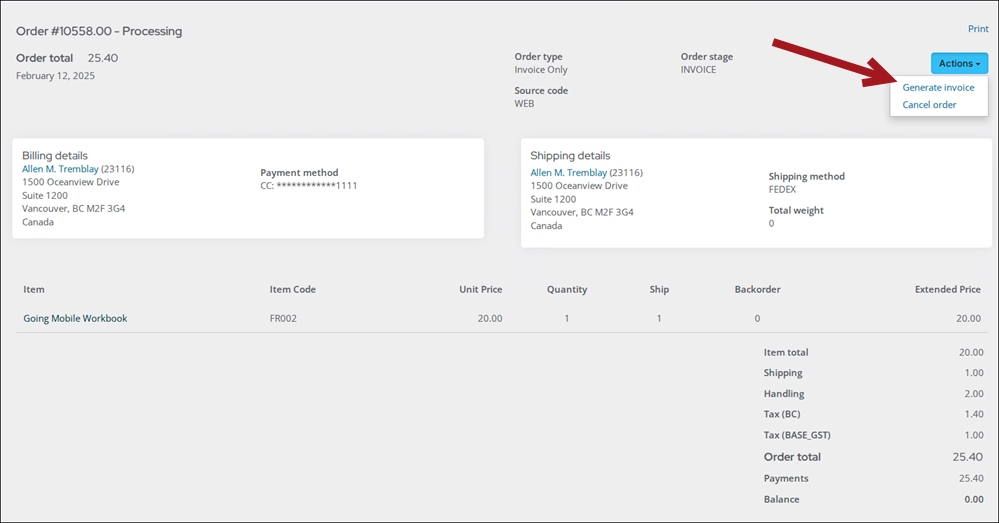
Since this is an inventory stock item, the invoice must be generated for the order to create the sales journal entry.
Review the batch to see the transaction correctly created using the GL **Accounts** that are assigned in the two tax codes involved.
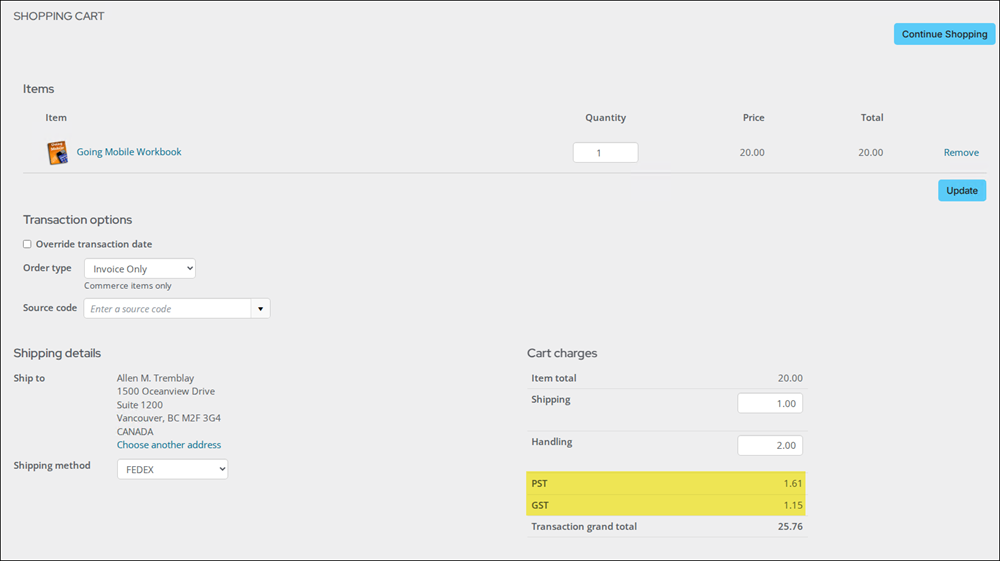
If the shipping and handling options were enabled, you would see the PST and GST taxes are applied to the grand total of 23.00 for a similar order scenario:
### New Brunswick: Province in which only HST is collected
New Brunswick does not charge a provincial tax and only charges a 15% HST rate; therefore, the **Rate** and **Account** are left unpopulated, with only the appropriate **BASE\_HST15** tax code populated in the **Related tax** field.
### Note
When no separate provincial tax is charged, then the **Rate** and GL **Account** must be left unpopulated, with only the appropriate _BASE\__ tax code populated in the **Related tax** field.
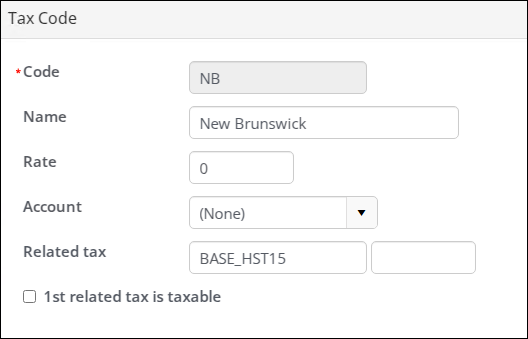
The **BASE\_HST15** is configured with the following:

#### Example
The product is configured with GST/HST and PST enabled. The system settings to charge tax for shipping and handling are enabled.
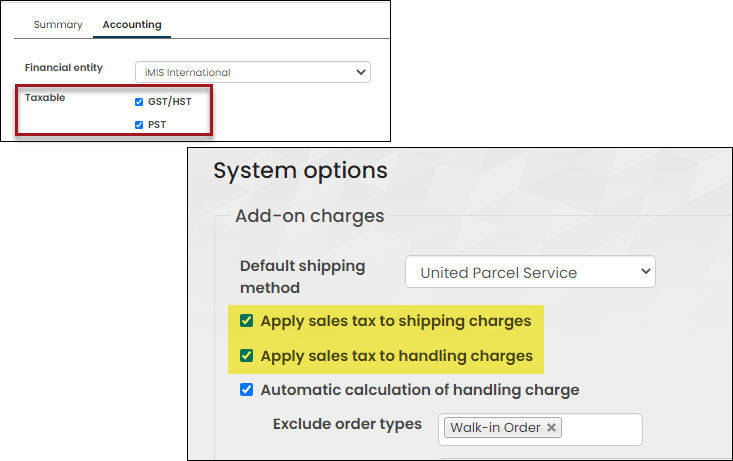
After the 20.00 product is added to the cart, the single 15% tax is correctly applied to the grand total of 23.00, inclusive of shipping and handling, for 3.45.
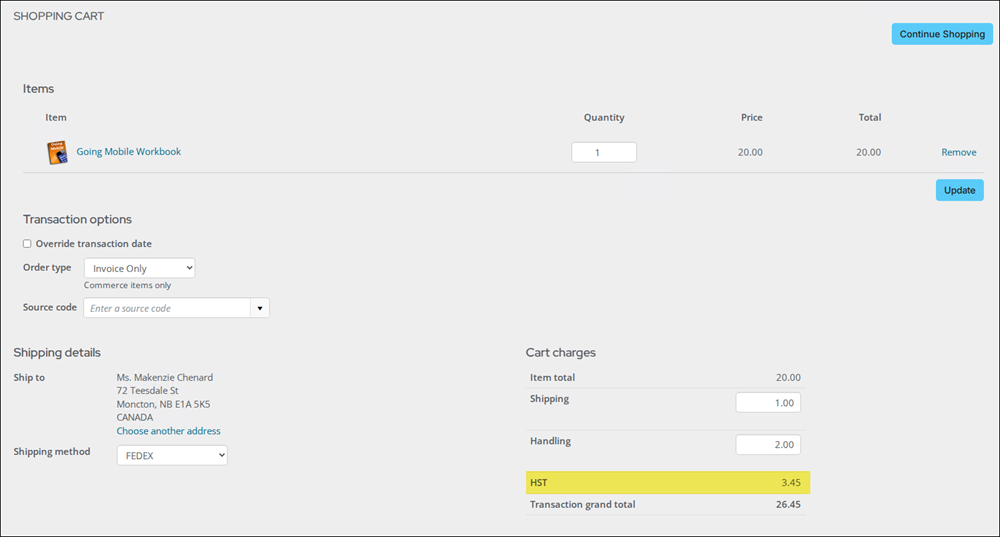
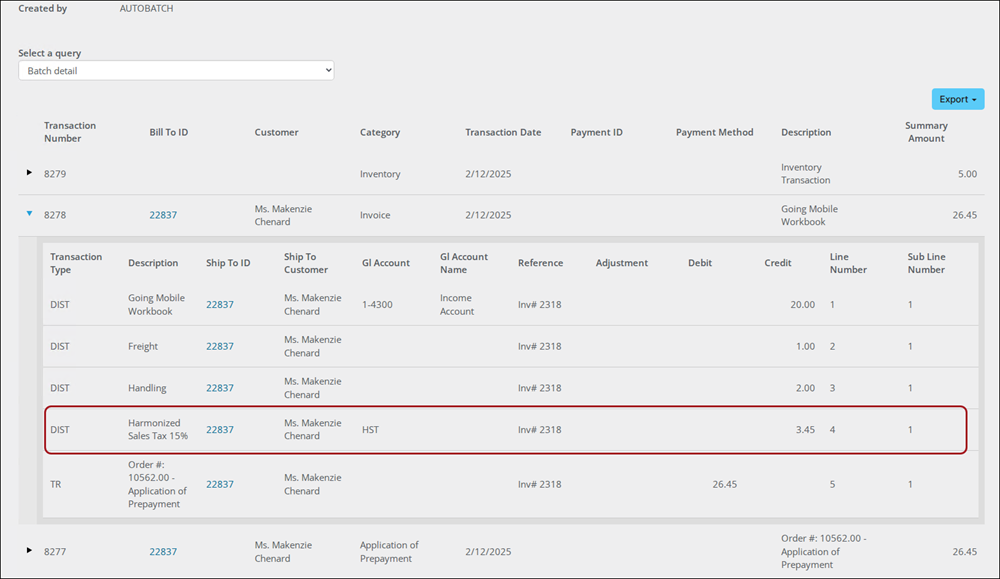
Since this is an inventory stock item, the invoice must be generated for the order to create the sales journal entry.
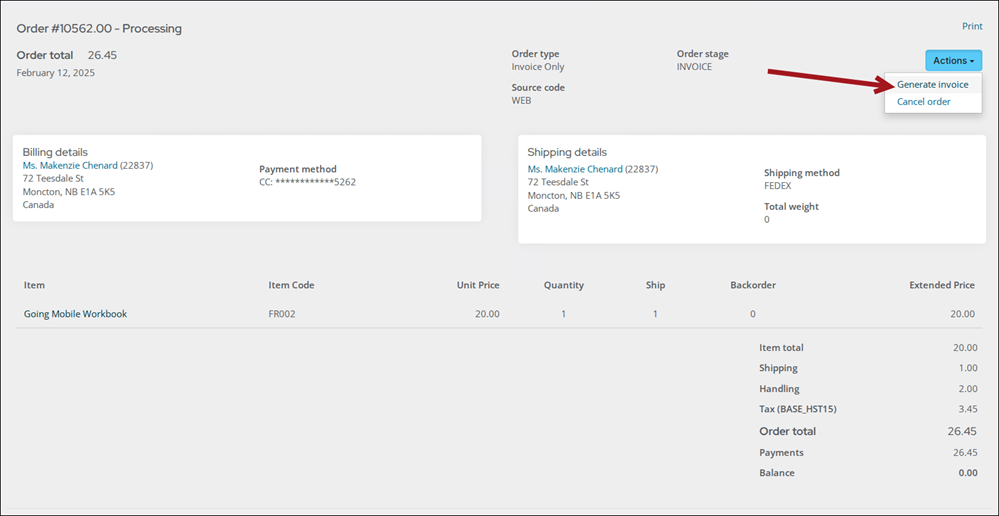
After generating the invoice, the expected journal entry was created using the settings defined for the tax code.