

Address guide
This intermediate-level guide covers addresses in iMIS EMS & iMIS 2017. Supported actions include Insert, Insert with Matching Help, Update, and Insert/Update..
The following shares details about working with address data:
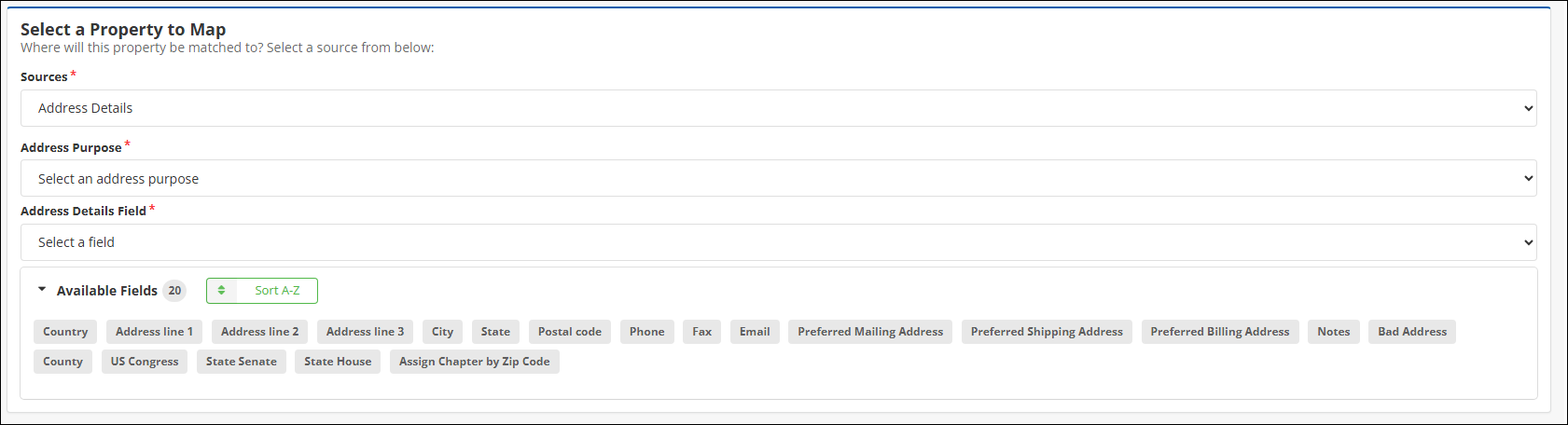
Mapping
Review the following required and optional mappings:
-
Required
- Address Purpose- The purpose of the address. The field is a dropdown.
- Country - The country that the address is in. Must be a valid country in iMIS.
- iMIS ID - The ID of the contact whose address is being inserted or updated. Use the Contact Details Source to match on the iMIS ID.
-
Optional
- (Recommended) Address line 1 - The first address line. Commonly street address but can be used for any purpose.
- (Recommended) Email - The email associated with the address.
- Address line 2- The second address line. Commonly used for apartment/unit number but can be used for any purpose.
- Address line 3 - The third address line. Commonly used when the address is international or a business.
- Assign Chapter by Zip Code - Only set this value to True if you wish to overwrite a record’s existing chapter. Otherwise, it will default to False. See Mapping Notes below.
- Bad Address - From the
BAD_ADDRESSgeneral lookup table. Denotes an address that should not be used. Additional details can be found in iMIS documentation. Your iMIS Solution Provider may have recommendations on the best way to set this up. - City - The city of the address.
- County - The county of the record’s location.
- Fax - The fax number associated with the address.
- Notes - Notes to go with the address.
- Phone - The phone number associated with the address.
- Postal code - The postal or zip code of the address.
- Preferred Billing Address - A Boolean checkbox (yes/no) field indicating this address is preferred for billing.
- Preferred Mailing Address - A Boolean checkbox (yes/no) field indicating this address is preferred for mailing.
- Preferred Shipping Address - A Boolean checkbox (yes/no) field indicating this address is preferred for shipping.
- State - The state or province of the address.
- State House - The state house district associated with the address. Enter the district number on its own, for example 12. Limited to 5 characters. See Importing legislative districts.
- State Senate - The state senate district associated with the address. Enter the district number on its own, for example 7. Limited to 5 characters. See Importing legislative districts.
- US Congress - The congressional district associated with the address. Enter the district number on its own, for example 10 — not a state-prefixed value such as TX-21. Limited to 5 characters. Requires the iMIS Automatically set congressional district based on address (US only) setting to be enabled. See Importing legislative districts.
The following is an example spreadsheet:

WarningIf you have the Automatically set chapter based on zip code setting enabled in iMIS and insert a zip code on a record’s corresponding address purpose with iDMS, the chapter will be set on the record as it would when manually updating the zip code in iMIS.
Importing legislative districts
The US Congress, State Senate, and State House fields allow US legislative districts to be imported onto a contact’s address, on both new and existing contacts.
Previously, iMIS populated these districts only when a staff member edited an address by hand in the iMIS web pages. iMIS looks the district up from an external address-verification service, and it performs that lookup only from its own screens — never when address data arrives from an outside system such as iDMS. Districts can now be supplied directly in the import file instead.
Availability
| iMIS version | US Congress | State Senate | State House |
|---|---|---|---|
| iMIS 2017 | Yes | Yes | Yes |
| iMIS EMS | Yes | Yes | Yes |
| iMIS 100 | Yes | Yes | No |
Sourcing the values
iDMS cannot determine a district from a street address, because iMIS keeps that lookup inside its own web pages. The values must be supplied in the import file.
The US Census Geocoder is a free source that returns both congressional and state legislative districts for US addresses.
Value format
Enter the district number on its own — 10, 25, 7. Do not use a state-prefixed form such as TX-21, or a descriptive form such as District 21.
This matters because iMIS stores the number by itself when it populates the field from its own address lookup. Importing a different format results in two styles of value in the same field, which affects any query, report, or segment built on it.
Each value is limited to 5 characters. Longer values are truncated to the first 5 characters and reported as a warning; the contact is still imported. Without the truncation, iMIS would reject the entire contact.
Mapping the fields
- Add a column to the spreadsheet for each district being imported, for example a column named US Congress holding values such as 10 or 25. A column header matching the field name is mapped automatically.
- Upload the file and continue to the mapping step.
- In the field list, choose the Address Details source group.
- Map the columns to US Congress, State Senate, and/or State House.
- Set the Address Purpose as normal, for example Home Address.
- Run the import.
iMIS settings required for US Congress
Two iMIS settings govern whether a congressional district is saved. Both are found in iMIS under Settings > Contacts:
- Automatically set congressional district based on address (US only) - When this checkbox is not enabled, iMIS discards the imported congressional district without reporting an error. The import appears successful and nothing is saved. iDMS detects this and issues a warning per row, but it cannot make iMIS accept the value — the setting must be enabled.
- Address to use for congress - iMIS copies the congressional district up to the contact record only when the address being imported has the same purpose as the one selected here. If this dropdown is set to Address and Home Address is imported, the district is saved on the address but does not appear on the contact.
NoteNeither setting applies to State Senate or State House. Those two fields always save, regardless of how iMIS is configured. Only US Congress is gated.
WarningIf an address’s country is changed to anything other than the United States, iMIS clears the congressional district on that address. This is iMIS behavior rather than iDMS behavior, but it affects imports containing a mix of US and international addresses.
Confirming the import worked
The congressional district is not displayed on the standard iMIS address screen. It is stored on the address but held as a hidden value on the address editing page, so opening the address after a successful import shows nothing. The same is true of State Senate and State House.
There are three ways to view the imported values:
- Run an IQA query over the address (or the contact) and include the district columns. This is the quickest check after an import.
- Add the fields to a form. In iMIS Form Builder, the address fields UsCongress, StateSenate, and StateHouse are available and editable, at 5 characters each. The same three fields exist on the contact as read-only display fields. They must be added to a form before they appear on screen.
- Check the contact record for US Congress — but only when the imported address purpose matches the Address to use for congress setting. Otherwise the contact record is legitimately empty even though the import succeeded.
Warning messages
Both messages appear once per affected row. The quoted address purposes vary — they reflect the purpose used in the file and the purpose configured in iMIS. When no address purpose has been selected in iMIS, the message reads (none configured) in place of a name. Each message ends with a short context tag identifying the field involved, for example: (Update Name_Address US_CONGRESS).
| Message | What it means | What to do |
|---|---|---|
| US Congress ignored because the iMIS "Automatically set congressional district based on address (US only)" setting is disabled | iMIS discarded every congressional district in the file. | Enable that checkbox in iMIS under Settings > Contacts, select an address purpose in Address to use for congress, then run the import again. |
| US Congress saved on the "Home Address" address but not copied to the contact record because iMIS is configured to use the "Address" address purpose for congress | The district was saved on the address but not on the contact record, because the address purposes do not match. | Either import the address purpose iMIS is configured for, or change Address to use for congress in iMIS to match the purpose being imported. |
NoteThese warnings do not appear in the live Logs feed on the import Summary page. They are in the downloadable Summary Report spreadsheet, available through the Generate Report button, on two sheets: Warnings (date, row number, message) and Warning Data (the original spreadsheet rows that triggered each warning). Counting the rows on the Warnings sheet shows how much data iMIS discarded.
Updated about 2 months ago