

Opening and Signing into Outlook
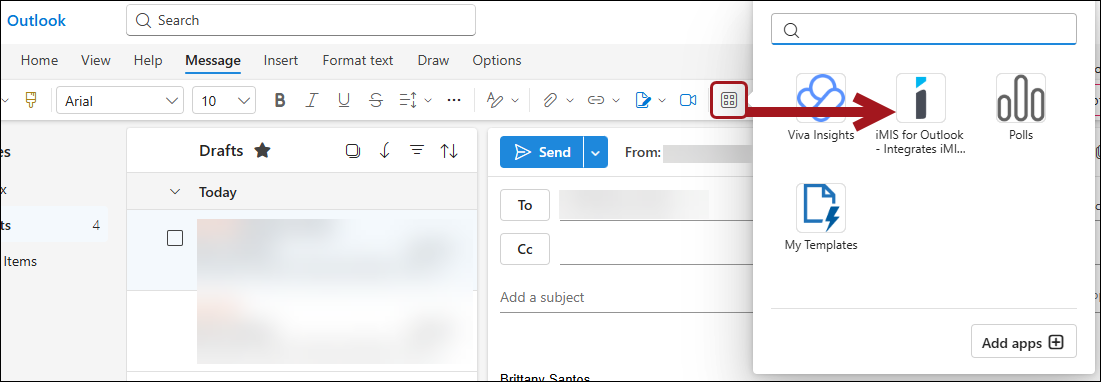
Get started with iMIS for Outlook inside of the Outlook desktop and web interfaces.
Using new Outlook on desktop or Outlook from the web
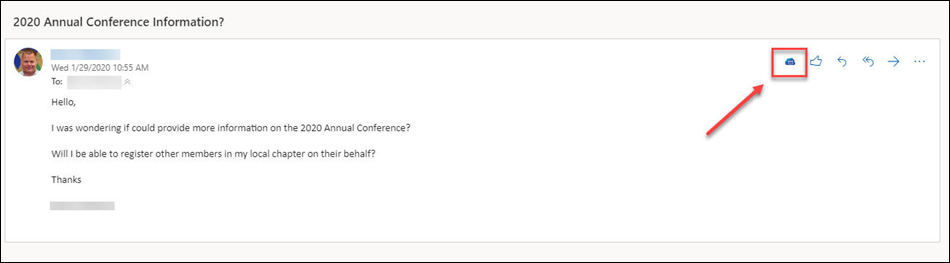
If you are reading an email, click the iMIS for Outlook link next to the Reply button.
Signing in
The first time you start the iMIS Outlook Integration, you will be presented with the welcome screen. Simply scroll down, and click Sign In Now.
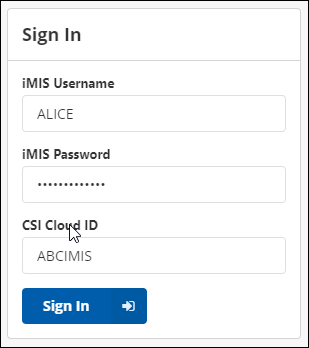
To sign in, enter your iMIS username, iMIS password, and your Cloud ID, then click Sign In.
If you receive an error that says: "This user is not currently authorized to access this application", contact your IT or Network Admin and ask them to assign your user account to the iMIS for Outlook app through the Power Suite Dashboard.
Configuring Single Sign-On (SSO)
Want to configure iMIS for Outlook to use iMIS for single sign-on (SSO)? Follow the steps outlined in the Configuring Single Sign-On with iMIS guide!
Updated 18 days ago