

Generate Renewals Guide
This advanced guide covers generating renewals in iMIS EMS & iMIS 2017. Supported iDMS actions include Insert, Insert with Matching Help, Update, and Insert / Update.
Review the following to learn how to generate renewals through iDMS. Generate Renewals works differently in iDMS than other sources. When billing from a query path or a chapter code, or when no Only bill option is selected, only one record should be passed to iDMS. When billing individual contacts with Only Bill Individual iMIS ID, up to 10 records may be passed. Contact support with any questions.
Generate Renewals in iMIS
Generating renewals in iDMS follows the same process as generating renewals in iMIS. See Generating a renewal for single contact.
From the iMIS Staff site, go to Membership > Renewals > Generate renewals.
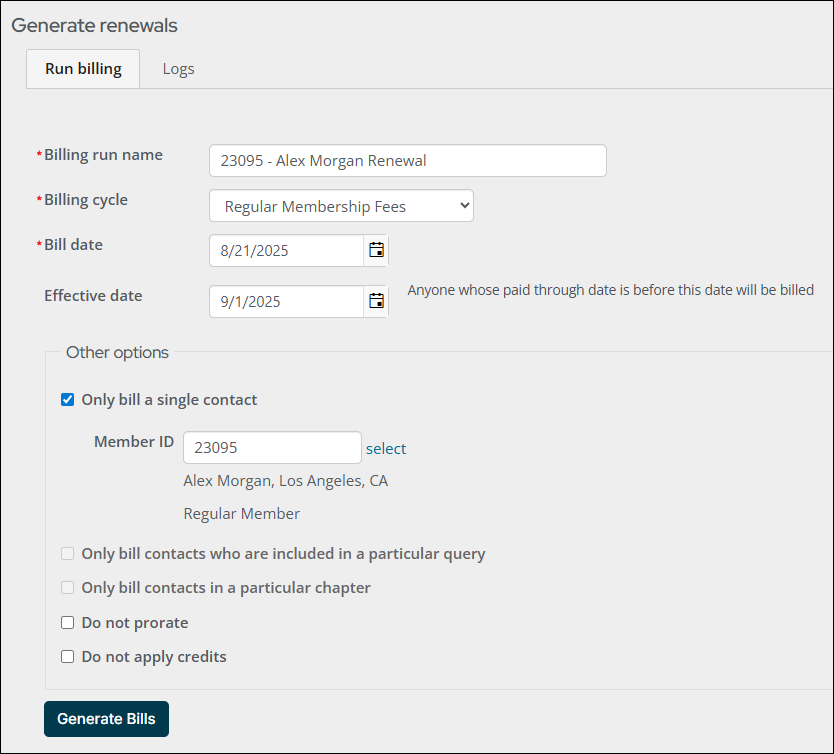
Mapping
Review the following required and optional field mappings:
Required
- Billing Cycle - A billing cycle name (identifier) which members would qualify for.
- Billing Run Name - A unique name preferably to help identity your renewal from other renewals generated.
- Is Rebill - Determines if the invoice is a rebill (Boolean value). This can be left blank if Is Renewals is filled out.
- Is Renewals - Determines if the invoice is a renewal (Boolean value). This can be left blank if Is Rebill is filled out.
Optional
- (Recommended) Bill Date - A date indicating when the billing run was executed. It is required in iMIS; when it is not mapped, the bill date is set to today’s date. Mapping this field is especially recommended when Batch Number is used — see Batch Number below.
- AutoPay Option - Leave blank by default, otherwise should be one of these values exactly: "BillAllContacts", "BillOnlyAutoPayEnrollments", or "BillOnlyNonAutoPayContacts".
- Batch Number - The number of an existing iMIS batch to post the generated invoices into. When this field is not mapped, iMIS selects its own batch, exactly as it did before this field was introduced. Limited to 10 characters. On the mapping panel, this field sits between Bill Date and Effective Date. iMIS accepts a supplied batch only when billing one contact at a time, and the batch must already exist, be open, and be dated to match the bill date — see Batch Number below for the full rules.
- Begin Rebill Date - When rebilling, bills dated on or after this date will be rebilled. Used for rebilling only.
- Do Not Apply Credits - A Boolean flag. Leave blank by default or set to "True" otherwise.
- Do Not Prorate - A Boolean flag. Leave blank by default or set to "True" otherwise.
- Effective Date - A date determining which members will be billed: Anyone whose paid through date is before this date will be billed. If not set, it will default to today's date.
- End Rebill Date - When rebilling, bills dated before this date will be rebilled. Used for rebilling only.
- Only Bill Contacts From Query Path - A valid Intelligent Query Architecture path. Query must have a column called 'iMIS Id' or an alias of 'code_BillingID' in order to be valid. Note, you can NOT alias the field as iMIS Id - it must be called that or you must alias the field as code_BillingID.
- Only Bill Contacts In Chapter Code - A valid chapter code, for example: CHAPT/WEST. Only those whose primary chapter is the one selected will be billed.
- Only Bill Individual iMIS ID - Member iMIS ID for single contact to generate renewal for. If the spreadsheet or IQA query has more than 10 records, a validation error will occur.
Only Bill Options
The three billing options are mutually exclusive:
- Only bill a single contact
- Only bill contacts who are included in a particular query
- Only bill contacts in a particular chapter
Of the three, Batch Number works only with the first. It can also be used when no Only bill option is selected, provided an iMIS ID is mapped on the import itself and the data contains only one row. Billing from a query or a chapter is a mass billing run, and iMIS always creates a new batch for those. See Batch Number below.
Generating a Mass Billing
In the event an "Only bill" option is not selected, the iImport file or iUpdate query must only contain one row of data.
To bill contacts who are included in a particular query, copying the query path is required. The query path will be pasted into this field. Do not use this query as the source for iUpdate. Remember, only one record should be passed, and it can contain the query path as a source field.
- Go to RiSE > Intelligent Query Architect.
- Locate the query.
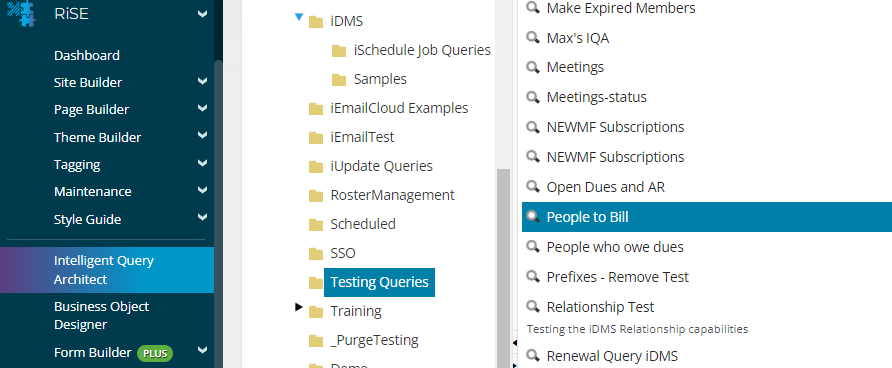
- If you have the iMIS Experience Plus extension, click the copy icon to copy the query path to the clipboard.
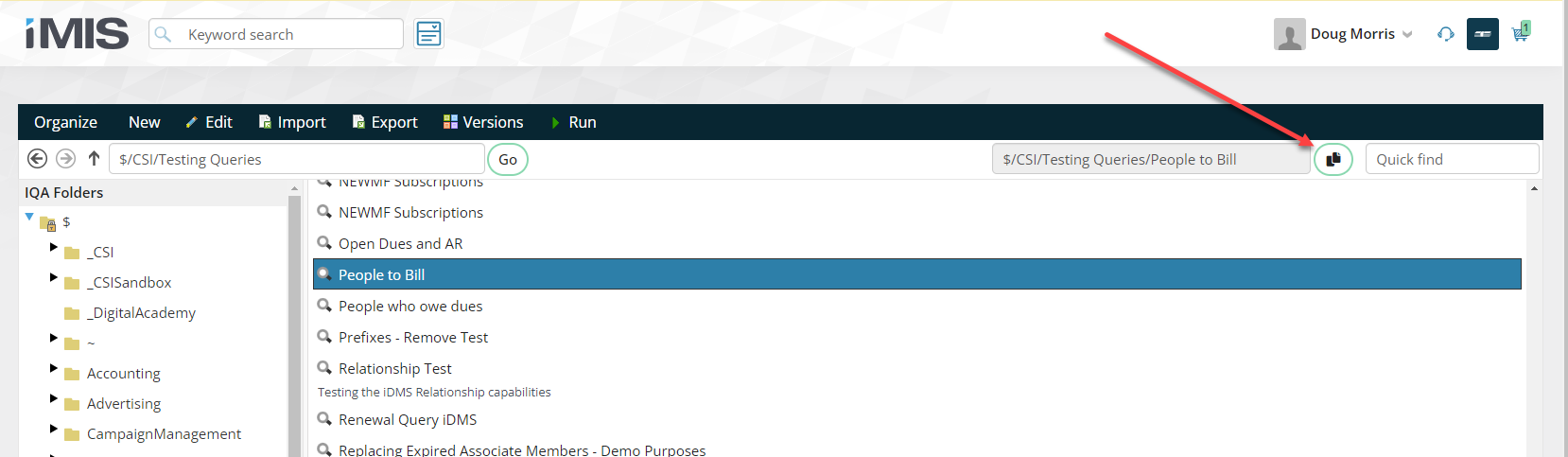
-
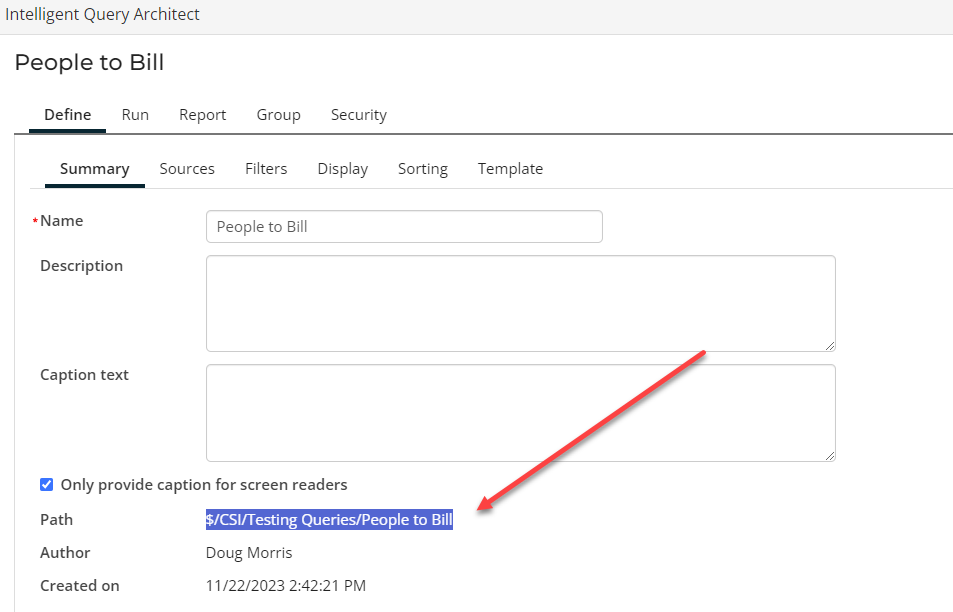
If you do not have the iMIS Experience Plus extension, then open the query, and copy the path by highlighting and then pressing Ctrl+C.
Batch Number
By default, iMIS decides for itself which financial batch generated renewal invoices are posted into. Mapping the optional Batch Number field posts the invoices into a batch of your choosing instead, which allows a renewal run to be routed into a batch that has already been set up for reconciliation.
Batch Number is optional. Renewal mappings that do not use it behave exactly as they did before the field was introduced, with iMIS choosing the batch. No changes are required to existing jobs.
To use the field:
- Add a column to the spreadsheet holding the batch number, or plan to enter a fixed value.
- Map the file and choose the Generate Renewals source.
- Map the column to Batch Number, which sits between Bill Date and Effective Date.
- Confirm the import bills one contact per row — see the rules below.
- Validate and run the job.
Batch numbers are limited to 10 characters.
Batch Number rules
iMIS accepts a supplied batch only when it is billing one contact at a time. On a mass billing run it ignores the batch entirely and creates its own without reporting it. iDMS therefore rejects the combinations iMIS would ignore, and explains why at the mapping validation step, before anything is billed.
1. Each row must bill a single contact. Batch Number can be used with one of the following:
- Only Bill Individual iMIS ID — the contact that row bills; or
- an iMIS ID mapped on the import itself — the contact the row creates, updates, or matches. In this case the import data must contain only one row, because no Only bill contact was given.
The first route does not restrict the import to a single row. Each row bills its own contact, and every row posts into the same batch. The existing limit of 10 records for Only Bill Individual iMIS ID still applies — see Possible Errors.
The second route means a combined mapping — one that brings in contact data alongside the Generate Renewals fields. It applies when either of the following is true:
- the mapping includes Contact Details fields, so each row creates or matches a contact; or
- an iMIS ID column is mapped on a contact source in the same file — Contact Details, Address Details, or the contact panel source for that iMIS version — or any iMIS ID column is marked Match On.
The contact that row produces is the contact billed. If the mapping can reach a contact but a particular row does not produce one — a blank iMIS ID cell, or a match that found nobody — only that row is rejected, with the message This row produced no contact to bill rather than the one asking for an iMIS ID to be mapped.
2. It can never be used with a query or a chapter. Mapping Only Bill Contacts From Query Path or Only Bill Contacts In Chapter Code makes the job a mass billing run, and iMIS always creates a new batch for those. Batch Number is rejected outright in that combination.
3. The batch must already exist in iMIS, and must be:
- Open — a batch that has been set to Ready, or that has already been posted, is rejected; and
- dated the same day as the Bill Date — and when Bill Date is not mapped, the bill date is today's date, so the batch must be dated today.
TipMap Bill Date whenever Batch Number is used. Leaving Bill Date unmapped is still valid, but the run then bills as of today, which means the batch has to be dated today. A batch created on Monday and used in a job run on Tuesday will be rejected for a date mismatch. Mapping Bill Date puts the date under your control rather than the calendar's.
Confirming the batch
Open the batch in your iMIS batch list and confirm the generated renewal invoices are in it.
NoteFor accrual dues, the batch total can display as zero even though invoices were billed into the batch, because the total reflects cash received rather than the amount billed. Use the transaction count to confirm the invoices are present.
Availability
Batch Number is available in iMIS 2017 and iMIS Cloud Enterprise. Generate Renewals is not offered in iMIS Cloud Professional.
Examples
Review the following examples:
Billing for a single Contact ID
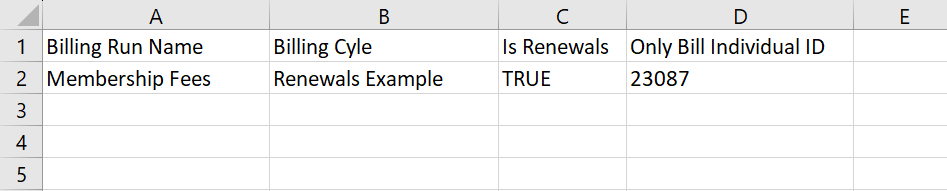
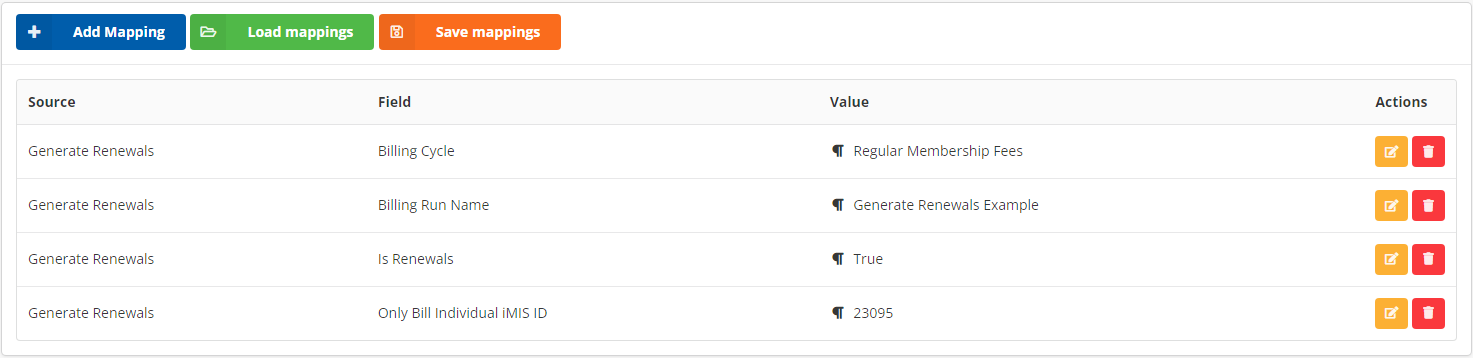
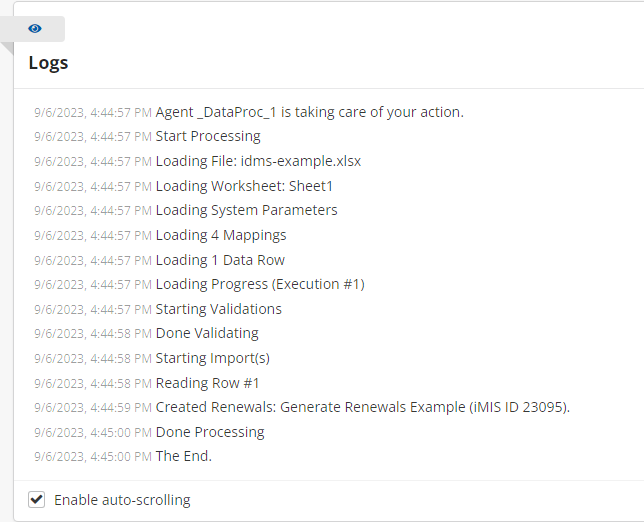
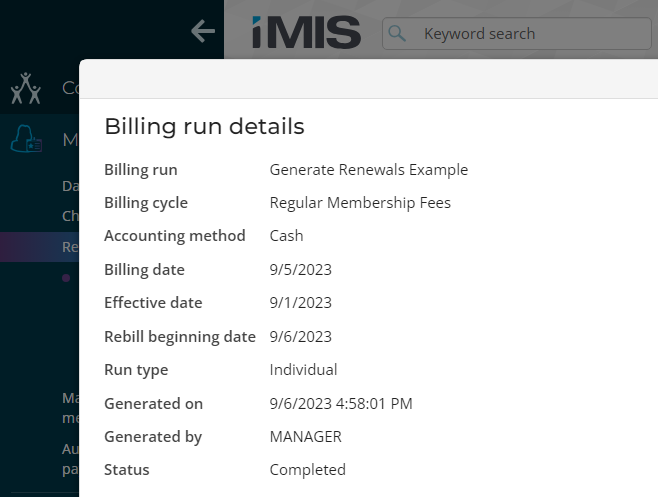
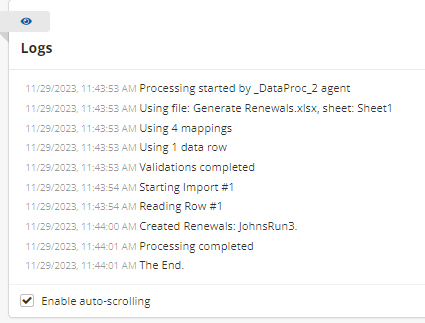
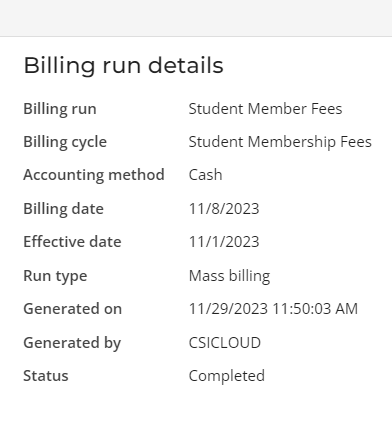
Submitting this import example will generate a renewal for a single contact:
Dues Billing with IQA

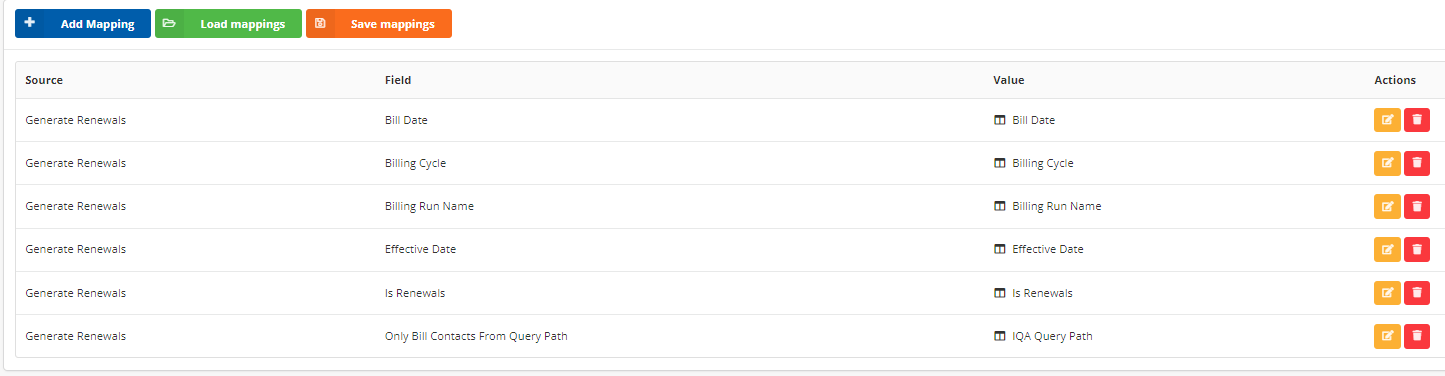
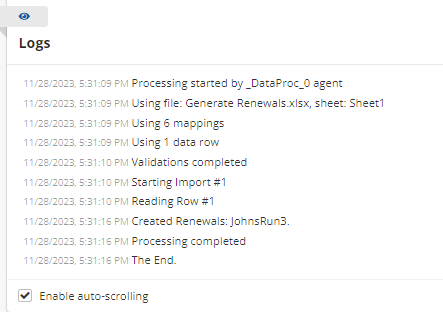
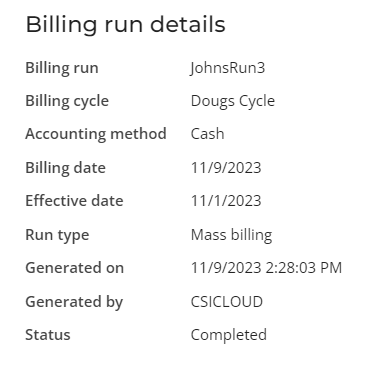
Submitting this import example will generate renewal for all ID's within the IQA:
Full Dues Run
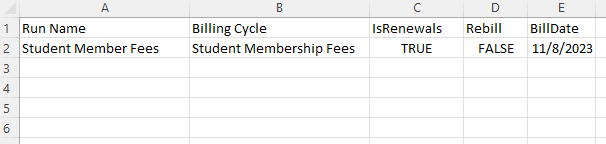

Submitting this import example will run renewals for all in the specified billing cycle:

Possible Errors
The following errors may occur. Staff intervention may be needed to remedy these errors:
- This validation error occurs when attempting to pass more than one Chapter Code or Contact from an IQA Query. When passing a Chapter Code or IQA Query as the Billing Type, only one record should be passed to iDMS.

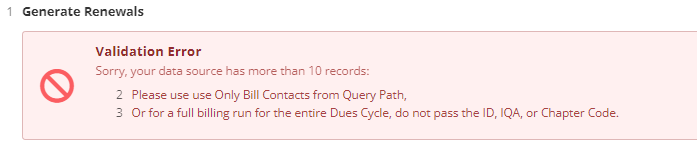
- This validation error occurs when more than 10 records are attempted to be billed. iMIS is not designed to bill more than 10 individual records one at a time - see error message above alternative ways to bill in mass.
Batch Number messages
The following messages appear at the validation step, before anything is billed. Only one batch message is shown per row. The dates and the quoted status reflect the actual values found.
| Message | What it means | What to do |
|---|---|---|
| Batch number "X" cannot be used when billing from a query or a chapter, which always creates a new batch. | The job bills from a query path or a chapter code. iMIS always creates its own batch for those. | Remove the Batch Number mapping, or change the job to bill a single contact. |
| Batch number "X" can only be used when billing a single contact. Map an iMIS ID or remove the batch number. | Nothing in the mapping identifies a contact to bill. | Map Only Bill Individual iMIS ID, or map an iMIS ID on the import, or remove the Batch Number. |
| Batch number "X" can only be used when billing a single contact. This row produced no contact to bill. | The mapping can identify a contact, but this particular row did not — usually a blank iMIS ID cell, or a match that found no contact. | Correct the data on that row. |
| Batch number "X" not found. | No batch with that number exists in iMIS. | Check the number, or create the batch in iMIS first. |
| Batch number "X" is "Ready". Billing requires an open batch. | The batch exists but is no longer open. | Use an open batch, or reopen this one in iMIS. |
| Batch number "X" is dated 8/14/2026. Billing requires the batch effective date to match the bill date 8/13/2026. | The batch's effective date and the run's bill date are different days. | Map Bill Date to match the batch, or create a batch dated for the bill date. |
| Value data would be truncated. | The batch number is longer than 10 characters. | Shorten the batch number. |
NoteThese conditions are now caught before billing begins. Previously, a job with an invalid batch either failed part-way through the run with the iMIS message You must select an open batch whose effective date matches the billing run date, or completed successfully while billing into a batch iMIS created on its own.
Updated about 2 months ago