

Event Attendance guide
This intermediate-level guide covers updating event attendance in iMIS EMS. Supported iDMS actions include Insert, Update, and Insert/Update.
This article describes how registrant attendance for iMIS events can be updated in bulk using iDMS (iImport or iUpdate). This lets you record CEU (Continuing Education Unit) credits for multiple event attendees at once, directly from a data file, without having to update each registrant manually in the Staff site.
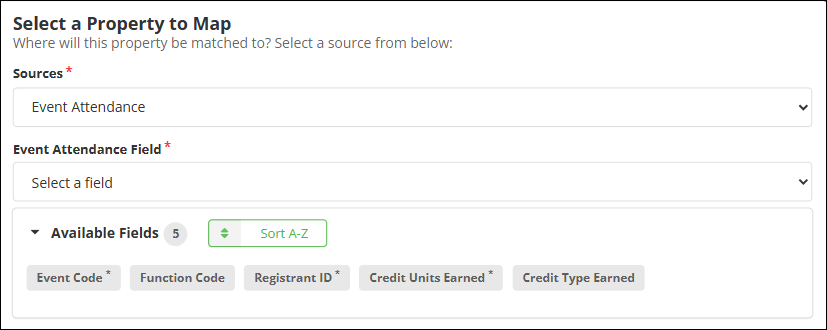
Mapping
In your iImport or iUpdate mapping, add the Event Attendance source and map the following fields.
Required
Review the following required field mappings:
- Event Code - The iMIS code for the event (for example, CONF2025).
- Registrant ID - The iMIS ID of the member or contact to update.
- Credit Units Earned - The number of CEU credits to record. Use 0 to mark a registrant as absent; use a positive number to mark them as attended.
Optional
Review the following optional field mappings:
- Function Code - The code for a specific registration option or program item. Use this when you want to update attendance for one function only, rather than all functions on the event.
- Credit Type Earned - The CEU type to assign (for example, a code from your CEU_TYPE lookup table). If left blank, the existing credit type on the attendance record is not changed.
TipSetting Credit Units Earned to 0 is the equivalent of marking a registrant absent. Setting it to the value defined in Units to award on the event function marks them as attended. You can also enter any value in between to award partial credit.
Required configuration before you begin
Make sure the following are already set up in iMIS before running your job:
- The event exists and is open.
- Each registrant is already registered for the event.
- The event's registration option or program item has CEU units configured (the Award continuing education units to attendees when event is closed checkbox is enabled and a non-zero Units to award value is set).
- A CEU activity type exists in iMIS (Settings > Contacts > Activity types).
If the event function has no CEU units configured, the job will report a validation error for that row. See Defining and Marking CEU Attendance for more information.
Understanding the process
When the job runs, for each row in your data file:
-
The job looks up the event and confirms the registrant is registered.
-
It finds the attendance records for that registrant on the event (or specific function, if Function Code is mapped).
-
It updates Credit Units Earned (and optionally Credit Type Earned) on all matching attendance records.
-
The job feed reports the result for each row, for example:
Updated Event Attendance: CONF2025/SESSION1 (iMIS ID 12345, 2 record(s) updated).
The Event Attendance update runs as part of the same job row as your other mappings (for example, party, event registration). You do not need a separate job just to update attendance.
Validation
Before the job executes, iImport/iUpdate validates each row and will flag errors if:
- The Event Code is missing or the event cannot be found.
- The Registrant ID is missing or the contact cannot be found.
- The registrant is not registered for the event.
- The Function Code is provided but does not match any function on the event.
- Credit Units Earned is a negative number.
- No attendance records exist for the registrant on the event (usually means the event function has no CEU units configured).
Validation errors are shown per row before any data is written, so you can correct your file and re-run without risk of partial updates.
Updated 5 days ago