

iMIS SSO Premium TLS 1.2 Guidelines
NoteThese guidelines will go into effect starting on Monday, June 12, 2023.
WarningIf you are currently on iMIS EMS (this does not include the 20/20 Advance program, and iMIS EMS On-Premises), then you may safely disregard this document, as iMIS EMS is already fully-compatible with these updates.
This article outlines the new TLS 1.2 requirements for the iMIS SSO app. These requirements are applicable to customers on iMIS 2017 (ASI or self-hosted), iMIS EMS On-Premises, or iMIS EMS 20/20 Advance (hosted on a VDS).
Background
TLS 1.2 was established in 2008 and is the current industry-standard baseline for HTTPS traffic. Versions prior to this (TLS 1.1 and below) are no longer considered secure and pose potential security risks.
The iMIS SSO app will remove support for TLS 1.0 and 1.1 connections beginning on Monday, June 12.
Supported protocols and cipher suites
The iMIS SSO endpoints will support the following protocols and cipher suites, in server-preferred order:
| TLS 1.3 | TLS 1.2 |
|---|---|
| TLS_AES_256_GCM_SHA384 | TLS_ECDHE_ECDSA_WITH_AES_256_GCM_SHA384 |
| TLS_AES_128_GCM_SHA256 | TLS_ECDHE_ECDSA_WITH_AES_128_GCM_SHA256 |
| TLS_CHACHA20_POLY1305_SHA256 | TLS_ECDHE_ECDSA_WITH_AES_256_CBC_SHA384 |
| TLS_ECDHE_ECDSA_WITH_AES_128_CBC_SHA256 |
Windows Server Settings for TLS 1.2
The following changes must be applied to the Windows Server where iMIS is hosted (where the IIS website for iMIS exists). If you have multiple application servers hosting different RiSE websites via the same iMIS database, you'll need to apply these settings to all of your application and web servers that contain iMIS websites.
ASI recommends downloading and using IIS Crypto by Nartac Software to verify and update TLS settings on your server.
(Select IIS Crypto GUI from this page.)
Enabling TLS 1.2 for ASP.NET
Endpoints are supposed to attempt connections beginning with the newest protocol first, but this is not the case on older versions of Windows Server and .NET. Because of this, even if you enable TLS 1.2 on the server, it may not actually be used.
To fix this, a registry change is required.
In summary, make the following changes to the registry:
[HKEY_LOCAL_MACHINE\SOFTWARE\Microsoft\.NETFramework\v4.0.30319]
      "SystemDefaultTlsVersions" = dword:00000001
      "SchUseStrongCrypto" = dword:00000001
[HKEY_LOCAL_MACHINE\SOFTWARE\WOW6432Node\Microsoft\.NETFramework\v4.0.30319]
      "SystemDefaultTlsVersions" = dword:00000001
      "SchUseStrongCrypto" = dword:00000001
You can download a .reg file to apply these changes automatically.
WarningAlways inspect the contents of a .reg file using Notepad (or comparable text editor) to ensure that it contains changes that you understand and expect, before applying it to any system.
Download EnableSchUseStrongCrypto.zip (332 byes)
Protocols and Cipher Suites
You can manually enable or disable protocols to match what is listed above.
A greyed out checkbox indicates that it uses the default settings for the machine / OS. This does not necessarily mean that setting is on, it is simply undefined. The value depends on which operating system, version, and security patches are installed.
Alternatively, IIS Crypto ships with a secure template that automatically configures the server for TLS 1.2 and 1.3 and related ciphers, while disabling TLS 1.1 and lower.
Navigate to Templates and select the Strict template.
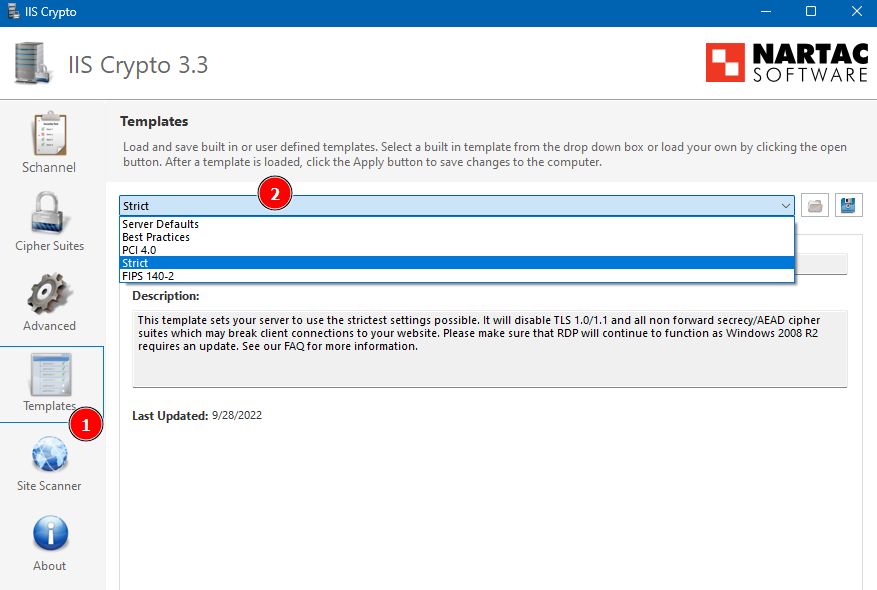
Selecting the template will update the Schannel and Cipher Suites tabs with TLS 1.2 and 1.3 settings:
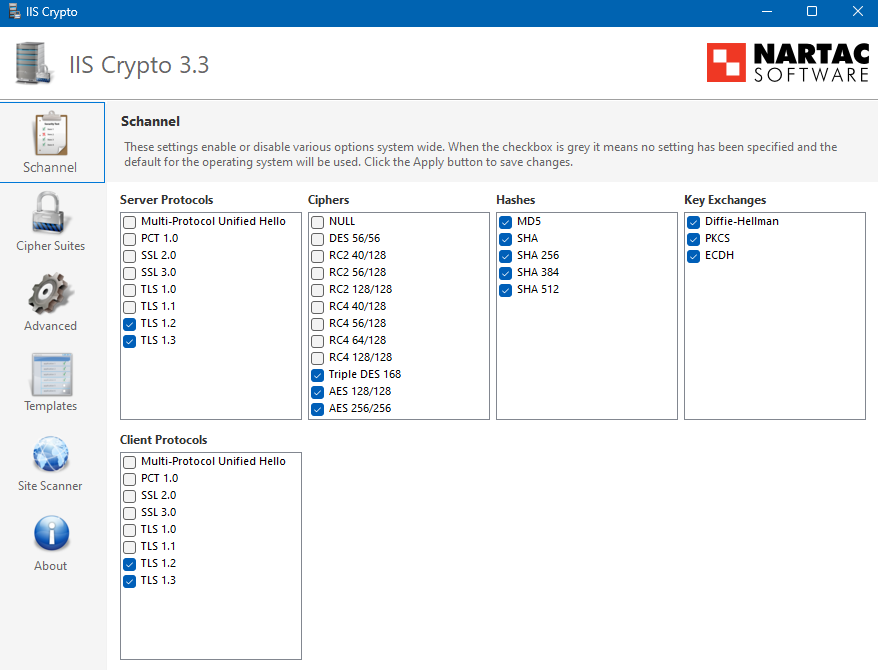
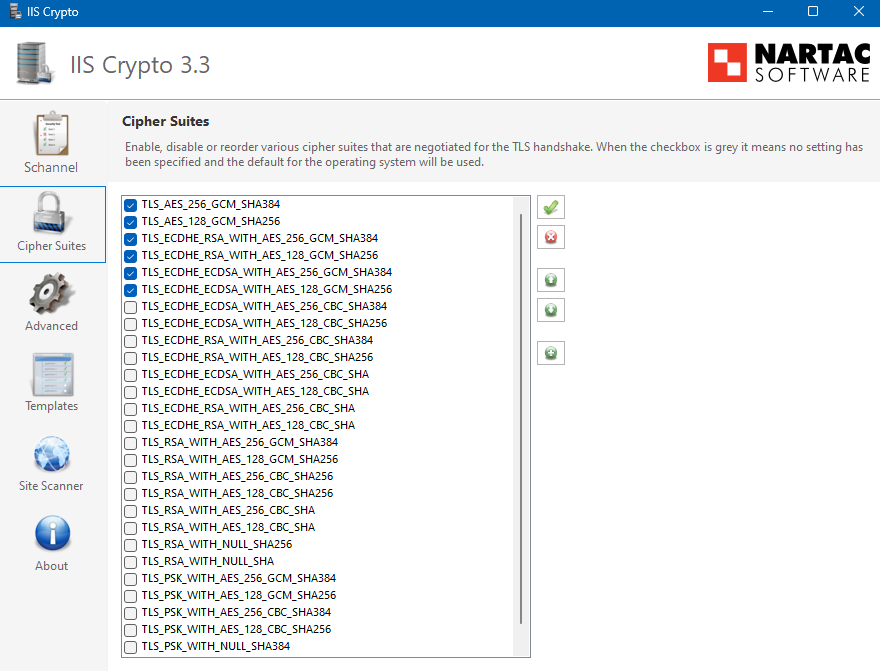
To use these settings, click Apply. Alternatively, make additional changes after selecting the template and before applying the changes. (For example, if you have an application that still relies on TLS 1.1, you may first re-enable that as well as its associated cipher suites.)
NoteIf you apply the Strict template and there are connections that break as a result of this, you may also try using the Best Practices template, which, while less secure, provides additional compatibility and may resolve errors from using the Strict template.
WarningA reboot of the server is required for the new TLS settings to take effect. If you would like to reboot now, fill in the Reboot checkbox before clicking Apply. Otherwise, you may reboot the server at a later time.
Client vs Server Settings
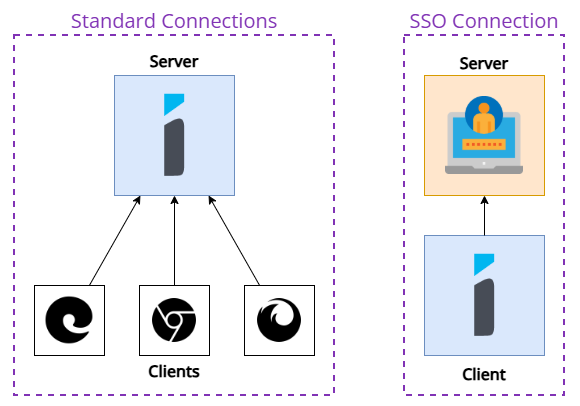
Under normal operation, the iMIS application is considered a server and uses server-side TLS settings.
However, when an SSO connection is established with iMIS, it performs a network call to verify the SSO endpoint. In this specific case, iMIS is acting as a client, not a server. Therefore, the client-side TLS settings apply in this case. These settings can be completely different than the server-side settings.
The following diagram illustrates the difference between an application acting in a client vs server mode, with regards to TLS:
Updated 2 months ago