

Updating the iMIS for Outlook Icon
iMIS for Outlook now has a new icon, resembling the iMIS logo rather than an envelope.
To update to the new icon, do the following:
-
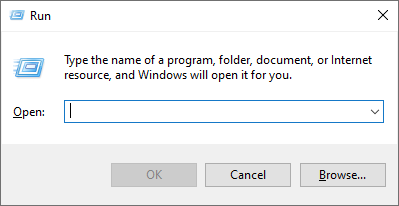
Open the Run dialog box by pressing the Windows key + R.
-
Type
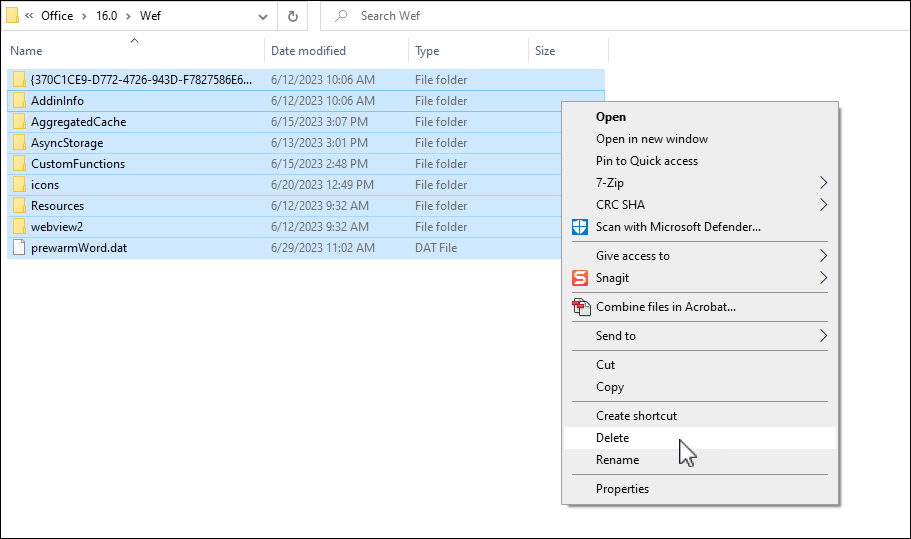
%LOCALAPPDATA%\Microsoft\Office\16.0\Wef(replace16.0with the version of Outlook that is installed) and press Enter. -
Select all files and folders inside the Wef folder and delete them.
If the icon is not yet updated, the cache may have to be cleared.
Updated 18 days ago
Did this page help you?