

Delete Action guides
This advanced guide covers deleting in iMIS EMS & iMIS 2017. Supported iDMS actions include Delete.
The following details the Delete action:
WarningWhen using the Delete Action, there is no undo button. ASI highly recommends running a test of your job in a test environment or with test records to ensure the job is properly designed to achieve the desired results. ASI also recommends reaching out if you want a deletion job to be checked before running it.
Deleting contacts
The REST API does not support a way to delete contacts, so it is not possible to use iDMS to delete contacts. You can, however, use the Update action to Mark Contacts for Erasure using the Contacts source.
Do the following to mark contacts for erasure:
- Set the Mark Contact for Erasure field to either 1, T, or True.To unmark a record, set this field to either 0, F, or False.
- Pair those updates with the iMIS Process Automation Contact erasure task.
Deleting activities
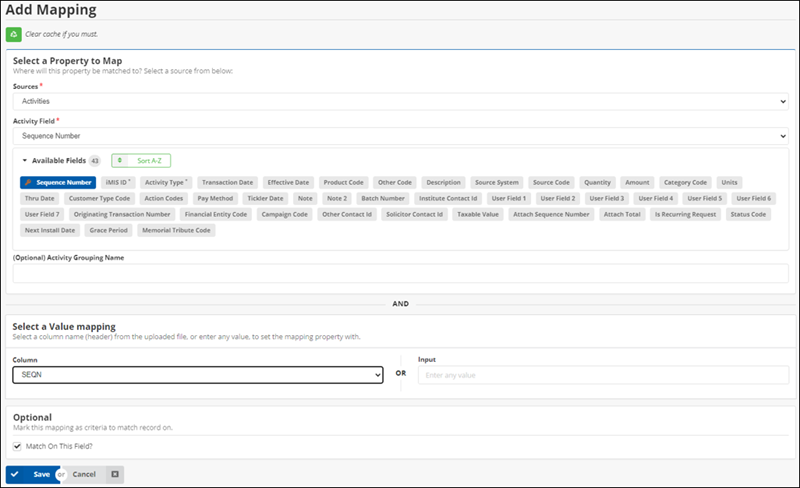
The safest way to delete activities is to know the SEQN (Sequence) number of the activity. This is the only way to guarantee that you are deleting a specific activity. If you do not have the SEQN Number, it is recommended you match on as many fields as possible. Matching only on ID will result in all of the ID's Activities being deleted.
Activities with an Originating Transaction Number should not be deleted, as they are associated with a financial transaction.
- The query should be specific, and while it can return any number of fields from the activity, it must contain the Sequence number.
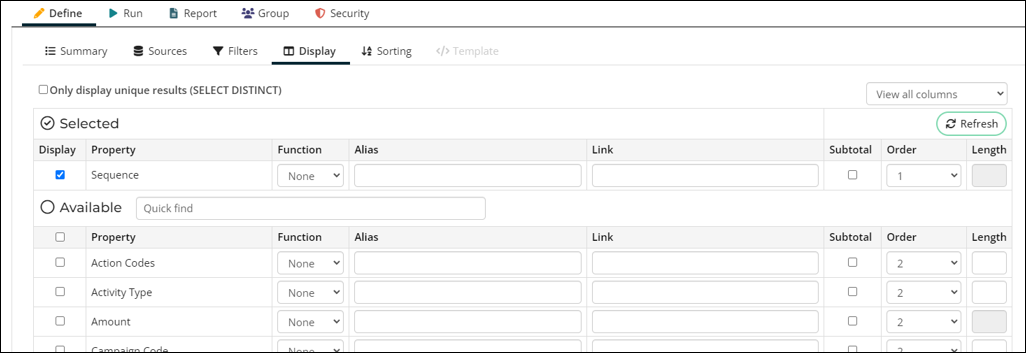
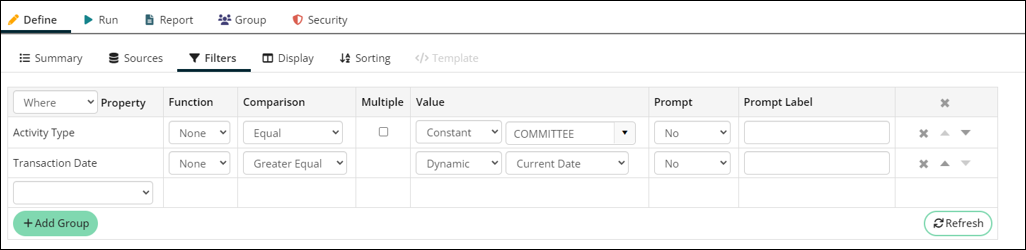
- In this example, Committee records were created today that were erroneous, so they need to be deleted. The query is filtered to find all committee records added since today.
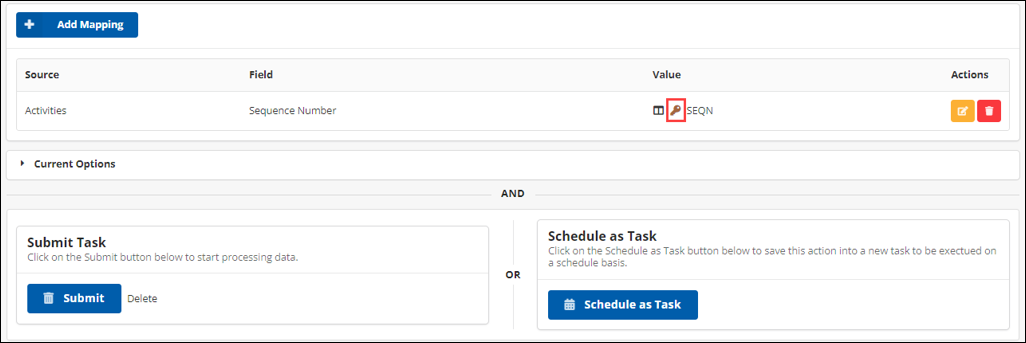
- Using this query, we Match On Sequence Number (SEQN Number) using the Delete action.
Clearing shopping carts
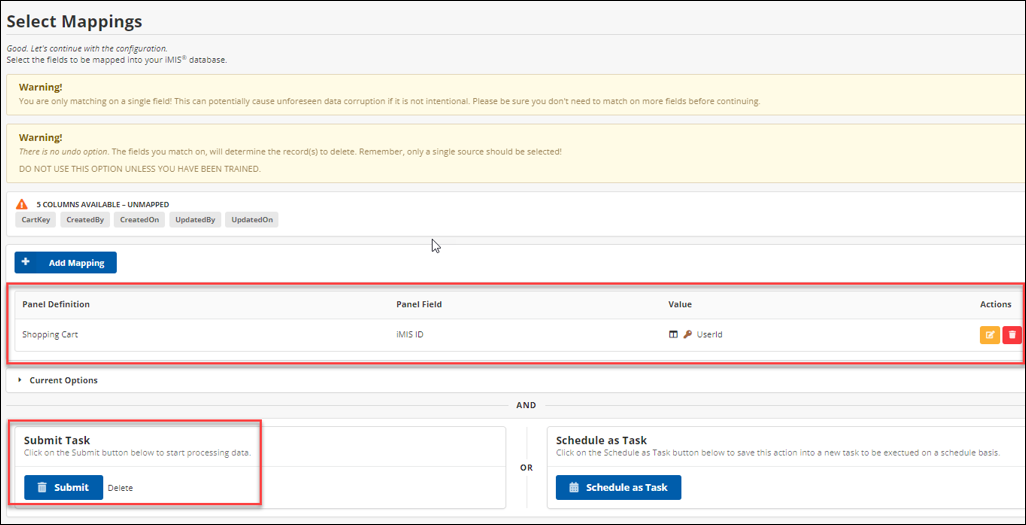
When clearing out users' shopping carts, you must map on iMIS ID.
One possible use case is creating a query that pulls all carts where the CreatedOn date is greater than one month ago, then mapping the iMIS ID to clear those carts.
Deleting relationships
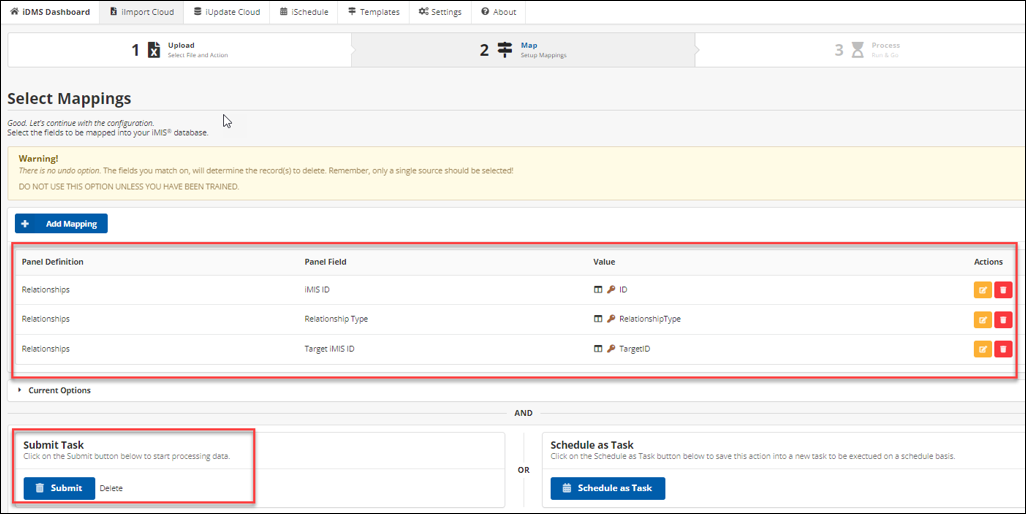
Removing relationships requires the iMIS ID, Relationship Type, and Target iMIS ID.
Deleting panel data
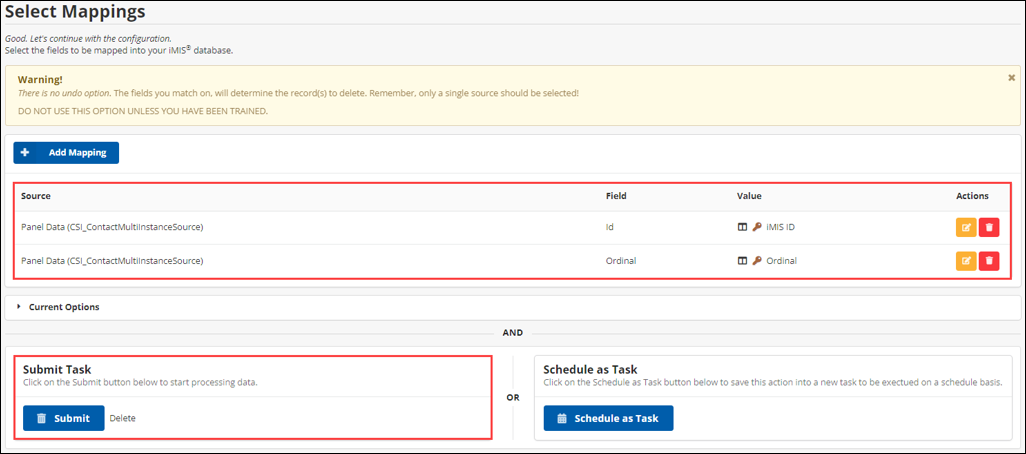
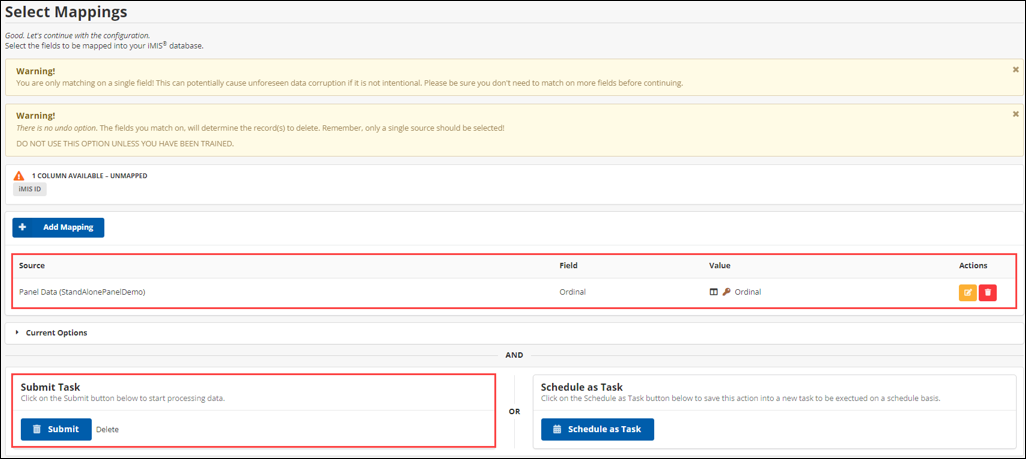
The type of panel can be determined by how many key fields are available to match on - Single Instance and Standalone Panels will have one key field (iMIS ID and Ordinal respectively), while Multiple Instance panels will have two key fields.
- Single Instance Panels: Matching the key field (usually iMIS ID) is highly recommended. This will delete the data for that given iMIS ID from the panel.
- Multiple Instance Panels: Matching on two key fields (usually iMIS ID and Ordinal) is highly recommended. Matching on only ID will delete ALL information for that ID within the panel. Matching on both the ID and Ordinal will only delete the row of data where there is a match to both. If you want to delete only part of the data from the Ordinal and not the whole Ordinal, you must use an Update action instead.
- Standalone Panels: Matching on the key field (usually Ordinal) is highly recommended.
Single Instance
First match on ID, the only key  field.
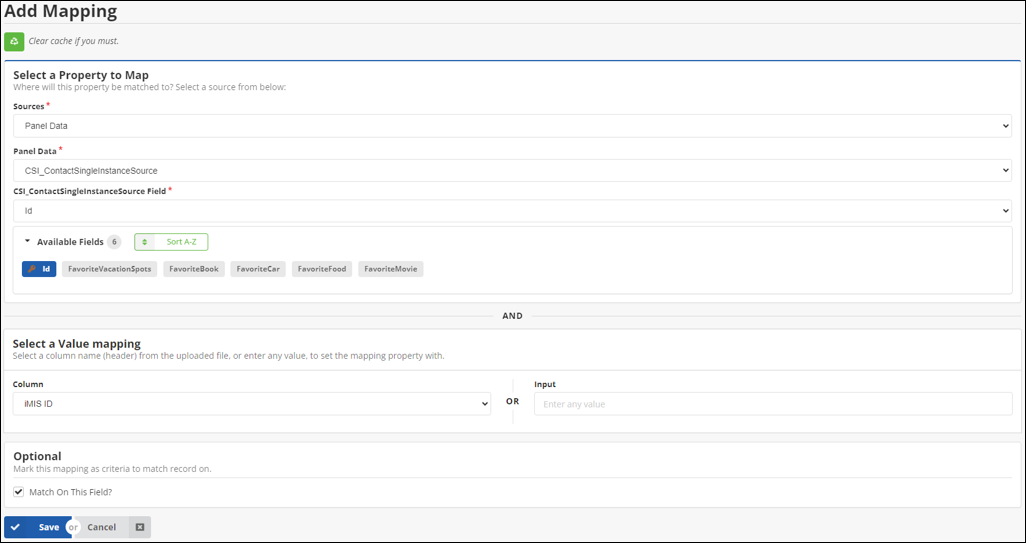
Because there is only one key field, it is okay to match on only that one field. You can, however, match on the additional fields listed.
Multiple Instance
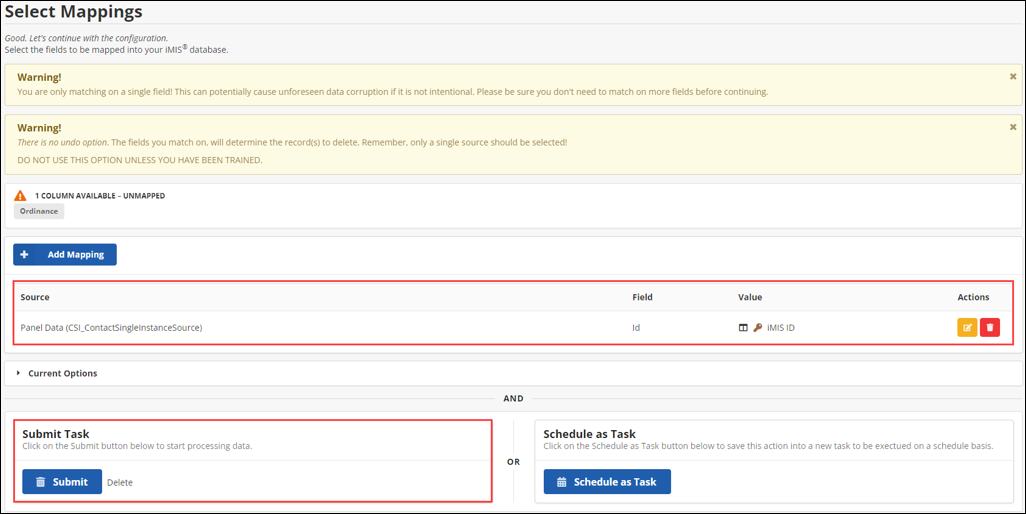
Note how both key fields are matched.
Standalone
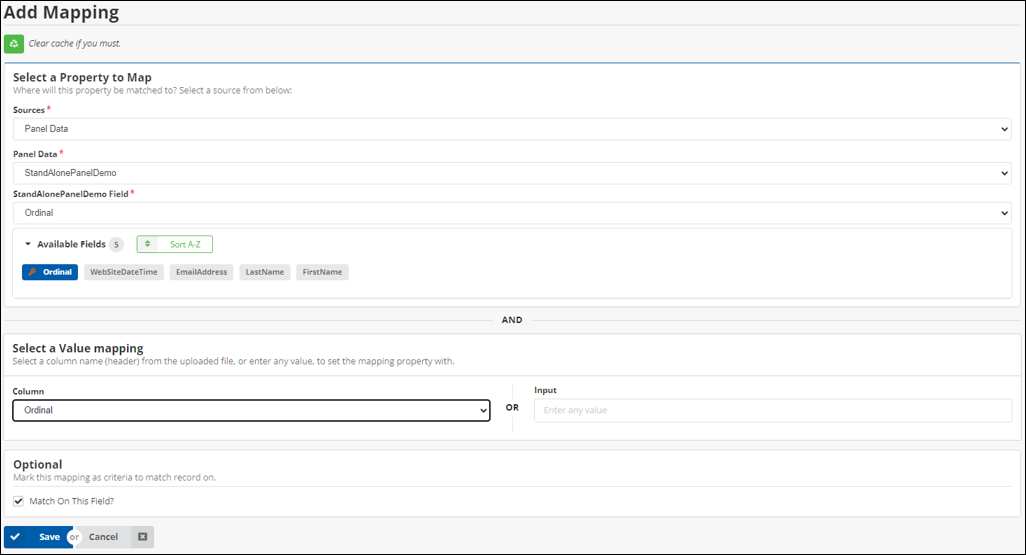
Because there is only one key field, it is okay to match on only that one field. You can, however, match on the additional fields listed.
Clearing a file upload field
A panel field of type File upload holds a document, such as a signed waiver, a certificate, or a photo. Entering ERASE in the File URL mapping removes the existing document from iMIS instead of downloading a new one.
NoteClearing a file upload field does not use the Delete action, which removes an entire panel record rather than a single field. It is performed through the write actions, in the same mapping used to upload a document, though what it does depends on the action — see Action support below. This capability is available in both iImport and iUpdate, on all iMIS versions, and requires no setup or configuration.
Nothing new appears on the mapping screen — the keyword is understood in place of the URL that was previously required.
Action support
A document can only be removed from a record that already exists, so what the keyword does depends on whether the row updates an existing record or creates a new one:
| Action | What ERASE does |
|---|---|
| Update | Removes the document. |
| Insert w/ Matching Help | Removes the document on rows that matched an existing record. On rows that create a record, there is nothing to remove. |
| Insert / Update | The same split — removes the document on rows that update, nothing to remove on rows that create. |
| Insert | Nothing to remove, because every row creates a new record. |
| Delete | Not applicable — the whole record is being removed. |
The "nothing to remove" cases are not silent. They produce the warning Erase ignored: there is no existing file on a new record., and the record is still created.
Mapping prompts
A file upload field is mapped through three prompts:
| Prompt | Required? | Purpose |
|---|---|---|
| File URL | Required | Where to download the document from |
| File Content Type (Optional) | Optional | For example, application/pdf |
| File Type (Optional) | Optional | For example, PDF |
Two ways to clear a file
- Clear the field on every record in the import - Enter
ERASEdirectly into the File URL box instead of a URL. - Clear the field on selected records only - Map File URL to a spreadsheet column, and enter
ERASEin the cells of the rows to be cleared. Rows containing a real URL still download normally; rows containingERASEare cleared. A single spreadsheet can therefore attach a document to one record and clear the document on the next.
Keyword rules
- The primary keyword is ERASE. Six synonyms behave identically — see the warning below.
- Matching is case-insensitive —
erase,Erase, andERASEall work — and spaces around the word are ignored. - The whole cell must be the keyword. A real URL that merely contains the word, such as
http://host/clear.pdf, is still downloaded as normal.ERASE MEis not a keyword and fails as an invalid URL. - The keywords apply only to file upload fields. In an ordinary text field they carry no special meaning — a cell containing
ERASEmapped to a text field imports the literal word ERASE. - If the mapping has a blank-out text configured under Current Options (the Cells containing the following text will be blanked out option), that text clears the file as well. It is applied in addition to the seven keywords: a file upload field is cleared by any of the seven, or by the configured blank-out text. Configuring a blank-out text does not disable the built-in keywords, and there is no setting that does.
NoteTo blank out an ordinary (non-file) field, use the Cells containing the following text will be blanked out option described in Task options. That option and the keywords documented here are separate mechanisms. On a file upload field both work, and spaces around the value are ignored in either case. On an ordinary field, only the configured blank-out text applies. Case is still ignored there, but surrounding spaces are not — a cell holding
ERASEfollowed by a trailing space will not match, and the field will not be blanked.
WarningDELETE, EMPTY, BLANK, CLEAR, NONE, and NULL also clear the field. Do not use any of these values in a spreadsheet as a placeholder meaning "leave this record unchanged" — they will remove the document. A value such as N/A is safe; NONE is not.
Behavior reference
The distinction to be aware of is that a blank cell means "leave the document alone", while ERASE means "remove the document".
| Value in the File URL cell | Result |
|---|---|
| A URL | The document is downloaded and saved. |
ERASE or a synonym, on an existing record | The document is removed from iMIS. The rest of the row is imported normally. |
ERASE or a synonym, on a new record | The record is created with no document. iDMS notes there was nothing to erase. |
| Blank, with Ignore Blank Values in File enabled | The field is skipped. Any existing document is left in place. |
| Blank, without Ignore Blank Values in File enabled | The row fails with an error. |
Messages
| Message | What it means | What to do |
|---|---|---|
| Existing file erased. | The document was successfully removed from iMIS. This message is a confirmation, not a problem. | Nothing. |
| Erase ignored: there is no existing file on a new record. | A new record was created, so there was no document to remove. The record was still created. | Nothing, unless the row was expected to match an existing record — in which case review the match-on mapping. |
| "File" Value Is Empty. | The File URL box was left empty. | Enter a URL or ERASE, or enable Ignore Blank Values in File. |
| "File" Header Value Is Empty. | The mapped column was blank on this row. | Enter a URL or ERASE in the cell, or enable Ignore Blank Values in File to skip blank cells. |
NoteThese messages are found in the downloadable Summary Report spreadsheet from the import Summary page, on the Warnings sheet. They do not appear in the live Logs feed. Because Existing file erased. is recorded as a warning, a successful clearing job produces a non-zero warning count.
Deleting communication logs
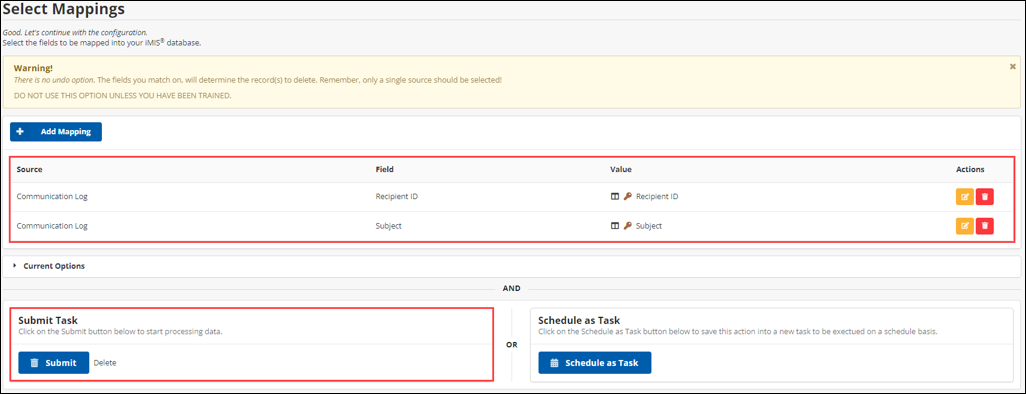
Removing a communication log requires the Recipient iMIS ID AND the Subject. If there are multiple line items in the communication logs with the same ID and subject, more logs than intended may be deleted.
Deleting group members
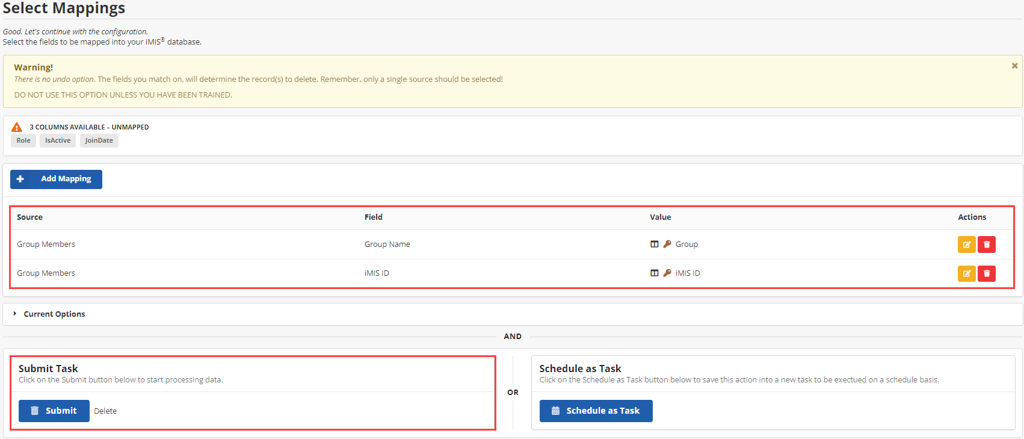
Removing a group member from a group requires the Group Name and the iMIS ID of the member to be removed. Additionally, Role, Is Active, and Join Date, are optional fields that may be matched on.
Deleting Select iMIS IDs
All IDs in the Spreadsheet or IQA will be deleted.
Deleting user credentials
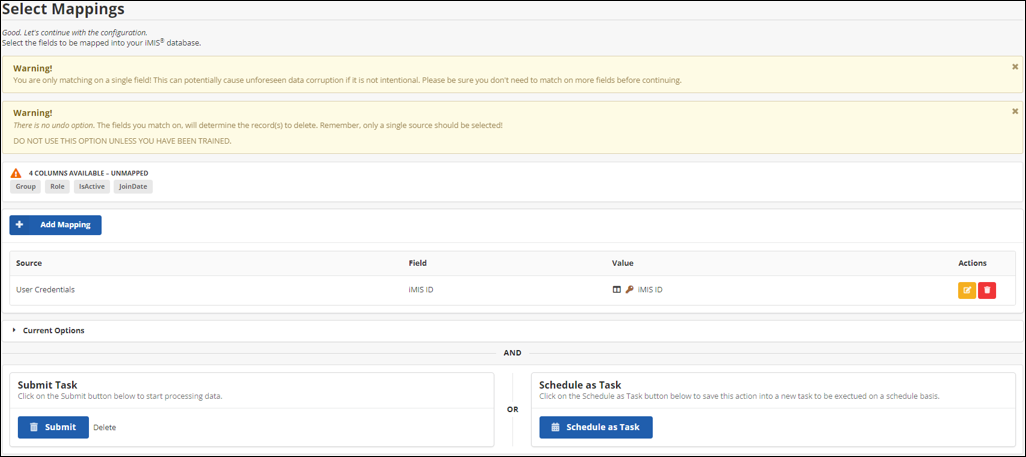
This action deletes the username and password for an iMIS ID.
The only available and required field to map is iMIS ID.
Deleting committee codes
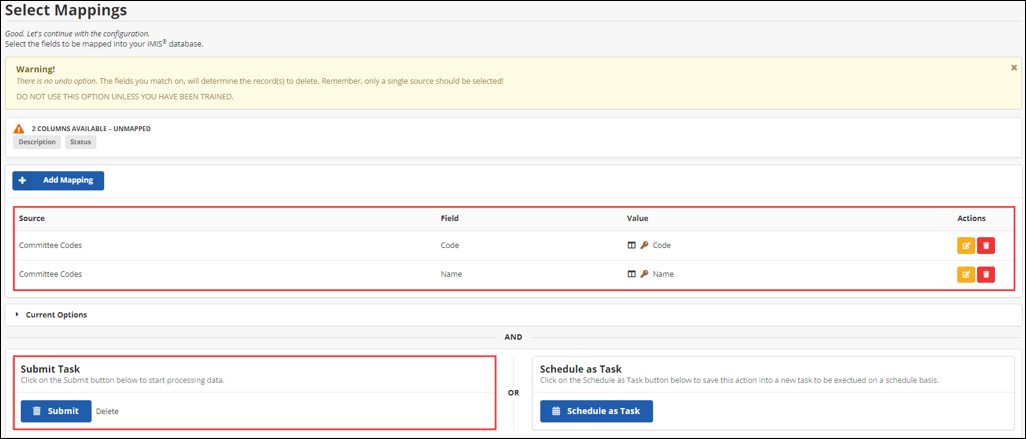
Removing committee codes requires the Name and Code, although Description and Statuscan also be matched on.
Deleting general lookup tables
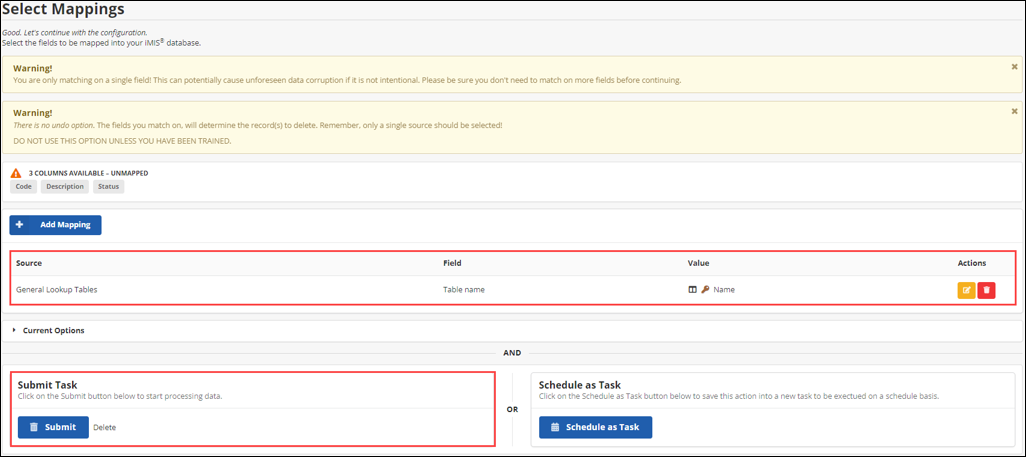
Removing general lookup tables requires only the Table Name, although the Code may also be mapped.
Deleting subscriptions
iMIS supports deleting Cash subscriptions but not Accrual Ssbscriptions.
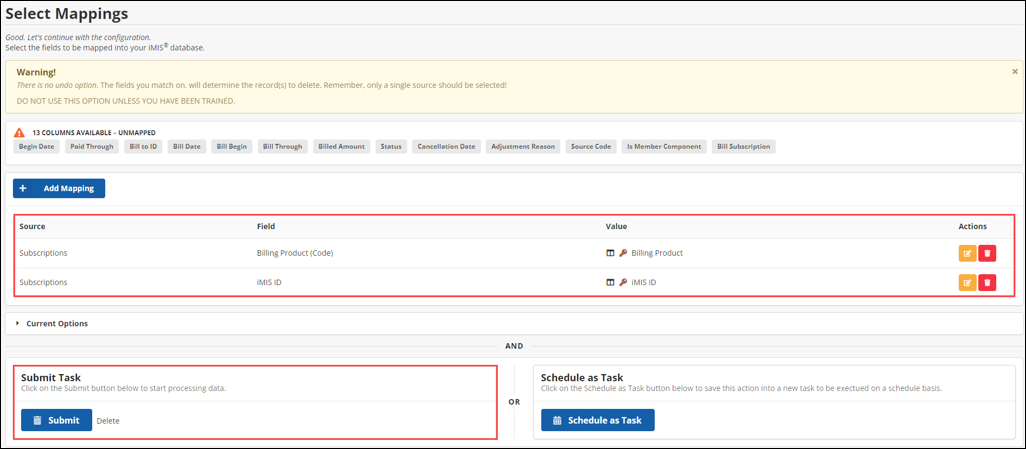
Removing a Subscription from a contact requires the contact’s iMIS ID and the subscription code (Billing Product Code)
Both fields are required. Primary Dues cannot be deleted.
Deleting promotions
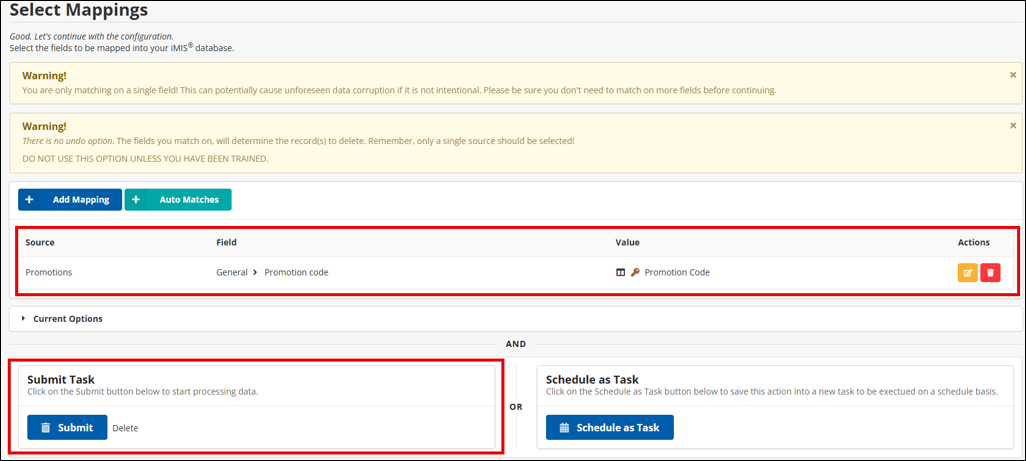
Removing a promotion code from iMIS requires the promotion code found in iMIS to be mapped.
The following field is the only required field.
Updated about 2 months ago