

Organizations
An organization is defined as either a 501(c)(6) or a 501(c)(3) charity. iMIS GL Processor Cloud enables the definition of each organization that requires a GL export. For example, an organization can be configured for both a fraternity and a foundation, with the foundation export including additional entities or funds as needed.
Creating a new organization
To create an organization, go to the GL Processor Dashboard and select Organizations > New… from the top navigation bar.
- Enter an organization name and description. This should be a friendly name.
- Click the Select Primary Financial Entity button to display a list of entities available to be selected as the primary financial entity. This is a list of iMIS Org Codes.
- Select a template from the template drop-down.
- Click Save.
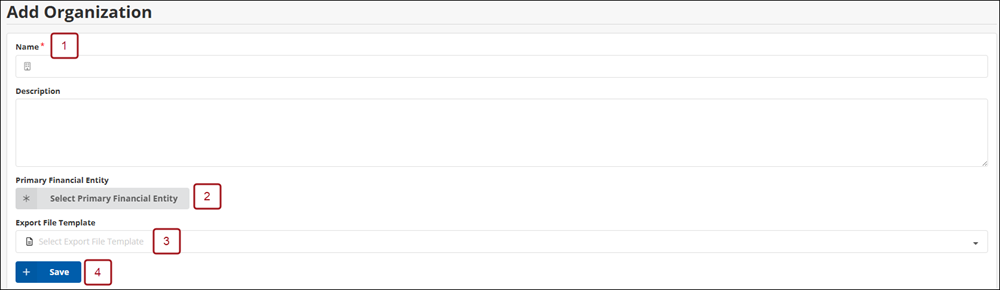
NoteThe organization needs to be saved before additional entities can be added. Organizations require at least one org code; this initial org code will be the primary entity.
Adding Financial Entities
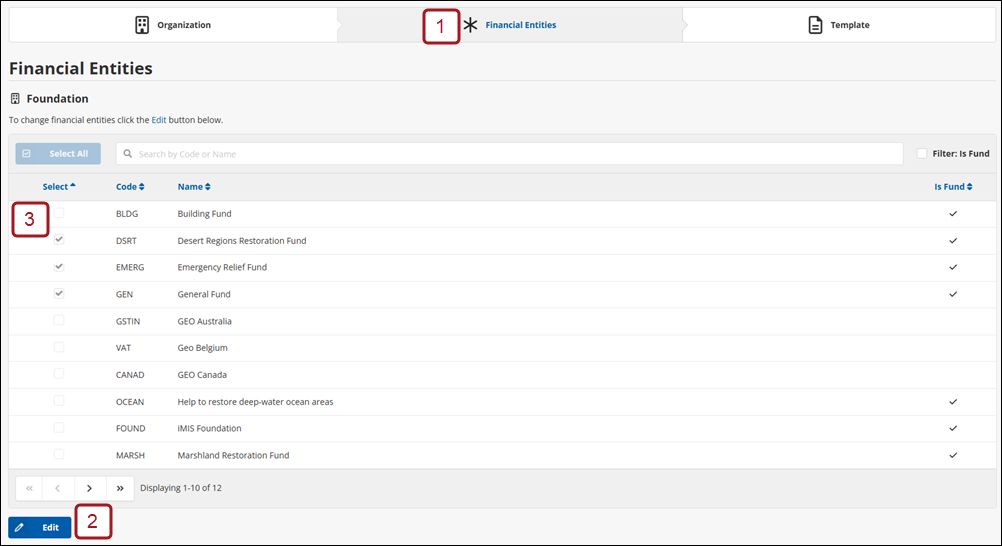
Do the following to add entities to an organization:
- Click the Financial Entities tab.
- Click the Edit button.
- Select all applicable entities using the check boxes.
Deleting an organization
When you no longer need an organization in GL Processor, you can delete it. Deleting an organization:
- Removes it from the organization lists and pickers.
- Frees its financial entities so you can assign them to another organization.
- Keeps its GL export history so you can still download or regenerate its past exports.
To delete an organization, do the following:
-
Go to Organizations > Dashboard and find the organization.
-
Click Delete.
-
Review the confirmation page, then select Yes, Delete. To keep the organization, select No, Cancel.
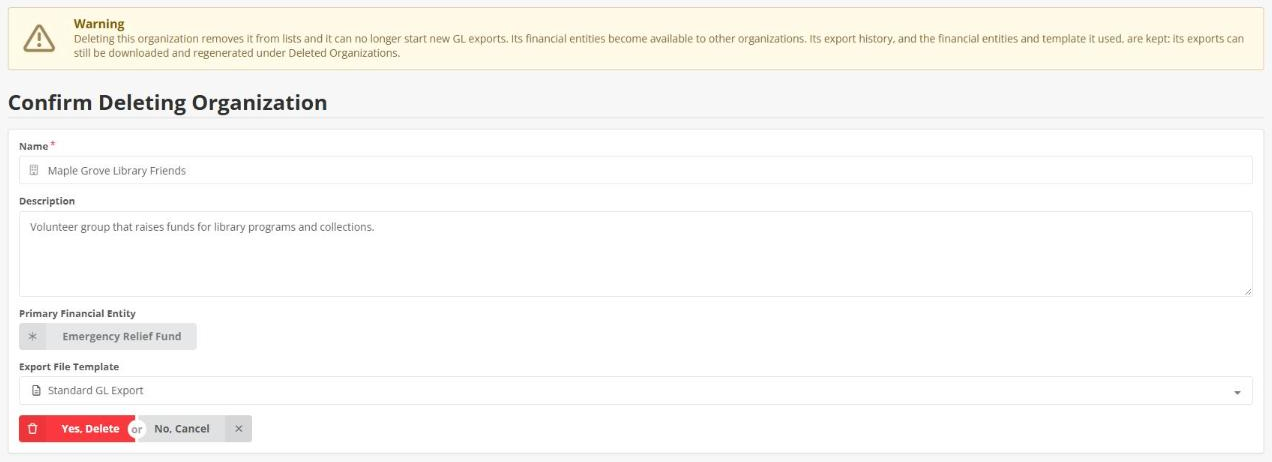
A message confirms that the organization was deleted and that its export history is kept under Deleted Organizations.
What happens to exports in progress
-
Exports that have not really started yet: These exports are removed when you delete the organization. They have not sent anything to iMIS. The confirmation page lists them before you delete, for example:
Export #15 of this organization never got past its first steps; it will be removed from the export log when the organization is deleted.
-
Exports that are already further along: These exports finish normally, even after the organization is deleted.
GL Processor will not change an organization in two places at once. If someone else is deleting, editing, or exporting the same organization at the same moment, you may see a message ending in "Try again in a moment."
Wait a few seconds and repeat the action. If an export stops this way, you can restart it from the export log with Retry.
Knowing what a deleted organization can do
| You can | You cannot |
|---|---|
| View it under Organizations > Deleted | Start a new GL export for it |
| Download or regenerate its past exports | Edit it or change its financial entities |
| See which financial entities and template it used when it was deleted | Select it as your preferred organization |
If a deleted organization was your preferred organization, it is no longer your preference. Choose another one.
On the Templates page and in the export log, a deleted organization is labeled deleted. If its template was later removed, GL Processor uses the copy it saved when the organization was deleted to regenerate its exports.
Viewing deleted organizations
-
Go to Organizations > Deleted.

-
View the list of deleted organizations, which shows each organization's template, when it was deleted, and who deleted it.
-
Select an organization to see its details and past exports.

Deleting an organization permanently
You can permanently remove a deleted organization only if it has no GL exports. An organization with GL exports is kept so its export history is preserved.
-
Go to Organizations > Deleted and select the organization.
-
Click Delete Permanently.

-
Confirm. This cannot be undone.
Updated about 1 month ago