

File Manager
This article describes the new File Manager interface introduced in Donate Now - Premium 2.11.
The File Manager allows you to manage your custom digital assets for Donate Now - Premium, broken out into three categories: Media, Stylesheets, and Receipts.
Concepts
Each file is stored in the SQL database that Donate Now - Premium is connected to.
In order to improve performance, especially for large files, a caching mechanism has also been added. (See the Caching section below for more details.)
Each file is represented by a GUID. Even if the name of the file changes, the file's GUID will always remain the same and cannot be changed.
File listing
Each tab (Media, Stylesheets, and Templates) allows you to view a list of the respective types of files within that category.

From left to right:
- Eyeball Icon – View more details about this file
- Pencil Icon – Edit this file (the contents and/or properties)
- Trash Icon – Delete this file
- File Name and Path – The name of the file, and if applicable, the full relative path to the file itself.
- Size – The total size of the file
- Type – The detected MIME type of the file.
- Created / Modified – The dates and users who created and last modified this file.
- Cache Info – See the Caching section below.
Media files
Donate Now - Premium supports the following types of media files:
- Images: JPG/JPEG, PNG, GIF, BMP, SVG, ICO
- Fonts: OTF, WOFF/WOFF2, TTF, EOT
- Audio: AAC, MP3, WAV, WEBA, MIDI
- Video: MPEG, MP4, WEBM, AVI, WMV
Note: Any unsupported file is returned as: application/octet-stream.
Viewing file details
Click the eyeball icon to view a file's properties and details.
- File ID – This is the file's GUID (see Concepts above) that identifies it across the entire system. This value cannot be changed.
- Source Link – (Only for Stylesheets) This is the permalink that can be used to view the LESS source of the file, instead of the compiled CSS.
- @import Code – (Only for Stylesheets) Use this line of code to import this LESS stylesheet into another stylesheet within Donate Now - Premium.
- Visibility – This field denotes if the file can be viewed by anyone with the link. Note that this field is not changeable by the user, rather, it is a computed value by Donate Now - Premium internally. It is display here for informational purposes only.
- Media files and stylesheets will always be visible.
- Templates will always be private.
- Preview
- For displayable media (images and videos), a preview of the file will appear. You can choose to view the file at its original size, fit to window (only changes if the file is larger than the browser window), or viewed at 50%.
- For template receipts, an HTML preview of the receipt will appear in a preview window. Press Preview or Send Sample to open a preview popup where you can send a sample e-mail to someone, or test your SMTP configuration.
Editing files
To edit any file, select the pencil icon from the file listing, or click Edit File at the top of the File Details page.
See Editing Media, Editing Stylesheets, or Editing Templates
Caching
Files in Donate Now - Premium can be cached. This means that the web server will hold the contents of the file in-memory for the specified amount of time.
While the file is actively cached, Donate Now - Premium will not perform a SQL query to fetch the file. Instead, it will retrieve the file directly from memory in order to serve it. This drastically reduces the load on the SQL server and speeds up the webpage load times, especially during peak giving times.
Cache options
Each file has a Cache Lifetime property. This is the number of minutes that Donate Now - Premium should store this file in memory for.
NoteThe Cache Lifetime can have a value from 1 to 10,080 minutes (1 week). Setting the option to 0 disables the caching feature for this file. The default value is 1,440 minutes (1 day).
The file is placed into the cache when the first user requests it and it is initially loaded from the database.
After the cache lifetime has elapsed, the file is removed from the cache, and the next user that requests the file will cause it to be retrieved from the database again (where it is, in turn, placed back into the cache with a new cache lifetime).
You can see which files have been cached by the server or not by viewing the Cache Status property, either on the file listing, or file details screens.
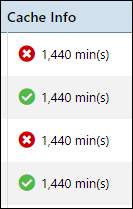
A check mark icon indicates that the file is currently in the cache.
An X icon indicates that the file is currently not in the cache.
Performance
If we use a 2.4 MB PNG image as a sample image:
- Without cache: 245ms
- With cache: 139ms
This is roughly a 43% savings on network request time for the image. When a large Giving Dashboard is in place, this can have a significant impact on performance.
Updated 2 months ago