

Exporting data to an external system using iTransfer
Using an IQA query and iTransfer's actions inside iWorkflow, it is possible to automatically send iMIS data to a third-party system on a recurring schedule, without staff users needing to manually export and send a file each time. The query defines what data is sent, and iTransfer's actions format it and deliver it to the destination.
ExampleThe association Versaton US partners with an external rewards platform to offer their members exclusive rewards, such as concert tickets and vacation packages. The rewards platform needs an up-to-date list of active members every night so it knows who qualifies. A staff user builds an IQA query of active members, then uses iTransfer's actions in iWorkflow to send that list to the rewards platform's SFTP server automatically, every night at 11:00 p.m.
Building the query
First, build the query the workflow will use. The following example shows how to build an IQA query that retrieves all active regular members.
Do the following:
- Go to RiSE > Intelligent Query Architect.
- Select or create a folder for the query.
- Click New > Query.
- Name the query.
- (Sources tab) From the Common sources area, select Contacts to add the NetContactData business object.
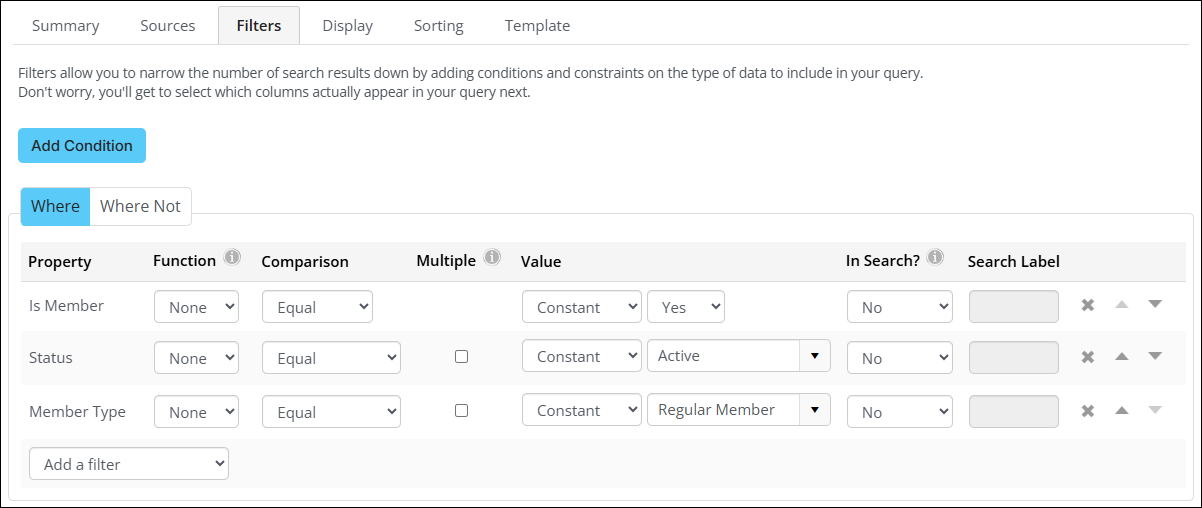
- (Filters tab) Configure the filters:
-
Select Where.
-
From the Add a filter drop-down, select Is Member.
-
Set the Value drop-downs to Constant and Yes.
-
From the Add a filter drop-down, select Status.
-
Set the Value drop-downs to Constant and Active.
-
From the Add a filter drop-down, select Member Type.
-
Set the Value drop-downs to Constant and Regular Member.
-
- (Display tab) Select the following columns:
- Full Name
- Id
- Member Type
- Save the query.
When the query is created, click Run to review the results, then check the Report tab as well to confirm performance is acceptable and the record count matches expectations.
Configuring the workflow
After the query is built, set up the workflow in the Power Suite Cloud Dashboard. The following example shows how to create a workflow that runs at 11:00 p.m. every night.
Do the following:
- Log in to the Cloud Dashboard.
- Go to iDMS > iWorkflow.
- Click + New Workflow... and choose Blank Workflow.
- Select the Scheduled trigger.
- Do one of the following:
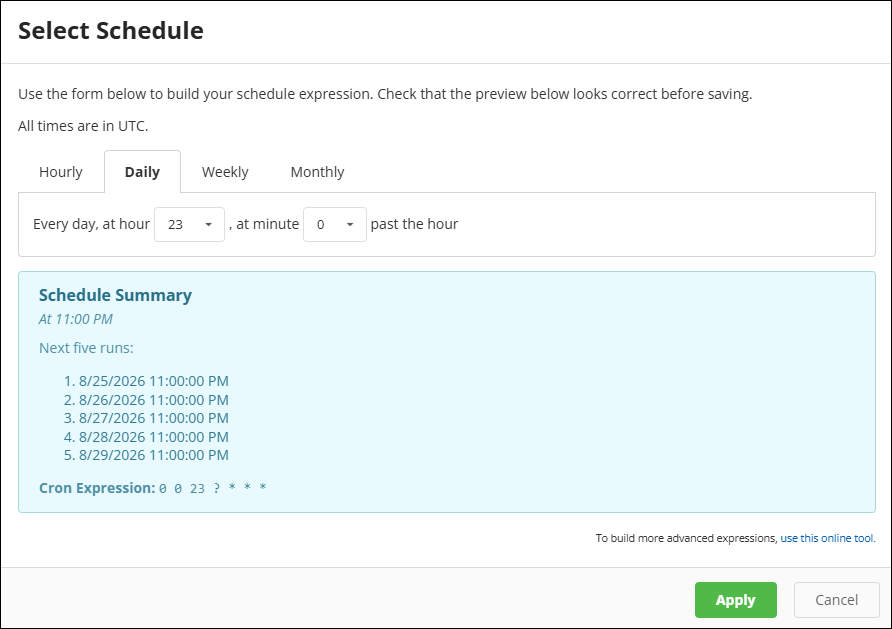
- Click Schedule Builder:
-
From the timing tabs, choose Daily.
-
From the hour drop-down, choose 23.
-
From the minute drop-down, choose 0.
-
- In the Cron Expression field, enter
0 0 23 ? * * *.
- Click Schedule Builder:
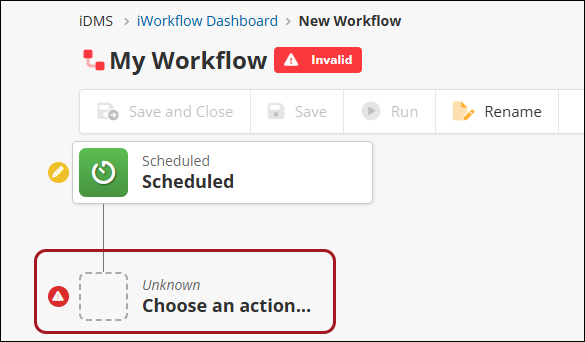
- Add a Fetch IQA Data action:
-
Click Choose an action....
-
Choose Fetch IQA Data.
-
Under IQA Options, click Select query... and choose the query created in the Building the query section.
-
Set the Output Property to something descriptive, such as
activeMembers. -
Click Close.
-
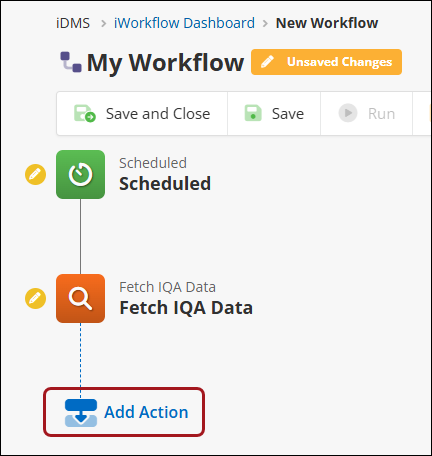
- Add a Convert to CSV action:
-
Click Add Action.
-
Choose Convert to CSV.
-
In Input Array, enter
{{ input.activeMembers | array }}. -
Set the Output Property to
rosterCsv. -
Click Close.
-
- Add an SFTP Upload action:
- Click Add Action.
- Choose SFTP Upload.
- Enter the Server Name/IP, Port (default 22), Username, and Password for the SFTP server.
- In File Path, enter a templated, date-based filename (such as
roster_{{ now | date: "yyyyMMdd" }}.csv). - In Upload Data, enter
{{ input.rosterCsv }}. - Enable Overwrite Existing Files.
- Click Close.
- Rename the workflow.
- Click Save.
- Click Run to test the workflow manually.
ImportantTest with a small, filtered version of the query first (a handful of known test records) and confirm the file that lands on the destination server looks correct before enabling the full nightly schedule.
Reviewing results
After the workflow runs, go to the iWorkflow Dashboard to review it. Each workflow shows a visual run history: green bars indicate success, red indicates failure, gray indicates a cancelled run, and a blue outline indicates a run in progress.
Select a run to review its Workflow, Timeline, and Logs tabs:
- Workflow - Download the actual data produced by each step, including the IQA query results and the generated CSV file, so you can confirm the content is correct, not just that the run finished.
- Timeline - Review how long each action took.
- Logs - Review step-by-step details, including any error messages.
If a run's status is Partial, the workflow completed but one or more records failed during an action, check the log for which records failed and why. If a run's status is Failed, the workflow encountered an error that stopped it from completing, and the destination likely did not receive a file at all.
To confirm delivery beyond the workflow log, check with the third party platform directly, or look for a response/acknowledgment if the destination is an API called via HTTP Request rather than a file drop.
Troubleshooting common issues
Review the following common issues when using iTransfer for SFTP workflows.
Connection failures
Confirm the Server Name/IP and Port are correct (SFTP defaults to port 22, FTP to 21), and that the hostname is resolvable via public DNS if a hostname is used instead of an IP address.
Credential or permission errors
Confirm the Username and Password are correct. The SFTP Upload action does not support key-based authentication (only password authentication) and the account needs read and write permissions at its base SFTP directory.
Ambiguous match errors
This error is caused by the IQA query having a column named Item. To resolve this error, rename or remove the column.
Slow or failed IQA query fetch
In iMIS, check that Only display unique results is disabled. Using the Sorting tab and dynamic filters may also impact IQA query performance.
After making adjustments, confirm the IQA query's performance is acceptable in both the Run and Report tabs before scheduling the workflow.
Upload fails due to an existing file
If Overwrite Existing Files is not enabled in an SFTP Upload, FTP Upload, or HTTP Upload action, an upload can fail simply because a file with that name already exists on the destination server. To resolve this error, remove the file and then try again.
Knowing when to use iTransfer
iTransfer's actions, broader iWorkflow orchestration, and webhooks can all move data between iMIS and an external system, and all of them run inside iWorkflow. The key factor in determining which approach to use is how the data needs to move: on a schedule as a batch, as part of a longer multi-step process, or instantly when something happens.
Use the iTransfer pattern when sending data to an external system on a schedule
Use the Fetch IQA Data, Convert to CSV, and SFTP Request, FTP Request, and HTTP Request actions when you need to do one of the following:
- Send a bulk data extract to a third party on a recurring schedule
- Deliver a file to a vendor's FTP or SFTP server
- Post a batch of records to a third-party API on a timer
The Fetch IQA Data, Convert to CSV, and SFTP Request, FTP Request, and HTTP Request actions require an iTransfer license.
Use broader iWorkflow orchestration when the process needs more than a simple export
Use additional iWorkflow actions, such as Gate, Execute JS, SQL Stored Procedure, Insert Activity, Insert Panel Record, and other actions that don't require an iTransfer license, when you need to do one of the following:
- Add conditional logic or branching to the process
- Chain together multiple unrelated steps in a single automated job (up to 25 actions)
- Transform or validate data beyond a simple format conversion before sending it
Use webhooks when the third party needs the data immediately
Use a webhook trigger, rather than a scheduled export, when you need to do one of the following:
- Notify a third party the moment an event happens in iMIS, rather than waiting for the next scheduled run
- Accept data pushed in from a third party in real time, rather than polling for it
Table 1: Comparison of iTransfer, iWorkflow orchestration, and webhooks
| iTransfer pattern | iWorkflow orchestration | Webhooks | |
|---|---|---|---|
| Trigger | Scheduled | Scheduled or manual | Event-driven (HTTP POST) |
| Timing | Batch, on a timer | Batch or on-demand | Real-time |
| Best for | Recurring file/API exports | Multi-step or conditional processes | Instant updates in either direction |
| License required | iTransfer | Varies by action | None beyond iWorkflow |
Updated about 1 month ago