

iDMS Dashboard
The iDMS Dashboard provides a high-level overview of your data management activities.
From the dashboard, you can monitor job history, track key metrics, and quickly navigate to the iDMS modules you use most.
To access the dashboard, click Dashboard from the side navigation menu.
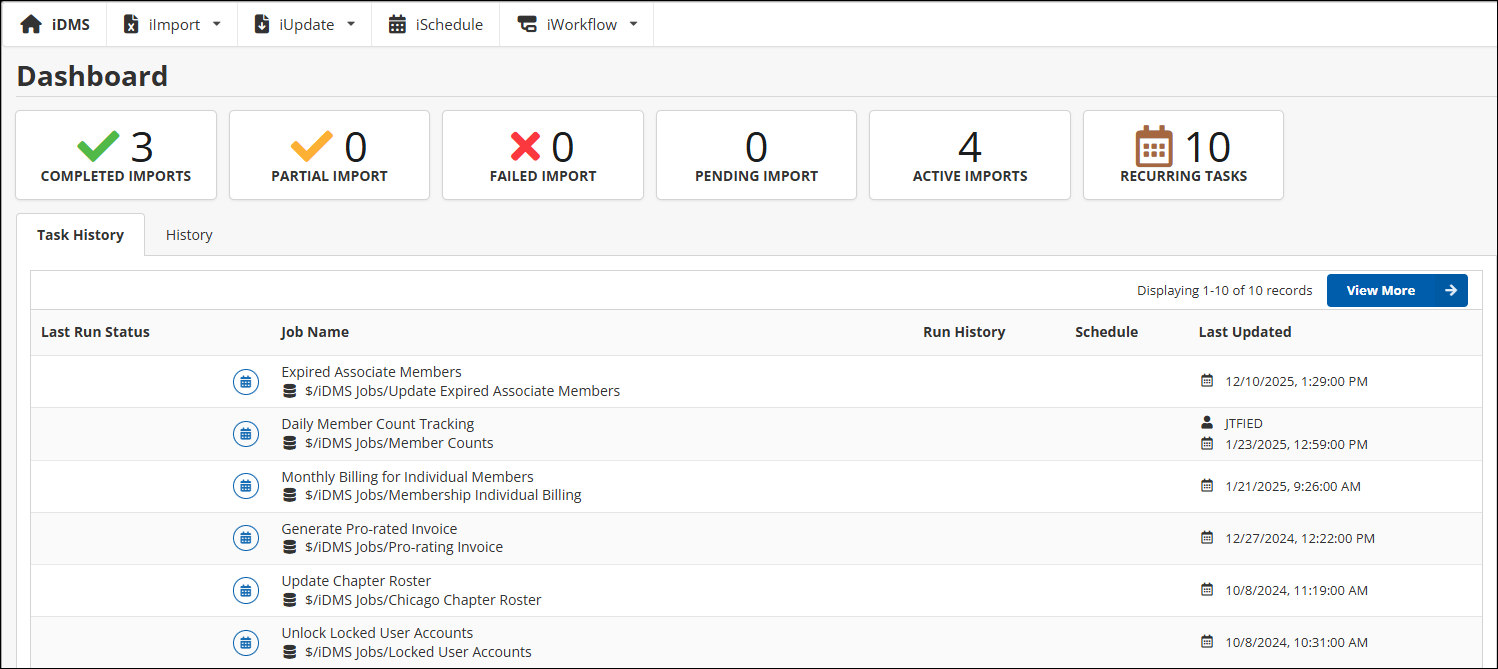
Navigating the iDMS Modules
The dashboard gives you centralized access to all iDMS modules and tools:
-
Quick access to iImport, iUpdate, iSchedule, and iWorkflow.
-
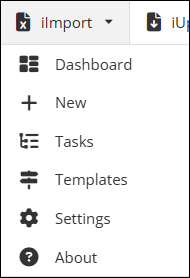
Clicking on iImport or iUpdate reveals additional options:
-
Dashboard – View recently completed import and update jobs.
-
New – Open a blank job ready for configuration.
-
Tasks – View scheduled tasks and recurring jobs.
-
Templates – Manage or import job templates.
-
Settings – Configure global job options and clear the iDMS cache.
-
About – Displays Cloud ID, user, and product information.
-
Dashboard cards
Dashboard cards provide a visual summary of import and update activities.

- Completed Imports – Jobs that ran successfully without issues.
- Partial Imports – Jobs that completed but had errors with one or more records.
- Failed Imports – Jobs that encountered errors and did not complete successfully.
-
Canceled Import – Jobs that were stopped before they finished. A job is canceled when you click Stop, or automatically when it starts while the same task is still running.
NoteiDMS does not run the same task twice at the same time. If a task is triggered while it is still running, one extra run waits in the queue and any further runs are canceled. You will see "this task has been canceled because another job is already running" in the job log. This is normal. If your task's query selects every record that still needs updating, the next run picks up anything the canceled run missed.
- Pending Imports – Jobs scheduled to run in the near future.
- Active Imports – Jobs that have started but are not yet submitted; may be in progress, paused, or saved for later.
- Recurring Tasks – Jobs configured to run automatically on a set schedule.
Task History tab
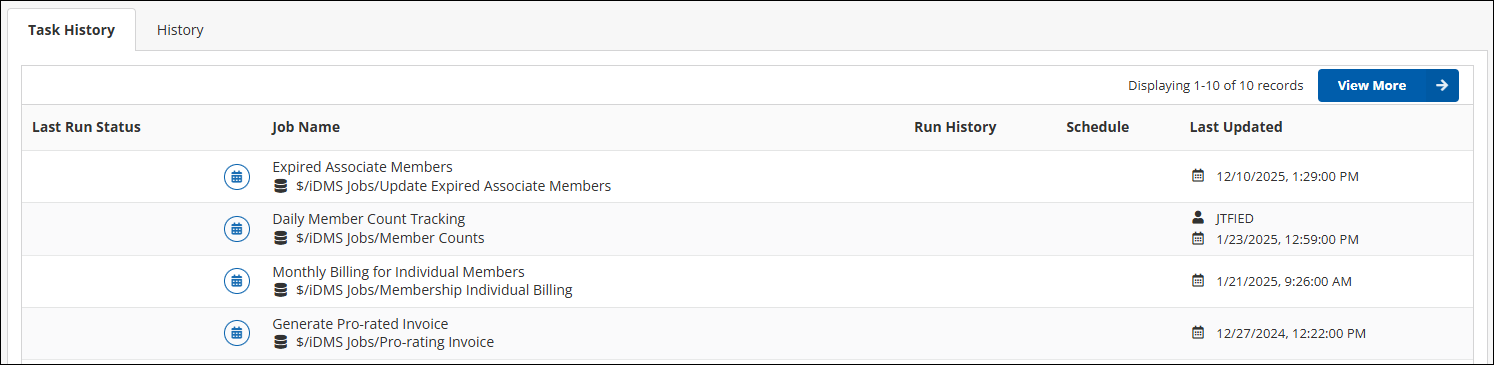
The Task History tab displays recurring job history for quick review. You can filter results by:
- Status – Completed, Partial, Failed, Canceled, Pending, or Unknown. Unknown means the task has not run in the last 30 days. The Status filter matches each task's most recent run.
- Job Name – The name of the task.
- Source Type – Where the task was triggered from:
- Manual – Tasks triggered manually by a user.
- iSchedule – Tasks triggered by a scheduled iSchedule run.
- iWorkflow – Tasks triggered by an iWorkflow run. Includes Name and Definition ID as metadata.
- Webhook – Tasks triggered by a webhook. Metadata includes IP address and User Agent.
- Webhook Polling – Tasks triggered by polling via a webhook endpoint.
- Unknown – Jobs created before trigger tracking or with no trigger source defined.
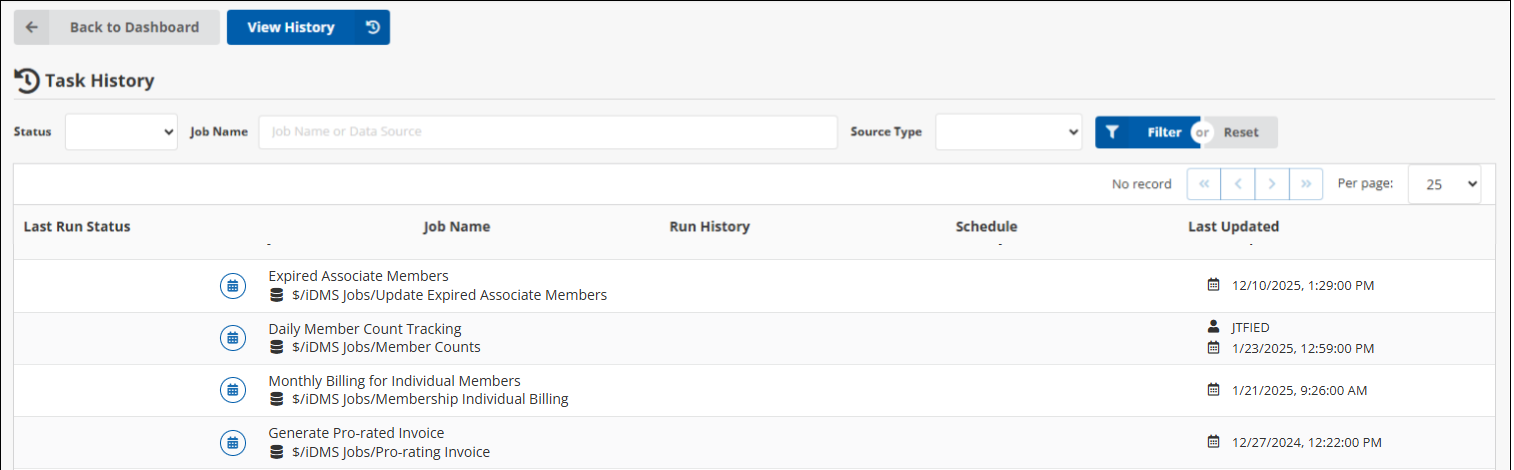
History tab
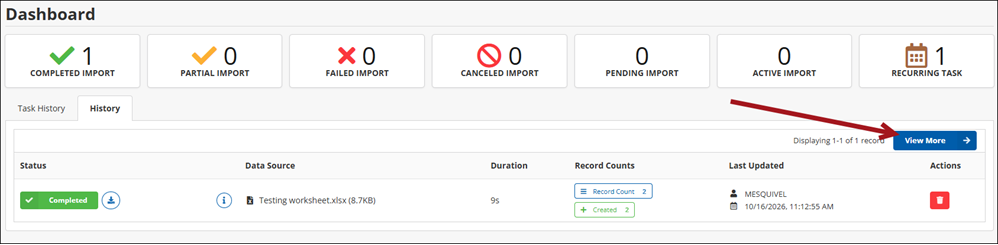
The History tab shows job activity. Click View More to open the full History list, which includes filters, paging controls, and options for managing job history.
The History tab shows every job run in the past 30 days. You can narrow the list with these filters:
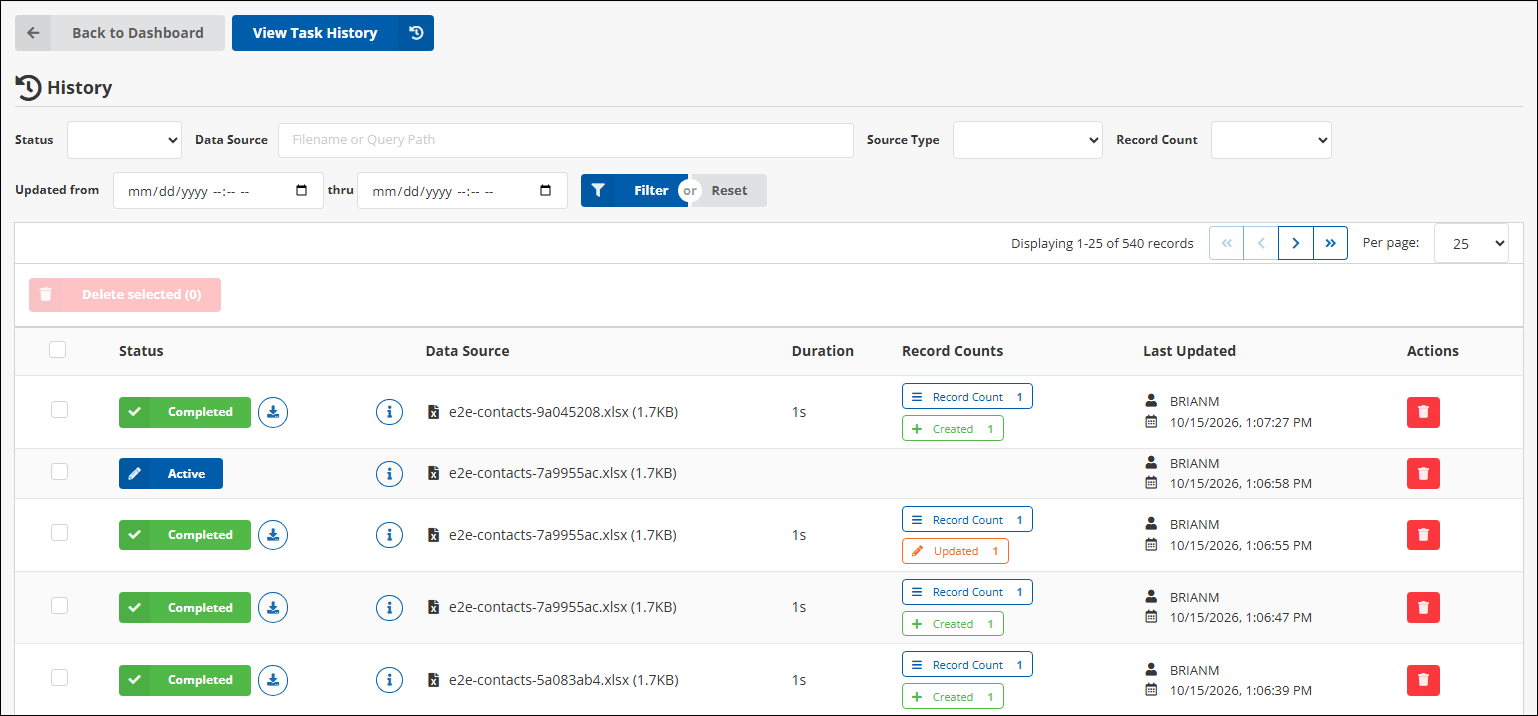
- Status – Filter jobs by their current status, including Completed, Partial, Failed, Canceled, Pending, and Active.
- Data Source – Search by part of a file name or query path.
- Source Type – Filter by the source that triggered the job:
- Manual – Tasks triggered manually by a user.
- iSchedule – Tasks triggered by a scheduled iSchedule run.
- iWorkflow – Tasks triggered by an iWorkflow run. Includes Name and Definition ID as metadata.
- Webhook – Tasks triggered by a webhook. Metadata includes IP address and User Agent.
- Webhook Polling – Tasks triggered by polling via a webhook endpoint.
- Unknown – Jobs created before trigger tracking or with no trigger source defined.
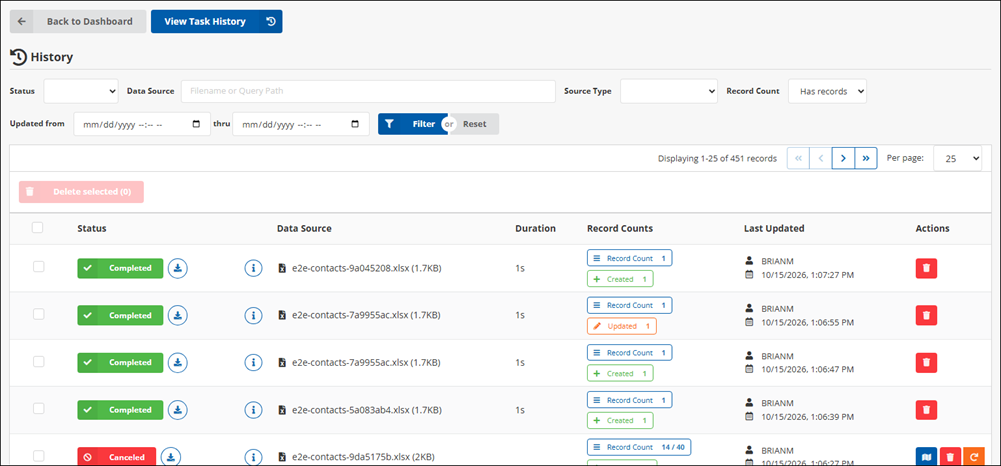
- Record Count – Filters whether the job worked with any records:
- Has records - The job found or changed at least one record.
- None - The job has no records, including jobs that never ran.
- Created - The job added new records.
- Updated - The job changed existing records.
- Updated From / Thru – Specify a date and time range.
Select Filter to apply your criteria or Reset to clear them. Results always open on the first page, newest first.
TipIf you run many scheduled jobs, set Record Count to Has records to hide the runs that found nothing to do.
Reading the Record Counts column
Each job can show up to three labels:
- Record Count - The number of rows found in the data source. For a job that is still running, or that stopped early, it shows how far the job got, for example 500 / 1,234
- Created - The number of new records added.
- Updated - The number of existing records changed.
Deleting jobs from History
Over time, the History list can fill up with jobs you no longer need, such as canceled or failed runs. You can delete multiple jobs at once from the full History list. You can delete jobs with the following statuses:
- Completed
- Partial
- Failed
- Canceled
-
Active – Saved but not yet submitted.
NoteJobs that are still pending or running cannot be selected for deletion. These include jobs that are scheduled, queued, in progress, or suspended. These jobs do not have a selection checkbox.
If a job is running, stop it first. Once it is no longer running, you can delete it if its status allows deletion. You can still use the trash icon on a job row to delete one job at a time.
Before deleting a job, review the following:
-
Deleting a job removes its history only. The job and its associated history details are removed, including its file, mappings, progress, and error report.
-
Deleting a job does not change iMIS data. Contacts, events, and other records the job created or updated in iMIS are not removed or reverted.
-
Deletion cannot be undone. Review your selection before confirming.
-
Delete in batches. You can delete jobs displayed on one page at a time. To delete more jobs at once, increase the number of rows displayed per page, up to 100.
-
Some jobs might not be deleted. If a selected job starts running before deletion or no longer exists, it cannot be deleted. The result message indicates how many jobs were deleted and how many could not be deleted.
-
History is organization-specific. You can view and delete only jobs belonging to your own organization.
Do the following to delete multiple jobs from the history:
-
On the iDMS Dashboard, open the History tab and click View More.
-
(optional) Use the filters to narrow the list, such as Status = Canceled or Status = Failed, and click Filter.
-
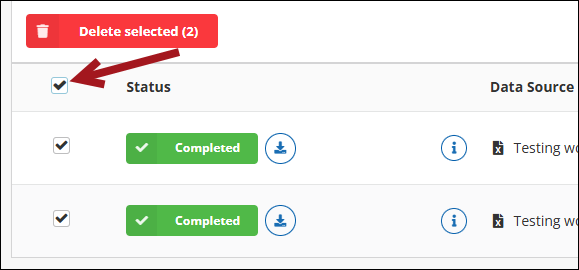
Select the checkbox next to each job you want to delete.
-
To select every deletable job on the current page, select the checkbox in the table header.
-
Click Delete selected. The button displays the number of selected jobs.
-
In the Delete Import History confirmation dialog, review the warning and click Delete to confirm, or Cancel to return to the list.
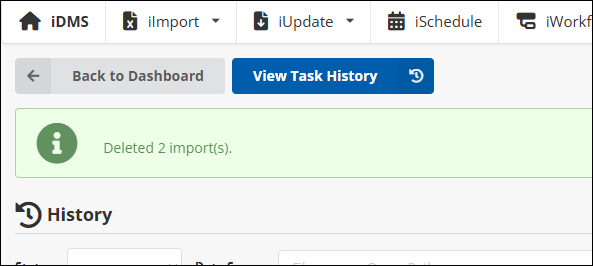
After deletion, the list refreshes, retains your current filters and page, and displays a message indicating how many jobs were deleted. If some selected jobs could not be deleted, iDMS displays a message indicating how many were deleted and how many could not be deleted.
Updated about 1 month ago