

iDMS release notes: 2026
The following features, enhancements, and fixes are included in the 2026 iDMS releases, listed from newest to oldest.
iDMS 1.42 - October 2026
The following features and enhancements are available in the October 2026 release.
Importing speakers and resources for events
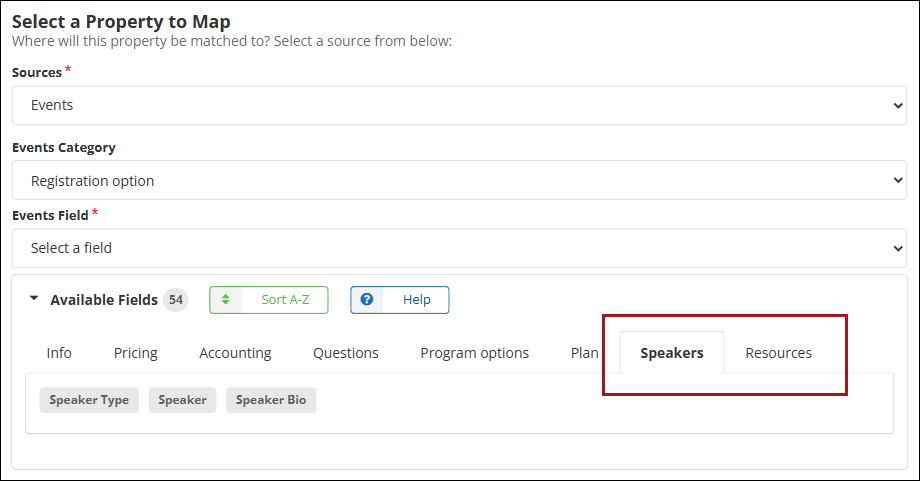
iDMS supports importing speakers and resources for event program items and registration options. Speakers, speaker biographies, resource types, quantities, and notes can be added directly from the event setup spreadsheet, which reduces the need to enter these details manually in iMIS. After the import, the entries appear on the Plan tab of the program item or registration option in iMIS. See Event Setup guide for details.
Key features:
- Import speakers. Map the speaker type, the speaker's iMIS ID, and an optional biography.
- Import resources. Map the resource type, quantity, and an optional note.
- Program items and registration options. Speakers and resources can be added to either, using the Event Code and the Program Item Code or Registration Option Code to match each row.
- Safe re-imports. Importing the same spreadsheet again updates matching speakers and resources instead of creating duplicates. A blank cell leaves the existing value unchanged.
Key use cases:
- Set up speakers and their biographies for a conference program in one import.
- Add equipment needs, such as projectors, with quantities and room notes.
- Update speaker biographies or resource quantities by re-importing a corrected spreadsheet.
How it works:
- In iMIS, go to Settings > Events > Resource types and confirm that the speaker types and resource types are configured. Speaker types use the Speaker category, and resource types use the Resource category.
- In the spreadsheet, add one row for each speaker or resource. Enter the type's Data Value (code), not its Display Value.
- In the iDMS mapping screen, select Program Item or Registration Option as the Events Category, open the Speakers or Resources tab, and map the event, the item code, and the fields to import.
- Run the import and review the entries on the Plan tab in iMIS.
Managing job history on the iDMS Dashboard
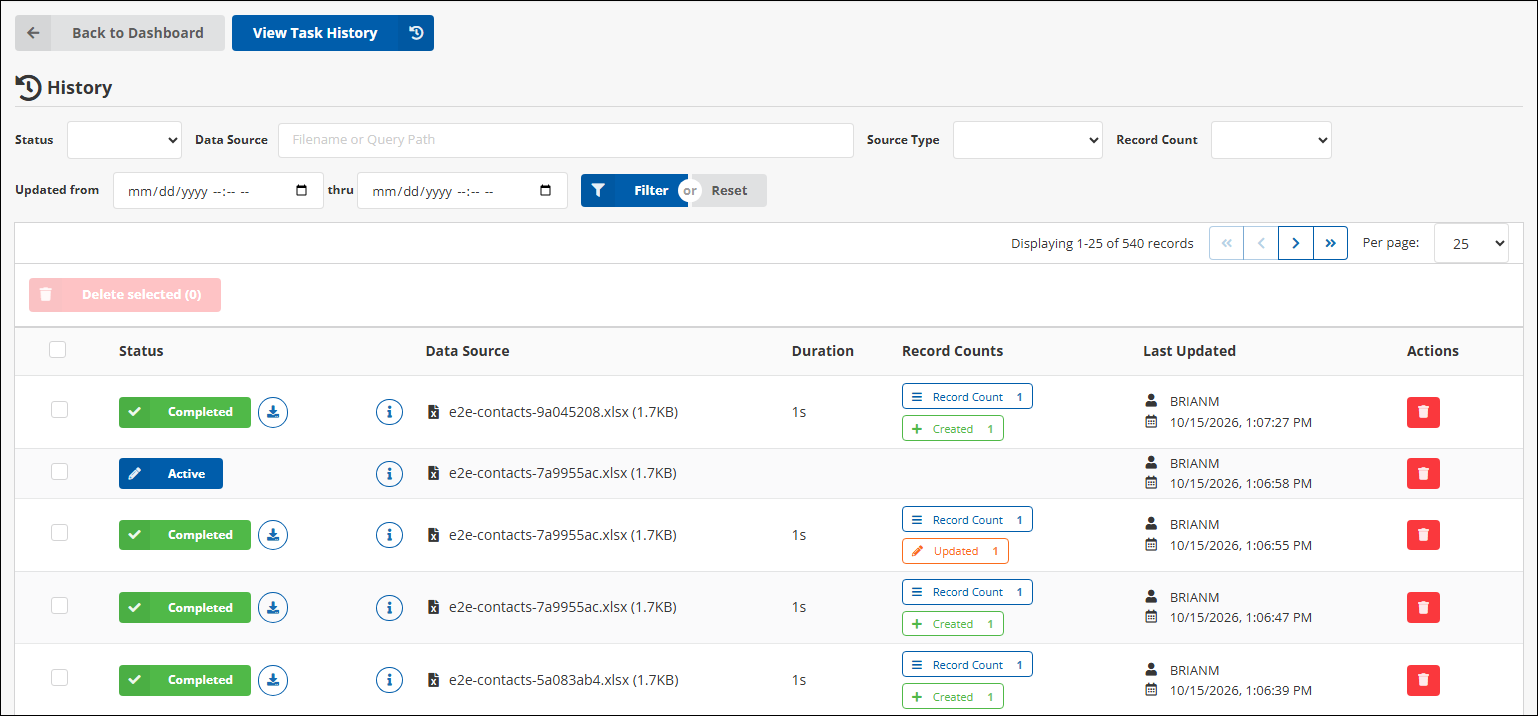
The iDMS Dashboard makes it easier to find and clean up jobs. Jobs can be filtered by Canceled status and by Record Count, and several jobs can be deleted at once.
Key features:
- Deleting multiple jobs. Select several jobs in the History list and remove them in one step. Deleting a job removes it from the history only. Anything the job created or updated in iMIS stays as it is.
- Filtering by Record Count. Find jobs that created records, updated records, processed any records, or found none.
- Filtering by Canceled status. Cancelled jobs have their own status filter and are no longer counted as Failed on the iDMS Dashboard.
- Displaying the dashboard on tablets. The filter bar and history lists display fully on tablets.
- Paging. Applying a filter always returns to the first page of results.
Key use cases:
- Clear out cancelled or failed runs that are no longer needed.
- Find jobs that found no records, then review or remove them.
- Check which jobs created or updated records.
- Report on failed jobs without cancelled jobs mixed in.
How it works:
Do any of the following from the iDMS Dashboard:
- Use the Canceled Imports tile to see how many jobs have been cancelled.
- Click View More on the Task History tab to filter on jobs with a Canceled status.
- Click View More on the History tab to filter on Canceled statuses or Record Count. From there, select several jobs in the History list and remove them in one step.
Enhancements
- Importing gifts with invoice panel data. A gift and a custom panel attached to invoices can be imported in the same iImport or iUpdate job. iDMS creates the gift, then writes the panel row on the gift's invoice. See Panel data guide and Gifts guide.
- Activating or deactivating promotions. A promotion's Status can be set when importing promotions with iDMS. An optional Status field appears on the General tab of the Promotions mapping screen (iMIS EMS only). The field works with the Insert, Update, and Insert/Update actions, so promotions can be turned on or off one at a time or in bulk. See Promotions guide for details.
- Importing tax settings on an event. An event's Tax authority and Tax by address settings can be set when creating or updating events with iDMS. Find the settings in the Events mapping, under Event > Pricing. See Event Setup guide for details.
- Stopping Queued imports. Previously, Stop was offered on a Queued import but had no effect, and the import stayed Queued. Stop now cancels an import that is waiting in the queue. Stopping an import also starts any import waiting behind it right away instead of leaving it Queued.
iDMS 1.41 - September 2026
Adjusting a single member on a group-billed invoice
The Invoice Adjustments source has an optional Ship To ID mapping. On a list billing invoice (one invoice billed to an organization, with a line for each member), enter a member's iMIS ID to adjust only that member's line. Leave the mapping blank to adjust the product on every line of the invoice, as before. To adjust several members on the same invoice, add one row per member. See Invoice Adjustments guide for details.
Fixes
- The Summary log loads the newest 1,000 rows first.
- Updating an active promotion no longer reactivates it.
iDMS 1.40 - September 2026
Fixes
- Updating billing products no longer switches off Use special pricing. Previously, any update to a billing product switched off the product's Use special pricing setting, regardless of which fields were mapped. Once the setting was off, iMIS stopped applying the product's special pricing rules. The setting is now changed only when Price Rules Exist is mapped with a value using the Billing Products source. If update jobs were run against billing products on an earlier version, check the setting on any product that uses special pricing. See Billing Products guide for details.
- Faster IQA selection. IQA selection is faster for iMIS EMS and iMIS 100.
iDMS 1.39 - August 2026
The following features, enhancements, and fixes are available in the August 2026 release.
Importing US legislative districts
The US Congress, State Senate, and State House address fields are available when mapping addresses in iImport and iUpdate.
Previously, iMIS populated these districts only when a staff member edited an address manually in the iMIS web pages, because the lookup runs against an external address-verification service that iMIS calls only from its own screens. As a result, districts could not be populated in bulk. Organizations can now source the values themselves, usually from the free US Census Geocoder, and import them like any other address field.
See Address guide for details.
Key features:
- Map US Congress, State Senate, and State House under the Address Details source group, on both new and existing contacts.
- Column headers that match the field names are mapped automatically.
- Values are limited to five characters. Longer values are truncated to the first five characters and reported as a warning. The contact still imports instead of being rejected by iMIS.
- Per-row warnings identify when iMIS has silently discarded a congressional district, either because the Automatically set congressional district based on address (US only) setting is disabled or because the imported address purpose does not match the Address to use for congress setting.
NoteOnly US Congress is gated by the two iMIS settings above. State Senate and State House always save regardless of the iMIS configuration. Values should be the district number alone (for example, 10 or 25), not TX-21 or District 21, to match how iMIS stores the value from its own lookup.
Specifying a batch number on Generate Renewals
An optional Batch Number field is available on the Generate Renewals mapping, between Bill Date and Effective Date. Renewal invoices are posted into the specified batch instead of a batch that iMIS creates on its own. Finance staff can route a renewal run into a batch that has already been set up for reconciliation.
iMIS accepts a supplied batch only when billing a single contact. On a mass billing run, iMIS ignores the batch and creates its own without reporting it. iDMS now rejects those combinations at the mapping-validation step, before any invoices are generated, and explains why. Previously, the run could succeed while billing into an unexpected batch.
See Generate Renewals guide for details.
Key features:
- Batch Number can be used with Only Bill Individual iMIS ID, or with an iMIS ID mapped on the import itself. In the latter case, the import data must contain only one row, because no Only Bill contact was given.
- Batch Number cannot be used with Only Bill Contacts From Query Path or Only Bill Contacts In Chapter Code, because billing from a query or chapter always creates a batch in iMIS.
- The batch must already exist in iMIS, must be Open (a batch set to Ready or already posted is rejected), and must be dated the same day as the Bill Date. When Bill Date is not mapped, the bill date is today, so the batch must be dated today.
- Batch numbers are limited to 10 characters.
- Seven validation messages identify each failure condition up front, replacing a mid-run iMIS failure or a silent misfile.
Existing renewal mappings are not affected. The field is optional and unmapped by default, so iMIS continues to select the batch exactly as before. No customer action is required.
Clearing a file upload field with ERASE
Panel fields of type File upload can be cleared through iImport and iUpdate. Entering ERASE in the File URL mapping, instead of a URL, removes the existing document from iMIS rather than downloading a document. Previously, the only way to remove a document was to open each contact in iMIS and delete the file by hand.
The mapping screen does not change. The keyword is understood where a URL was previously required. The keyword also works per row, so a single spreadsheet can attach a document to one record and clear the document on the next.
See Delete Action guides for details.
Key features:
- Type ERASE directly into File URL to clear the field on every record in the import, or map File URL to a column and enter ERASE in the cells of the rows to be cleared.
- Matching is not case-sensitive, and surrounding spaces are ignored. The whole cell must be the keyword. A real URL that merely contains the word (for example,
http://host/clear.pdf) still downloads normally. - On an existing record, the document is removed and the rest of the row imports normally. On a new record, the record is created with no document, and iDMS notes that there was nothing to erase.
- Any blank-out text configured under Cells containing the following text will be blanked out also clears the file.
Warning!DELETE, EMPTY, BLANK, CLEAR, NONE, and NULL also clear the field. Do not use any of them in a spreadsheet as a placeholder meaning "leave this record alone", because they remove the document. N/A is safe. NONE is not.
Fixes
- File Content Type and File Type are applied. Previously, the File Content Type (Optional) and File Type (Optional) values were collected and saved but never used. iDMS now determines the content type and file type from the downloaded file itself, and falls back to these two mapped values only when the download does not identify the file. The values are ignored entirely when clearing a field.
- Spaces around a File URL are trimmed. Previously, a cell containing a leading or trailing space produced a malformed address, and the row failed. Surrounding whitespace is now removed before the download is attempted.
- ERASE takes precedence over Ignore Blank Values. Previously, enabling Ignore Blank Values in File could quietly cancel an erase. An explicit erase keyword is now always honored.
- Renewal batch problems are caught before billing. Previously, an invalid batch on a Generate Renewals run either failed part-way through with the iMIS message "You must select an open batch whose effective date matches the billing run date" or succeeded while billing into a batch that iMIS created on its own. These conditions are now detected at validation, before any invoices are generated.
iDMS 1.35 - April 2026
Fixes
- Program items added through iDMS could not be edited or saved in iMIS. Previously, program items created through iDMS could not be edited or saved in iMIS when registration options were already present, due to missing records that iMIS requires to process updates. All necessary records are now created and linked during the event creation and update process, so program items can be edited and saved in iMIS regardless of whether registration options already exist.
- Applying an open credit larger than the invoice total caused an error. Previously, using an open credit to pay an invoice where the available credit exceeded the invoice total produced an error, because the system expected the credit amount to match or be less than the invoice balance. Only the amount needed to cover the invoice is now applied from the available open credit, even when more credit is available.
- Custom panel sources are checked for iDMS access. When an iDMS import references a custom panel source, validation checks confirm that the proper access permissions are set. If the permissions are not set, the import is blocked, and an error message explains which permissions are missing. The message may appear on the mapping or validation pages. See Granting iDMS access to IQA queries and panel sources for details.
- iUpdate filter labels use the Search Label value. Filter labels throughout iUpdate display the IQA query filter Search Label instead of the raw internal property name, which makes filters easier to identify when reviewing or setting up iUpdate jobs.
iDMS 1.34 - March 2026
The iDMS 1.34 release includes updates and enhancements to iImport and iUpdate Cloud.
Reversing invoices using iDMS
Dues invoices (cash, persisted cash, and accrual) and order invoices can be reversed in bulk using iImport and iUpdate. System administrators can correct invoicing errors or update incorrect charges without reversing each invoice manually. The reversal mappings are configurable, so organizations can define how different types of reversals are processed.
Key features:
- Reversal mapping sections. Dedicated mapping sections for Accrual Reversal, Cash Reversal, and Order Reversal reverse dues and order invoices.
- Reversal-specific fields. Fields such as Invoice Ref Num, Adjustment Date, and Adjustment Reason define how invoice reversals are processed.
Key use cases:
- Reverse a batch of invoices created accidentally because of incorrect billing rules, pricing updates, or product configurations.
- Clean up test data by removing test invoices or duplicates created during initial configuration, testing, or integrations.
- Manage order-related reversals while capturing adjustment details for reporting and auditing.
How it works:
- From the Cloud Dashboard, select iImport or iUpdate.
- In the mappings section, select the Invoice Reversal source. The mapping interface displays the fields required for Accrual Reversal, Cash Reversal, or Order Reversal.
- Map the fields as needed.
Overriding shipping and handling amounts
When inserting orders in iDMS iUpdate or iImport, the shipping and handling amounts can be overridden by entering values in the Overridden Shipping Amount or Overridden Handling Amount fields. When these fields are populated, the specified amounts replace the default iMIS shipping and handling values for orders created in iMIS EMS.
Fixes
- Cancelled iDMS job logs page stuck in a loading state. Previously, when a job was cancelled in iDMS, the job logs page could remain stuck in a loading state and display no information, even though the job showed as cancelled in the dashboard. The logs page now correctly recognizes cancelled jobs and updates based on the actual status of the job.
- Program item Additional Information field not consistently saved. When a program item was added or updated through iDMS property mapping, the Additional Information field did not always retain information when the program item was viewed in iMIS. The field is now correctly assigned and saved, so any provided information is preserved during the update process.
- Display to staff users only setting for registration options and program items. When registration options and program items were imported or updated through iDMS, the Display to staff users only setting was automatically enabled, which could result in inconsistent event visibility. The setting is no longer enabled by default, so imported items are visible to all users. Existing registration options and program items are not affected by this change.
- Event function Category field accepts comma-separated values. Previously, entering comma-separated values in the Category field for program items or registration options could produce unexpected results, causing categories to be assigned incorrectly or inconsistently. The Category field now behaves predictably regardless of how values are entered.
- Relationship Begin and End date fields not handled correctly when left blank. Previously, entering NULL or leaving the Begin and End dates for relationships blank meant that iMIS did not always process the information as expected. These requests are now handled correctly, so relationships can be created or updated successfully when date values are not provided.
- Clearing the billing product Deferred Income and Income account fields using blank values. Previously, using iDMS to clear the Deferred Income or Income account fields on iMIS billing products left the fields unchanged even when the job was configured correctly, because iDMS attempted to look up a GL account using the blank value and skipped the update when no match was found. Providing a blank value for either field now clears the field in iMIS as intended.
- Character limit removed from the Membership Group Name field. Previously, the Membership Group Name field in the iDMS Products source was limited to 36 characters, which caused validation failures when longer names were entered, even though iMIS has no such restriction. The limitation has been removed, and the field accepts values of any length.
- Required field indicators added for Registration Option and Program Item codes. The Registration Option Code and Program Item Code fields in the Events source are required when working with their corresponding items, but this was not clearly communicated in the interface. A visual indicator now appears next to these fields to make the required status immediately apparent, which reduces validation errors during setup.
Updated 5 days ago