

Slots & Locations (Admin)
This article covers the admin-side configuration of 1:1 Meetings for events. Admins can enable slot-based scheduling, configure locations, set global slot parameters, and manage the meeting schedule and bookings.
All admin configuration is done through the Admin Panel > Events > Specific Event > 1:1 Meetings & Locations.
Enabling 1:1 Meetings for an event
Slot-based 1:1 meetings must be explicitly enabled per event:
-
Open the Admin Panel.
-
Go to Events > Events.
-
Click View on an existing event.
-
Go to 1:1 Meetings & Locations.
-
Toggle on Enable 1:1 Meetings.

NOTEWhen disabled, users cannot configure slots or create slot-based 1:1 meetings for this event. Standalone (non-event) 1:1 meetings remain unaffected.
Enabling manual meetings
By default, users cannot manually select a location for 1:1 Meetings. The app will only display time slots with at least one physically available location, rather than all available time slots.
To allow users to book a time slot regardless of location availability, manual meetings must be enabled. To enable manual meetings for an event:
-
Go to 1:1 Meetings & Locations.
-
Click Configuration.
-
Toggle Enable Manual meetings to the ON position.
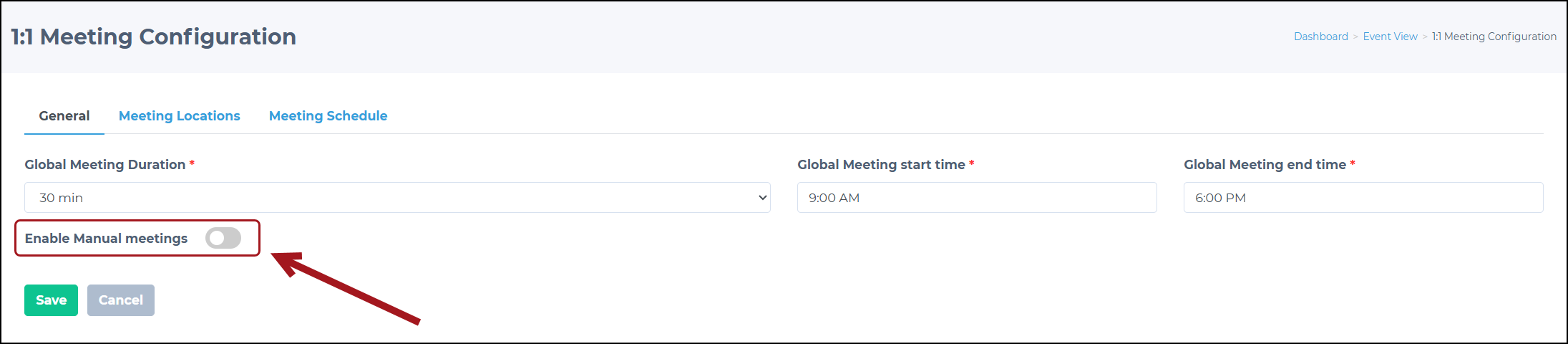
Configuring global slot settings
Global slot settings define the default parameters for all slots within an event.
- Go to 1:1 Meetings & Locations > Configuration > General.
- Set the following parameters:
- Global Meeting Duration: Defines the duration of each meeting slot (for example, 15 min or 30 min).
- Global Meeting start time: Specifies the earliest time users can book a meeting. This time follows the event timezone.
- Global Meeting end time: Specifies the latest time slot on the booking calendar. This time follows the event timezone.
- Click Save.
NOTEIf at least one meeting is already booked, the Global Meeting Duration cannot be changed until all existing bookings are cancelled.
Managing meeting locations
Meeting locations are physical or virtual places where 1:1 meetings take place (for example, tables or rooms).
Creating a location
-
Go to 1:1 Meetings & Locations > Configuration > Meeting Locations.
-
Click Add Location.
-
Enter the following:
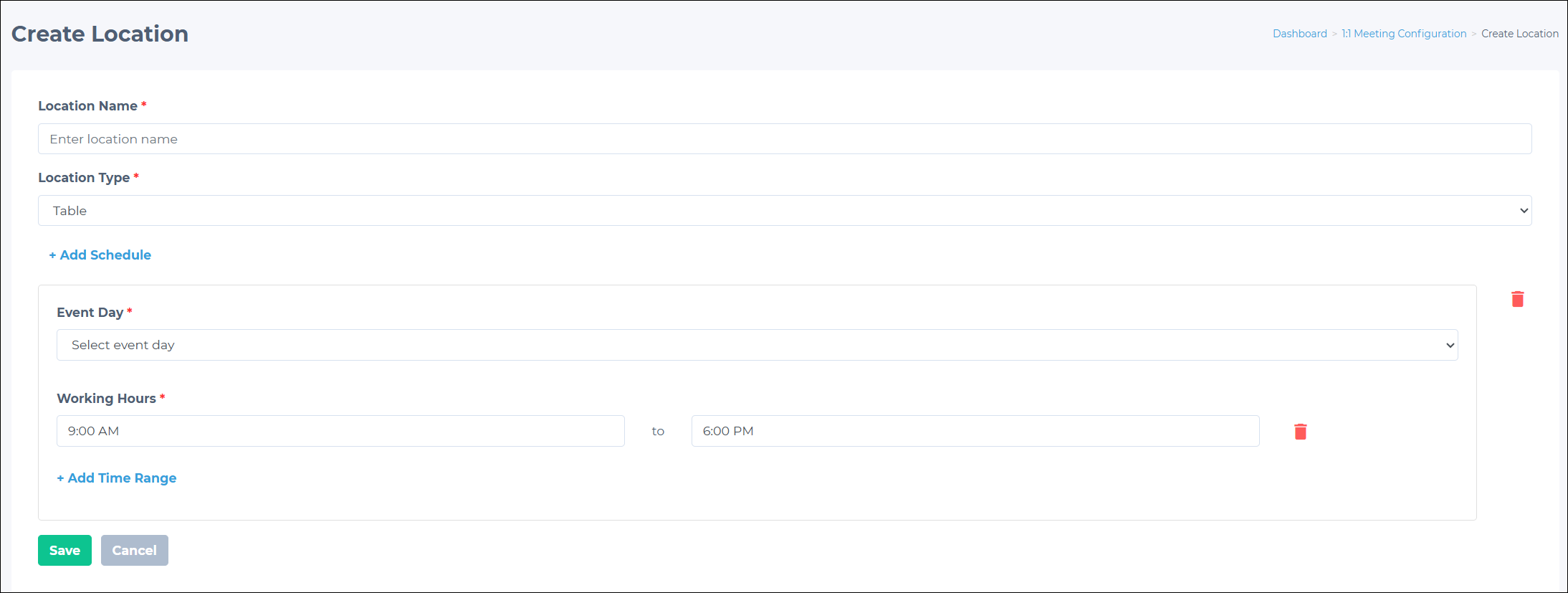
- Location Name (for example, “Table 29”)
- Location Type (for example, Table, Room)
-
Add one or more location availability schedules:
- Select specific event days or choose All Days to include all event days.
- Set one or more time ranges (for example, 11:00–14:00, 16:00–19:00).
-
Click Save.
Slots are generated automatically based on location schedules and the global slot duration.
Editing a location
Click the Edit button on an existing location to update its name, type, or availability schedules. Changes to schedules regenerate slots.
If a location has booked meetings during the affected time range, the schedule cannot be reduced until the affected booking is cancelled first.
Deleting a location
Deleting a location removes all its associated slots. If any slots have booked meetings, those bookings must be cancelled first.
Managing the meeting schedule
The Meeting Schedule provides a day-based grid view of all slots, their statuses, and bookings across all locations.
Viewing the schedule
- Go to 1:1 Meetings & Locations > Configuration > Meeting Schedule.
- Select an event day.
- View the grid, which shows:
- Time slots on the vertical axis
- Meeting locations on the horizontal axis
- Slot statuses: Available, Booked, Unavailable
Viewing booking details
Click on a location’s view button to see booking details for each slot in that location: time range, participants, and meeting status.
Cancelling a booking
- Open a booked slot.
- Click Cancel Booking.
- Confirm the action.
The meeting is cancelled, and the slot becomes available again. Both participants receive a push notification.
Cancelling bookings in bulk
Click Cancel All Bookings to cancel all booked meetings for a specific day or location. A confirmation popup is displayed before proceeding.
Bulk cancellation is irreversible. All affected participants receive push notifications about the cancellation.
Updated about 1 month ago