

What is QR Hub?
IMPORTANTQR Hub is not enabled by default. To enable and configure QR Hub, contact your Client Account Manager.
The QR Hub is a feature designed to streamline networking and event attendance using QR codes. Users can easily share digital business cards, scan QR codes, and manage saved contact information using the QR Hub.
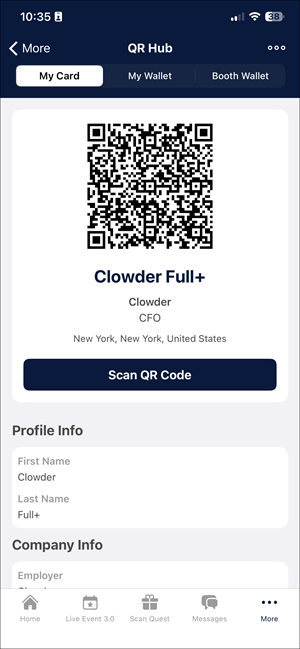
Understanding QR Hub features
The Client Account Manager can configure the following options to display in the QR Hub:
Business card
The Business Card in the QR Hub displays a user’s information and a system-generated QR code. To view the personal business card, the user needs to open the QR Hub and switch to the My Card tab (default).
The business card automatically pulls information from the user’s profile. The system automatically generates a QR code for each business card. Others can scan this code to save contact details quickly. If the user has uploaded a profile photo, it will also appear on the QR code.
Users can share their business card’s QR code as an image or save it to their photos. To do so:
- Tap the More button (three dots) at the top-right corner of the screen.
- Choose either of the options below:
- Share My QR Code: To share the QR code using messaging or other apps.
- Save to Photos: To download the QR code to the device.
QR scanner
To scan QR codes, users can use the built-in scanner in the QR Hub.
Tap the Scan QR Code button to activate the camera and scan a visible QR code. Users can also scan a QR code in a saved image by tapping Scan Code from Photos and selecting the appropriate picture on their device.
Scanned card
After a successful QR code scan, users will see the Scanned Card, which displays information about the scanned user, such as full name, position, company, and contact information.
Users have the option to:
- View the full user profile.
- Send a message directly to the user.
- Save the contact to their in-app wallet.
Users can manage all saved cards by switching to the saved cards tab in the QR Hub.
Saved cards
The Saved cards tab, called My Wallet, shows all the cards users have scanned and saved. Users can perform individual and bulk actions on the saved cards.
To perform bulk actions, users can tap the More button (three dots) in the top-right corner of the screen to delete or export all saved cards.
To perform individual actions, users can tap the More button (three dots) in the top-right corner of each card. This allows the card to be shared or deleted.
Individual saved cards can also be clicked to see more information and access other actions. On this screen, users can do the following:
- Save to Phone Contacts: Lets users save contact information directly to their phone.
- Delete Business Card: Deletes the business card.
- View Full Profile: Tap to view the user's full profile.
Updated 3 months ago