

Speakers
In the Speakers section, administrators can manage event speaker information. Admins can add, edit, view, import, and delete speakers in this section.
Adding a speaker
Admins can add individual speakers or import a list of speakers.
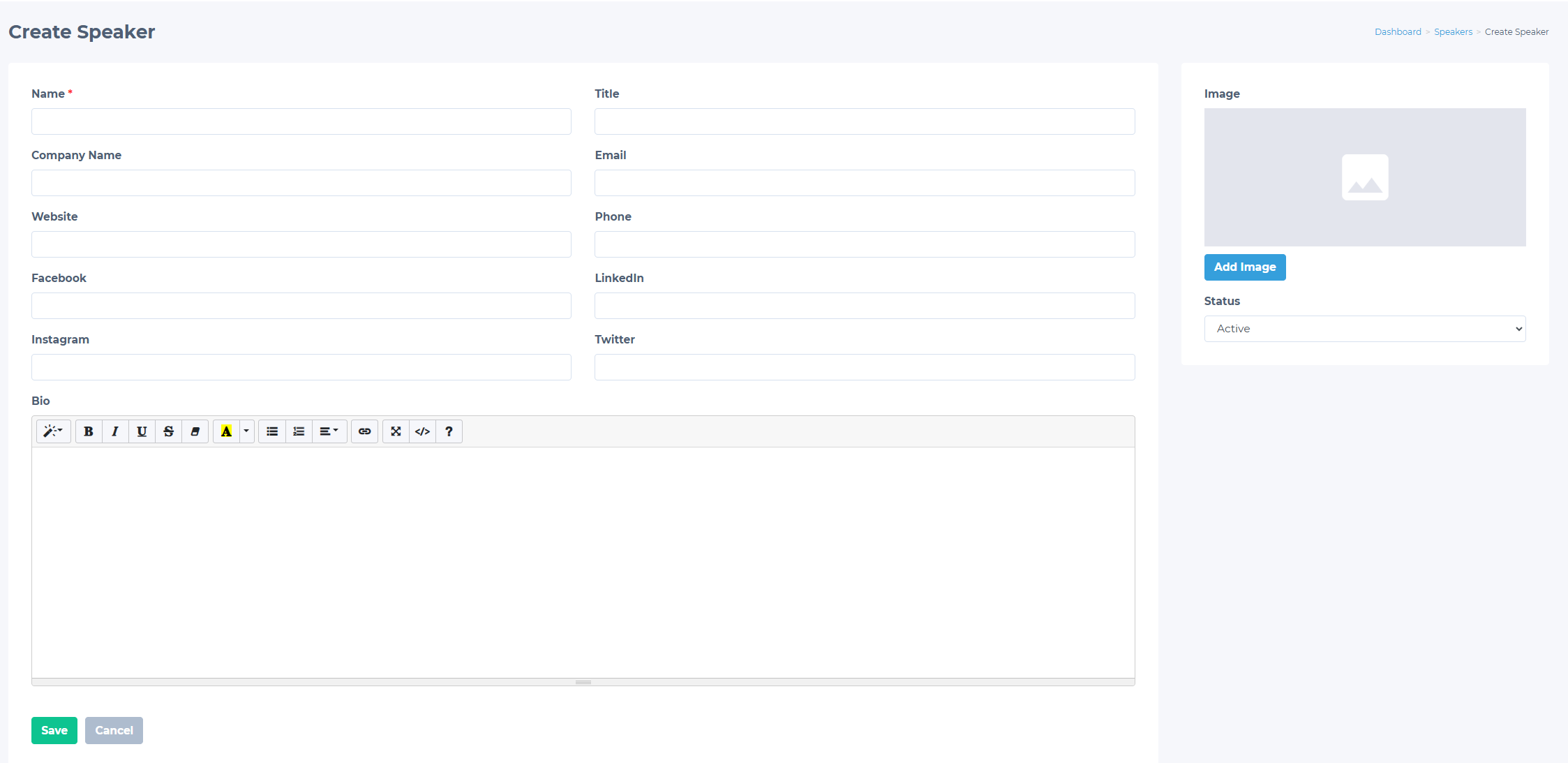
To add an individual speaker:
- Go to Events > Speakers.
- Click Add Speaker.
- Enter the speaker information.
- Click Save.
To add multiple speakers, admins must use the import function:
- Go to Events > Speakers.
- Click Import Speakers.
- Import a CSV file with the speakers list in any of the following ways:
- Click the Drop CSV file here window to upload from device.
- Drag and drop the CSV file into the Drop CSV file here window.
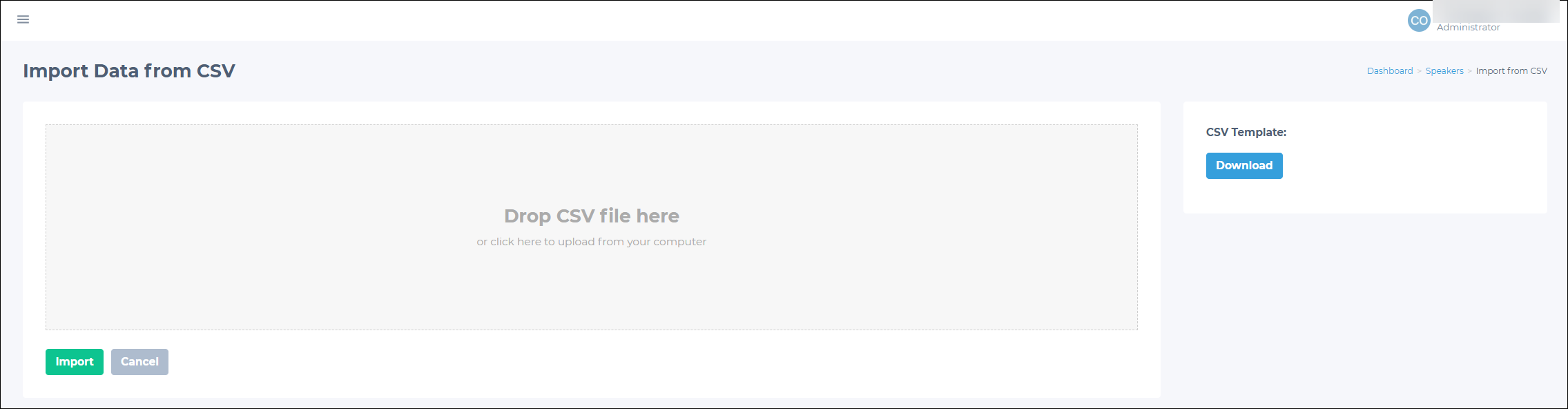
- Click the Import button.
Updated 3 months ago
Did this page help you?