

Notes
Notes allow users to write personal remarks about other users. Each note is tied to a specific user’s profile and is visible only to the note author. Notes are private — the person being noted cannot see what was written about them.
My Notes is simply an aggregated list of all the notes a user has ever written about other users. Using My Notes, users can quickly browse and search through their notes in one place. Tapping any note in the list opens the profile of the user the note is about.
Managing notes in the mobile app
Users can create, edit, view, and delete notes about other users in the app.
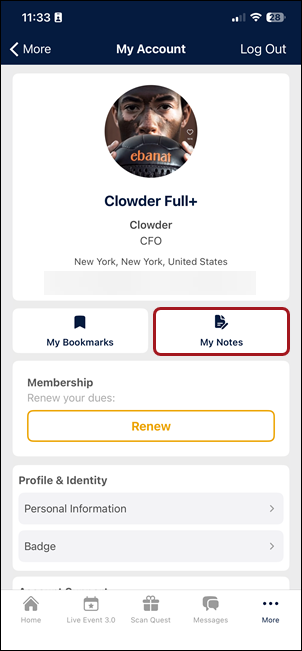
Accessing My Notes
To access My Notes in the mobile app:
- Go to My Account.
- Tap My Notes.
The screen shows all written notes, each displaying the user’s name, a preview of the note's text, and the last modified date.
Viewing a note
Tap any entry in the My Notes list to open the profile of that user. Notes about the selected user are displayed in the Notes field on their profile for reading or editing.
Creating a note
There are two ways to create a note:
- From My Notes
- From a user's profile
To create a note from My Notes:
- Open My Notes and tap the '+' sign.
- A user selection screen appears — search or browse to find a user to write about.
- Choose the user and write a note.
- Tap Done after writing the note.
The note is saved and now appears both in the My Notes list and on that user’s profile.
To create a note from a user's profile:
- Open any user’s profile.
- Tap on the Note field to edit it.
- Tap Done to save the note.
The note also appears in the My Notes list.
Editing a note
Users can edit a note from:
- The My Notes section of their profile.
- The user’s profile.
Web app
The web app provides the same Notes functionality with a wider layout optimized for desktop use. My Notes is accessible from the My Account section, and the note field is available on every user profile.
Updated 3 months ago