

Adding a Clowder contact in iMIS
Clowder connects to iMIS through a dedicated RemoteService user. This user acts as the bridge between the two systems, and Clowder uses its credentials to read and write iMIS data. Without it, Clowder cannot connect.
iMIS clients get an additional license created for Clowder at no extra cost. After creating the user, add it to iMIS with RemoteService capabilities enabled.
Adding a contact user
Do the following to add a contact user in iMIS:
-
Go to Community > Add contact.
-
Set the following:
- Account type – Individual
- Customer type – Staff
-
Enter the following:
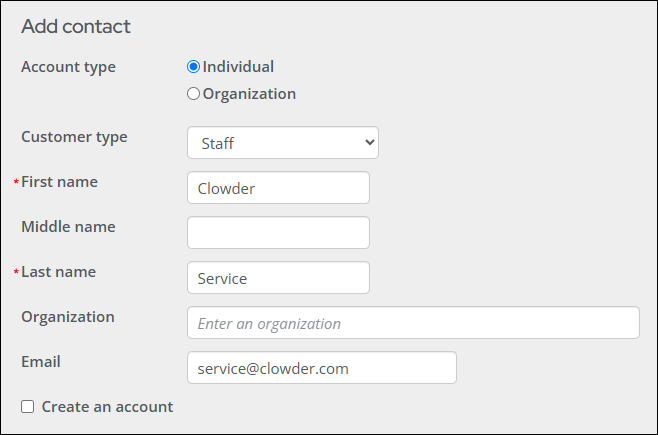
- First name – Clowder
- Last name – Service
- Email – [email protected]
-
Enable the Create an account checkbox.
-
Confirm the username is [email protected].
-
Set a preferred password, then confirm the password.
NOTEThis password is provided in the Clowder intake survey. For more information, see Technical survey.
-
Click Save.
Assigning RemoteService role
The newly added Clowder user must be granted RemoteService credentials, which allow the application to remotely access the iMIS API. For more information, see iMIS Security Roles.
Do the following to assign the RemoteService role:
-
Go to Community > Find contacts.
-
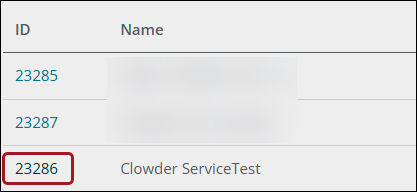
Find the newly created Clowder contact.
-
Select the contact ID.
-
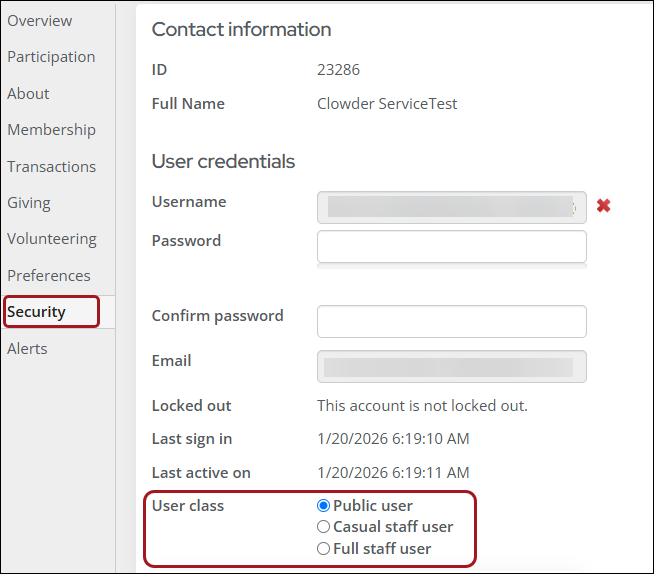
Click the Security tab.
-
Set the User class to Full staff user.
-
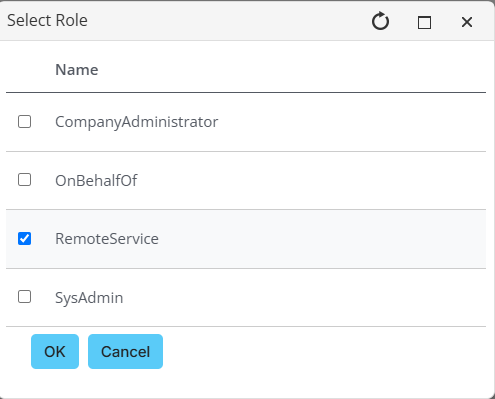
Go to User information > Roles, then click Add.

-
Enable RemoteService.
-
Click OK.
Updated about 3 hours ago