

Polls
Administrators can create and add event-specific polls on the Events page. Polls help event organizers gauge public opinion, preferences, and behaviors among attendees.
Creating polls
Do the following to create event-specific polls:
-
Go to Events > Events in the Admin panel.
-
Click View on the desired event.
-
In the Feedback section, click Add Type of Voice > Polls.
-
Look for the poll in the Feedback Type list, then click View.
-
Click Create Poll.
-
Enter the poll question and answer in the appropriate fields.
-
Click Publish Poll to make the poll live. To keep editing the poll later, click Save as Draft.
-
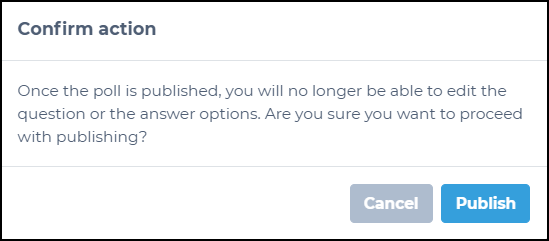
Click Publish to confirm the action. A success message appears after the poll is published.
Creating multiple poll entries
Like Q&A and Rating, only one Polls feedback type can be added per event. That feedback type can hold multiple poll entries.
To create multiple poll entries:
- Click View on the created poll entry in the Feedback section.
- Click Create Poll.
- Create additional poll entries.
Understanding poll statuses
A poll has one of the following statuses:
- Draft: The poll is saved but not live. Admins can edit, publish, or delete a draft poll.
- Published: The poll is live. App users can respond when the poll appears in the app.
- Finished: Voting is closed. App users can no longer respond.
A poll moves from Draft to Published to Finished. It cannot return to an earlier status.
Editing polls
Only draft polls can be edited. To edit a draft poll, click Edit on the poll, make the changes, then publish the poll or save it as a draft again.
Correcting a published poll
Published polls cannot be edited. To fix a mistake or typo in a published poll, clone the poll, correct the clone, publish it, and then delete the original.
Do the following:
- Open the poll on the Polls Info page.
- Click Clone Poll. The clone is saved as a draft in the same event, session, or sub-session.
- Edit the cloned poll.
- Publish the cloned poll.
- Delete the original poll.
NOTEVotes do not carry over to the cloned poll. Deleting the original poll also deletes its votes. To keep the original votes, export the poll results before deleting the poll.
Managing polls created for an event
After polls go live in the app, admins can view the poll performance, export polls to CSV, hide or show the poll in the app, or delete the poll.
NOTEPoll results are not displayed in the Admin Panel. To review the votes, export the poll results to CSV.
Performing quick poll actions
From the event's feedback section (Event > Feedback), the following quick actions are available on polls:
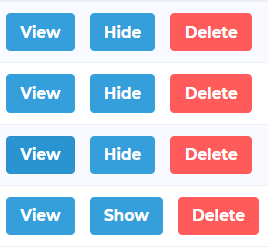
- View: Click this button to see the poll's performance and get full management options.
- Hide/Show: Click to show or hide published polls in the target event.
- Delete: Click to delete the poll. The poll is deleted without confirmation. This action is not reversible.
Showing and hiding created polls in the app
Admins can enable or disable published polls in the mobile app. A poll can be in the published state but still not visible to app users. Like other event feedback types, polls are hidden by default until an admin shows them in the app.
To show a poll in the app, find the poll in the Feedback section, then click Show. If a poll is shown in the app, admins can click Hide to prevent app users from accessing the poll.
Finishing polls
Finishing a poll closes voting. App users can no longer record responses to a finished poll. Only published polls can be finished.
Exporting poll results
Admins can export poll results for record-keeping or analysis. Polls can only be exported as a CSV.
To export poll results:
- Go to the Polls view page.
- Click Export Polls to CSV.
The downloaded CSV file includes one row per vote. Each row includes the following information about the voter and the vote:
- Internal and external user ID
- First name and last name
- Question and answer
Polls that have no votes are not included in the file.
Performing bulk actions on polls
On the Polls view page, admins can select multiple polls and perform bulk actions to save time. The following bulk actions are supported:
- Publish: Publishes selected polls.
- Finish Poll: Finishes selected polls. This action removes the poll from the event, and users can no longer record responses.
- Export to CSV: Exports only selected polls. To export all polls, see Exporting poll results.
- Delete: Deletes the selected polls. The poll is deleted without confirmation. This action is not reversible.
Managing individual poll entries
Admins can manage individual poll entries from the Polls view page or the Polls Info page.
From the Polls view page (Event > Feedback > Polls), admins can perform the following actions:
- View: Opens the Polls Info page.
- Edit: Opens a draft poll for editing. This action is not available for published or finished polls.
- Finish Poll: Finishes selected polls. This action removes the poll from the event, and users can no longer record responses.
- Delete: Deletes the poll entry. The poll is deleted without confirmation. This action is not reversible.
From the Polls Info page, admins can perform the following actions:
- Clone Poll: Allows admins to reuse a poll format to create a new poll quickly. Admins can also use this option to edit an existing poll without recreating it entirely.
- Finish Poll: Finishes selected polls. This action removes the poll from the event, and users can no longer record responses.
- Delete: Deletes the poll entry. The poll is deleted without confirmation. This action is not reversible.
- Export to CSV: Exports only the selected poll entry. To export all polls, see Exporting poll results.
Adding polls to Live Event 3.0
Admins can add a poll to the Live Event 3.0 tab as an action button. For the steps, see Live Events and Event Actions. When the poll is shown, a Poll tile appears on the Live Event screen in the iOS and Android apps. When the poll is hidden, the tile does not appear.
Understanding event poll behavior in the app
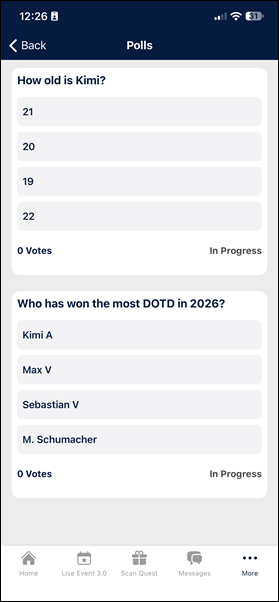
In the event Feedback section, app users see the poll option if enabled in the app. Polls specify a count indicating either of the following:
- The total number of polls in the section if the app user has not yet responded to any polls.
- The total number of polls left, if the app user has responded to some polls but not all.
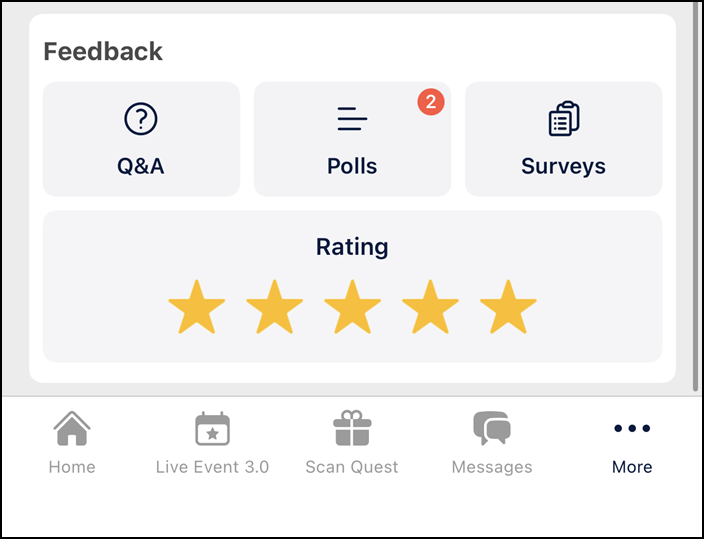
Admins can create additional polls during an event. Users who have not yet responded to the polls see the total count, while users who have responded to some polls see a pending count.
After a user responds to a poll, the system records the answer and removes the poll from the user's count. When the user leaves the poll screen, the poll no longer shows for that user.
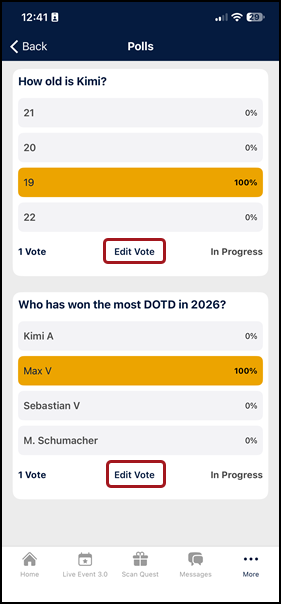
App users cannot change a response after leaving the poll screen. To change a response, app users tap Edit Vote while they are still on the poll screen, and then choose another response.
Updated 6 days ago