

Forums
The Forums feature allows users to start and join discussions in a structured way. Admins create categories (also known as communities) in the Admin Panel, and users can choose a category to create a post or join conversations in the app. Admins can also create forum posts (also known as discussions) to publish in the app.
Forums are a great way to encourage community engagement and keep discussions organized by topic.
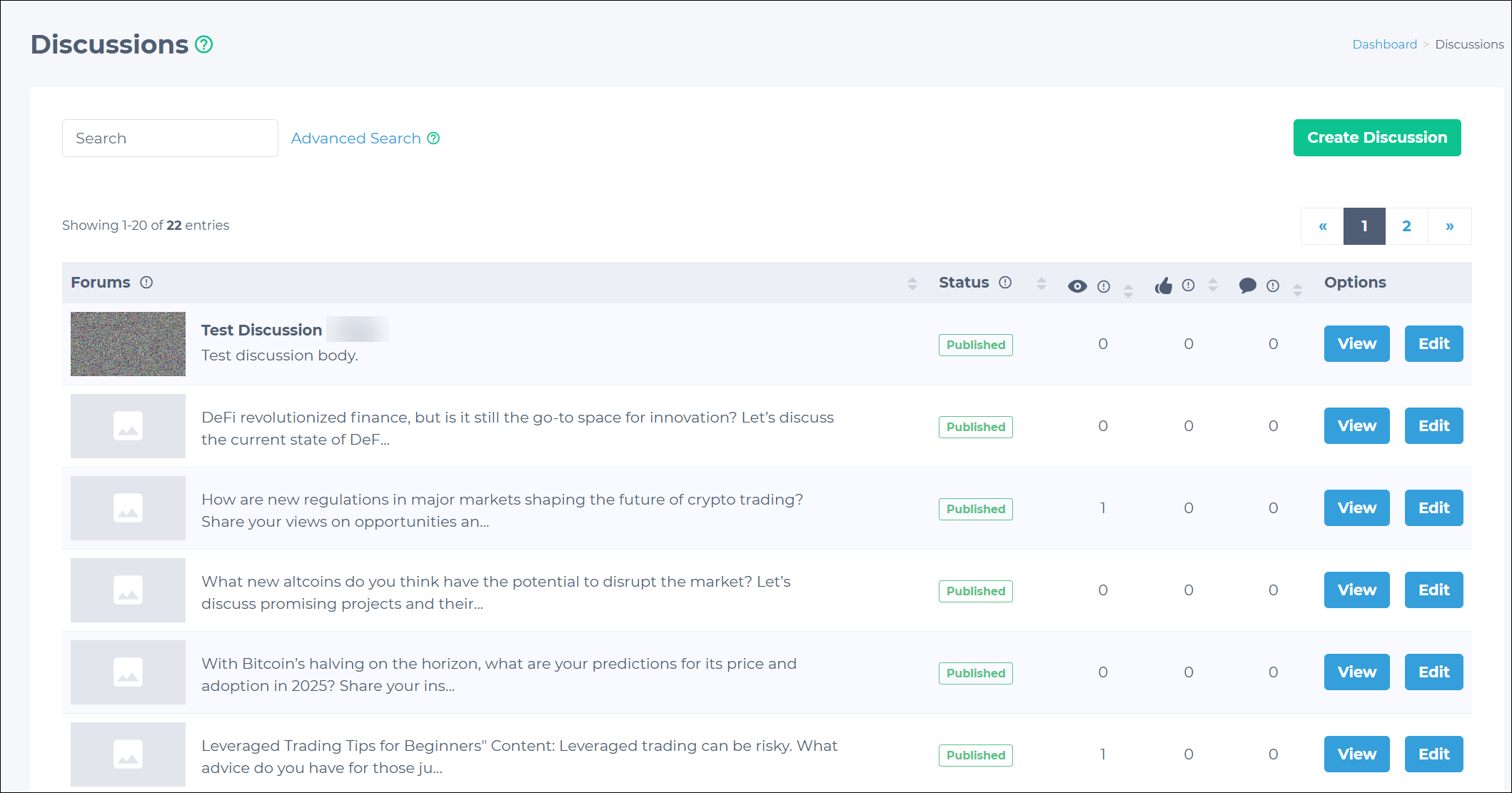
Creating forum categories
Categories help organize discussions in the app's Forums menu. Admins create categories in the Admin Panel. App users see these categories and can choose them when creating a post. To create a category:
-
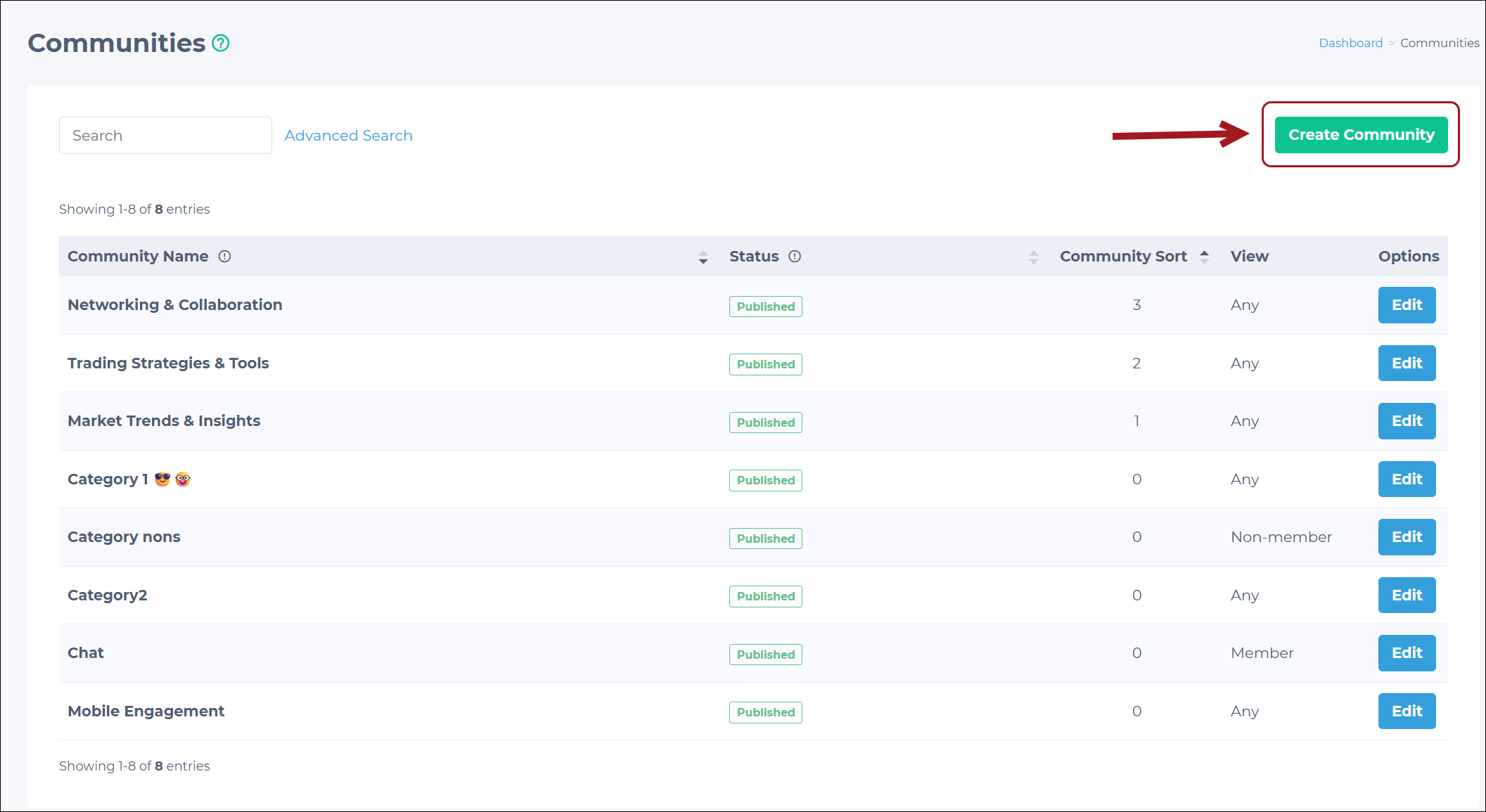
In the Admin Panel, go to Forums > Communities.
-
Click the Create Community button.
-
Fill in the following required and optional fields:
| Field | Description |
|---|---|
| Required | |
| Community Name | The name users will see in the app. |
| Groups | Select the group of users who can see this category in the app. A specific group can be chosen, multiple groups can be selected, or all users can be allowed. |
| Role View | Select who can see the category based on their role: Any, Member, or Non-member. |
| Optional | |
| About | A short description of the community. |
| Push Text | Text for push notifications users receive when there is a new post in this category. Only users who have joined this specific category in the app will receive the push notification. |
| Status | Determines the Community status:
|
| Community Sort | Defines the order of categories in the app. Categories with higher numbers will appear higher in the list. |
| Sponsored | Adds sponsor information. Enter the name of the sponsoring organization, and optionally set the date when the sponsorship ends. |
Managing forum categories
All forum posts can be viewed and managed in the Admin Panel.
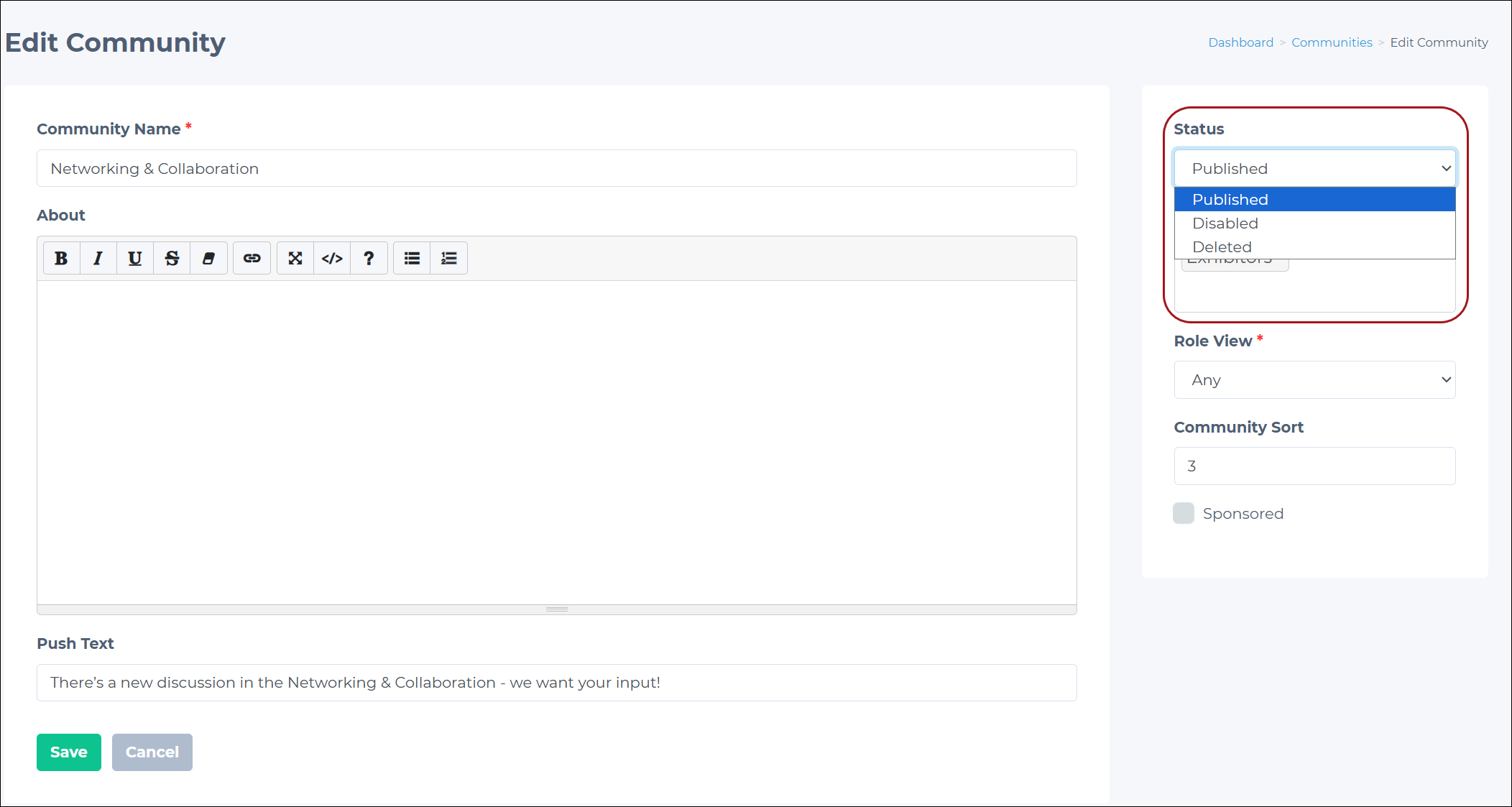
To edit a category:
- Go to Forums > Communities.
- Click the Edit button next to the necessary category.
- Change the required settings or information.
- Click Save.
To delete a category:
WARNINGDeleting a category (community) also deletes all its discussions and replies. This action cannot be undone.
- Open the category by clicking the Edit button.
- In the Status drop-down, select Deleted.
- Click Save.
- Confirm the prompt to delete the forum category.
Creating forum posts
Admins can create forum posts, also known as discussions, to share with users in the app. To create a forum post:
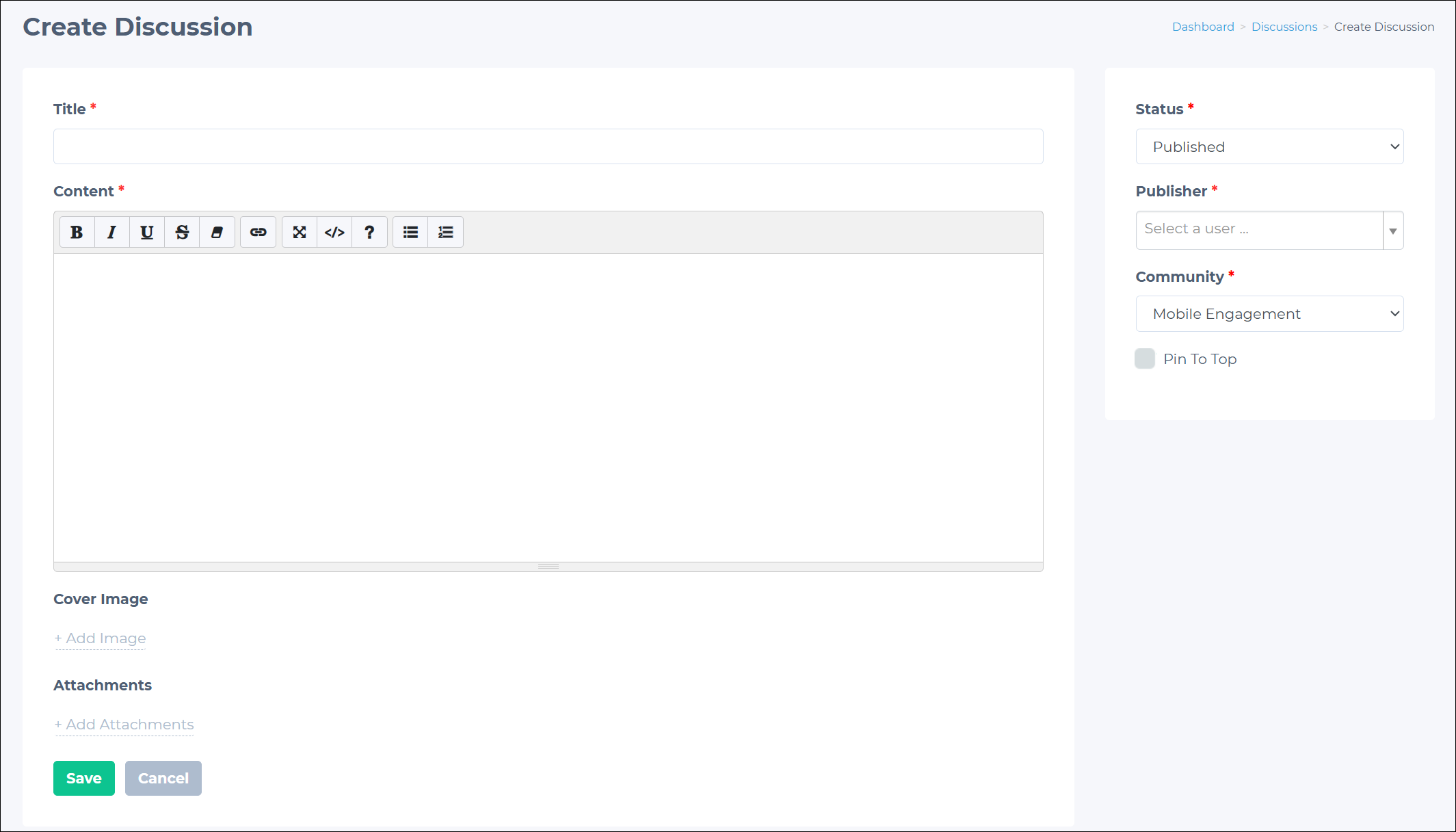
- Go to Forums > Discussions in the Admin Panel.
- Click the Create Discussion button.
- Fill in the following required fields:
- Title: The title of the discussion. This is shown to the users in the app.
- Content: The body of the discussion. This is shown to users in the app.
- Set the following:
- Status: Set to Published to show the discussion in the app. Set it to Draft to edit later.
- Publisher: Choose an app user to show up as the discussion author.
- Community: Choose the community to which the discussion is published. Multiple categories cannot be selected.
- Pin To Top: Check this box to pin the forum discussion to the top. On checking the box, a preferred end date can be set.
- (Optional) Click the Add Image button to upload a cover image.
- (Optional) Click the Add Attachments button to include files.
NOTEFor more information on supported attachment types and sizes, see File upload requirements.
- Click Save. This publishes the post (if the Status is set to Published) or saves the post as a draft (if the Status is set to Draft).
Managing forum posts
All forum posts can be viewed and managed in the Admin Panel. Go to Forums > Discussions to see a list of all posts published in the app. To find a specific post:
- Use the standard search by title.
- Use the advanced search to filter posts by category or status.
Click the View button next to the necessary post to see detailed information:
-
Viewers: See the list of users who viewed the post, including each user's name, email, profile information, and view count. This list can also be exported as a CSV file.
-
Replies: View all comments on the post. Replies can be exported to a CSV file or deleted individually if needed.
-
Likes: See all like reactions on the forum post. Reactions can be exported to a CSV file.
To delete the forum post:
- Click the Edit button next to the necessary post.
- In the Status drop-down, select Deleted.
- Click Save.
Updated about 1 month ago