

How timezones work in our application
IMPORTANTTo set up and manage the timezones for events and push notifications, contact your Client Account Manager.
Admin timezone
Each admin can configure their own timezone for the Admin Panel. It is particularly useful for admins working from different regions.
If an admin does not set a specific timezone, the Admin Panel will use the default one. The client specifies this default timezone, documented in the project plan, and set by the developers.
To set up the timezone for the Admin Panel:
-
Click the admin name in the top-right corner.
-
From the drop-down, select the Profile option.
-
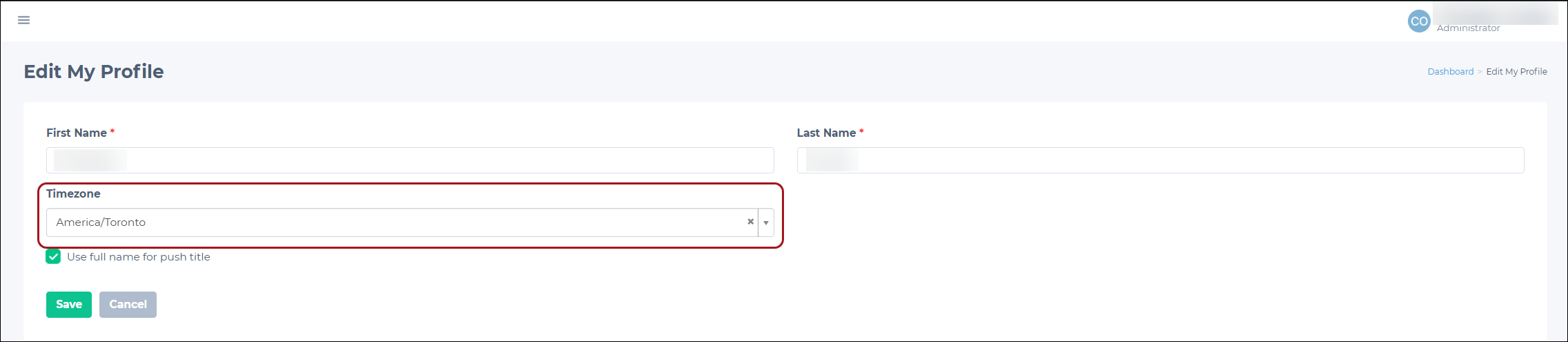
On the Edit My Profile page, find the Timezone field.
-
Click the drop-down to see the list of available timezones. The list is shown in the Region/City format (for example, Europe/Kyiv).
-
Select the timezone that matches your local time.
-
Click Save to apply changes.
Admins can find their currently set timezone in two places:
- In their Profile Settings, under the Timezone field.
- At the bottom of the Admin Panel page, where the Current Time (for example, "Current Time: Europe/Kyiv") is displayed.
Timezone list for events and push notifications
The timezone format used for events and push notifications differs from that used in the Admin Panel.
- The timezones in the Admin Panel are listed by Region/City (for example, Europe/Kyiv).
- For events and push notifications, timezones are displayed as a UTC offset followed by the full timezone name (for example, UTC+03:00 Eastern European Summer Time).
Setting event and session timezone
The following settings control how timezones are displayed for events:
- Go to Events > Events.
- Click View on the desired event.
- Click the Edit Event button.
- Select an appropriate timezone from the Event Timezone drop-down.
- (Optional) Enable the Display Event Timezone in App box to show the timezone in which the event is scheduled.
EXAMPLEIf the event is set to start at 3:00 PM in UTC+02:00 (Eastern European Time), users will see both the event time and the timezone in the app.
NOTEHere are a few notes about timezones:
The timezone for each session will always match the event's timezone and cannot be changed separately.
Users will see two session time displays for each session: one for the Site Timezone (the timezone set in the Admin Panel) and one for the Event Timezone (the timezone configured specifically for the event).
Timezones in push notifications
Timezones ensure push notifications are sent at the correct time for users in different regions. Here is how it works:
- Admins can select the desired timezone from the Timezone drop-down when creating a push notification. Once a notification is scheduled or sent, the selected timezone will be displayed in the Date & Time column.
- By default, the system selects a timezone based on the admin's timezone in the Admin Panel. The format of timezones for push notifications is a UTC offset followed by the full name (for example, UTC-07:00 Mountain Standard Time).
- When two timezones share the same UTC offset (for example, Mountain Standard Time and Pacific Daylight Time, both UTC-07:00), the system chooses based on the admin's settings. For instance, if the admin's zone is America/Phoenix (UTC-07:00), the system will select Mountain Standard Time, not Pacific Daylight Time.
- The system automatically adjusts for Daylight Saving Time. For example, if a push notification is set for 3:00 PM in DST and switches to Standard Time, it will still be sent at the correct local time.
Updated 3 months ago