

Admin roles
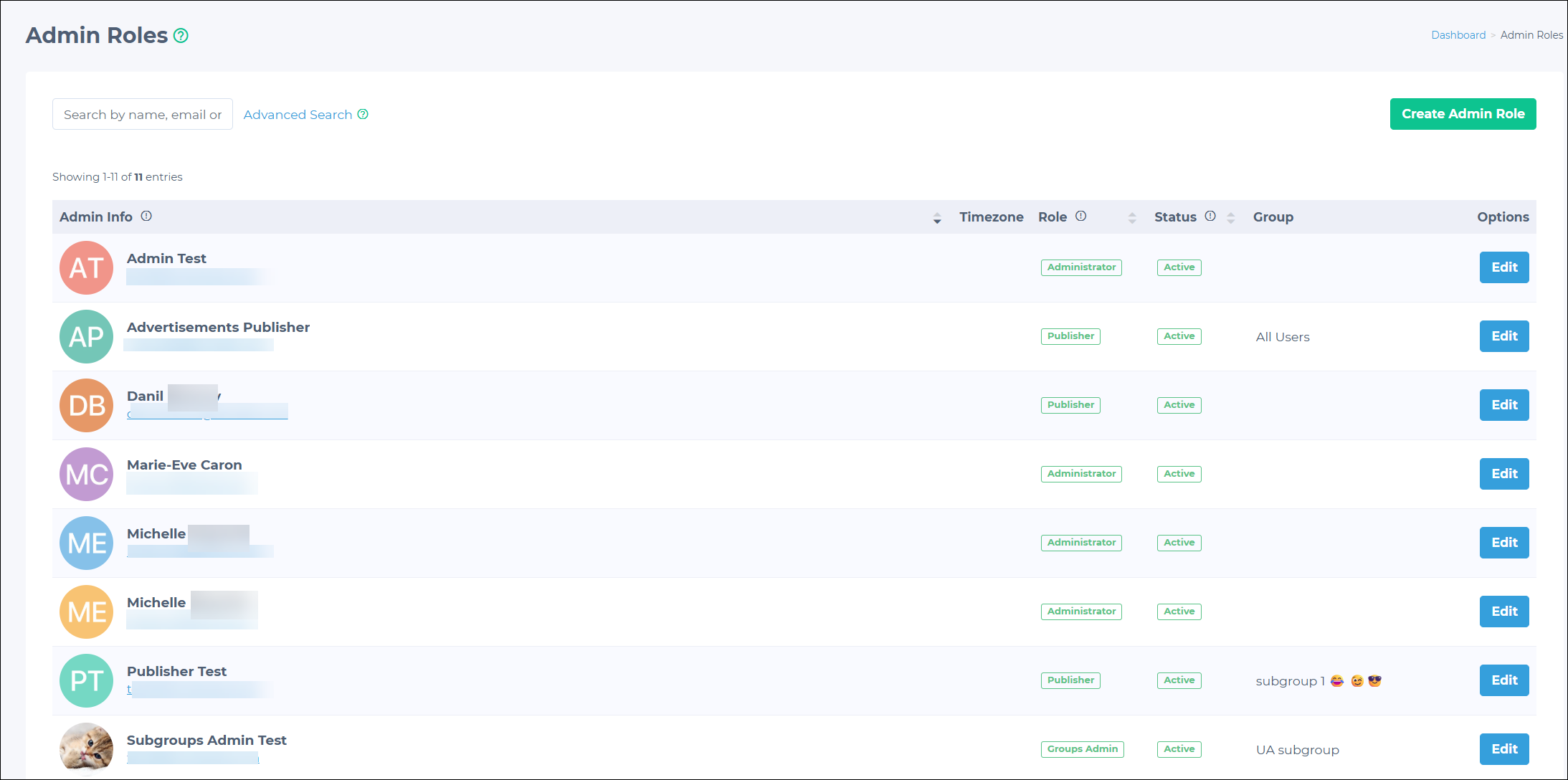
Admin Roles define access to the Clowder Admin Panel. Each role defines what an administrator can see, manage, and configure. Roles can be customized with granular permissions across content, system, management, and access rights.
Role hierarchy
Clowder uses three administrative roles, ordered from most to least access:
Administrator > Groups Admin > Publisher
NOTEAll three roles can be granted or limited access to any rights in the permissions table below. The descriptions here reflect the default scope of each role.
Administrator
Administrators have full access to the Admin Panel. An administrator can control all aspects of the application: content, users, settings, and integrations.
Default capabilities:
- Create, edit, and delete all content types: events, forums, news feed posts, resources.
- Manage all app users: invite, deactivate, assign roles, view profiles.
- Create and manage groups and their structure.
- Send push notifications to any audience.
- Manage advertisements and sponsorship placements.
- Configure directories, tags, emails, and user flags.
- Access system rights: Custom Page editor, Manage Cron.
- Access Badge Builder and Map Builder.
- Create and manage other admin roles (Administrators, Group Admins, Publishers).
TIPWhen to assign: Organization administrators and app owners who need unrestricted access to all platform features and the ability to manage other admins.
Groups Admin
An administrator scoped to one or more assigned groups. Group Admins have elevated permissions within their groups but limited access to the broader system.
| Default capabilities | Default restrictions |
|---|---|
| Manage content within assigned groups: events, forums, news feed, resources | Cannot create new groups |
| View and manage users within assigned groups | Cannot manage Administrators |
| Create and manage Group Admins within their groups | Cannot access app-wide settings, dashboard, or analytics (unless explicitly granted) |
| Create and manage Publishers within their groups | Cannot manage advertisements, directories, or integrations (unless explicitly granted) |
| Send push notifications to group members (if granted) | |
| Moderate activity and comments within the group | |
| Access granted management and system rights for the group scope |
TIPWhen to assign: Committee chairs, chapter leaders, section heads, and regional managers who manage a specific segment of the organization and need to delegate work to other Group Admins and Publishers.
Publisher
A content-focused role with access to create and moderate content within assigned groups. Publishers work within the content layer of the Admin Panel without access to user management or system settings.
| Default capabilities | Default restrictions |
|---|---|
| Create, edit, and moderate content in assigned groups: events, forums, news feed | Cannot create or manage other admin roles |
| Manage resources within the group scope | Cannot create or manage groups |
| Moderate comments and activity on their content | Cannot manage app users or change permissions |
| Cannot send push notifications (unless explicitly granted) | |
| Cannot access dashboard, analytics, or system rights (unless explicitly granted) |
TIPWhen to assign: Content managers, marketing team members, and community managers who need to publish and moderate content without access to administrative controls.
Configurable permissions
Each role can be customized by granting or removing individual rights. The following table lists all available permissions grouped by category.
| Content Rights | System Rights | Management Rights | Access Rights To |
|---|---|---|---|
| Events | Custom Page | Advertisements | Badge Builder |
| Forums | Manage Cron | App Users | Map Builder |
| News Feed | Report | Dashboard | |
| Directories | |||
| Manage Emails | |||
| Manage Groups | |||
| Manage Tags | |||
| Messages | |||
| Push Notifications | |||
| Resources | |||
| User Flags |
Creating an admin role
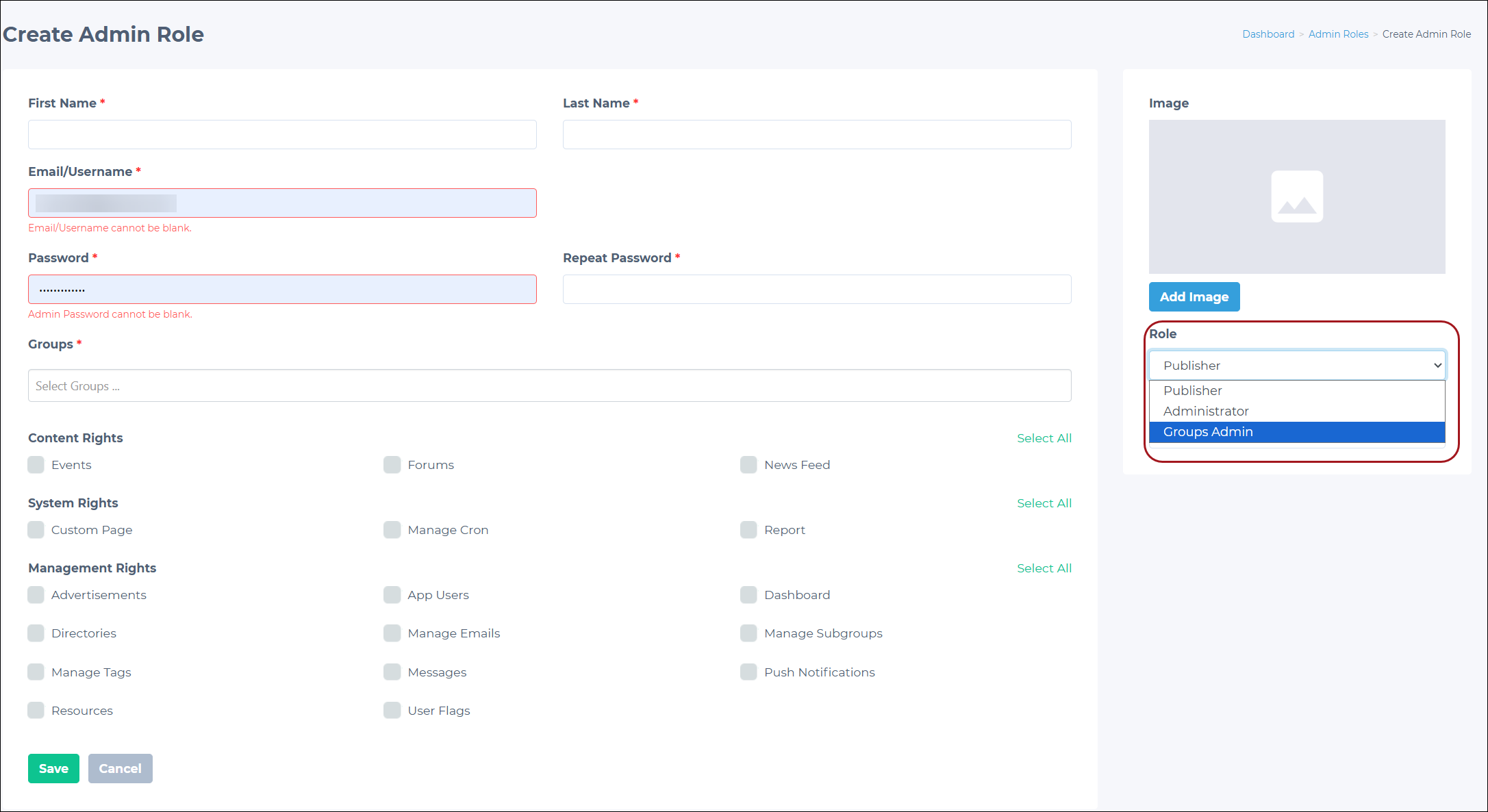
To create an admin role:
- Go to Admin Roles > Admin Roles in the Admin Panel.
- Click Create Admin Role.
- Fill out the required fields:
- First Name
- Last Name
- Email/Username
- Password (enter and repeat for confirmation)
- Choose the role type from the drop-down: Publisher, Administrator, or Groups Admin.
- Set the Status to Active.
- (Optional) Click Add Image to upload a profile picture.
- Grant permissions by selecting the necessary rights:
- Content Rights (Events, Forums, News Feed)
- System Rights (Custom Page, Manage Cron, Report)
- Management Rights (Advertisements, App Users, Dashboard, and so forth.)
NOTEThis step is only relevant for publishers and group admins. Administrators get full access by default.
- Click Save to create the role.
Updated 3 months ago