

Member and company directory survey
The member directory is a list of selected contacts and their details, displayed to other members or non-members in the mobile app. The member directory could be a list of the organization's staff or a full list of members.
The Company Directory lists selected organizations and the details to display to app users.
Clients must be mindful of the privacy implications of any information they choose to display in these sections, especially in the member directory.
Completing the member directory survey
Do the following to complete the member directory survey:
-
Complete the API Request fields:
- API Documentation – The URL to the target software's API documentation. Contact the Client Technical Contact or the IT department to obtain the correct information.
- API Call – The API command and endpoint required to retrieve the member directory from the integrating software. If unsure, contact the Client Technical Contact or the IT department.
-
Complete the App Display & List View Fields tables:
Item Description Menu Name Allows clients to specify a preferred name for the member directory. Menu Icon Allows clients to specify a preferred icon for the member directory. -
Complete the Directory Row. The directory row defines the short information displayed when looking at a list of members in the directory.
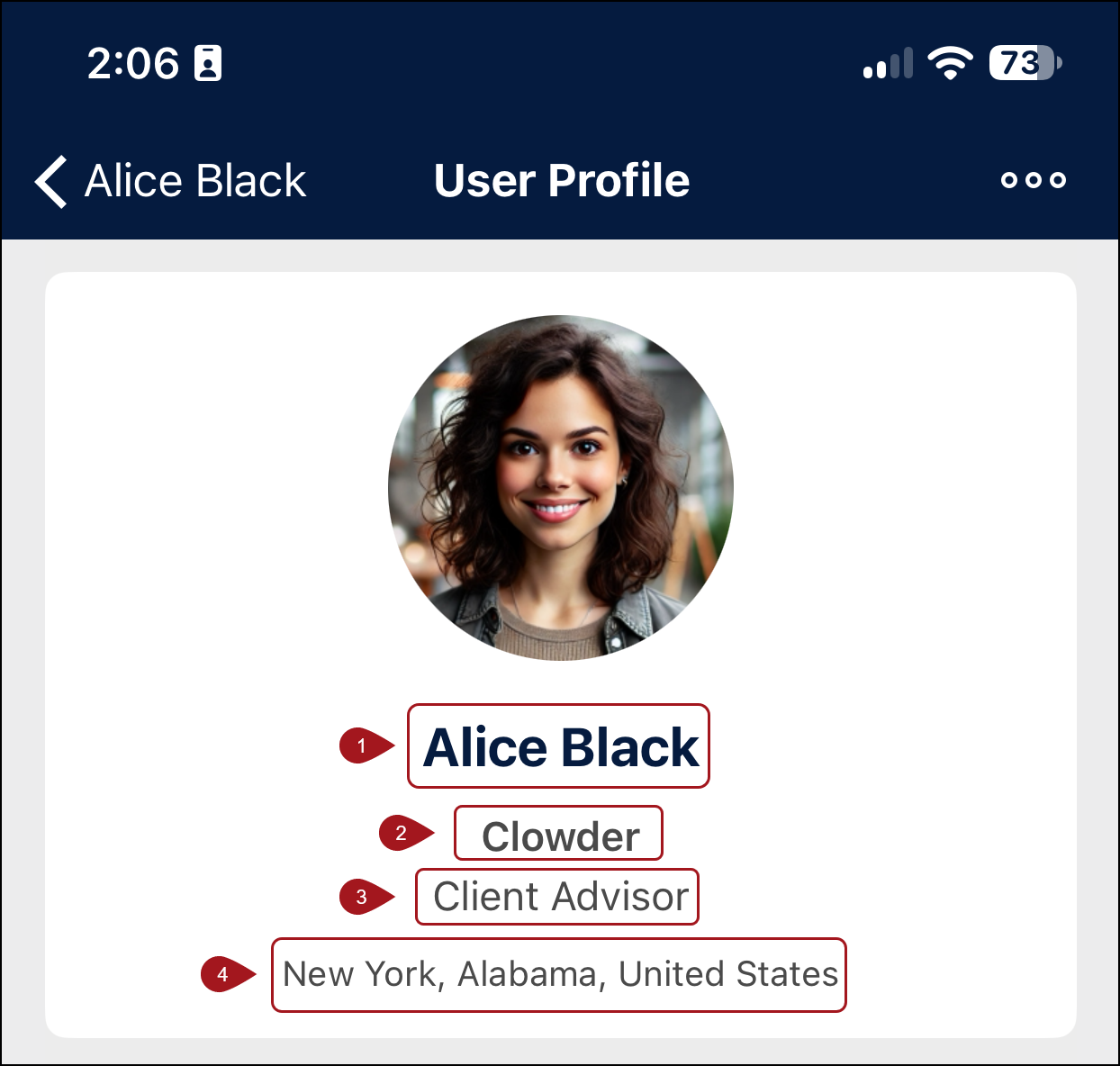
Row Value 1 Member name or company name 2 For example, Company name 3 For example, Job title 4 Location -
Complete the Detailed View Fields section. This section defines the detailed information displayed once an app user opens a user profile from the member directory.
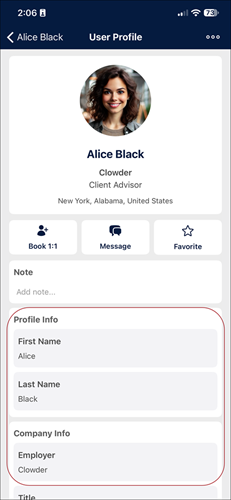
Column Description App Section Header Section names that group similar information. For example, Profile Info, Company Info. App Field Name Fields within each section. For example, First Name and Last Name under Profile Info. API Field Name Source field name for the requested data from the integrating software's API. For example, last_namefor Last Name.Table/Source Lookup table for the intended data. For more information, speak with the Clowder Advisor. -
Define the Standard Search Fields. Decisions here determine how app users search for and find users in the member directory. For example, enabling Company as a standard search field means users can search by company.
-
Complete the Custom Chips section. Custom chips help app users filter directory members.
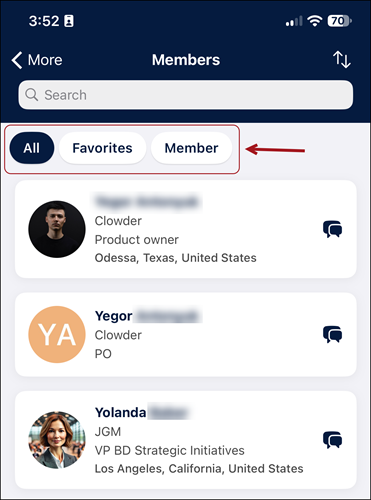
Column Description Order Defines how the custom chips appear in the app. Order 1 appears first, while Order 5 appears last. Name The name of the custom field (for example, Chapter, Member). Type Specify whether custom chips should be used singly or in combination. -
Define the naming conventions:
- Name Display: Choose whether to display the first or last name first.
- Name Sorting: Choose how members are sorted. For example, A-Z by last name.
Updated 9 days ago