

Banners
Banners are visual advertisements displayed within the app to promote content, events, or other relevant information to users.
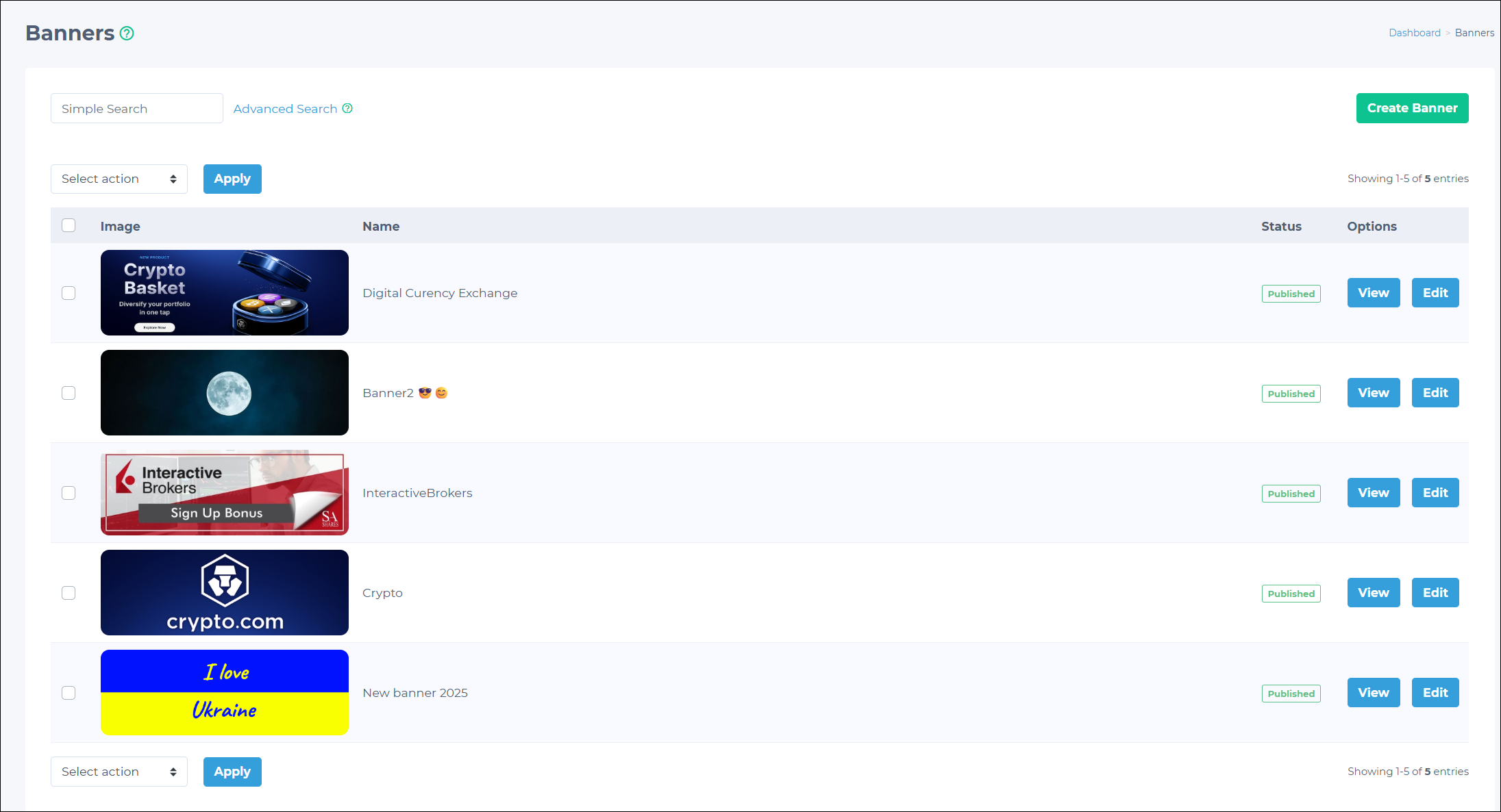
The system supports three main types of banners:
-
Image Title & Description: Use this banner type to provide detailed information in advertisements.
-
Image & Description: Use this banner type for promotions that need a strong visual impact and some extra information.
-
Image Only: Use this banner type for brand awareness campaigns or when the visual conveys the entire message.
Creating banners
To create a banner for an advertisement campaign:
- Go to Advertisements > Banners in the Admin Panel.
- Click the Create Banner button on the banner list page.
- On the Create Banner page, provide the following details:
| Section | Required? | Notes |
|---|---|---|
| Select Banner Type | Yes | Choose one of "Image Title & Description," "Image & Description," or "Image Only." |
| Image | Yes |
|
| Title | Yes | The title is not visible to users. |
| Description | On some banner types | Not required for image-only banners. |
| Link | No | Add a URL to redirect users after clicking the banner. |
| Status | Yes | Set to Published by default. |
| Group | Yes | Select the groups for which the banner will be visible. |
- Click Save to create the banner.
Once created, the banner appears in the list of available banners under Advertisements > Banners and can be used when setting up campaigns.
Managing banners
Banners can be deleted and edited from the Admin Panel. Banner performance and related statistics, including views, impressions, and click-through rates (CTR), can also be viewed and exported.
Deleting a banner
To delete a single banner:
- Go to Advertisements > Banners.
- Click the Edit button for the banner to be deleted.
- In the Status drop-down, choose Deleted.
- Click Save.
To delete multiple banners:
- Go to Advertisements > Banners.
- Enable the boxes next to the banners to be deleted.
- In the Select action drop-down, choose Deleted.
- Click Apply.
Editing banner details
To edit banner details:
- Click the Edit button for the banner to be modified.
- Update the necessary information.
- Click Save.
Viewing banner details
Clicking the View button for a desired banner shows comprehensive information about the banner:
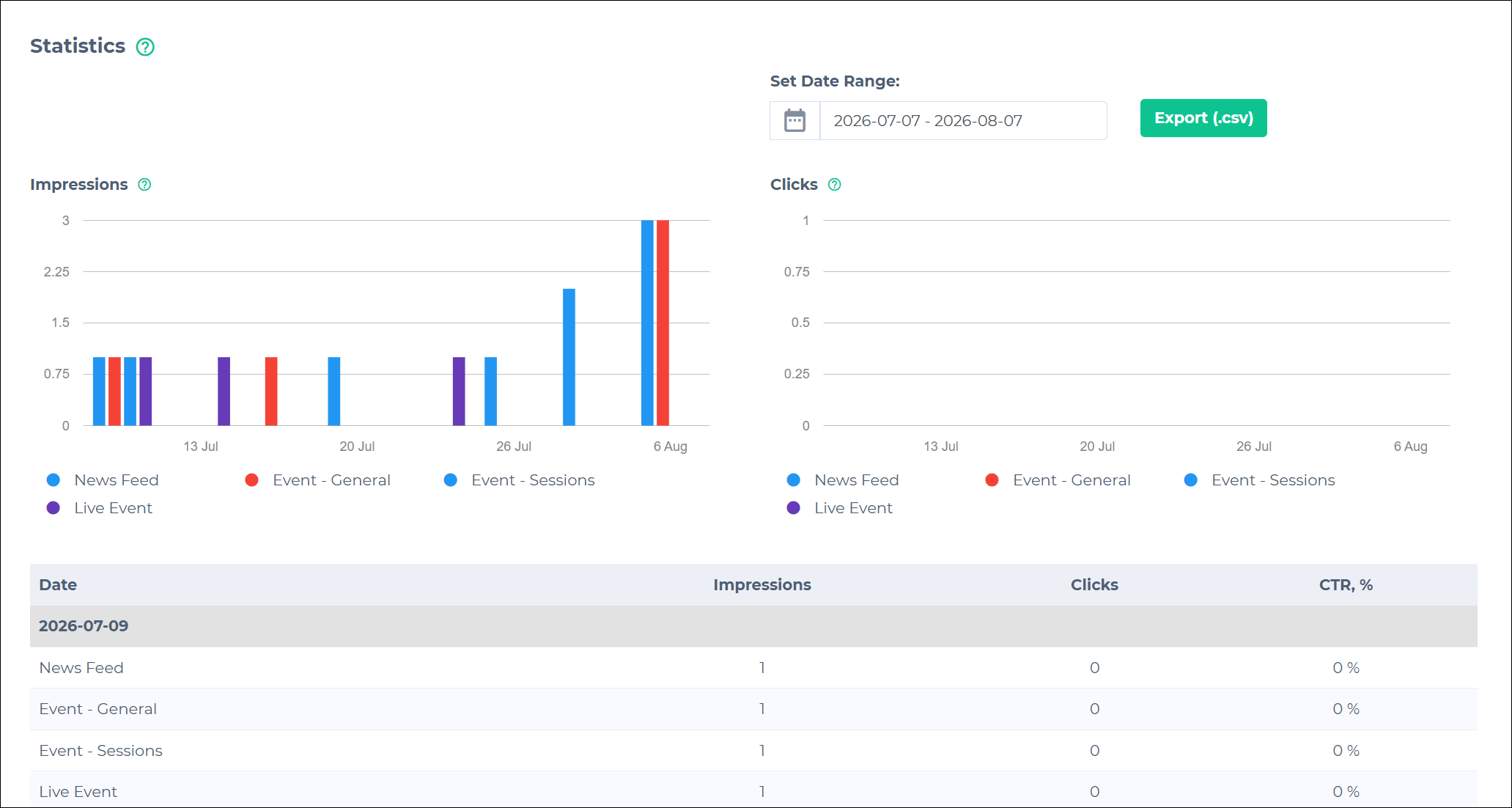
- Campaigns: Lists all campaigns using this banner.
- Status: Shows the banner's current status.
- Statistics: Shows performance data for the banner:
- Impressions: The number of times the ad was displayed in different app sections.
- Clicks: The number of times users clicked on the ad in the application.
- CTR: Short for Click-Through Rate. The percentage of impressions that resulted in clicks.
The detailed table shows the following daily performance data per app section (for example, News Feed, Forum Posts):
- Date
- Impressions
- Clicks
- CTR
Exporting banner statistics
To export statistics as a CSV file:
- Set the desired date range using the calendar picker.
- Click the Export (.csv) button.
Updated 3 months ago