

Notification center (App)
IMPORTANTIf the Notification menu item does not exist in the app, contact your Client Account Manager to set it up.
The Notifications center collects most notifications in one place, except for messages from the Messages module. It shows users a complete list of app activities, lets them interact with notifications, and provides quick access to related content. Users can easily view their notification history and manage their notifications.
Only logged-in users can access notification history.
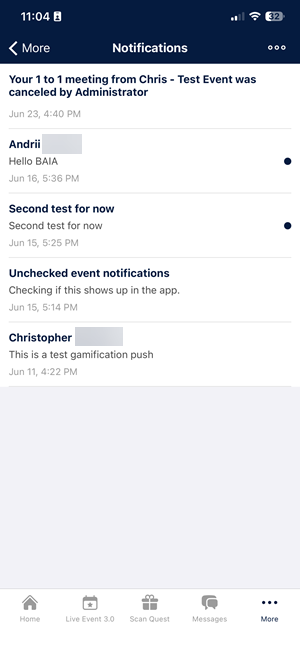
Navigating the notification center interface
The Notification Center interface includes the following elements:
- A list of notifications sorted from newest to oldest.
- Individual notification details:
- Timestamp (for example, 31 seconds ago)
- Title
- Brief description (if available).
- Timestamp (for example, 31 seconds ago)
- Badges (•) for unread notifications.
- Options to mark all notifications as read or delete them all (accessible via the three-dot icon in the top right corner).
Viewing notification details
All notifications are clickable, except for admin notifications (for example, a new news post) that lack a deep link. Notifications without a deep link display the full text within the Notification Center.
Users can click a notification to go directly to the relevant content, such as event details, polls, news, or forum posts.
For mentions in comments, clicking the notification opens the specific comment where the user was mentioned.
Customizing notification settings
Users can customize their notification preferences in the My Account > Notifications app section to allow:
- Event notifications
- News notifications
- Poll notifications
- Forum notifications
- Tag notifications
- Post notifications
Note that these settings only affect lock screen and home screen notifications. They do not change which notifications appear in the Notification Center.
Understanding notification badges
The app uses badges to highlight new notifications:
- When new notifications are received on Android devices, a badge (a small number indicator) appears on the app icon on the device's home screen. Inside the app, this badge also appears on the Notifications menu item.
NOTEOn iOS devices, if the Notifications item is placed under the More menu, the badge may not appear on the More menu itself, but it will still be visible once that menu is opened.
-
Badges (•) only appear for notification types enabled in the settings.
-
New notifications in the Notification Center are marked with a badge. When the user views a notification, its "new" indicator disappears. The app icon badge and the Notifications menu item update to show the number of remaining unread notifications.
-
The notification is marked as read after the user clicks it and is taken to the associated content.
-
The Notification Center visually indicates which notifications are unread with badges (•).
Understanding notification source, trigger, and in-app actions
Notifications can be generated across different app modules. The notification source and target deep link, when specified, determine the notification behavior when an app user taps on it.
| Notification source | Trigger | Tap action |
|---|---|---|
| Admin Panel | Admin manually sends a custom push | Goes to a specified target, if set |
| News Feed | Admin sends push when creating a post | Opens the News Feed post |
| News Feed | User is mentioned in a comment | Opens the comment thread |
| Forums | New discussion in a subscribed community | Opens the discussion |
| Forums | User is mentioned or tagged in a post/comment | Opens the post/comment |
| 1:1 Meetings | Meeting request received | Opens the meeting detail |
| 1:1 Meetings | Meeting confirmed or declined | Opens the meeting detail |
| 1:1 Meetings | Meeting cancelled | Opens the meeting detail |
| 1:1 Meetings | Meeting reminder | Opens the meeting detail |
Updated about 1 month ago