

Cron
The Task Scheduler (Cron) is designed to execute specific background tasks according to a set schedule. Nearly all clones have a standard set of tasks, such as event import, and each clone is assigned specific tasks. The logic of processes executed during a task and the launch frequency are configured in the application's backend.
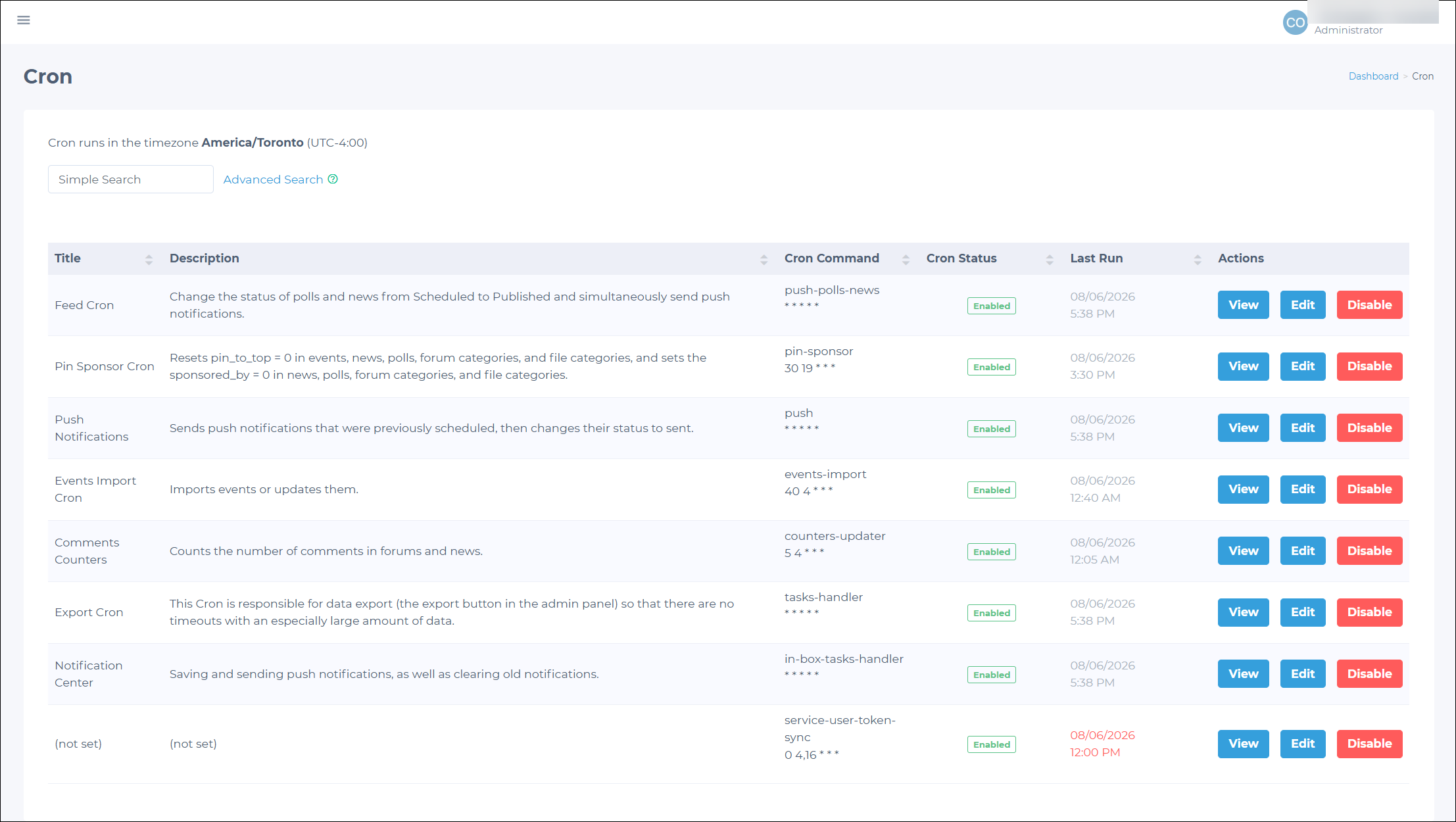
Managing Cron tasks in the Admin Panel
Administrators can view and manage cron tasks through the Admin Panel (Admin Panel > Cron). This interface allows admins to:
- View a list of all cron tasks.
- Check the cron task status (Enabled, Disabled, or Running) and the time of the last launch.
- Disable a task: When a task is enabled, users will see the Disable button. Clicking it stops the task's scheduled runs.
- Enable a task: For disabled tasks, users will see the Enable button. Clicking it resumes the task's scheduled runs.
- Edit the task: Users can click the Edit button to modify the title and description of a cron task. After making the necessary changes, click Save to apply them or Cancel to discard the changes.
Understanding the launch schedule
Admins can find the task launch schedule under the Cron Command column. It is represented by five space-separated characters that define the minutes, hours, days of the month, months, and days of the week when the task will run.
For more information, check the meaning of cron schedule expressions here: https://crontab.guru/
EXAMPLEIf the launch schedule for a cron task is defined as 30 19 * * *, it means the task runs at:
- Minute: 30.
- Hour: 19 (7:30 PM).
- Day of the month: any day (*).
- Month: any month (*).
- Day of the week: any day (*).
So, this cron task will run at 7:30 PM every day.
NOTEThe task launch schedule operates on the 24-hour time format. The launch schedule is set in UTC, but the last launch time is displayed in the admin's local timezone, which you can see in the bottom right corner of the screen (Current Time: ...).
Viewing task logs
Click the View button to view the log for a task's most recent execution (or the current execution if the task status is Running).
The task log is divided into two sections:
- The upper section: Shows which items were processed and whether they were successful. This section also displays any errors that occurred while processing specific items (for example, event data fields failing validation). These errors affect only the item being processed, not the whole task.
NOTEThe content of the task execution process log may vary between tasks and clones. Errors in this section usually require the client to correct them or clarify the task's logic to adjust the code.
- The lower section: Lists critical errors, such as unexpected API responses, incorrect method calls, or unhandled exceptions, that caused the task to stop. If the task fails due to a critical error, the Exit Code will be non-zero. These errors typically do not relate to business logic and should be fixed in the backend.
NOTEThe log creation time is displayed at the top in the admin's local timezone as Log (created ...). If the task is still running, it displays as Log (of running process).
Manually starting the task
To trigger a task manually, follow these steps:
-
Find the target task on the page displaying all cron tasks.
-
Click the View button next to the selected task to open its log.
-
Scroll to the bottom of the task details page and click the Run Cron button. It will manually start the task, regardless of its scheduled status.
Updated 3 months ago