

Availability & Slots (User)
Users manage their 1:1 meeting availability from the 1:1 Meetings settings screen in My Account. This screen controls when a user is visible for meeting invitations and how their time slots are configured for event-based meetings.
Availability settings and slot configuration are available only on mobile apps (iOS and Android). The Web App does not provide access to these settings.
Accessing 1:1 Meetings settings
Do the following in the app:
- Open My Account.
- Go to Privacy & Visibility.
- Tap 1:1 Meetings.
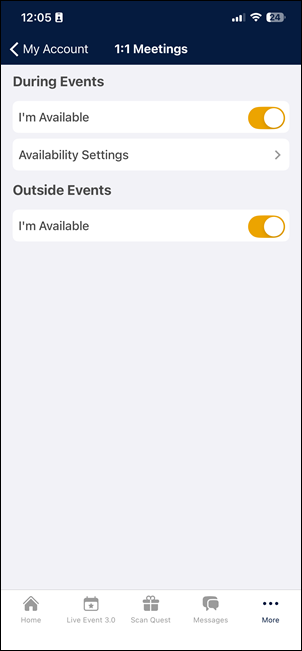
The settings screen shows two sections: During Events and Outside Events.
Managing availability during events
In the During Events section, the I'm Available toggle behaves in the following way:
- Enabled: The user is visible for event-based 1:1 meetings. Available slots can be selected by other users.
- Disabled: The user is hidden from event-based 1:1 creation. Slots are not available for booking.
Managing availability outside events
In the Outside Events section, the I'm Available toggle behaves in the following way:
- Enabled: The user appears in the user list when creating standalone (non-event) 1:1 meetings.
- Disabled: The user is hidden from non-event 1:1 creation.
Configuring slot availability
Under During Events, users can configure Availability Settings to determine what slots other users can book for 1:1 meetings.
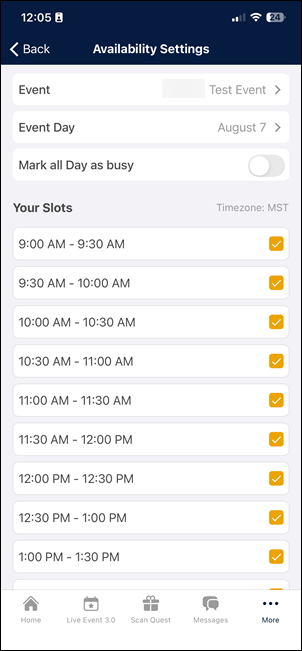
To configure slot availability:
- Tap Availability Settings in the During Events section.
- Select the target event.
- Select Event Day.
- Set availability automatically or manually:
- Automatic: Toggle on Mark all Day as busy to disable all time slots. This prevents other users from booking 1:1 meetings with users on the specified days.
- Manual: Under Your Slots, disable the time slots during which other users should be unable to book 1:1 meetings with the account user.
Slot conflict detection
The system automatically blocks slots that conflict with existing 1:1 meetings (booked for the same time). Blocked slots display a label indicating the conflict reason. These slots cannot be toggled by the user.
Conflict detection works in both directions: when the account user is configuring their own slots and when another user tries to book a meeting with the account user.
Availability cases
The combination of During Events and Outside Events toggles affects the meeting creation form and user visibility.
| During Events | Outside Events | Behavior |
|---|---|---|
| ON | OFF | Creation form shows only event-based options. No Event cannot be selected; the first event is selected by default. |
| OFF | ON | Creation form is displayed without event and slot selectors (no date, time, or timezone selectors). |
| ON | ON | Full functionality: both No Event and event-based options are available. |
| OFF | OFF | Book 1:1 button does not appear on the user’s profile. The user is hidden from the user selector in the creation form. |
Updated 3 months ago