

Creating and managing users
Admins can manage user records, create new users, change user permissions, and export app users from the Users module. From this module, admins can also manually approve or decline new user requests if the functionality is enabled.
Creating a new user
To create a new user in the app:
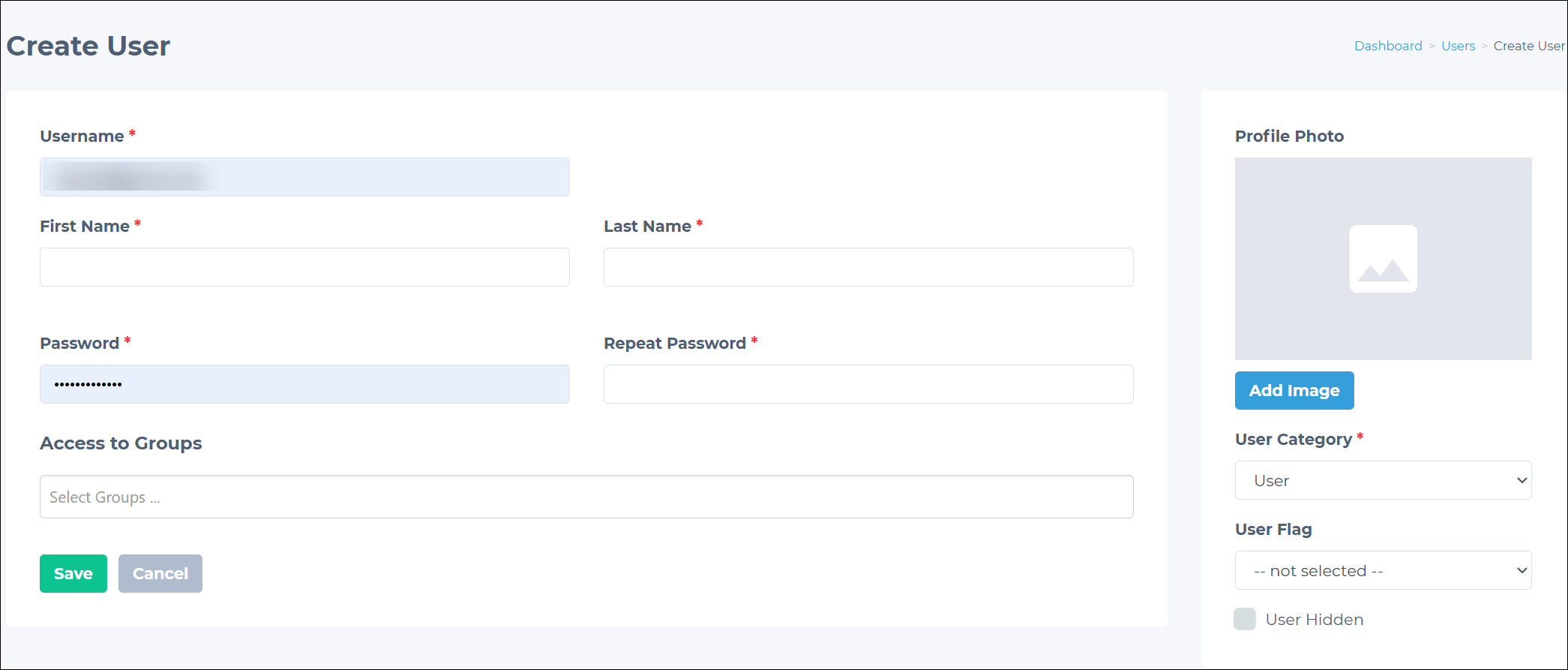
- Go to Users > Users in the Admin Panel.
- Click Create User.
- Fill in the following required fields:
- Username: The user's email address.
- First Name: The user's first name.
- Last Name: The user's last name.
- Password: A temporary password for the user. Encourage the user to change this password after their first login.
- Repeat password: Enter the temporary password again.
- Specify the User Category. For more information, see User Categories.
- Complete the following optional tasks, as necessary:
- Add a profile photo: Click Add Image to upload a user profile image.
- Specify a User Flag. For more information, see User Flag.
- Define the user's Access to Groups. For more information, see Groups.
- Enable the User Hidden checkbox to hide the user. For more information, see Understanding hidden user behavior.
- Click Save.
Understanding hidden user behavior
Hidden users do not appear in any user lists (for example, participant lists, event attendee lists, exhibitor lists, and user directories), except Booth Wallet lists, and search results. The hidden user is still displayed in the Gamification leaderboard and Event Manager (check-in/check-out).
Admins can filter for hidden users by using the Advanced Search option in Users > Users. Hidden users are also marked with a visibility icon for faster recognition.

In the News Feed, a hidden user exhibits the following behavior:
- Posts and comments created by a hidden user are visible to all users who can see the post and comment.
- The hidden username and avatar appear on the post or comment but are not clickable.
In the QR Hub and Event sections, a hidden user exhibits the following behavior:
- When a hidden user's QR code is scanned, only a short profile is shown.
- The following actions are hidden in the QR Hub: View Profile, Send Message, Note.
Updated 17 days ago