

Profile & Identity
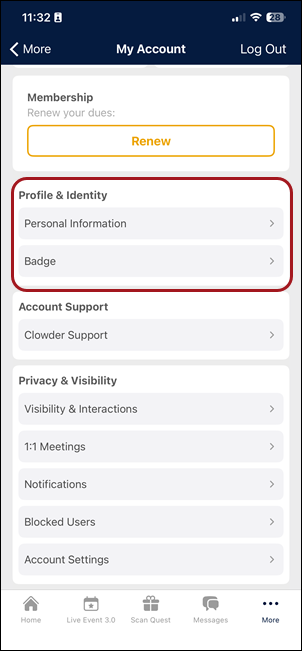
The Profile & Identity section in My Account allows users to view and manage their personal information, identity, and public-facing profile. Profile data is organized on a single scrollable page, with fields grouped into sections.
Profile views
The profile has two distinct viewing modes, depending on whether the profile being viewed is the user's own or someone else's.
| Aspect | Private Profile (my profile) | Public Profile (another user) |
|---|---|---|
| Fields shown | All fields — both private and public | Only public fields |
| Header info | Photo, short profile, username/email | Photo, short profile, presence status |
| Editing | Available for editable fields | Not available |
| Presence status | Not displayed | Displayed (Online / Last online X ago) |
Personal information
The Personal Information screen can be configured to display the following:
- Profile Info: First name, last name, profile photo.
- Bio: Free-text biography
- Company Info: Organization name, title, account type
- Social Networks: Facebook, LinkedIn, Instagram, X (Twitter), custom URL
- Contact Information: Email, phone numbers
- Home Address / Work Address: Street, city, state, country, ZIP
- About Me: Date of birth, employment type, member paid thru, and other custom fields
Field grouping
Fields are grouped in the following ways:
- Section fields: Fields that share the same section are grouped under a common section header (e.g., “Social Networks”, “Contact Information”).
- Standalone fields: Fields where the section is null are rendered individually with their own label and value. Standalone fields are never merged into a shared block.
Editing personal information
From the Public Profile screen, tap Edit in the top-right corner to open the Edit Profile screen. Required fields are marked with an asterisk (*).
IMPORTANTOnly fields marked as editable in the backend can be edited in the app. To enable edits on specific fields, contact the Client Account Manager.
After making changes, tap Save to apply changes or Cancel to discard.
Presence status
Presence status shows when a user was last active in the app. It is displayed only on the Public Profile — in the header area, below the user’s location.
Presence status is not displayed on the Private Profile (My Account), in the My Account hub, or in user lists.
Display logic
The table below defines when user presence status is shown, and what is shown in specific instances:
| Condition | What is shown |
|---|---|
| User was active within the last 15 minutes | Online |
| User was active more than 15 minutes ago, but within 30 days | Last online X ago (relative time, e.g., “Last online 20 minutes ago”, “Last online 23 hours ago”) |
| User was active more than 30 days ago | Last online long time ago |
| No activity recorded (value is 0 or null) | Nothing is shown — the status area is empty |
Presence status always uses relative time — it never shows an exact date or timestamp. This behavior is consistent across iOS, Android, and Web.
EXAMPLE
- User opens Seth’s profile. Seth was active 3 minutes ago. The header shows “Online” below Seth's location.
- User opens a colleague’s profile. They were last active 2 hours ago. The header shows “Last online 2 hours ago”.
- User opens another user profile with no activity over 30 days. The header shows “Last online long time ago”.
PRIVACY NOTEEven if a user is hidden from the App Users list, their presence status is still visible when viewing their profile directly.
Member badge
The Member Badge (DMC) is a digital membership credential displayed on the user’s profile. Users can tap Badge from the Profile & Identity section in My Account to view their badge, which may include a QR code and membership details.
Member Badge is available on iOS and Android only. It is not available in the Web App.
Favorites
Users can mark other users as favorites by tapping the star icon on their profile.
To see favorited users, app users can go to More > Members and tap on the Favorites chip.
Favorites are available on iOS, Android, and in the Web App.
Updated 3 months ago