

iMIS integration: Prerequisites
Clowder uses the iMIS REST services to integrate, so the following information must be provided before the integration can begin:
- iMIS version: Confirm the exact iMIS version Clowder will integrate with.
- Single Sign-On (SSO) confirmation: Indicate whether SSO will be implemented.
- REST API endpoint URL: The base URL of the iMIS REST API endpoint (for example, https://imisserver.org/).
- Integration user credentials: Username and password for the iMIS account used for communication between iMIS and Clowder. This account must have remote access enabled and should not be configured as a SysAdmin account.
Provide all required information before development of the integration can begin.
Locating the iMIS version
To locate the iMIS version number, do the following:
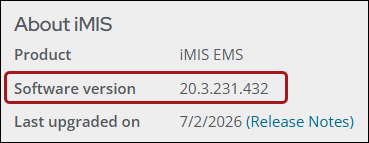
- Go to Settings > About iMIS.
- Make note of the Software version.
Configuring Single Sign-On (SSO)
To use SSO for the iMIS-Clowder integration, it must be properly configured on the developer (dev) and production (prod) environments. The Clowder team provides the redirect URL for the appropriate environment.
SSO configuration consists of the following:
-
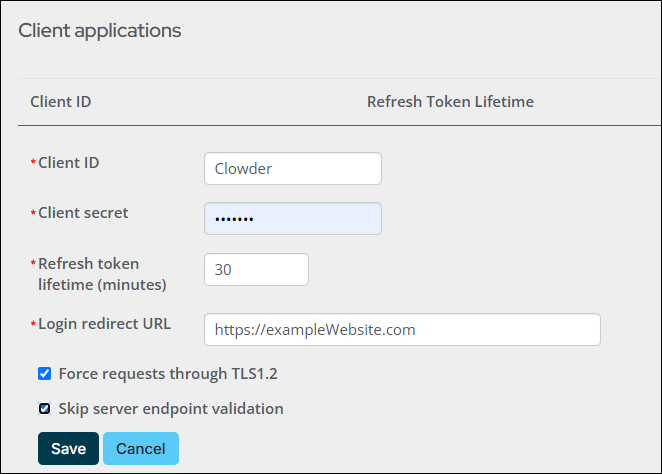
Creating an SSO client application. Ensure the following values are set:
-
Client ID - Clowder
-
Refresh token lifetime (minutes) - 30
-
Login redirect URL - Enter in the following format: https://exampleWebsite.com
NOTEFor example, https://acmeclowderapp.com.
The Clowder team provides the redirect URLs for dev and prod environments. Create a unique SSO client application for each environment.
-
Enable Skip server endpoint validation.
-
-
Create a Single Sign-On page and add the Clowder SSO client application. For more information, see Setup Guidelines.
Obtaining the REST API endpoint URL
The REST API endpoint URL is your iMIS public website URL. For example, https://example.imiscloud.com or https://example.org. Whatever you use to access your public iMIS RiSE site, that is your endpoint URL.
Setting up the integration user credentials
If you need a dedicated user account to access the API, contact ASI Technical Support for additional information and next steps. There may be a cost associated with this licensed account.
Once you have the dedicated user account defined, ensure the account has the RemoteService role:
- Go to Community > Security > Users.
- Search for the account using the provided search filters.
- Select the account Username.
- Under User information, locate the Roles section, then select Add.
- Enable the RemoteService role.
- Click OK.
- Click Save. The changes may take a few minutes to take effect.
Once that account is properly configured, send the username and password to Clowder.
Updated 6 days ago