

Getting started
The Events section enables administrators to create and manage events, exhibitors, speakers, and event categories. Users can access the Events page in the app to browse events, filter by tags, register for events, view event agendas, and add events to their calendars.
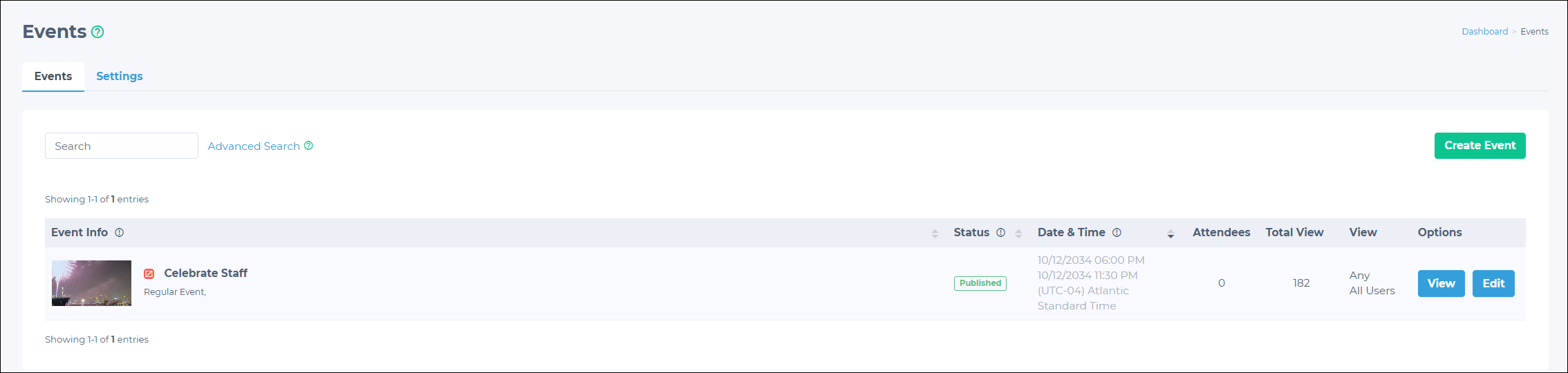
Creating a new event
To create a new event:
- In the Admin Panel, go to Events > Events.
- Click the Create Event button.
- Fill in the event information:
| Event information | Description |
|---|---|
| Title (required) | The name of the event. |
| Event Address | Specify the desired physical location for the event, including the place, street, city, state/province, postal code, and country. |
| Details | Provide additional details about the event. This will be visible to users. |
| Streaming URL | If available, provide a URL for users to stream the event.
|
| Streaming Title | Provide a title for the streaming URL. |
| Tags | Specify tags to improve event search visibility and filtering |
| Image | Upload an event image. See Image upload requirements for specifications. |
| Category (required) | Select an event category from the drop-down. |
| Group (required) | Select a user group from the drop-down. The event will be visible to the chosen users in the app. |
| Role View (required) | Choose whether the event should be seen by members only, non-members only, or everyone. |
| Event Status | Set to Published by default. Change this to Draft if you do not want to publish the event yet. |
| Event Date (required) | Choose the event start and end date and time using the calendar picker. |
| Event Timezone (required) | Specify the event's timezone. |
| Checkboxes |
|
| Event Registration | Checkbox is disabled by default. When enabled, choose between Internal and External to specify event registration type.
|
| Event Map Type | Select the source of your event map. This could be an image, URL, or link to the Map Builder. |
- Click Save.
Editing event details
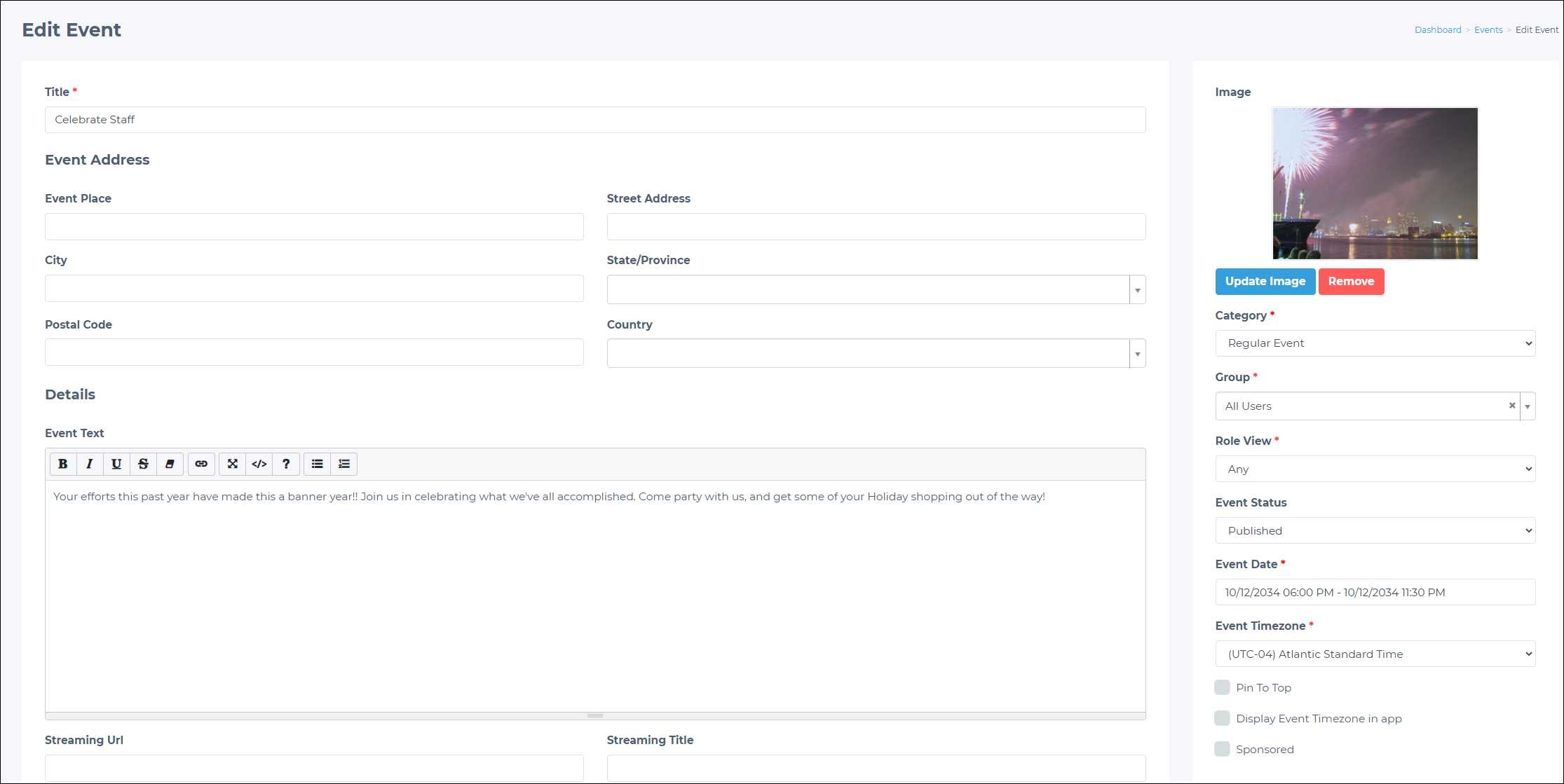
Do the following to edit an event:
-
In the Admin panel, go to Events > Events.
-
Search for the desired event.
-
Click the Edit button on the desired event.
-
Edit any of the event details.
-
Click Save to save changes.
Managing event information
Admins can enrich events by creating, editing, and managing event information, such as:
- Additional event information: Allows admins to add contextual action buttons to lead users to specific links, event maps, contact information, and other event resources. For more information, see Live Events and Event Actions.
- Feedback: Enables surveys, Q&As, and event ratings. Feedback can also be collected on event sessions or sub-sessions. For more information, see Feedback section.
- Live Event: Creates a unique, event-based, in-app menu experience. For more information, see Live Events and Event Actions.
- 1:1 Meetings & Locations: Enables event attendees to book personal meetings with other attendees, including speakers and exhibitors. For more information, see Overview.
- Gamification: Enables a scavenger hunt to enhance attendee participation and exhibitor engagement. For more information, see Gamification.
- Event Agenda: Allows admins to create event sessions and sub-sessions. Registrations for sessions and sub-sessions may be independent of the event registration. For more information, see Event sessions and sub-sessions.
- Manage Exhibitors: Allows admins to manage event exhibitors. For more information, see Exhibitor booths.
- Registered Users: Displays the list of registered users for an event. In this section, admins can also manually register users. For more information, see Event/session registration.
Updated 3 months ago