

Resources
In Resources, administrators can manage files shared with app users. You can add, edit, download, or view files to be shared with users in the app. You can also perform bulk actions, such as setting files to active or disabled, or moving files between folders.
Users can find shared resources in the Resources section of the app.
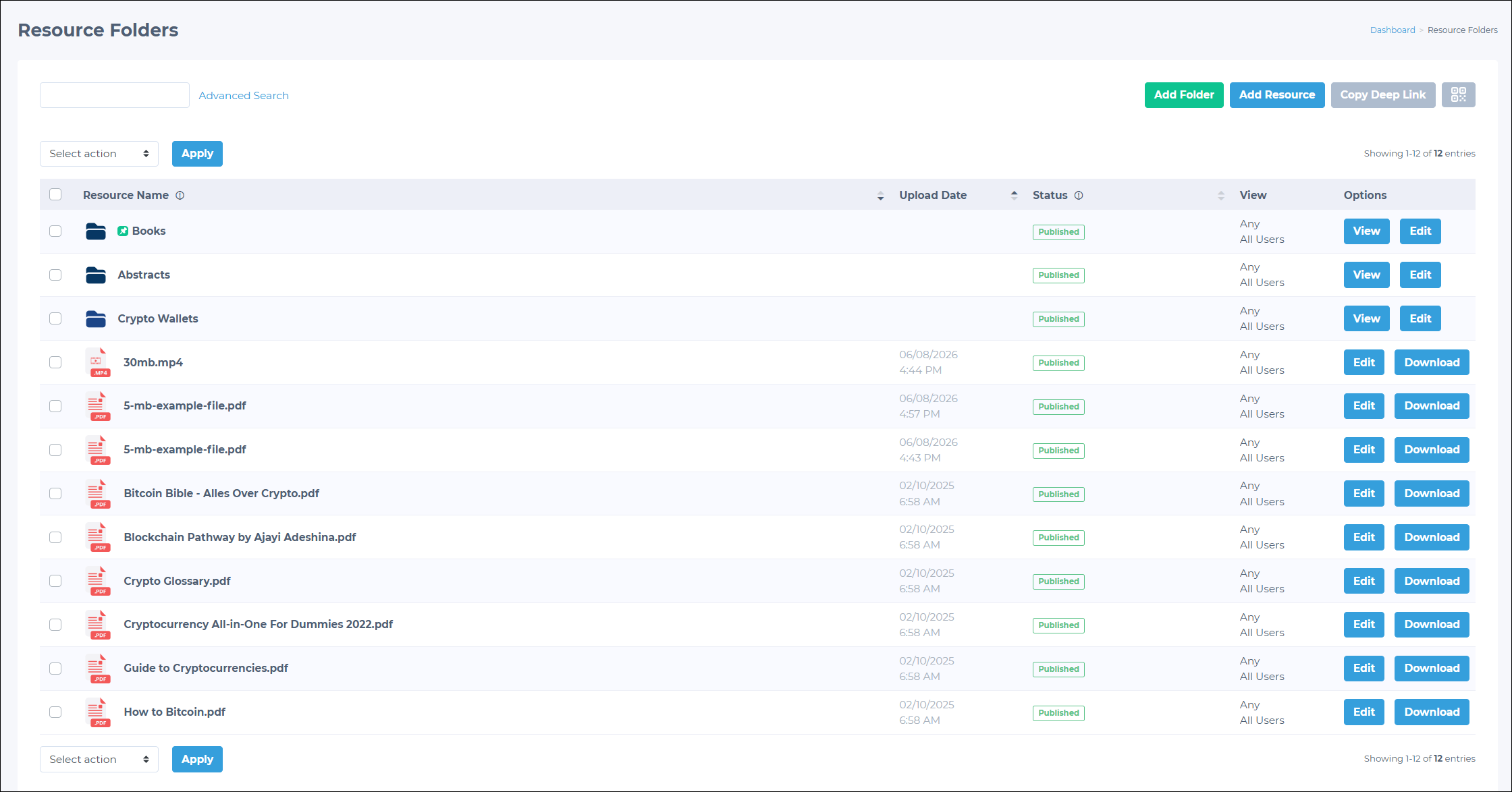
Adding new resources
To add new resources:
- Go to Resources in the Admin Panel.
- Click the Add Resource button.
- Drag and drop the target resource into the modal or click the modal to select a file on your device.
NOTEFor more information on supported attachment types and sizes, see File upload requirements.
- Define the following required sections:
- Resource type: Specify whether the resources are Links or Files.
- Group: Select the groups that can see the resources. Only one user group can be selected.
- Role View: Choose whether the resource should be visible to Members, Non-Members, or anyone.
- Click Save.
Adding new folders
Folders allow admins to organize resources. To create a new folder:
- Go to Resources in the Admin Panel.
- Click the Add Folder button.
- Enter a Folder Name.
- Define the following required fields:
- Group: Determines the user group that sees the folder. Only one group can be selected at a time.
- Role View: Determines whether the folder is accessible to members, non-members, or any user type.
- (Optional) Enable the following:
- Pin To Top: Enable the checkbox to pin this folder to the top of other resources.
- Sponsored: Enable the checkbox if the folder is sponsored. A Sponsored By text field appears when enabled. Admins can also choose a date when the sponsorship ends.
- (Optional) Modify the following:
- Folder Icon: Click the selector to choose an icon for the folder.
- Folder Color: Click the color selector or enter a color HEX code.
Appearance options
Users have multiple viewing options in the Resources section. Users can:
- Organize the resources by grid or list view.
- Filter the resources by the following:
- Type: Links, Folder, Files
- Author
- Tags
- Sort the resources, in ascending or descending order, by the following parameters:
- Name
- Last modified date
- Upload date
- Release date
Managing resources in the Admin Panel
To modify a resource, go to Resources in the Admin Panel and click the Edit button.
In the resulting interface, you can modify the following:
- For folders:
- Name
- Color
- Status
- Group
- Role View
- Pin To Top status
- Sponsored status
- For individual files:
- Displayed resource name
- Downloaded resource name
- Description
- Author
- Release and expiry date
- Tags
- Image
- Status
- Group
- Role View
Updated about 2 months ago
Did this page help you?