

Asia-Pacific taxation (GSTINC)
In iMIS systems that use GSTINC as the taxation method for the default organization, you can include the GSTINC (Good and Services Tax, Inclusive) tax amount in the price of online membership joins and cash renewals.
The GSTINC tax code is a special tax authority for clients in countries other than Canada (notably countries located in the Asia-Pacific region) that use the Canadian taxation method for calculating taxes and also include the GST tax in the advertised unit price of products and events.
The GSTINC tax authority assumes a product’s advertised price already includes applicable taxes. When the GSTINC tax authority is applied, taxes are extracted from a product’s advertised price when an order is entered. For example, a product with an advertised purchase price of 150.00 that includes a 12.5% GST tax will have a unit price of 133.33 with a sales tax of 16.67.
Both the GSTINC and Primary GST tax codes have similar functionality, and both tax codes are set up exactly the same way. The difference between the two is that GSTINC extracts calculated taxes from advertised product prices rather than calculating and adding taxes to product prices.
Enabling Asia-Pacific taxation for the default organization
The GSTIN organization code must be enabled for the Default organization before establishing the specific tax codes used throughout iMIS.
Do the following to enable GSTINC for the default organization:
- From the Staff site, go to Settings > Finance > Financial entities.
- Add or update an existing organization:
- If adding a new organization, select Add new financial entity.
- If updating an existing organization, select an organization Code.
- Enable Default organization.
- Select Canadian as the Taxation method.
- Select a GSTINC Tax authority.
- Enter the GST/HST remittance number.
- Enter the fundraising Registration number.
- Click Save & Exit.
Defining the GSTINC tax code
Do the following to define the GSTINC tax code:
- From the Staff site, go to Settings > Finance > Tax codes.
- Select Add new tax code.
- Enter GSTINC for the tax Code.
- Enter a Name for the GSTINC tax code.
- Enter the BASE_GST in the first Related tax field.
- Click Save.
📘 Note
Leave the Rate and Account fields blank.
Which tax code to use as the default?
How you define the prices and taxes for your individual products determines which tax code you define as the default tax authority. Organizations within some countries calculate taxes for product prices and then add the taxes into the advertised price of the products; advertised product prices include any applicable taxes.
- If your organization's policy is to include GST tax in the advertised product price (inclusive), then set GSTINC as the Tax authority for the Default organization
- If your organization's policy is to not include GST tax in the advertised product price (exclusive), then set GST as the Tax authority defined for the Default organization
📘 Note
An organization should be defined as using either GST or GSTINC. It is recommended that all Asia-Pacific pricing use the GSTINC model exclusively.
Set the default country
From the Staff site, go to Settings > Contacts > General and set the default country (SystemDefaultCountry) to an Asia-Pacific country, for example, Australia.
Applying GSTINC taxation to Events
Asia-Pacific taxation for Events involves applying appropriate taxes to individual events and event functions. After defining GSTINC tax codes using the GSTINC taxation selection, you can enter the tax codes for your individual events and event functions.
Because services are consumed in the country in which they are delivered, all customers are considered taxable. Only customers with a nontaxable status are exempt.
📘 Note
Once you register a customer for event functions designated as GSTINC, you cannot change that registrant's Tax authority until you un-register the customer from the GSTINC functions.
Assigning taxation to an event
Do the following to assign taxation to an event:
- Ensure that the following setup tasks are complete:
- Enable the Canadian taxation method for the default organization
- Define the tax codes as needed
- Define the default tax authority
- From the Staff site, open an event for edit.
- Click the Pricing tab.
- From the Tax authority drop-down, select a tax code.
- Click Save & Exit.
Assigning taxation to an event function
Do the following to assign taxation to an event function:
- From the Staff site, navigate to the appropriate event.
- Open the program item or registration option that you need to assign taxation to:
- Program items - From the event Showcase tab, scroll down to the Program section, select a program item, then select Edit.
- Registration options - From the event Showcase tab, select Edit, then click the Pricing tab. From the Registration options section, select a registration option.
- Click the Accounting tab.
- Enable the GST/HST or PST taxable options.
- Click Save & Close.
When a customer registers for an event function, the system will automatically calculate the tax based upon the tax options you have defined for the specific function.
Applying GSTINC taxation to commerce transactions
GSTINC calculation for commerce transactions involves enabling the Canadian taxation method option for countries and applying GSTINC taxes to product categories, individual products, and freight and handling charges.
Freight and handling taxes are charged in addition to any other taxes that are applied to products sold in the country using GSTINC calculation, and freight and handling taxes are calculated on both taxable and nontaxable product purchases.
Before you begin
Ensure that the following setup tasks are complete:
- Enable the Canadian taxation method for the default organization.
- Define the GSTIN tax code.
- Define the default tax authority.
Applying taxation to a product
Do the following to apply taxation to a product:
- From the Staff site, go to Commerce > Find products.
- Select the product, then select Edit.
- Click the Accounting tab.
- Enable the Taxable (GST/HST) or options.
- Click Save & Close.
Applying taxation to a product category
🚧 Warning
Tax settings at the product level override those at the category level. If you enable taxes for a category but not for a product in that category, no taxes are calculated. If you disable taxes for a category but enable taxes for a product in that category, taxes are calculated.
Do the following to apply taxation to a product category:
- From the Staff site, go to Settings > Commerce > Product categories.
- Select the edit icon for an existing Product Category.
- Enable Taxable (GST) and/or Taxable (PST).
- Click Save.
Applying taxation to shipping and handling charges
Do the following to apply taxation to shipping and handling charges:
- From the Staff site, go to Settings > Commerce > System options.
- Enable Apply sales tax to shipping charges and Apply sales tax to handling charges.
- Click Save.
Applying GSTINC taxation to membership billing products
To include GSTINC in the price of these membership billing products, create a GSTINC tax product to pair with the membership billing product. These products should use identical product codes and types, except you must append the suffix “_GST” to the product code for the GSTINC tax product. For example, you could use MEM as the product code for the membership billing product and MEM_GST as the product code for the tax product.
When the product codes conform to this format and the membership billing product is included in the online billing cycle, the products create a kit, meaning that when a user selects the membership billing product, the GSTINC tax product is automatically included in its price in the membership details page, the cart, and the online order confirmation page.
In the example below, the Regular Member Fees product (Product Code = REG), which is priced at 200.00, has a paired GSTINC tax product (Product Code = REG_GST) with a price of 20.00. The Finance Section product (Product Code = FIN) , which is priced at 20.00, has a paired GSTINC tax product (Product Code = FIN_GST) with a price of 2.20. Although the paired GSTINC tax products do not display separately in the membership details page, the cart, and the online confirmation page, they are automatically bundled with their paired membership billing products, which list the combined prices for both products. Thus, the Regular Membership Fees product is listed with a price of 220.00, and the Finance Section product is listed with a price of 22.20.
Click to view image
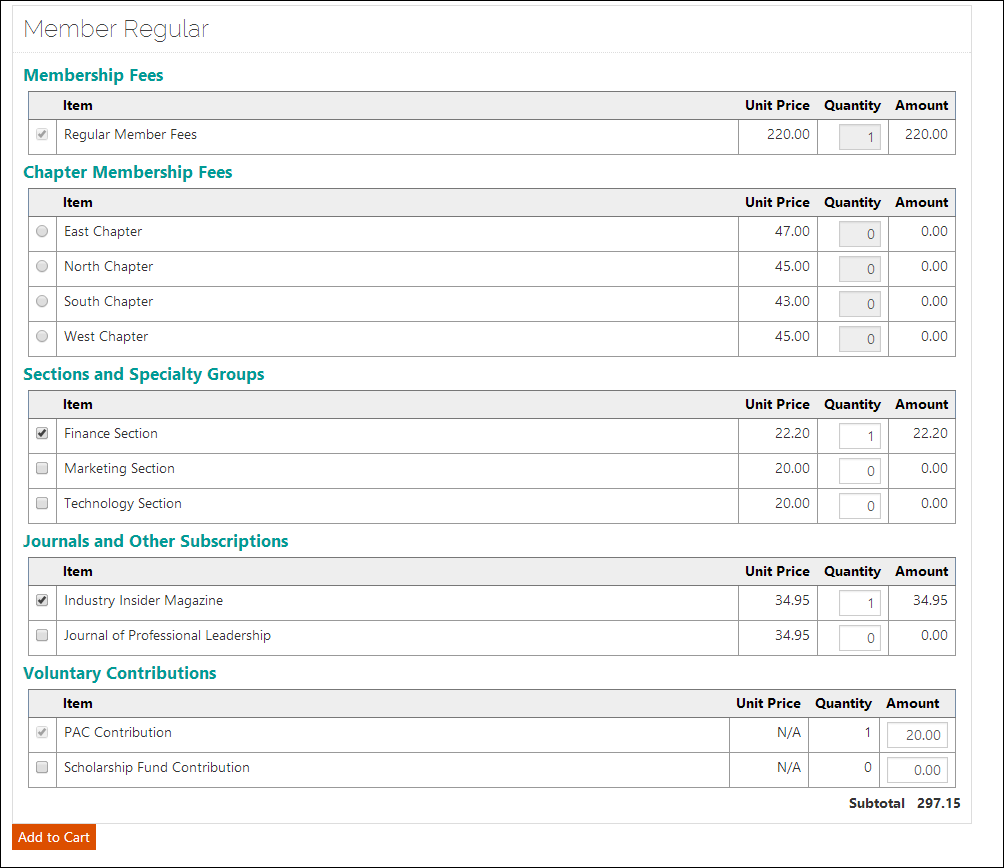
Membership details page for an online join that includes GSTINC in the Regular Member Fees and Finance Section Fees
📘 Note
On the membership details page, a consolidated price displays for the membership billing product and the GSTINC tax product. The GSTINC tax product is not listed separately.
Click to view image
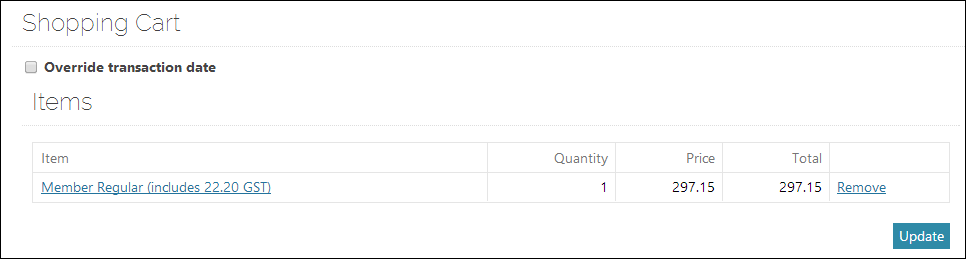 Cart page for an online join that includes 22.20 of GSTINC for the Regular Member Fees and Finance Section Fees
When the member renews online, the invoice line in the cart includes the GSTINC in the price, but does not display the (includes XX.XX GST) message for the membership billing product.
Including GSTINC in online membership joins and renewal pricing
Do the following to include GSTINC in online membership joins and renewal pricing:
- From the Staff site, go to Settings > Finance > Financial entities:
- Select the Default organization.
- Confirm that Canadian is the Taxation method.
- Confirm that GSTINC is the Tax authority.
- Go to Membership > Billing products to create the GSTINC tax product:
- Select Add new billing product.
- Select a product Type, which must be the same product type as its paired membership billing product.
- Enter the same Code as the membership billing product with _GST appended. For example, if the membership billing product Code is MEM, the GSTINC tax product Code should be MEM_GST.
- Enter a Name for the product. This is the name that will appear for purchase.
- Enter a Description of the product.
- Enter the Standard price. To obtain this amount, calculate the GSTINC tax amount owed on the primary billing product.
- Enter additional information as needed.
- Save the new tax product.
(optional) If your organization has members who reside in countries that do not use GSTINC, you can add special prices. Applying special pricing must be done through the Advanced Accounting Console.
Click for details
To apply special pricing, do the following:
- In the Advanced Accounting Console, go to Settings > Billing > Billing products.
- Select the billing product.
- Click Special Prices to define a pricing rule that limits the application of the tax product to contacts residing in countries in the AP region. In these cases, you may want to set the Standard price of the GSTINC tax product to 0 and create a pricing rule that matches the contact’s country of residence to the appropriate GSTINC tax amount.
- Click Save.
📘 Note
In situations where different member types receive different member rates, you can create special pricing rules that set the price of the GSTINC tax product as the correct amount for each member type.
- Go to Membership > Billing cycles to confirm that the membership billing product is included in your online billing cycle. If the membership billing product is selected for the billing cycle, the paired tax product is automatically included and added to the membership billing product’s price when purchased online. To learn more about setting up a billing cycle, see Setting up billing cycles.
Updated 3 months ago