

Process Manager
Process Manager helps you to optimize the opportunities presented to your organization, build ongoing relationships, and manage processes assigned to individuals or groups. You also have the means to analyze, forecast, and report on the efforts. With Process Manager, your staff can coordinate their tactics effectively using a centralized overview of all relevant information.
Use Process Manager to coordinate interrelated efforts such as:
- Developing relationships
- Sales opportunities
- Prospective donors
- Sponsorships
- Managing multi-stage projects
- Conference planning
- Editorial reviews
- Optimizing processes
- Membership applications
- Issues/Resolutions
Run your business more efficiently with Process Manager:
- Track sales/donors/sponsorship opportunities with default workflows or with action plans you build for your specific processes.
- Build rewarding customer/donor relationships by tracking history, key milestones, contact information, and other data that helps you support the relationship.
- Forecast and analyze performance through tracking and reports.
- Provide effective communications for your staff and your prospects with effective data presentation, email notifications, and MS Word mail merge letters.
- Maintain multiple opportunities per contact, each with separate data.
- Add individual or company records to the iMIS database directly from Process Manager.
NoteIf you have configured iMIS for SQL server sessions, the Process Manager module and all of its components are unsupported. If you plan to use this module, disable SQL Server Sessions.
Overview of Process Manager
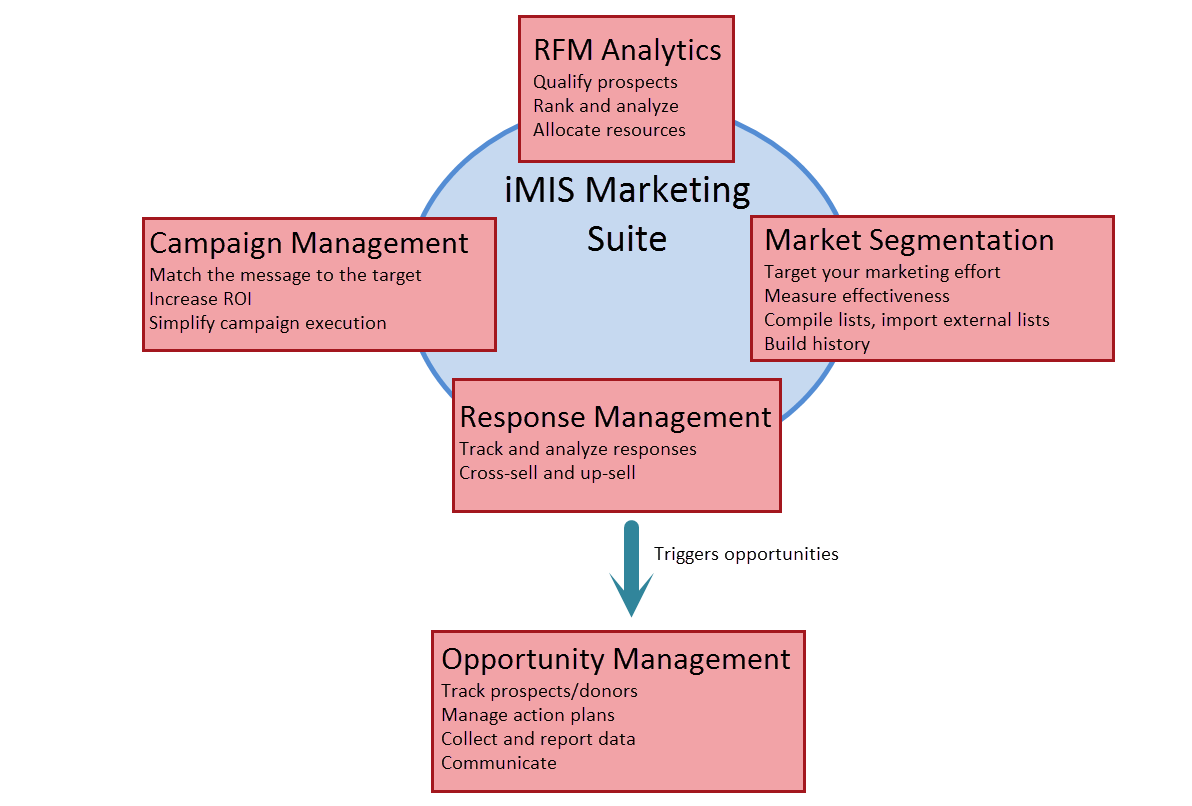
Using Process Manager with iMIS Marketing
Get the right message to the right person at the right time. Use Process Manager with iMIS Marketing to integrate your organization's marketing efforts for maximum efficiency and success.
Use iMIS Marketing to plan and implement mass communications to contacts, members, donors, new prospects, or other targeted groups. Through response tracking and analysis, you can identify opportunities to be pursued.
These projects can be generated automatically based on specific criteria. They appear in the opportunity list and contain contact information and comments. In addition, these opportunities indicate the source codes from Campaigns that identify the marketing source code and affiliated campaign/appeal that might have produced the opportunity.
Process Manager concepts
A project is any circumstance that could result in a positive action for your organization, such as a purchase, donation, or registration. The definition of a project is flexible, so you can tailor it to your specific needs:
- A project can be assigned for a prospect who is a single individual or for an organization, department, company, or family.
- A project uses an action plan that includes the tasks needed to move from 0% probability of success to 100%.
- A project assigns workflow to an owner and allows others within an organization to be identified as participants who contribute to the success of the project.
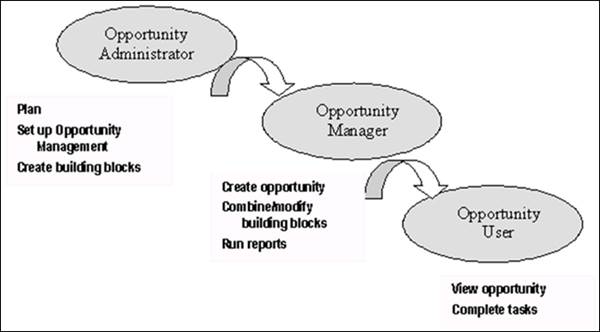
Process Manager roles
You can assign roles to the people in your organization to manage or to view appropriate information:
- A system administrator or director might create the building blocks for each general type of project/opportunity in your organization.
- Managers or business analysts might be given access to create projects/opportunities and to combine and modify the building blocks for each specific one.
- Staff operations personnel might be allowed to view all or some projects/opportunities and to view and modify tasks that have been assigned to them.
Using Process Manager
Process Manager can help you work more efficiently and effectively. As a Process Manager user, you have access to opportunities, tasks, and communications features that help you move potential projects to a successful win.
Using projects
A project is any circumstance that could result in a positive action for your organization, such as a purchase, donation, or registration.
| Project | Tasks | Communications |
|---|---|---|
| View | View | Generate email messages |
| Define | Edit | Generate MS Word documents |
| Attach a document | Run reports | |
| Close | Export reports |
To view a project
- Go to Marketing > Process Manager > Projects.
- iMIS displays all projects for which you have security access privileges.
To define a project
- Go to Marketing > Process Manager > Projects.
- Select a project. The tabs along the top of the project page define general information about the project:
- The Summary tab displays the details of the project, the contact, and related opportunities.
- The Definition tab displays summary information for editing.
- The Action Plan tab displays the action plan assigned to the project and the status of each task.
- The Security tab displays security access rights for the project.
- The tabs along the side of the project define detailed information about the project:
- The Groups tab displays the individuals associated with the project and their group roles.
- The Tasks tab displays required tasks, status, and notes.
- The Documents tab displays related documents.
- The Activities tab displays all activity within a prospect's record (from the Customer Portfolio).
- The History tab displays actions and progress in the project.
To attach a document to a project
You can attach documents that are related to the project, such as proposals and letters sent to the contact.
- Go to Marketing > Process Manager > Projects.
- Click the project to open it.
- Click Documents.
- Either browse to an existing file in the Document system or create a new file type:
- Click New, and then select the appropriate file type.
- Browse to the new file.
- Click Open.
- Click Upload.
To close a project
When you close a project, the project status changes to Complete and the project remains in the system for historical reporting purposes. The task history is saved with the project.
- Go to Marketing > Process Manager > Projects.
- Click the project to open it.
- (Definition tab) In the Project Status drop-down list, select Closed.
- Click Save.
Using tasks
Process Manager helps you manage the tasks associated with projects and opportunities. It's easy to see the tasks that are assigned to you and to prioritize your efforts to move a project to success. After you complete a task, you can mark it complete and determine whether there are other tasks needing your attention.
To view tasks
- Go to Marketing > Process Manager > Projects.
- Click the project to open it.
- Click Tasks. The tasks assigned to you are displayed. If you are the Opportunity Owner, the system displays all tasks for the project.
To edit tasks
If you have editing access rights, you can modify tasks, including marking them complete.
- Go to Marketing > Process Manager > Projects.
- Click the project to open it.
- Click Tasks.
- Click select to select the task.
- Perform your edits.
- Click Save.
Using task communications
Your tasks may include sending messages to internal stakeholders or to prospects and producing reports. Some correspondence occurs automatically as a part of an action plan.
📘 Note
The following procedures assume that you have already created the relevant output process (see Creating output processes).
Managing projects
If you are an Opportunity Manager, Opportunity Creator, or Opportunity Administrator, you can perform the following actions, in addition to user tasks:
| Opportunities | Communications |
|---|---|
| Create | Select message recipients |
| Edit | Select report data |
| Delete | Copy, edit, delete, and create output processes |
Setting up and editing projects
If no Opportunity Owner is specified, the creator of the project becomes the default owner.
To create a project
- Go to Marketing > Process Manager > Projects.
- Click Create New Project.
- Select a Process Type:
- Donor
- Member
- Sales
- Click OK.
- Enter a Description for the project and identify the Primary Contact for the project.
- (optional) Click select to select the Source Code associated with the project.
- Click Save.
The Products, Subscription, and Distribution fields can be specified by selecting values from a drop-down list, if the underlying tables have been set up:
- For Sales Opportunity types, the Products drop-down list is populated by the members of the Products table. From the Advanced Accounting Console, go to Finance > Options > Set up tables > Products.
- For Member Opportunity types, the Subscription drop-down list is populated by the Billing products. From the Staff site, go to Membership > Billing products.
- For Donor Opportunity types, the Distribution drop-down list is populated by the Distributions. This is defined in the Advanced Accounting Console. Go to, Settings > Fundraising > Set up tables > Distributions.
If the Primary Contact has one or more sales representatives or regional managers associated in relationships (see Determining roles and responsibilites), these people will be assigned to the project automatically. You can view the assigned salesperson and manager information by opening a project and selecting Groups > Owner Roles.
📘 Note
If a solicitor is designated for the primary contact in the Donor Data tab of the Customers module, the solicitor will also be assigned to the new project.
If you need to create more relationships that create group owners automatically, you can update the string parameter "OpportunityDefaultOwnerRoles" in the SystemConfig table. The current string is: 'Salesperson!<solicitor>!SALES,Sales Manager!MB,Regional Manager!RM'. Additional relationships can be added by Adding ,[Role Name]![Relationship Name] to that configuration string.
To edit a process type
You can override the default settings for a project when you create the project. If you are the Opportunity Owner, you can make changes to the project at any time. The options for editing are:
- Edit the project summary
- Change the default action plan
- Bypass a stage in the action plan
- Add tasks
- Change the task owner
- Edit project security settings
- Edit project group roles
You can add new contacts to opportunity group roles. Before a new contact is added to the database, you are notified of possible duplicates. At this point, you can continue or cancel the insert.
Contact records that are added from a project follow the same data entry standards as records added through Customers, except:
- The system does not consider values for the Auto Assign Member Numbers, Institute Type, and Suppress Individual Name Fields for Company Records fields on the Customer Setup - Basic Options page.
- The values for the Major Key Prompt, Must be Unique, and Flow from ID fields on the Customer Setup - Basic Options page are not relevant.
- The system does not consider whether the Disable Auto Flow Down of Company Address Information field on the Customer Setup - Advanced page is enabled.
To edit the project summary
- Go to Marketing > Process Manager > Projects.
- Select the project to edit:
- (Definition tab) Edit general project information.
- (Summary tab) In the Primary Contact area, select the primary contact's name to view or edit prospect information.
- (Summary tab) Scroll to the Related Projects area. Select a project to edit a related project for this contact.
- Click Save.
To delete a project
When you delete a project, the Project Status changes to Cancelled and the project remains in the system for historical reporting purposes.
- Go to Marketing > Process Manager > Projects.
- For each project that you want to delete, select the corresponding checkbox.
- Click delete selected.
Editing action plans
To replace the action plan
The project owner can replace the action plan for an active project at any time. All completed tasks, notes, and email notifications are preserved in the project history.
- Go to Marketing > Process Manager > Projects.
- Select a project.
- (Action Plan tab) In the Replace Action Plan With list, select the desired action plan.
- Click Change Action Plan.
- Click Save.
To bypass a stage in the action plan
The project owner can easily bypass any intermediate stage in the action plan, if that stage has become irrelevant to the completion of the action plan. When you bypass a stage in the action plan:
- The next stage starts.
- All incomplete (or never begun) tasks, notes, and email notifications from the bypassed stage are marked with a Cancelled status.
- Go to Marketing > Process Manager > Projects.
- Select a project.
- (Action Plan tab) In the Current Stage list, select the desired current stage.
- From the Update Previous Stages Status list, select the status of the stage to be bypassed.
- Click Change Current Stage.
- Click Save.
To add tasks
- Go to Marketing > Process Manager > Projects.
- Select a project.
- Click Tasks.
- Click add. Complete the task information.
- Click Save. The new task appears on the task list.
To change the task owner
If you have access privileges, you can change the owner of a task to any Opportunity Owner who has a defined user record.
- Go to Marketing > Process Manager > Projects.
- Select a project.
- Click Tasks.
- Click select for the task you want to modify.
- Next to Assignee, click the browse button to find a new person that you want to assign as the new task owner.
- Click Save. The task appears in the new owner's task list.
Editing security settings and roles
To edit project security settings
Project security settings specify the access rights of participants.
- Go to Marketing > Process Manager > Projects.
- Select a project.
- (Security tab) Select the desired Access Settings:
- Select Use a preconfigured security set to select preconfigured access rights, for example, select Everyone Full Control to grant full control to all users.
- Select Make this available to to customize the access rights:
- Select a Name in Specific Roles to customize permissions.
- Select a Group in Specific Groups to customize permissions.
- Click Add user in Specific Users to add a specific user, and define permissions for that user.
- Select a Name in Specific Member Types to customize permissions.
- Click Save.
To edit project group roles
Project group roles describe the responsibilities of participants.
- Go to Marketing > Process Manager > Projects.
- Select a project.
- Click Groups.
- Select the group role name (Contacts, Owners, Competitors if enabled, others).
- Click Edit Role Members.
- In the Select From area, select a query from the Select a Query list.
- Select the member to add to the Current Members list.
- (optional) Add a new member:
- Click Add New.
- Enter the information.
- Click Save.
- Click Save.
To edit project types
If the default project types are similar to those your organization uses, you can simply change the default properties. Changes to process type definitions are not retroactive to existing projects.
Managing project communications
Process Manager gives you the power to manage effective communications with your prospects and within your organization. As an Opportunity Manager or Opportunity Administrator, you can:
- Use queries to select message recipients
- Use queries to specify report data
- Edit, copy, or delete output processes that specify reporting, or email processes.
📘 Note
The following procedures assume that you have already created the relevant output process (see Creating output processes).
Administering Process Manager
The Opportunity Administrator performs module set up tasks:
Planning the implementation: This critical step can be completed with stakeholders throughout your organization. Thorough planning will result in a shorter startup time and a more effective tool for users.
Installing Process Manager: The administrator creates the “building blocks”, including action plans, group roles, queries, and reports, for users to apply and modify.
Tailoring Process Manager: The administrator adds or modifies attributes to meet the unique requirements of your organization.
Planning Implementation
The success of your Process Manager installation lies in the planning. By planning carefully, you can make sure Process Manager helps your staff work efficiently and effectively. The planning step is the most important part of the implementation, resulting in:
- A smooth startup
- Correct security access to sensitive data
- Appropriate processes for each prospect and situation
- Useful communications and reporting
The planning process:
- Identify the general types of projects your organization encounters and what is unique about each type.
- Determine the specific roles and responsibilities required for each project type.
- Build action plans that embody the best practices of your organization, including communications and reporting needs.
Tips for implementation planning:
- Focus on building relationships, not on data entry.
- Clearly identify your prospect/donor types and the different methods your organization will use to build relationships with each group.
- Draw a map of the players involved. Note the communications and reporting needs of each player.
- Consider how you will process a won opportunity. Build the handoff into your plan and be sure the transactions that are generated (orders, events, donations) will be handled correctly.
- Establish naming conventions to help organize projects, documents, and reports. A unique prefix for each department might be appropriate for your organization.
Identifying Process types
By defining one or more process types, the Opportunity Administrator provides templates for Opportunity Managers to create new opportunities quickly. You can create a process type for each action plan, for each type of prospect, for specific reporting requirements, or whatever criteria best meets the needs of your organization.
Process type concepts and terms
- A process type is a category of projects that has a unique set of processes. Process types include information about:
- Default action plan
- The action plan most often used for this process type.
- Default owner
- The most likely owner of this process type.
- Opportunity Class
- A combination of standard data elements and structure that specify what data should be recorded about the opportunity.
- Default Opportunity Classes (Donor, Member, Sales) are provided in iMIS. You can build additional Opportunity Classes that meet the unique needs of your organization.
Tips for planning process types
- Structure process types to optimize the time it takes to set up data entry and reporting for an opportunity. You might create a process type based on geography or type of prospect, for example.
- Create a new process type when you need a new strategy to develop a new prospect group or when data entry and reporting needs are very different for different areas or prospects.
Process types example: Non-profit organization
In this example, our non-profit organization has current members and donors. In addition, non-members purchase conference proceedings and books. The default process types are sufficient for our process.
| Process Type | Default Action Plan | Default Owner |
|---|---|---|
| Donor | Donor Giving | Director of Fundraising |
| Member | Annual Conference | Director of Events |
| Sales | Publications | Director of Publications |
Attaching document templates to a process type
You can attach multiple document templates to a process type. Each new project created from the project type contains its own unique copy of the attached documents, which you can edit as needed for the project.
📘 Note
You can attach only documents that are locally saved on your computer. For this procedure, do not attempt to specify documents that are located in iMIS folders.
To attach document templates to a project type
- Go to Marketing > Process Manager > Settings.
- Ensure that the documents to be used as templates for the project type are locally saved on your computer.
- (Process Types tab) Click select to select a project type, or click Create Process Type to create a new project type.
- (Documents tab) Select New, and then select the type of file that you want to upload.
- Click in the Select file field. A file selection window is displayed.
- Browse to the file that you want to upload and click Open.
- (optional) In the Description field, enter a short description of the document template.
- Click Upload. The uploaded document is listed in the project page.
- Repeat this process for every document template that you want to attach to this process type.
- Click Save.
🚧 Warning
If the file Type that you choose does not match the file extension (for example, .doc for an MS Word Document), the upload will fail.
Determining roles and responsibilities
Identify the participants who will be involved in the life of a project. Understanding the different roles and responsibilities gives you the information you need to set up security, data collection, and reporting for the module.
The roles you will set up for Process Manager are:
- Project security roles, which govern access and control
- Project group roles, which specify responsibilities
Project security roles
Assign each participant to one of the security roles specific to Process Manager:
- Opportunity Administrator: A user who sets up and tailors Process Manager.
- Opportunity Manager: A user who creates projects and specifies owners, action plans, and tasks. A person with this role has full control over projects created by anyone else.
- Opportunity Creator: A user who creates projects and has full control over projects that they create, but has no access to projects created by anyone else.
- Opportunity User: A user who has read-only access to projects.
Project group roles
When creating projects, you assign each participant to one of these general roles provided by the system:
- Primary Contact: The target person to be contacted for the successful outcome of a project.
- Opportunity Owners: The group of users who are eligible to be Opportunity Owners (responsible for a project's success). A user must be a member of this pool in order to be assigned as owner to any individual project.
- Contact: A participant who is associated with the project, but does not necessarily own its ultimate success.
- Competitor: A company, or entity that may compete with the organization for the project. Typically this role is only used for sales business scenarios and not for fundraising or membership drives.
If you need more specific roles, you can assign each participant in a group to a descriptive role or roles. For example, the Opportunity Owners group might include:
- Sales Directors and Sales Representatives
- VP of Major Gifts and Major Gift Managers
Or they might include other job titles specific to your organization, for which you would need to create project group roles. These roles are custom roles you create using Process Manager.
You can automatically create group owners for projects using relationships. If you set up a SALES or RM (Regional Manager) relationship for a project's primary contact, they are automatically group owners. Owners belong to a security group that can gain access to certain areas based on how you set them up to access the system.
Another relationship creates a project owner, the MB (Managed By) group also creates a Sales Manager group owner. If you need to create more relationships that create group owners automatically, you can update the string parameter "OpportunityDefaultOwnerRoles" in the SystemConfig table. The current string is: 'Salesperson!<solicitor>!SALES,Sales Manager!MB,Regional Manager!RM'. Additional relationships can be added by adding ,[Role Name]![Relationship Name] to that configuration string.
Associating personnel with prospects
Before iMIS can associate personnel with new projects based on the designated prospect, you must set up customer relationships in iMIS, which consists of two steps:
- Set up sales and management relationship types.
- Associate sales persons or managers with prospects.
To set up sales and management relationship types, do the following:
- From the Staff site, go to Settings > Contacts > Relationship types.
- Check the current Relationship Types and ensure that the following codes are defined:
- Relationship Type: SALES
- Description: Salesman
- Relationship Type: RM
- Description: Regional Manager
Tip for planning roles and responsibilities
Make sure all personnel who are eligible to be the owner of a project are included in the Opportunity Owners group. Future additions must be done by the Administrator, not by Opportunity Managers, Opportunity Creators, or Opportunity Owners.
Roles examples
The following examples show how you might set up roles and responsibilities within Process Manager for your organization.
Roles example: A capital campaign drive
After the IT Manager sets up the Process Manager system, the Capital Campaign Director identifies new projects and assigns Development Officer #1 to be the owner of the new project. The Development Officer communicates with prospects and contacts. The Campaign Assistant creates projects when the Campaign Director is out of the office and provides reports to upper management.
Based on this scenario, the following project security roles and project group roles are assigned to the participants:
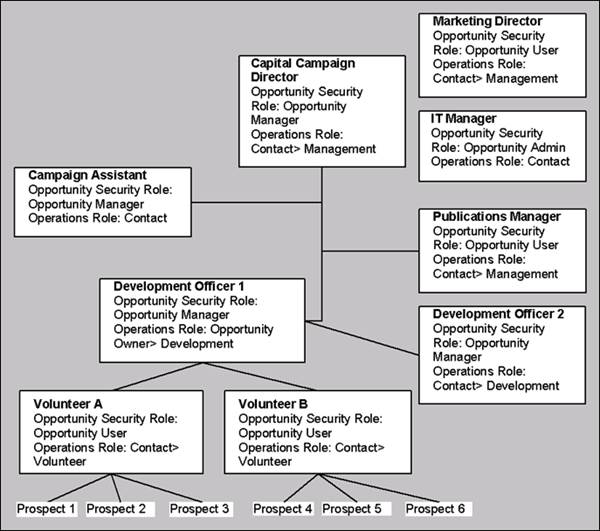
The communications and reporting needs for these roles might include:
| Role | Communication Needs |
|---|---|
| Capital Campaign Director | Opportunity Forecast Donor report |
| Campaign Assistant | (Runs all reports) |
| Publications Manager | Email notification of project status |
| Development Officers | Opportunity Profile Email notification of project status |
| Volunteers | Email training materials Task report |
| Prospects | Mail brochure Email promotion information |
Roles example: A sales department
In this example, the System Administrator sets up the module. The VP Sales assigns projects by region. The Regional Sales Manager #1 and Sales Rep A are both responsible for the success of the project (Opportunity Owners) but play different roles in the process. Contacts are other Sales Managers. There are two Competitors in this example.
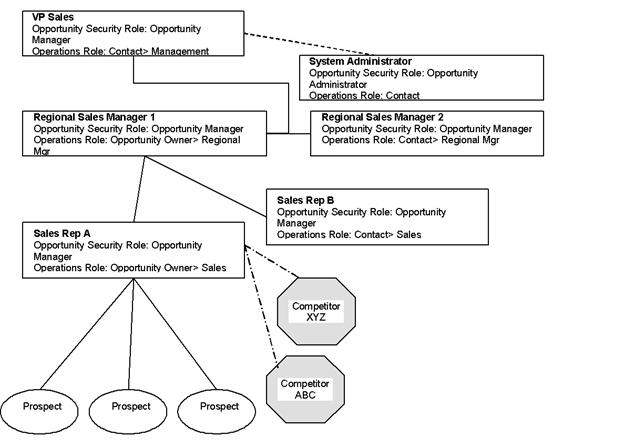
The communications and reporting needs for these roles might include:
| Role | Communication Needs |
|---|---|
| VP Sales | Won or Lost Opportunity Analysis |
| Regional Sales Managers | Won or Lost Opportunity Analysis Email notification of project status |
| Sales Reps | Opportunity Profile Task List |
| Prospects | Mail brochure Email promotion information |
Building action plans
Action plans are a workflow management tool. The Opportunity Administrator defines one or more default action plans that are available to Opportunity Managers. The managers create new projects, choosing from the default action plans and modifying them, if necessary, for the unique situation.
Concepts for action plans
-
Action plans - Pre-defined tasks that take place in a certain order and in a specific time frame. Action plans are made up of stages. Stages contain tasks, notes, and email notifications.
- Stage - A major milestone in the project. A stage may include tasks, notes, and email notifications. Project status and win probability can be updated automatically at each stage completion, or manually at any time.
- Task - A minor milestone in the project. Users open tasks, update them with comments, and mark them completed. Completing tasks advances the action plan as long as all notes are completed for the task.
- Notes - Notices to internal staff that are predefined when creating an action plan. Notes have no time line designation and must be marked complete to advance the action plan.
- Email notification - Email messages are sent to the designated owners at the start of a stage, so if you want Process Manager to send an email message when stage 2 is complete, then put the email notification at the beginning of stage 3.
- Stage - A major milestone in the project. A stage may include tasks, notes, and email notifications. Project status and win probability can be updated automatically at each stage completion, or manually at any time.
Action plans advance by:
- The completion of all tasks and notes within a stage.
- Manual intervention to change the action plan or to bypass one or more tasks/stages.
An action plan stage that lacks at least one task or one note does not advance to the next stage. Therefore, you should attach at least one task or one note to each stage so that the action plan continues to advance. This design means that the action plan defines “best practice” and enables users to work within that best practice for the needs of the prospect.
Tips for developing action plans
- Notifications can be sent at the end of each stage, so make your stages large enough that stakeholders are not inundated with minor notifications.
- Make sure each task serves a purpose. Be realistic about task due dates.
- Use notes carefully. They are an excellent instructional tool, but action plans cannot be advanced until the note is marked complete.
- Discuss what events might require an alternate plan: fast track, bypass a stage, stop the action plan.
- Determine industry standards and use those as your guide.
Action plan example: Sales action plan
This example shows a possible action plan for selling a new product to existing customers. First, we define the stages of the plan:
| Stage | Description | Win Probability | Change Status to |
|---|---|---|---|
| Qualification | Process to qualify prospect | 0% | Relationship Building |
| Relationship Building | Calls and customer visit | 0% | IT Briefing |
| IT Briefing | Customer visit | 25% | Custom Demonstration |
| Custom Demonstration | Present a customized demo to staff | 25% | Executive Meeting |
| Executive Meeting | Address executive issues | 25% | Web Strategy Meeting |
| Web Strategy Meeting | Present web strategy | 25% | Competitive Review |
| Competitive Review | Review and discuss product vs. competition | 50% | Proposal Presentation |
| Proposal Presentation | Prepare and present proposal | 75% | Contracting Process |
| Contracting Process | Confirmation of award | 100% | Complete |
Next, we define the tasks for each stage:
| Stage | Task | Description | Owner | Day | Duration |
|---|---|---|---|---|---|
| Qualification | Initial Overview Meeting | Review of Information Process | Sales Manager | 0 | 1 |
| Prospect Profile | Complete profile | Sales Rep | 0 | 1 | |
| Evaluation Plan | Complete and distribute plan | Sales Manager | 1 | 1 | |
| Process Signoff | Letter confirming mutual interest. | Sales Manager | 2 | 1 | |
| Relationship Building | Questionnaire | Call prospect and ask questions about organization needs | Sales Rep | 3 | 1 |
| Pre-demo Survey | Complete survey | Application Engineer | 4 | 1 | |
| Pre-meeting Checklist | Complete checklist | Sales Rep | 4 | 1 | |
| Customer Visit | Local on-site customer visit | Sales Rep | 5 | 1 | |
| IT Briefing | IT Preparation | Prepare for IT briefing | Product Manager | 7 | 2 |
| IT Briefing | IT and Product Management briefing Present Buy or Build concept | Product Manager | 9 | 1 | |
| Custom Demonstration | Prepare Demo | Customize demo to prospect | Sales Rep | 10 | 2 |
| Custom Demo Meeting | Present solution to staff | Sales Rep | 12 | 1 | |
| Executive Meeting | White Paper | Present white paper to execs | Sales Manager | 14 | 1 |
| Executive Briefing | Meet with executives | Sales Manager | 16 | 1 | |
| Web Strategy Meeting | Prepare Web Strategy | Prepare presentation for meeting | Sales Rep | 12 | 2 |
| Web Meeting | Present web strategy to staff + IT | Sales Rep | 14 | 1 | |
| Competitive Review | Competitive Review | Read recent competitive information Prepare for discussion | Sales Rep | 13 | 1 |
| Competitive Meeting | Meet with decision maker to discuss advantages of product | Sales Rep | 14 | 1 | |
| Proposal Presentation | ROI Analysis | Prepare analysis | Sales Rep | 17 | 1 |
Proposal Prep | Prepare proposal | Sales Rep | 15 | 3 | |
| Proposal Presentation Prep | Prepare presentation | Sales Rep | 17 | 1 | |
| Proposal Review | Onsite proposal review meeting | Sales Rep | 18 | 1 | |
| Proposal Follow-up | Answer outstanding questions, contact participants | Sales Rep | 19 | 3 | |
| Contracting Process | Legal Review | Prepare legal documents | Counsel | 17 | 2 |
| Win | Confirmation and signing of documents | Sales Rep | 22 | 1 |
Mapping Action plans
Mapping out the action plans for your organization before you implement Process Manager helps you build action plans quickly and correctly.
- Interview stakeholders to determine what processes your organization uses and what are considered “best practices.”
- For each action plan, map out the stages (high-level view) of the process. Specify the win probability for each stage and the change in project status when each stage is complete.
- Plan the detailed tasks within each stage. Assign relative start dates and the duration of each task.
- Determine if notes should be attached to tasks. Be aware that notes are not included in the task list and must be accessed separately.
Process Manager: Set up module
Before implementing Process Manager, make sure you have completed all the planning steps recommended. You must have Process Manager or System Administrator privileges to set up Process Manager.
We highly recommend that you build a prototype first in a test environment and later in a live environment. This gives you the opportunity to check that all test examples (role members, security groups, process engines, and users) have been removed from the system before going live.
To implement Process Manager, you will:
- Assign users to project security roles.
- Create or edit process types, if needed.
- Create default action plans.
- Set up output processes and reports.
📘 Note
If you have configured iMIS for SQL server sessions, the Process Manager module and all of its components are unsupported. If you plan to use this module, disable SQL Server Sessions.
Setting up security for Process Manager
When a new project type is defined, the Grant Project Access list for the project type automatically contains every iMIS user who is a member of the following security groups at the time of creation:
- OpportunityAdmin – Sets up and tailors Process Manager.
- OpportunityMgr – Creates projects and specifies owners, action plans, and tasks. A person with this role has full control over projects created by anyone else.
- OpportunityCreators – Creates projects and has full control over projects that they create, but has no access to projects created by anyone else.
- OpportunityOwners – Edits only assigned projects.
- OpportunityUsers – Has read-only access to projects.
When a new project type is defined, the Grant Project Access list for the project type automatically contains every iMIS user who is a member of the first four Opportunity security groups at the time of creation. Similarly, if you define a new user record and assign the new user to one of these security groups, that user is automatically added to the Grant Project Access list for every existing project type.
Project administrators can restrict each project type to a specific Grant Project Access list of users who have permission to create projects from that type. This allows for one type of process (such as Sales or Major Gift) to be secured from users who manage events or review grant proposals.
To assign users to project security-related groups
Project security-related groups specify levels of access and control for individual projects.
All users must have an individual contact record in Customers, an email address in their contact record, and an up-to-date user record and password in their authentication record.
Do the following to assign users to project security-related groups:
- Go to Marketing > Process manager > Settings.
- (Security Groups tab) Select the security-related group (see Determining roles and responsibilities).
- Select each user to be added to the group. The user's name appears in the Current Members list.
- Click Save.
Creating and editing process types
Use the process types (see Identifying Process types) feature to efficiently set up similar types of projects. You can create a process type for each action plan, for each type of prospect, for specific reporting requirements, or whatever criteria best meets the needs of your organization.
To create process types
- Go to Marketing > Process manager > Settings.
- (Process Types tab) Click Create Process Type.
- Define the process type:
- Enter the Name and Description of the process type.
- Select the Process Class and Default Action Plan.
- Browse to select the Default Owner for this process type. The default owner must be a member of the Opportunity Owners group.
- (optional) Enter or select the default Owners Roles and Contacts Roles.
- (optional) Enable the Allow Competitor References option.
- Click the browse icon to Grant Project Access:
- In the Groups Properties window, enter the Name and Description.
- Select or Add members to the group.
- Click Save.
- Click Save.
The Setup Groups Page
To edit groups for use in the Owner Roles and Contact Roles assignments, select Process Mgr > Settings > Process Types. Select an existing Process Type, then click the browse button next to Grant Project Access. Groups are created when you create a new Process Type. From the Grant Project Access window, you can add or remove group members.
Creating multiple projects
As an Administrator, you can configure an output process to create multiple projects so that it creates a project for each primary contact identified by a query associated with the project process output. For example, you might want to identify contacts who respond to an initial request and, therefore, warrant additional one-on-one marketing efforts.
A Process Manager Administrator can create multiple projects by defining, editing, or selecting a query and an project process output. If you are licensed for Campaign Management, you can also associate a source code with the projects.
To create multiple projects from Process Manager
- Go to Marketing > Process manager > Settings > Project Process Outputs.
- Select New > Project Process Outputs.
- Use Save As... to copy an output process or create a new one:
- (Definition tab) Enter the Name and (optional) Description.
- From the dropdown list, select the Type.
- Browse to select the Query.
- (optional) If you are licensed for Campaign Management, browse to select the Source Code.
- Click Save and select the location or use the default location.
- Click OK.
- Select the new Project Process Outputs.
- Click Run. A message is displayed noting that the process has been submitted or indicating an error.
A new project is automatically generated for each primary or key contact identified by the query. Every time you run the output process, it generates projects. To avoid creating duplicate projects, be careful not to run the same query and the same project process output engine more than once, or, ensure that your query is excluding already opened projects.
About defining action plans
Opportunity Administrators can define one or more default action plans that are available to Opportunity Managers. The managers create new projects, choosing from the available action plans and modifying the plans, if necessary, for the unique situation.
If you want to provide the option of creating projects with no action plan, define an empty action plan named “None.”
Action plans are made up of stages (major milestones) which are made up of tasks (minor milestones), email merges, and notes. Action plans are defined with the following workflow:
- Define the action plan.
- Define stages for the action plan.
- Add tasks to the stages.
- Optionally, add notes to the stages.
- Optionally, add email notification to the stages.
- Save the action plan and use it to mark progress through each stage.
Copying action plans
You can save a copy of an action plan, change its title, and modify the copy.
📘 Note
You must select new assignees if you change the action plan's related process type, because the list of available assignees for tasks and email notices is based on the related process type. Each time you change an action plan's process type and click Save, the assignee lists are cleared and must be reassigned.
To save a copy of an action plan
- Go to Marketing > Process manager > Settings.
- (Action Plans tab) Select the action plan that you want to copy.
- Click Save As. A new copy of the action plan is created with the name Copy of original Action Plan.
- Change the name and description of the new action plan.
- Click Save.
- If you changed the action plan's process type, check the Assignee list for every task and email notification in the action plan to ensure that a valid assignee from the new process type is assigned.
- Click Save.
📘 Note
You must click Save to set the related process type before you specify assignees, because the list of available assignees is based on the related process type.
Setting up reports and output processes
iMIS Reports and Output Processes tools give you the power to optimize communications within your organization and with outside contacts. The output processes use the current iMIS database and can be exported to a variety of output formats. Use the Reports and Output Processes tools to:
- Create and manage custom business data
- Use queries and business objects to generate output
- Customize reports
- Assign folder and document security
Your iMIS administrator and users, with the proper security roles, (see Security administration) can create template reports and output processes (see Understanding reports and output processes). After these are built, your staff can use these to generate reports and email messages, send MS Word letters to contacts, and export data to Excel spreadsheets or other analysis tools without detailed knowledge of database structure or report configuration.
Email merge fields for projects
Three read-only reporting business objects allow you to include the current opportunity, prospect, and assignees in an email merge output process (see Understanding reports and output processes):
- OppDonorContact
- OppMemberContact
- OppSalesContact
You can use fields from these objects in an email template and its corresponding selection query. Make sure to use the tablename.fieldname format (OppSalesContact.ProspectName), not the view name format (vBoOppSalesContact.ProspectName).
To allow the user to link directly to the opportunity from the email they receive, include the following link code:
http://{webserver}/iMIS/Admin/iMIS.web.ProcessMgr.Processmanagement/iMIS/ContentManagement/Template.aspx?ContentCode=OM.OpportunityList.?hkey=[OppDonorContact.Project Key]
where {webserver} is the name of the .NET server
OppDonorContact may be OppDonorContact, OppSalesContact, OppMemberContact
Output process example: email message
The following example is a simple new opportunity email notification to the Opportunity Owner.
Dear [OppSalesContact.Name],
The [OppSalesContact.OpportunityId] opportunity has been assigned to you.
The prospect's name is [OppSalesContact.ProspectName].
Customizing Process Manager
You can customize Process Manager to best meet the needs of your organization and your users:
- Create and edit query results displays
- Modify security settings
Please contact your Authorized iMIS Solution Provider for information on adding and modifying attributes for further customizing of Process Manager.
Editing query result displays
Use IQA to create and edit queries that filter and sort data from the iMIS database. Then, edit the results displays to best meet the needs of your users.
Query results displays are identified by a green background color for headings. The following folders contain queries used by Process Manager that are appropriate for editing. Folders not listed contain system files and we recommend that you do not edit those queries.
| Folder | Path to Display | Possible Additions to Displays |
|---|---|---|
| ActionPlanList | RiSE > Intelligent Query Architect > $/OpportunityManagement/DefaultSystem/Queries | |
| ActivityList | RiSE > Intelligent Query Architect > $/OpportunityManagement/DefaultSystem/Queries | |
| AllOppTaskList | RiSE > Intelligent Query Architect > $/OpportunityManagement/DefaultSystem/Queries | Overdue tasks Upcoming task due dates Comment field on task display |
| OpportunityTaskList | RiSE > Intelligent Query Architect > $/OpportunityManagement/DefaultSystem/Queries | Opportunities with upcoming tasks Opportunities with overdue tasks Contains the same queries as AllOppTaskList, but OpportunityTaskList involves tasks for a particular Opportunity rather than all Opportunities |
| HistoryList | RiSE > Intelligent Query Architect > $/OpportunityManagement/DefaultSystem/Queries | |
| OpportunityList | RiSE > Intelligent Query Architect > $/OpportunityManagement/DefaultSystem/Queries | Projects with overdue tasks Project task due dates |
| OpportunityTypeList | RiSE > Intelligent Query Architect > $/OpportunityManagement/DefaultSystem/Queries | |
| RelatedOpportunityList | RiSE > Intelligent Query Architect > $/OpportunityManagement/DefaultSystem/Queries | Related opportunities in the primary contact's organization Related opportunities in the Relationships tab in Customers |
To edit a query results display
- Go to RiSE > Intelligent Query Architect > $/OpportunityManagement/DefaultSystem/Queries.
- Select a query.
- (Display tab) From the View drop-down list, select the desired view.
- Select the check boxes of the properties to be displayed.
- From the Order drop-down list, select the order the properties are to be displayed (left-to-right).
- (optional) Assign an alias (label name) to any property.
- Click Save.
To create a query results display
- Go to RiSE > Intelligent Query Architect > OpportunityManagement > DefaultSystem > Queries.
- Select New > Query.
- Enter a Name and a Description for the new query.
- (Sources tab) Select the sources for the query:
- Select the desired business objects. See the lists below for reference.
- Define the relationships between the business objects.
- (Filters tab) Define the filtering rules.
- (Display tab) Define the columns to be displayed in the output:
- From the View drop-down list, select the desired view.
- Select the check boxes of the properties to be displayed.
- From the Order drop-down list, select the order the properties are to be displayed (left-to-right).
- Save the query in the appropriate folder.
Business Objects for Opportunities
- Opportunity.OpportunityDonor by Opportunity.ID
- Opportunity.OpportunityMember by Opportunity.ID
- Opportunity.OpportunitySales by Opportunity.ID
Primary Joins for Opportunities
- OpportunityType by Opportunity.OpportunityType = OpportunityType.UniformKey
- Contact by Opportunity.ProspectKey = Contact.UniformKey
- TaskItem.UniformKey = Opportunity.ParentUniformKey
Query example: Upcoming tasks display
This example shows how to define a query to display upcoming tasks for a specific Opportunity Owner on their home page.
- Go to RiSE > Intelligent Query Architect > OpportunityManagement > DefaultSystem > Queries.
- Select New > Query.
- Enter a Name and a Description for the new query.
- (Sources tab) Select the sources for the query:
- Select the desired business objects:
- TaskItem
- GroupMemberSummary
- User
- OpportunitySales
- Opportunity
- Define the relationships between the business objects:
- TaskItem.AssignedToKey = GroupMemberSummary.GroupKey
- GroupMemberSummary.UserKey = User.UniformKey
- GroupMemberSummary.GroupKey = OpportunitySales.OwnerGroupKey
- OpportunitySales.OpportunityId = Opportunity.Opportunity.Id
- Select the desired business objects:
- (Filters tab) Define the filtering rules:
- Select Mode: Advanced.
- Select Property: User.Login.
- Select Comparison: Equal.
- Enter “Marc Risse” for the Value.
- Add the first filter.
- Select Property: TaskItem.Completed On.
- Select Comparison: Empty.
- Add the second filter.
- Select Property: Opportunity.Status.
- Select Comparison: Not Equal.
- Select Value: Closed.
- Add the third filter.
- (Display tab) Define the columns to display in the output:
- From the View drop-down list, select the All view.
- Select the following columns and order:
- Opportunity.Uniform_Key
- Alias: key_Uniformkey (Order 1)
- OpportunitySales.Opportunity Id (Order 2)
- OpportunitySales.Description (Order 3)
- TaskItem.StartDate (Order 4)
- TaskItem.Category (Order 5)
- TaskItem.Due Date (Order 6)
- TaskItem.Subject (Order 7)
- TaskItem.Priority (Order 8)
- OpportunitySales.Quality (Order 9)
- OpportunitySales.WinProbability (Order 10)
- Click Save As and save the query in the Task List folder (Tasks > Default System > Queries > TaskList).
Customizing objects for Opportunities
To customize Opportunities, you may need to build new business objects or edit existing ones. These business objects are used to create queries, generate reports, and run processes.
Building new Opportunity Classes
Opportunity Classes combine standard data elements and structure to define data collection and reporting requirements. These are the default Opportunity Classes supplied with Process Manager:
| Opportunity Class | Data to be Collected |
|---|---|
| Common to all | Description, Expiration Date, Status, Created On, Updated On, ID, Current Action Plan Stage, Win Probability |
| Donor | Common plus Decision Date, Distribution, Quality, Response Media, Timing Probability, Actual, Potential |
| Member | Common plus Decision Date, Quality, Response Media, Subscription, Units, Timing Probability, Actual, Potential |
| Sales | Common plus Decision Date, Product, Quality, Response Media, Units, Timing Probability, Actual Sales, Potential Sales |
You can create new Opportunity Classes for the unique requirements of your organization. Each new opportunity class requires a business object and an SQL component:
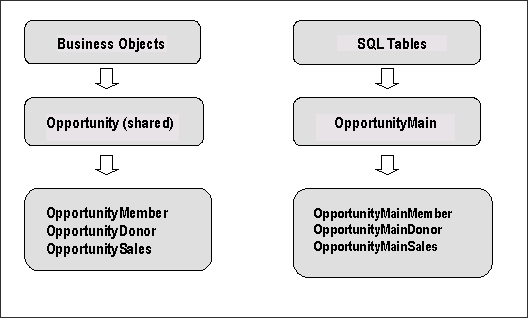
To create an Opportunity Class
For details on the following procedure, see the Example: Building a Job opportunity class and type.
- Open Microsoft SQL Server and create a new table, granting appropriate permissions.
- Open the Business Object Architect.
- Add the new table to the iMIS .NET framework.
- Specify the new Opportunity Class properties.
- Build a relationship between the new class and existing classes.
- Define lookups for the new business object.
- Edit the Opportunity Type to display the new opportunity class in the Process Manager Set Up Module.
- Build and publish the new business object.
Example: Building a job opportunity class and type
- First note and verify the following:
- OpportunityKey is a required field.
- Set permissions on the SQL table to select on the iMIS Group.
- Define OpportunityKey as the primary key on the SQL table.
- In Microsoft SQL Server, create a SQL table called OpportunityMainJob that contains the fields to display in the opportunity:
if exists (select * from dbo.sysobjects where id = object_id(N'[dbo].[OpportunityMainJob]')and OBJECTPROPERTY(id, N'IsUserTable') = 1)drop table [dbo].[OpportunityMainJob]GOCREATE TABLE [dbo].[OpportunityMainJob] ([OpportunityKey] [uniqueidentifier] NOT NULL ,[JobNumber] [int] NOT NULL ) - Create a new OpportunityJob business object by going to RiSE > Business Object Designer.
- Select New > Design Business Definition.
- (Definition tab) Enter OpportunityJob in the Name field.
- Click Browse.
- Select the Opportunity business object as a basis for the OpportunityJob business object.
- Click OK.
- Click Create Object. The business object is created and more tabs are available.
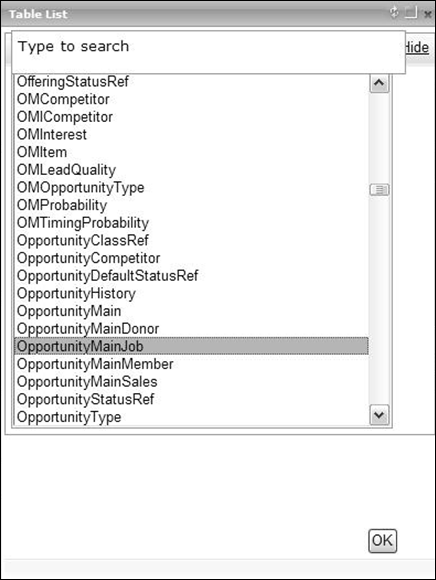
- Make the OpportunityMainJob SQL table part of the .NET framework:
- (Database tab) Click Add.
- Select the new OpportunityMainJob table.
- Click OK.
- Join the newly created table to the OpportunityMain table:
- In the Tables field, select OpportunityMainJob.
- In the Joins fields, select OpportunityMain.OpportunityKey and OpportunityMainJob.OpportunityKey.
- Click Add.

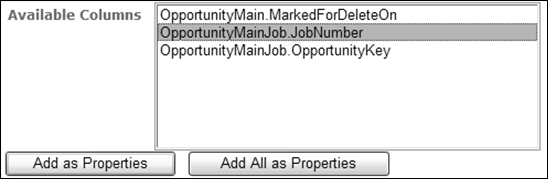
- Create a property for the columns you want to display:
- In the Available Columns field, select the item you want to add as properties, such as OpportunityMainJob.JobNumber. You do not have to select OpportunityMainJob.OpportunityKey. It is the required field that already exists in OpportunityMain.
- Click Add as Properties.
- Click Save.
- Customize the OpportunityJob display properties:
- (Properties tab) Refine the field displays and add the desired look-up values:
- The property name is pulled directly from the SQL table. Click the edit icon (small pencil) to modify any values.
- (optional) Convert field names to user-friendly labels, such as changing JobNumber to Job Number.
- Click Save.
- Click Compile. A progress message is displayed, followed by the message: Opportunity:Information: Compiled With No Errors.
- Click Close.
- Click Publish. A progress message is displayed, followed by the message: OppJobs:Information: Published With No Errors.
- Click Close.
- (Properties tab) Refine the field displays and add the desired look-up values:
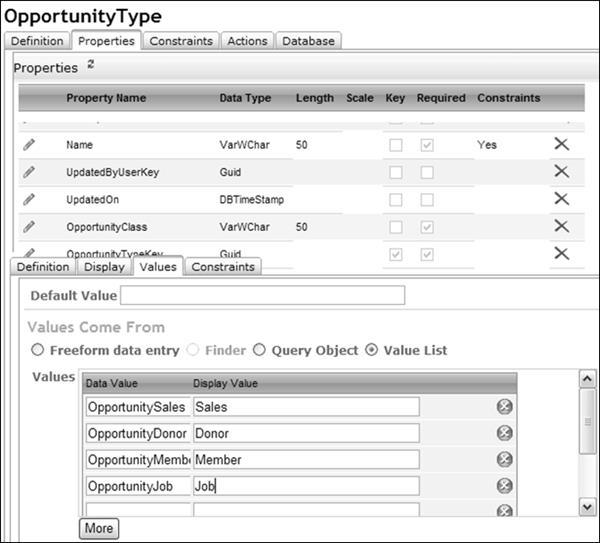
- Modify the OpportunityType business object:
- Open the OpportunityType business object.
- (Properties tab) From the Properties list, select OpportunityClass.
- (Values tab) Select Value List.
- In the Display Value field, enter Job.
- In the Data Value field, enter OpportunityJob.
- Click Save.
- Click Close.
- Click Publish.
- Create a new Process Type for OpportunityJob by going to Marketing > Process manager > Settings.
- Click Create Process Type.
- Enter a Name to define the opportunity type. Job is displayed in the Process Class list.
- Select Job.
- Click Save.
📘 Note
When creating a new Business Object, ensure you add the new Business Object in the Design Business Object Definition folder only. Do not create subfolders in the Design Business Object Definition folder.
Modifying task properties
Tasks in Opportunity Management action plans can be modified in the Business Object Designer.
- Go to RiSE > Business Object Designer.
- Select the task item.
- Click Edit.
- Edit the item.
- Click Save.
Modifying role-based security settings
The default group roles supplied with Process Manager are Prospect, Opportunity Owner, Contact, and Competitor. You can build additional group roles that better describe responsibilities within your organization and can assign those group roles to the appropriate participants.
To create opportunity group roles
- Go to Community > Security > Roles.
- Click Add a Role.
- Enter the information for the new role.
- Click Save.
To assign opportunity group roles
- Go to Community > Security > Users.
- Search for the user record.
- Select the user. The User Definition page displays.
- In the Roles section, in the User Information area, click add role.
- Select the desired role and click OK. The new role displays in the Roles list.
To specify security settings for queries or reports
Each query or report must have a security setting to determine which users can view or edit the query.
- Go to RiSE > Intelligent Query Architect.
- Select OpportunityManagement > Default System > Queries.
- Select the query or report and click Edit. The Query Summary page is displayed.
- Click Security in the left nav.
- From the Access Mode list, select the mode.
- (optional) To change the permissions for a role:
- From the Access Mode list, select Custom.
- From the Select a Query list, select Roles.
- Click Find to display a list of roles.
- Select a role name to add it to the Current Access List.
- Click Save.
Updated 3 months ago