

Managing enrollments
Tracking registration for certification courses or certification programs involves knowing who is enrolled and getting counts of the number of registrants.
Students can register themselves from your organization’s Member site or your staff can register students for programs and components through Certification on the Staff site.
You can test for an individual student's completion of the program after students have completed the requirements for a program or a portion of a program.
Before you begin:
- If a participant does not already have a contact record in your iMIS database, add their contact information.
- Ensure that the certification program exists and has a Status of Active.
- Ensure that components and offerings exist for the certification program.
Reviewing enrollments by program
To review enrollee by program
- From the Staff site, select Certification > Enrollments > By program.
- Select the program. Four Progress Tracker content items persist across the top of the page.
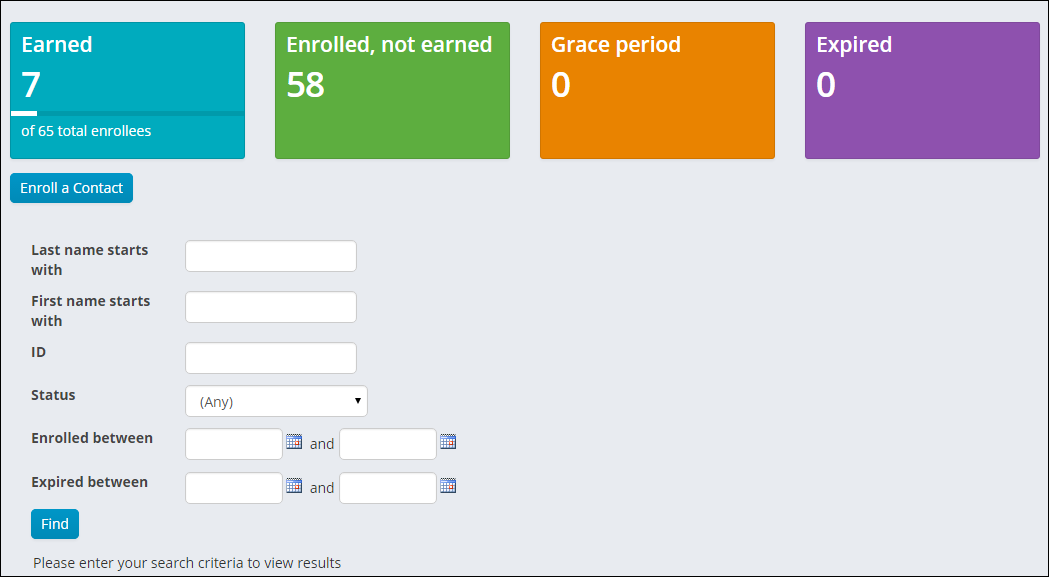
- Earned - Amount of enrollees who have a status of earned along with the total number of enrollees.
- Enrolled, not earned - Amount of enrollees who have not completed any portion of the program.
- Grace period - Amount of enrollees who did not complete the program by the deadline, but have been granted extra time to complete it.
- Expired - Amount of enrollees who did not complete the program and the expiration date has passed.
- From the enrollee search, enter a value to filter on, then click Find.
- Select an enrollee name to review the status of the specific requirements.
These Progress Trackers provide the enrollment status for the program:
To enroll a contact in a program
- From the Staff site, go to Certification > Enrollments > By program.
- Select a program.
- Click Enroll a Contact.
-
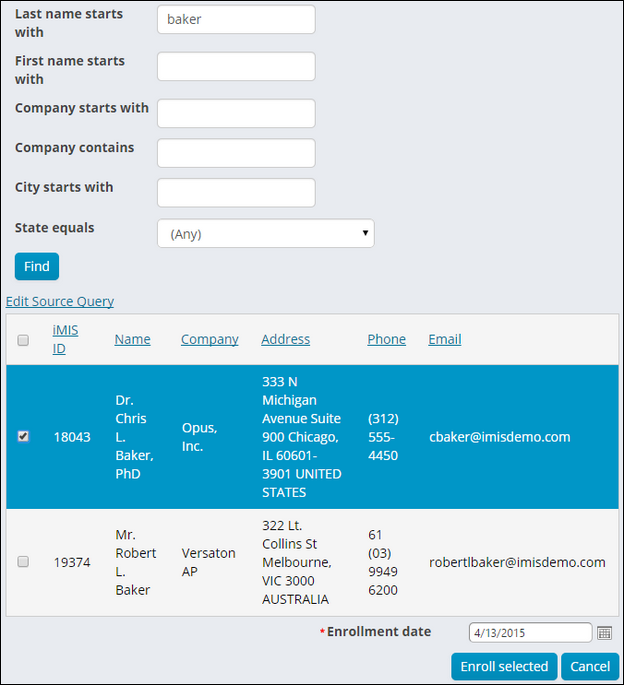
Find the contact you want to register.
- To register multiple contacts, select the checkbox for each contact you want to register.
- You can enter the enrollment date for the enrollee. By default, the Enrollment date is the current date. The Enrollment date field is only available when at least one contact is selected.
- Click Enroll Selected.
- Click Register.
📘 Note
You can confirm the registration by viewing the enrollment status of the enrollee.
Reviewing enrollee's certification programs
- From the Staff site, go to Certification > Enrollments > By enrollee.
- Find and select an enrollee. A high level summary of the enrollee’s current certification programs and the certification programs available display.
- Click on the name of the certification program.
- Enroll to register the contact for the selected certification program.
- Print Transcript to view the progress of all programs a contact has enrolled in a standard, exportable format.
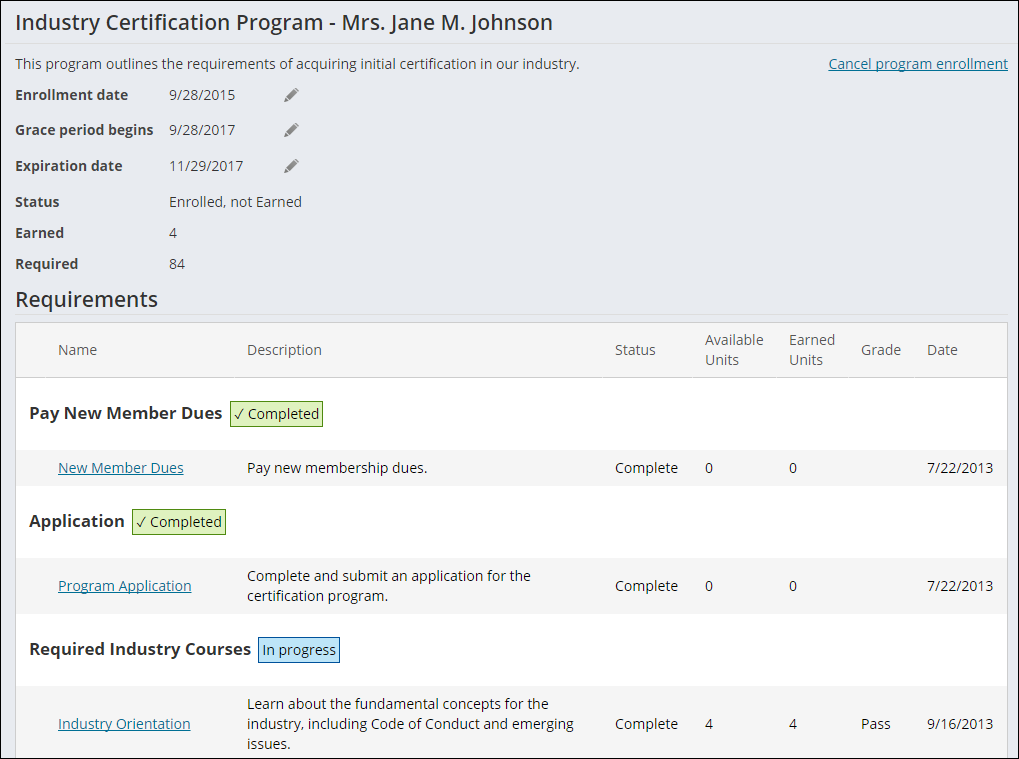
- View progress to track the enrollee’s progress through the certification program. To review requirement details, select the requirement.
- Enrollment date — The date on which an enrollment takes effect.
- Grace period begins — Provides a time extension past the deadline for enrollees to complete the program.
- Expiration date — The date on which the enrollment will expire.
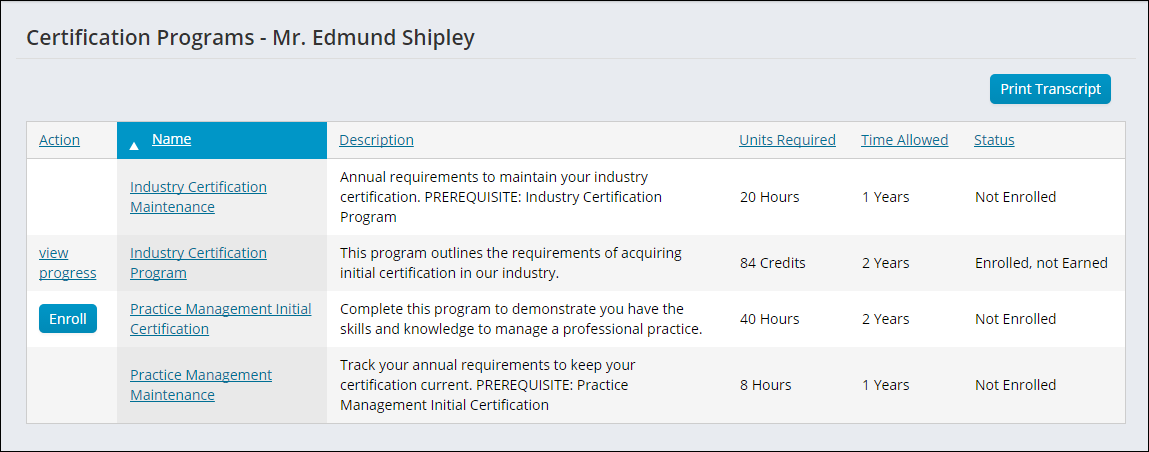
View all the programs the contact is both enrolled in and eligible to enroll in.
Click for details
If the requirement was completed, the date and supplemental information is provided. If the requirement has no status, you can register the enrollee.
Staff users can edit the following information:
📘 Note
Staff users can extend the Grace period for enrollees by editing and extending the Expiration date.
📘 Note
Grace period begins and Expiration date are used in combination to calculate the Completion deadline shown to users.
Removing inactive enrollments
You purge expired enrollments, or when the certification program is no longer offered or cancelled.
A purge does not delete the contact record; it deletes the related recorded registration information.
Before you begin:
You must log on as a user with the role of Certification Manager to purge inactive registrations.
- From the Staff site, go to Certification > Enrollments > Inactive enrollments.
- Search for a specific enrollee or click Find to display all inactive registrations.
- Select the checkbox for each enrollment to want to remove.
- Click Purge Selected to remove the selected enrollment.
📘 Note
This list displays records of contacts participants that are marked as inactive registrants in the database. These can be purged from a certification program enrollment, but this enrollment purge does not remove the contact record from the database.
Cancelling program enrollments
You can cancel a user from a program enrollment.
Do the following:
-
Select the Allow enrollees to cancel enrollment option on the certification program's Definition tab:
- From the Staff site, go to Certification > Define programs > Certification programs.
- Click the Program Name for the certification program for which you want to cancel enrollments.
- On the Definition tab, select the Allow enrollees to cancel enrollment option.
📘 Note
If the Allow enrollees to cancel enrollment option is not selected, then only SysAdmins and non-SysAdmin staff that are part of the Certification Manager or Certification Admin groups can cancel program enrollments. For more information, refer to Assign logon credentials and user type and Security groups. - From the Staff site, go to Certification > Enrollments. You can select By program or By enrollee:
- By program:
- Click the Program for which you want to cancel a user's enrollment.
- Enter the necessary search parameters and click Find.
- Click the Full Name of the enrolled contact. A program-definition window is displayed.
- By enrollee:
- Enter the necessary search parameters and click Find.
- Click the Full Name of the enrolled contact.
- Click View progress for the certification program for which you want to cancel a user's enrollment.
- Click the Enrollment Status. A program-definition window is displayed.
📘 Note
Select a certification program in which a user is already enrolled but not yet completed.
- By program:
- Click Cancel program enrollment. A warning message is displayed. Click OK.
The user's enrollment in that certification program is cancelled. The user can be enrolled again.
Recording a completion
To complete requirements for a contact
- From the Staff site, go to Certification > Enrollments > By enrollee.
- Find and open the contact you want to record the completion of a requirement.
- Select View progress for the certification program for which you want to complete a requirement.
- Click the Requirements link. The Requirement details display along with any associated Offerings, such as classes.
- If you want to register the contact for an event that meets the requirement, click Register Now for the event offering.
- Register for the event.
- Check out from the cart.
- To record completion for a requirement, select Record Completion for the offering completed (or for the overall requirement if it has no associated offerings).
- Specify a Date.
- (optional) Enter any necessary Notes.
- If the requirement requires a Grade, specify the Grade.
- If applicable, click Attach file to attach a file. In the File Upload window, select the file and Upload.
- Save the completion information.
📘 Note
When viewing requirements, only requirements which can be completed are links. If the requirements must be completed in order, then some may not be available until the previous requirements are completed.
Enter the necessary information:
📘 Note
If the completion requires approval by a staff user, Awaiting Approval displays as the Status. If the requirements must be completed in order, the program enrollee cannot progress to the next stage until the previous requirement has been approved. See Program completions for more information.
To review completed requirements for a contact
- From the Staff site, go to Certification > Enrollments > By enrollee.
- Find and open the contact for which you want to review completed requirements.
- Click View progress for the certification program for which you want to review completed requirements. A list of program requirements displays where you can view the Status of the requirements:
- No Status – The program enrollee has not completed the requirement.
- Awaiting Grade – The requirement requires that a grade be entered before it can be completed.
- Awaiting Approval – The requirement requires that a staff user approve its completion. See Program completions for more information.
- Complete – The requirement has been completed and requires no further action.
- Click the link of a completed requirement to review the completion details. Completion details are read-only once a requirement has a Status of Complete.
- If you want to access a file attached to the requirement, click the file name.
📘 Note
When viewing requirements, only requirements which can be completed at this time or have been previously completed are links. If the requirements must be completed in order, then some may not be available until the previous requirements are completed.
Editing certification programs
Staff users can edit and make any changes to a certification program through the Staff site by navigating to Certification > Define programs > Certification programs. Any edits made to the certification program will not affect current enrollees, with the exception of altering the program to a Maintenance program.
If the option Maintenance program is enabled when editing the certification program, additional enrollment is available when current enrollees complete the program. However, if the option Maintenance program has been removed when editing the certification program, additional enrollment will not be available to current enrollees who have completed the program.
All certification program enrollees must cancel and re-enroll into the program after edits have been applied.
Updated 3 months ago