

Setting up campaigns
Complete the following processes before creating new campaigns in iMIS.
Licensing and installing
Follow standard iMIS procedures for licensing and installing Campaign Management.
After installation, you must synchronize responses before other setup tasks. This initializes the database to recognize new product sales only so that the response reporting does not include previous sales.
Setting up security groups for campaigns
Security groups specify levels of access and control for users. Each user must have a record in the database before you can add them to a security group.
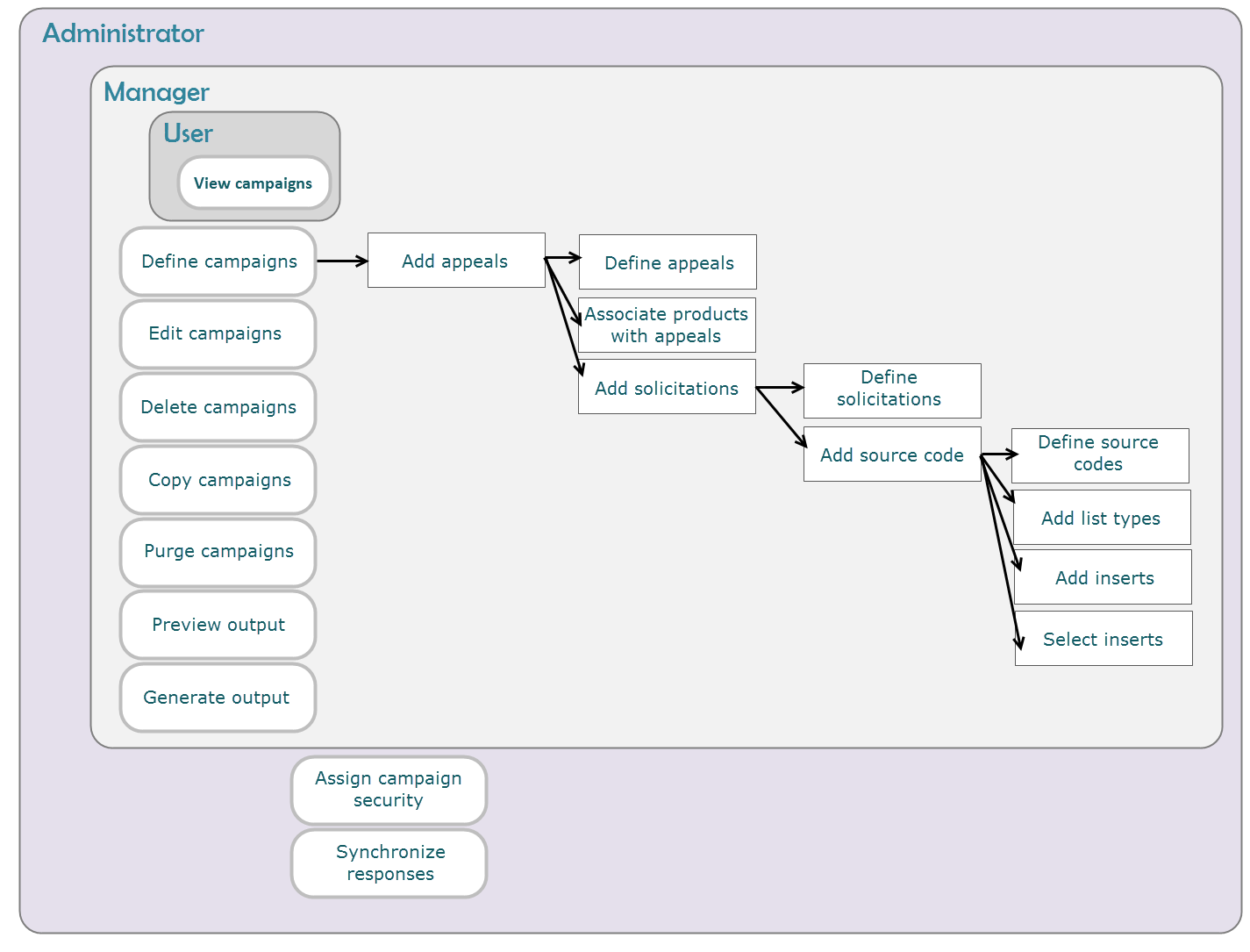
Campaign Management security groups
- CampaignAdmin: Has full control access for all campaigns.
- CampaignMgr: Has read, add, edit, and delete access for the module and read and edit access for all campaigns.
- CampaignUser: Has read-only access for campaigns.
Segmentation security groups
- SegAdmin: Has full control access for all segment setup and segmentation jobs.
- SegMgr: Has read, add, edit, and delete access for all segments and jobs.
- SegUser: Has read-only access for segmentation jobs.
RFM Analytics security groups
- RFMAdmin: Has full control access for RFM Analysis setup and processes.
- RFMMgr: Has read, add, edit, and delete access for all analysis and reports.
- RFMUser: Has read-only access for reports.
To add users to security groups
- From the Staff site, go to Marketing > Campaigns > Settings.
- Click the Security groups tab.
- Select a security group.
- Under Select New Members, search for and select the additional users.
- Click Save.
Setting up Campaign Management
Set up Campaign Management according to the method your organization uses to track and process data. These options apply to all campaigns. Use the Business Object Designer to track additional information that is important to your organization's marketing success.
To set Campaign Management options
- From Marketing, select Campaigns > Settings > Options.
- Enable the desired options:
- Choose the Source Code ID Mode: Manually-Assigned or Auto-Assigned.
- If Auto-Assigned is enabled, enter the Source Code Name Format.
- For example, XXX###. Meaning, all source codes must conform to the format of three letters, followed by three numbers. The ### characters must be next to each other. Numbers are not necessary, and special characters are accepted.
- Choose the Budget Level: Appeal or Source Code.
- Check to select Auto-map source codes when retrieving responses.
- (optional) Enter the Opt Out URL and the Opt Out Key which can be used when editing an email template (see Defining output processes) for customers who want to be removed from a mailing list.
- Click Save.
Source code ID mode
This setting determines whether source codes will be generated manually or automatically.
-
Manually – When enabled, the Manually-Assigned option governs the Set up module page's Source Code Name Format field and the source code Definition tab's Code field:
- The Source Code Name Format field is disabled.
- The Code field is editable until the source code is saved; once saved, the Code field cannot be edited.
- The Code field is blank when first creating a source code.
- You must enter a unique value in the Code field to save a source code.
-
Automatically – When enabled, the Auto-Assigned option governs the Set up module page's Source Code Name Format field and the source code Definition tab's Code field:
- The Source Code Name Format field is enabled.
- The Code field is read only.
- The Code field populates automatically with a unique value when saving a source code.
Tracking costs
You can track campaign costs by appeal or by source code.
Tracking by appeal – If the budget and costs are tracked at the appeal level:
- Total costs display at the campaign and appeal levels only.
- Users can view the Total Cost, Target Revenue, Predicted Response Rate, and ROI for a campaign.
- Users can enter and edit the Overhead Cost, Target Revenue, and Predicted Response Rate for an appeal.
- Users cannot view or edit costs for a solicitation or source code.
- Users can enter costs for an insert, but these costs are ignored in the campaign and appeal cost calculations.
Tracking by source code – If the budget and costs are tracked at the source code level:
- Users can view the Total Cost (estimated or actual), Target Revenue, Predicted Response Rate, and ROI for a campaign, appeal, or solicitation.
- Users can edit the Overhead Cost, Target Revenue, and Predicted Response Rate for a source code.
- Users can view the Total Cost (estimated or actual) for a source code.
- Users can enter costs for inserts, which are used for cost calculations.
- The Summary tab for a campaign, appeal, solicitation, and source code display Estimated Cost until output is generated. After generating output, Actual Cost displays. (For a campaign, appeal, or solicitation, the Summary tab displays the Actual Cost if output has been generated for any child source codes; otherwise, Estimated Cost displays.)
- The Calculate Estimated Costs button displays on the campaign, appeal, solicitation, and source code portfolio pages.
About auto-map source codes when retrieving responses
If selected, this setting automatically maps source codes to orders, gifts, and pledges if a source code is not provided when synchronizing responses. The source code is obtained from iMIS Events, Orders, or Fundraising.
If the setting is not selected, iMIS does not recognize responses if an order, gift, or pledge does not have an associated source code.
📘 Note
This feature applies only if one or more products are associated with an appeal.
Importing source codes
Many charities frequently record donations outside of iMIS or by the use of a third party. Marketing campaigns in particular contain valuable information such as source codes.
Source codes are integral within iMIS when managing campaigns because they allow organizations to track responses in order to measure the effectiveness of each campaign.
Staff users are provided the ability to import source codes directly from the Staff site:
- From the Staff site, go to Marketing > Campaigns > Import source codes.
- Select the file to import.
- Click Upload. In order to import source codes, you must enter the data in a tab-delimited file that contains columns. Most spreadsheet applications, such as Microsoft Excel, can create tab-delimited files (.txt). You must arrange the columns in the tab-delimited file in the same order as they are listed below:
- (optional) If warnings or errors were reported when importing, click Download errors to view the report. Create a new tab-delimited file that contains just the warning and errors. Do not include data that has already been successfully imported. Correct the file, then upload and process it again.
- Click Process. All import files that are processed are recorded in the Review log files section with the description of the warnings if any were reported from the import.
Click to view table
| Column | Description |
|---|---|
| A. Source codes (required) | If the source code does not yet exist and a campaign code is also specified, the source code will be created. There is a 40 character maximum for source codes. |
| B. Campaign (required) | If the campaign does not yet exist, it will be created. There is a 10 character maximum for campaigns. |
| C. Appeal (optional) | If this appeal does not yet exist within the specified campaign code, it will be created. There is a 50 character maximum for appeals. |
D. Solicitation (optional) | If this solicitation does not yet exist within the specified campaign code and appeal, it will be created. There is a 50 character maximum for solicitations. |
Assigning a source code to a hyperlink
You can assign source codes to hyperlinks, allowing you to accurately track responses to specific communication efforts and associate them with the appropriate campaign. The following commerce items can be associated with a source code:
- Product purchases
- Event registrations and adjustments
- Paid invoices
- Give Now donations
- Join Now registrations
Source codes are associated with a particular visit. A visit is considered to begin once the user selects a hyperlink containing a source code. Once the order is submitted, the entire order is associated with the visit’s initial source code, and each item line is assigned the source code associated with the last encountered reason for the current visit. Any item that does not have a defined source code will be assigned the initial source code. A visit is considered to be ended once the browser is completely closed, or once a user logs off.
For example, a website user sees a Facebook post by your organization that is promoting a new book offered in the store. In the post is a link so viewers can learn more about the book. This link is using the “FBOOK1” source code. The user clicks the link in the post and adds the book to their cart. The user then minimizes the browser to check their email.
In their inbox they see an email from your organization promoting an upcoming event, along with a link to learn more about the event. The link in the email is using the source code “EMAIL2.” The user then clicks the link in the email and registers for the event. After reviewing the cart, the user enters the payment information and submits the order for the book and event.
The entire order is assigned the “FBOOK1” source code, the book is assigned the “FBOOK1” source code, and the event is assigned the “EMAIL2” source code. If the user added any other items from simply clicking around the site after registering for the event, those items would be assigned the “EMAIL2” source code. The last encountered source code is the one assigned to any new purchases.
After the order is submitted, the dollar amount raised for each source code will be added to the total amount of the associated campaigns. A Staff user can view individual campaign progress from the Staff site at Marketing > Campaigns > Track campaigns.
These hyperlinks can be included in various marketing platforms:
- Email messages
- Social media accounts
- Another organization’s website
- Online advertisements
To associate a source code with a hyperlink, you need your organization’s URL and the source code you want to use to track the marketing email.
The URL for the hyperlink must use the following format: OrganizationURL/Shortcut?SourceCode=ABC123
For example: http://imisfoundation.org/imis/MBR/NewEvent?SourceCode=BB0055
This hyperlink directs the donor to the organization’s new event. Registrations in response to the email (for example, by clicking on the embedded link) are associated with the Source Code "BB0055".
If the URL already has another parameter in it, the following format is used:
OrganizationURL/Shortcut?SomeOtherParameter=123&SourceCode=ABC123
To assign a source code to a hyperlink in a marketing email template:
- Open the email editor from an IQA query that retrieves the contacts you want to target.
- Create an email.
📘 Note
The From field and the To field are only required when sending an email. You do not have to populate these fields to create a template.
- Select the text or graphic you want to link to your website.
- Open the Hyperlink Manager.
- Enter the URL in the correct format:
- Click OK.
- Click Save Draft As. You are prompted to enter a name for the template.
OrganizationURL/Shortcut?SourceCode=#######
📘 Note
The Document system saves the template to $/Common/Communications. See Using a saved email template for information on opening and editing a saved email template.
- Name the template.
- Click OK.
📘 Note
Any subsequent changes to this template, when attached to the same data source, will be a simple save operation. Changes will not require saving a new copy of the template. 📘 Note
You can associate source codes to hyperlinks in any email, not just ones created from templates.
Understanding opt-out configuration
Sometimes people want to be removed from a campaign mailing list. This action is called opting out. Campaign managers want to know the number of people who opt out of a campaign and which source code is related to the opt-out action.
Understanding the tracking of opt-outs helps you analyze the campaign's effectiveness. Opt-outs are tracked from the originating source code so that your campaign manager knows the source code that caused the opt-out action.
Two settings and inserting code into an email template control the opt out configuration (Marketing > Campaigns > Settings):
- Opt Out Url field points to a special opt out page, such as http://www.domainname.org/iMIS/OptOut.aspx. When the person clicks on the link in the email containing the Opt Out code, they are taken to this page. The page can contain instructions for choosing to be removed from the list, or request further information for why the message caused the email recipient to choose to be removed.
- Opt Out Key field contains %OPTOUTURL% by default. This field contains the code that you insert into the email template in the HTML code. You could change it to %REMOVEME% or another variable name, but you must be sure to change the code in the email templates that use the Opt Out Key in them.
When you create an email merge template, use HTML, not plain text, and use %OPTOUTURL% for the URL for the link. For example, add the text, "If you want to be removed from our campaign, click here." Highlight "click here" and insert a link. Enter %OPTOUTURL% as the URL and choose Other as the Type.
Using this email merge, generate output from a source code. The email messages are generated and sent.
When an email recipient clicks the "click here" link in the campaign email, they go to the URL for the Opt Out Url page configured in the Staff site (Marketing > Campaigns > Settings).
If you have more than one source code in one campaign that solicits the same prospect, opting-out for any one source code should opt-out all source codes in the campaign that have solicited that prospect. In addition, iMIS discontinues all further campaign appeals, solicitations, and source codes for that prospect, even those that are created after the opt-out. In short, any future lists automatically exclude that contact from being selected again.
For example, when you look at the Record Responses area and look up an ID, you see every source code the person with that ID is being solicited for. If a member is solicited by two different source codes within the same campaign, they are shown as opted-out of both campaigns.
Solicited and unsolicited responses
The definition of a solicited response is twofold. One definition is an order (product, event, fundraising) or opportunity that has a source code associated with it and the primary contact (or BT_ID) has been solicited for the source code. The other definition is associated with an order that contains no source code but does contain a product that is associated with an appeal and the primary contact (BT_ID) has been solicited for a source code within the appeal. For the second definition to be recognized as a response, automatic source code mapping must be enabled. Opportunities that do not reference a source code are not calculated as a response.
The definition of an unsolicited response is also twofold. One definition is an order (product, event, fundraising) that has a source code associated with it and the primary contact (BT_ID) was not solicited for the course code. The second definition is an order that contains no source code but does contain a product that is associated with an appeal, but the primary contact (BT_ID) has not been solicited for any source codes within the appeal. For the second definition to be recognized as a response, automatic mapping of source codes must be enabled. Auto-mapping of unsolicited responses is not a perfect implementation.
The begin and end dates of the source code, solicitation, appeal, and campaign are ignored when recognizing responses for both explicit or indirect responses. This design means that an order generated past the campaign end date still generates a response to the campaign.
Events and responses
Responses are created as one response per order or event registration. A single event registration for ten contacts would be recorded as a single response.
Updated 3 months ago