

Troubleshooting iImport
Do the following if these scenarios come up:
I am getting a runtime error when I select my spreadsheet. I have a column in my spreadsheet called “iMIS ID.”
You cannot have a column header called “iMIS ID.” Please rename to something else and the import should work.
iImport automatically runs with elevated rights. You have a user that does not have 'admin' rights to their PC (or Terminal Server), and therefore iImport does not run for them.
There is not a way around having iImport run with 'Run as Administrator' rights – but there IS a workaround for when a user does not have such rights themselves. The below steps will allow a standard domain user account to run an application as local administrator. Create a shortcut that uses the run as command with the /savecred switch, which saves the local admin password.
NoteA network Admin will need to assist with these steps.
Enabling the built-in Administrator account
You must first enable the built-in Administrator account by doing the following:
- Search for Command Prompt in the Start menu.
- Right-click the Command Prompt shortcut.
- Select Run as administrator.
- Run <net user administrator /active:yes> in the elevated Command Prompt.
Creating a password for the Administrator account
Next, create a password for the Administrator account by doing the following:
- Open the Control Panel.
- Click User Accounts and Family Safety > User Accounts.
- Select the Manage another account link in the User Accounts window.
Creating the shortcut
Create the shortcut by doing the following:
- Right-click the desktop and click New >Shortcut.
- Enter <runas /user:ComputerName\Administrator /savecred "C:\Path\To\Program.exe"> into the box that appears.
- Replace ComputerName with the name of your computer and C:\Path\To\Program.exe with the full path of the program you want to run.
Customizing the shortcut
Next, customize the shortcut by doing the following:
- Enter a name for the shortcut.
- To select an icon for your new shortcut, right-click it and select Properties.
- Click the Change Icon button in the Properties window
Saving the credentials
Lastly, do the following to save the credentials:
- The first time you double-click your shortcut, you'll be prompted to enter the Administrator account's password, which you created earlier.
- This password will be saved – the next time you double-click the shortcut, the application will launch as Administrator without asking you for a password.
iImport errors out when trying to update or insert certain fields in iMIS.
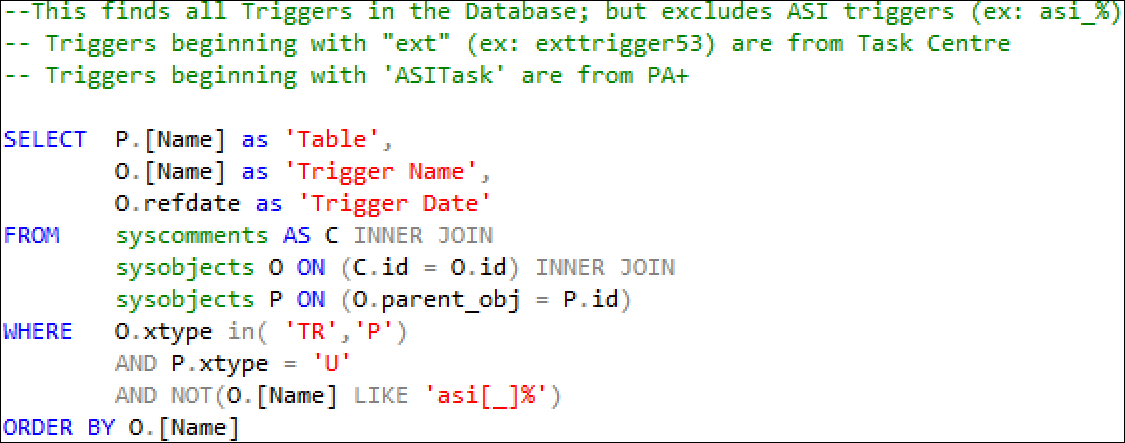
Resolution: Check to see if there are any custom triggers associated with any of the tables (especially Name, Name_Address, and Usermain). The below script, which can be ‘copy & pasted’ directly into SQL Mangement Studio, will list out all triggers that do not begin with ‘ASI’.
Most error messages in the import log are descriptive. The Membership Import Tool follows iMIS rules for records on import. Therefore,you must define valid values for such things as member types. It is also important that you map fields to the correct corresponding fields in iMIS. Refer to the iMIS database schema to confirm mapping locations.
Unable to set Solicitor ID
Due to iMIS API Limitations, many fields in Name_FR are not available in iImport. Consider upgrading to iDMS: https://www.csiinc.com/iDMS
NoteIf you have any issues with iImport, please contact support. Tickets are normally responded to within 1 to 2 business days after they are submitted.
Updated 5 months ago