

Offering gallery
Automatic payment enrollments
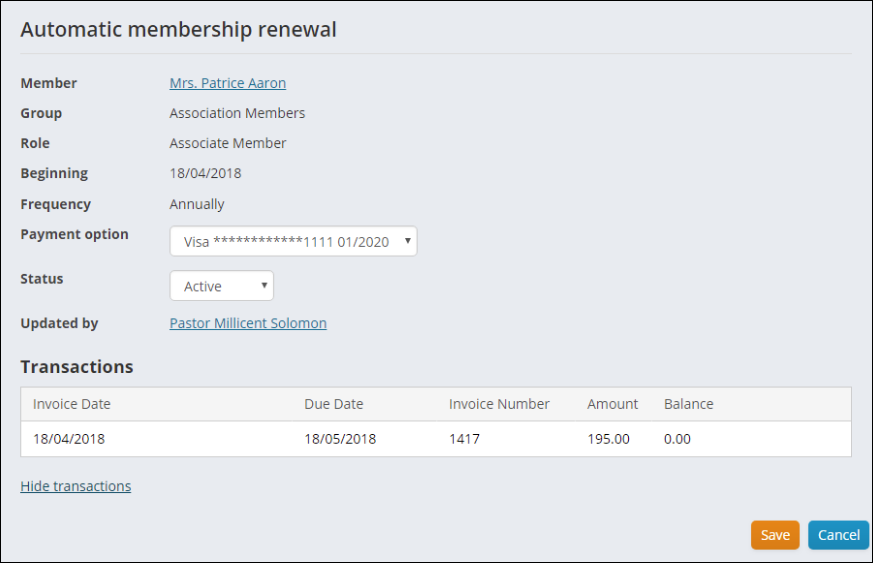
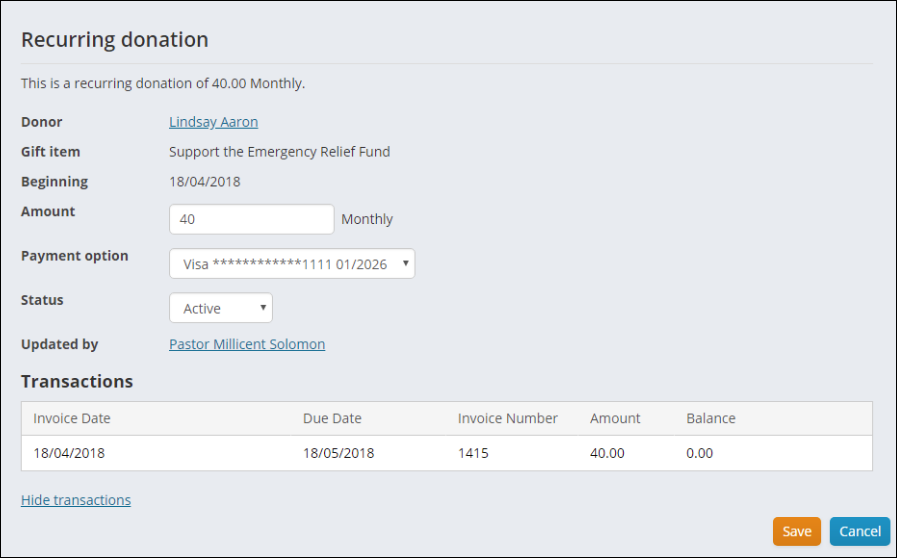
The Automatic Payment Enrollments content item displays a grid of recurring payment enrollments including membership renewals and donations:
Batch Invoice Payment Processing
📘 Note
The Batch Invoice Payment Processing is only available if you have set up AutoPay.
This content item is used specifically with AutoPay, and will send an invoice due for payment processing to the ASI-hosted DataValut where the payments can be taken. In the Staff site, authorized administrative users are able to call up invoices or pledges that are due for payment and begin to process those payments through the DataVault.
This is not a standalone content item, and is regularly used with the following content items:
This content item requires an IQA query to run, and can be seen in the Staff site in the following places:
-
Membership > Automatic payments > Process payments > Submit invoices
- The content item uses the Find renewal invoices due for automatic payment query (go to $/Membership/DefaultSystem/Queries/AutoPay).
-
Fundraising > Automatic payments > Process payments > Submit invoices
- The content item uses the Find recurring donation invoices query (go to $/Fundraising/DefaultSystem/Queries/AutoPay).
If staff users modify one of these queries, they should also modify the following queries to keep the data consistent within the AutoPay payment process. The queries used by the Batch Invoice Payment Processing content item have been updated to include a hidden code_InvoiceRefNum column:
-
Membership > Automatic payments > Process payments > Review invoices
- The content item uses the Find renewal invoices due for automatic payment ALL query (go to $/Membership/DefaultSystem/Queries/AutoPay).
-
Fundraising > Automatic payments > Process payments > Review invoices
- The content item uses the Find recurring donation invoices ALL query (go to $/Fundraising/DefaultSystem/Queries/AutoPay).
If you have created custom queries that are used by the Batch Invoice Payment Processing content item, you must update those queries to include the code_InvoiceRefNum column. Use the following values:
- Property - Reference Num
- Alias - code_InvoiceRefNum
If your queries are not updated, you will receive an error.
Donation Creator
- Description - Allows users to make a donation. Using this content item in combination with other content items or on its own, supporters can either pay for the gift immediately from a donation page, or add the gift to their shopping cart and pay for it along with any other items from the store.
EFT Batch Status
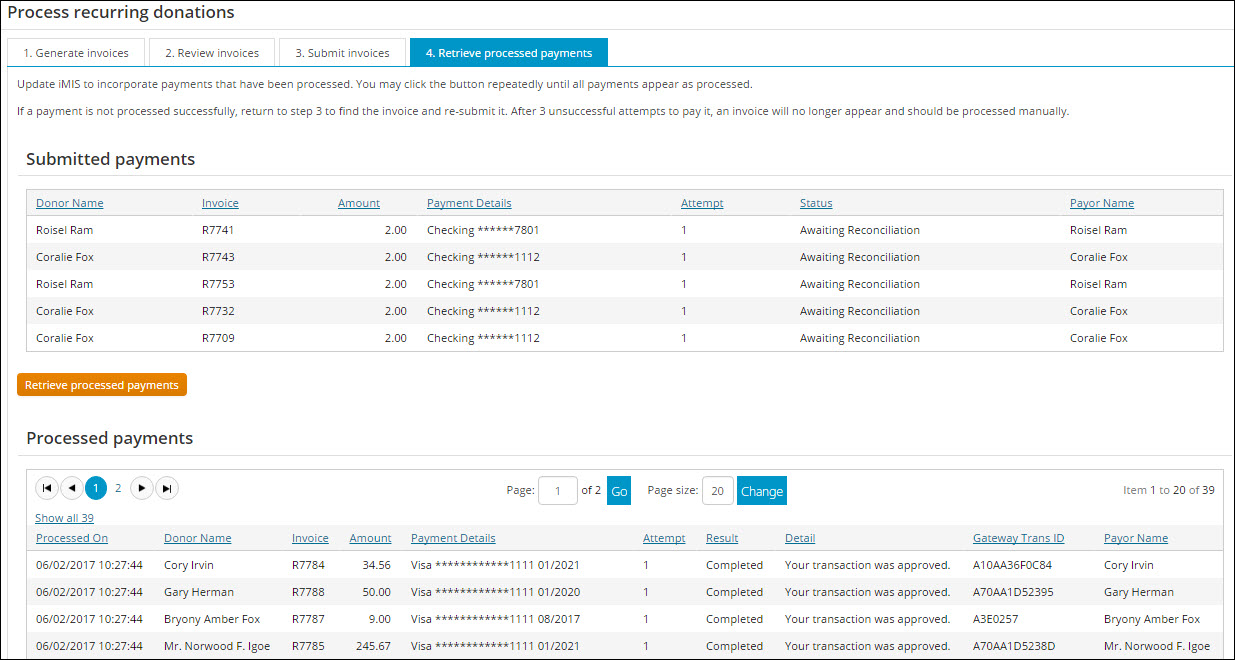
This content item enables users to refresh the status of their AutoPay Batch Payment. This content item returns transaction results from the tokenization engine (DataVault).
From the staff site, go to one of the following:
- Membership > Automatic payments
- Fundraising > Automatic payments
You can then select the Retrieve processed payments tab. Click Retrieve processed payments to update the transaction information.
📘 Note
This content item is only available if you have set up AutoPay.
Event Calendar
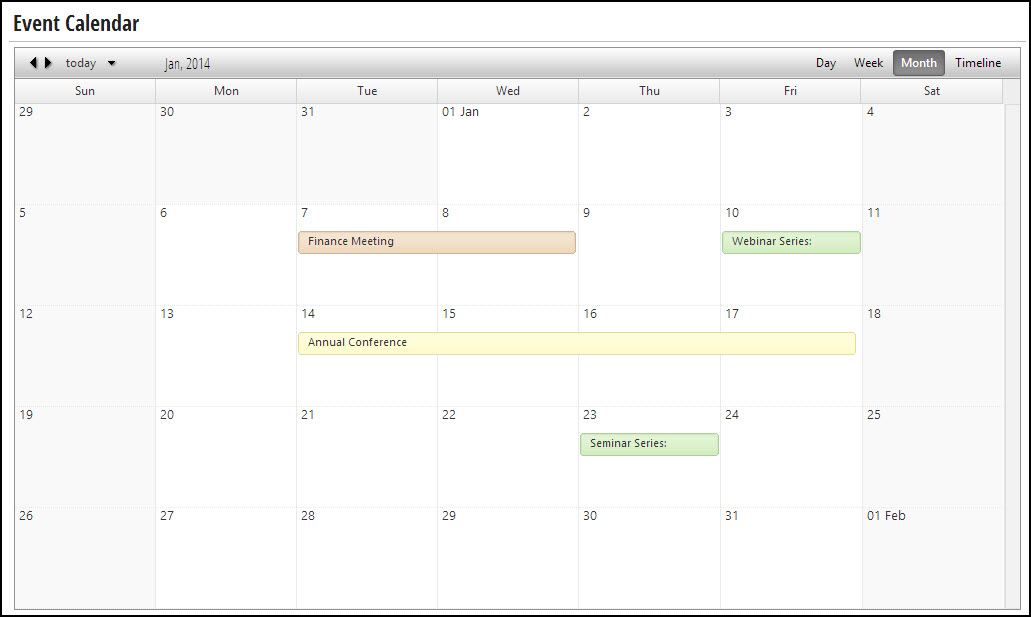
- Description - Displays active events in a dynamic calendar control, which allows users to browse by month, week, and day and to click through to event showcase details.
- Usage Scenario - Events listed on the Event Calendar are color-coded. Green indicates that the event is visible to all users and open to registration. Yellow indicates that the event is visible to all users but not open to registration. Orange indicates that the event is visible only to staff users.
Event Display
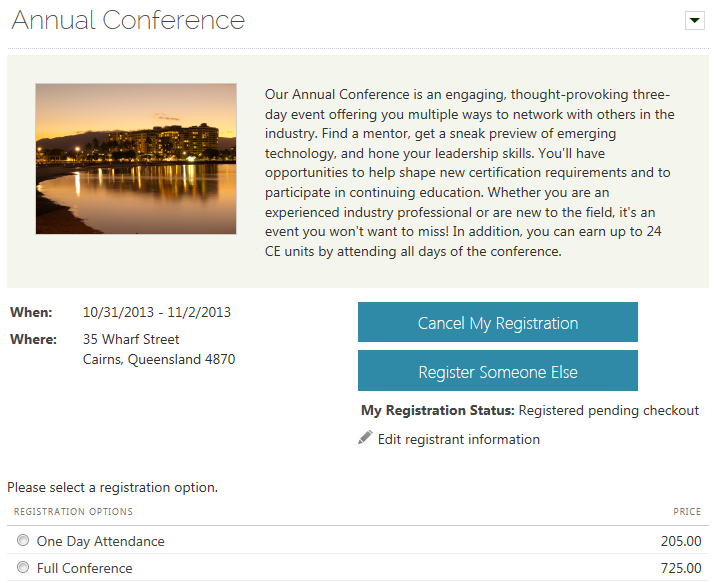
- Description - This content item displays event details, and allows users to register for events for themselves or for someone else, allows users to add an event to their itinerary, and adds the registration to the user's cart.
- Usage Scenario - Event registration page:
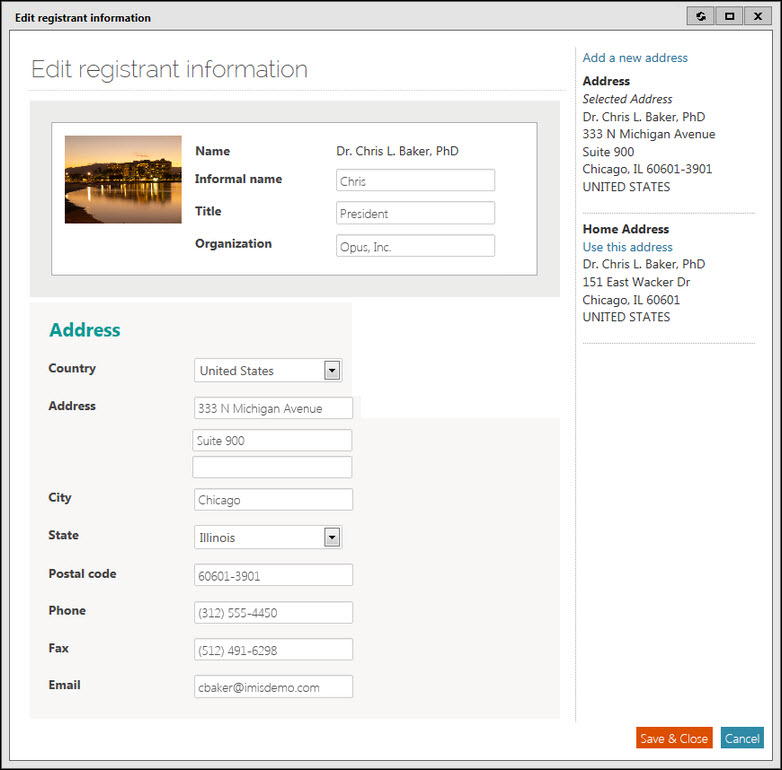
Edit registration information window:
Event Display configuration options
The Event Display content item displays event details and allows users to register for events for themselves or for someone else. It also allows users to add an event to their itinerary, and adds the registration to the user's cart. This content item will add its title information, usually the event name, to the browser window or tab page title when the Use dynamic page titles checkbox is selected on the parent content record.
- Event key - The key of the specific event to be displayed. This comes from the Event Code. The key may also be supplied using the URL. A key specified in the content item configuration takes precedence over a key in the URL.
-
Width of image - The width in pixels of the image to be displayed. Smaller pictures are scaled up to this width; larger pictures are scaled down.
- 0 - displays the image at full size
- 1 - hides the image
- Add to calendar - Allows users to add the event to their Yahoo!, Google, and iCalendar calendars. iCalendar is compatible with iCal (.ics) files, such as iOS mail, Gmail, and Outlook. This button can be configured to Never show, Show after registration, or Always show.
- Registrant info message - This text appears in three places: on the event page next to the registrant information icon and as the page title and heading of the popup window used to edit the registrant information. The icon text is configurable and defaults to Edit registrant information. The registrant information entered can appear, for example, on registration badges and in some event reports.
- IQA query used when registering someone else - The results of the selected query are displayed when using Register Someone Else to register an existing contact. The query will alert you if the contact has already been registered. If no query is selected or no contacts are available, you are given the option to add a new contact.
- The CsContactBasic.IMIS ID property. On the display tab in IQA, set the Order for this property to 1. To hide the ID field in the query results, give this property an Alias of code_ID.
- A name property so that it is clear which contact the user is selecting. For example, CsContactBasic.Full Name.
-
IQA query used when adding a guest - The results of the selected query are displayed when using Add a guest to add a guest registration. The query will alert you if the contact has already been added. If no query is selected or no contacts are available, you are given the option to add a new contact. The default query ($/EventManagement/DefaultSystem/Queries/Advanced/Event/Previously Registered Event Guests) lists guests previously added by the registrant, but you might need to broaden or tighten its criteria. If you write your own query, you must include the following query Display columns:
- The CsContactBasic.IMIS ID property. On the Display tab in IQA, set the Order for this property to 1. To hide the ID field in the query results, give this property an Alias of code_ID.
- A name property, so that it is clear which contact the user is selecting.
-
New contact settings - Both of these fields apply when a user registers someone else or a guest and that contact is not already in the database:
- Create address purpose - Select the address purpose to which the new address will be applied.
- Organization list query path - If needed, select a custom query for listing appropriate organizations, such as if you have content records specific to different types of users.
📘 Note
If the query is not found (if the query name is mistyped, for instance), the content item will display an empty list. Delete the query path to re-instate use of the default query.
Click for details
The default query ($/EventManagement/DefaultSystem/Queries/Advanced/Event/Registrant Search) lists the user's coworkers, but you might need to broaden or tighten its criteria. If you write your own query, you must include the following query display columns:
Event Program Display
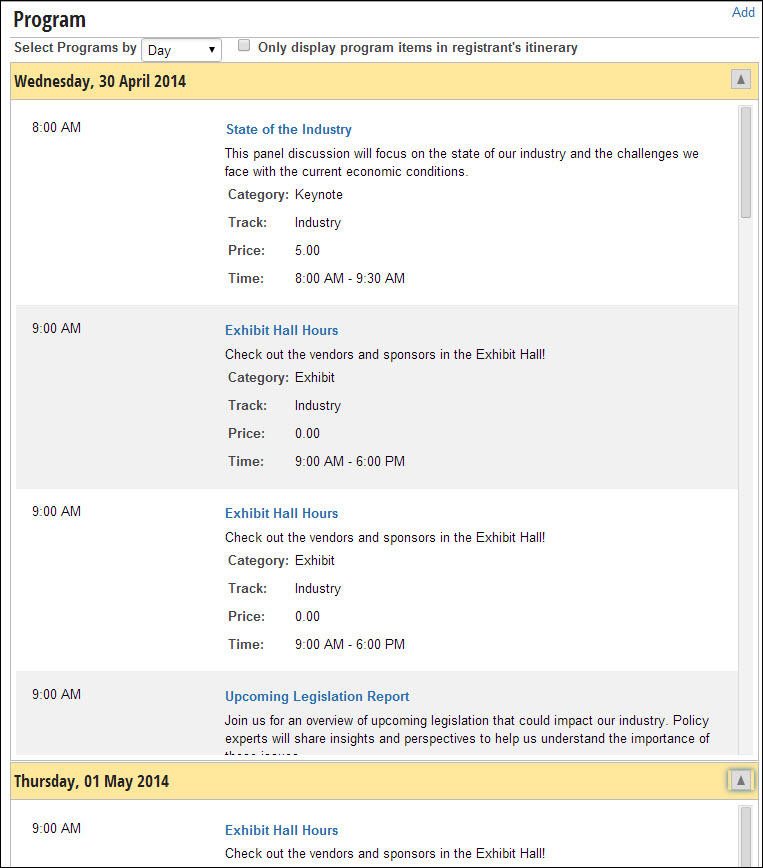
- Description - Lists all of the functions that make up the program of the specified event. See the Helpsite for more information about Events content items overview.
- Usage Scenario - Programs can be selected by Day, Category, Track, or View All. In this example, the program items being displayed are divided by the Day.
Event Update Attendance
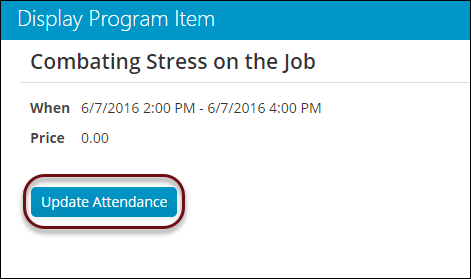
- Description - This content item allows staff users to award continuing educations units (CEUs) to event registration option or program item attendees using the Update Attendance button.
- Usage Scenario - Mark attendance for attendees of certain registration option or program items; you can also modify CEUs for attendees.
Function Display
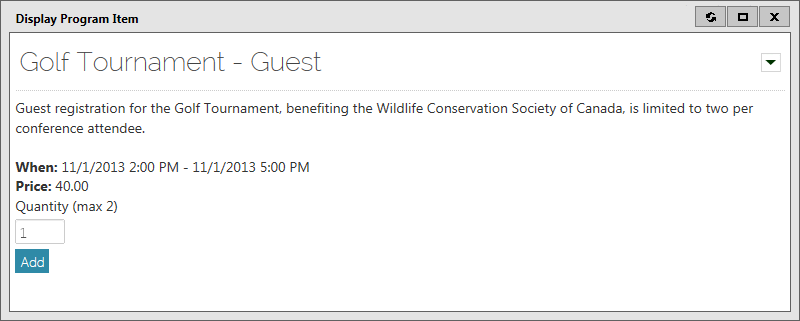
- Description - Displays details about an event function, allows users to add it to their itinerary (or cart).
- Usage Scenario - This event function is displaying information about the Golf Tournament for guests.
General Product Display
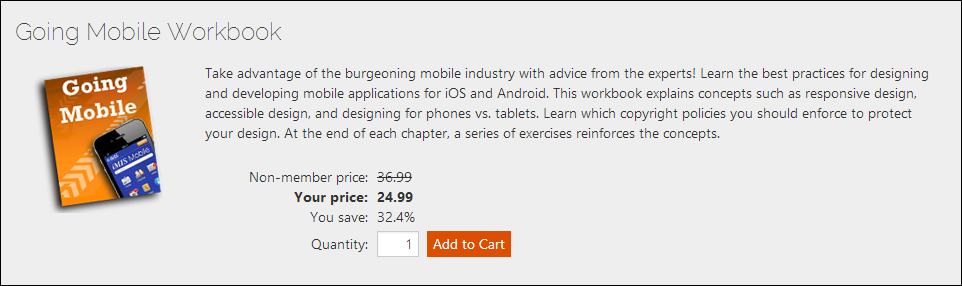
- Description - Displays a single product that users can add to their cart.
-
Usage Scenario - There are additional features available for this content item:
- The content item can display collections of items, such as product kits.
- If the user has appropriate privileges, an edit link is displayed that opens the Item Creator content item. When clicked, the user can edit the product definition for the current item. The edit link is only available when viewing a product that is not contained in the cart that is currently in focus.
- If the content item is used in a website that uses a responsive theme, it will automatically adjust itself to different screen sizes.
- When the Show only the comparison price which does not apply to the customer (Standard or Discount) configuration option is selected, the price that does not apply to the customer is formatted with strikethrough.
Gift Aid Declaration
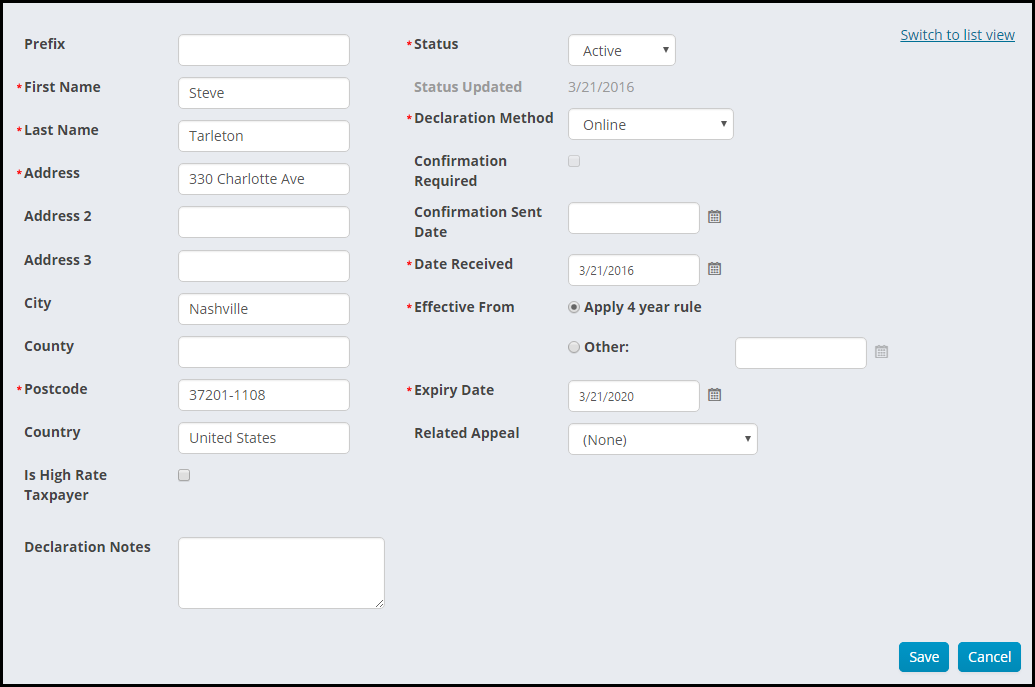
A Gift Aid declaration must be added to a donor’s record in iMIS for their gifts to be eligible for Gift Aid. Staff users will be able to review existing Gift Aid declarations or create new Gift Aid declarations for a donor.
See Setting up Gift Aid for more information.
Gift Aid Tax Reclaim
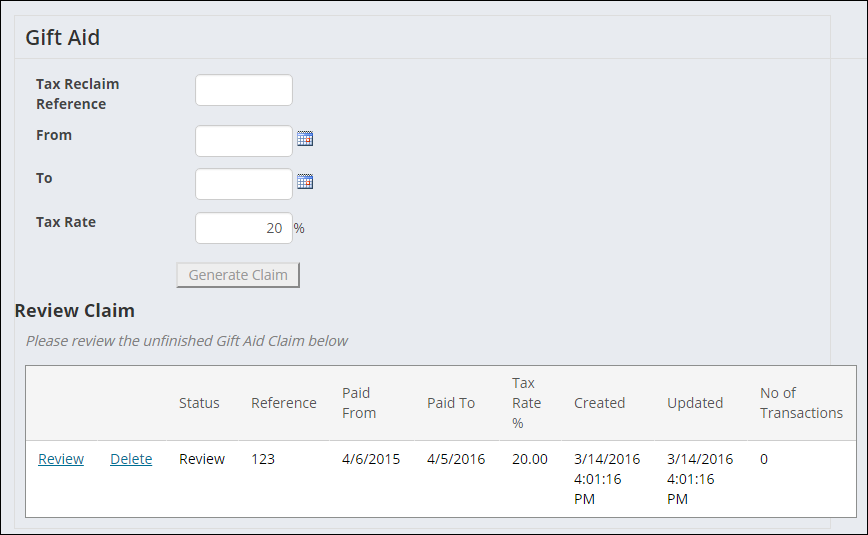
The Gift Aid Tax Reclaim content item enables United Kingdom charities to generate data for Gift Aid tax reclaims.
From the Gift Aid Tax Reclaim content item, you can generate, view, and modify Gift Aid claim data.
For more information, refer to Setting up Gift Aid.
Payment Option Manager
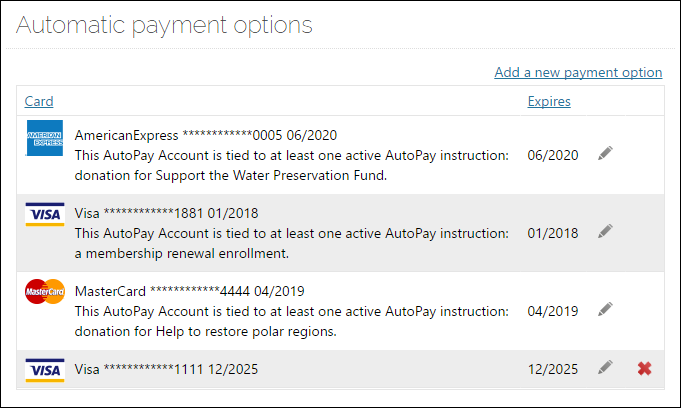
- Description: Manage payment option details for credit cards of recurring donors and auto-renew members.
- Usage Scenario: Users can add, edit and delete payment options associated with recurring enrollments.
Product Display List
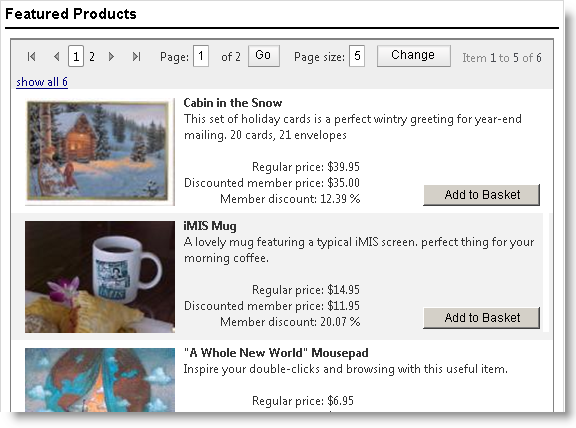
- Description - Displays a list of products using an IQA query as the datasource.
- Usage Scenario - Displays the product thumbnail image and title. For product data to display, the underlying IQA query must return specific columns.
Recurring Donation Commitments
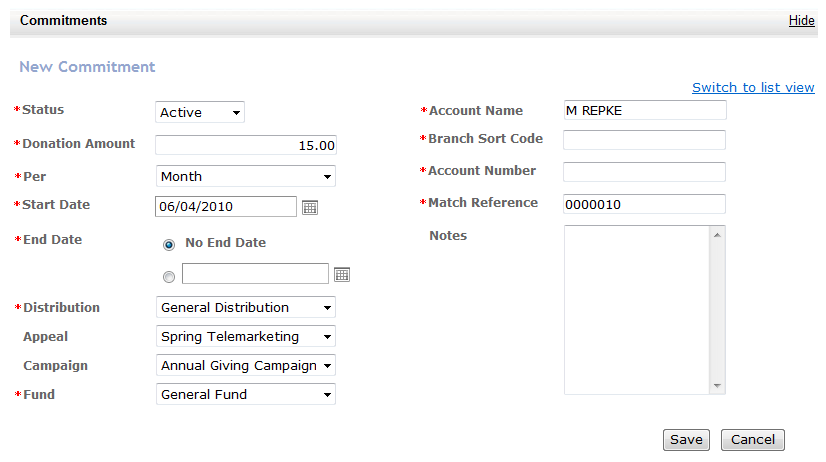
- Description - Manages your organization’s recurring Standing Order donations. See Setting up Standing Orders for more information.
- Usage Scenario -
Recurring Donation Commitments Public View
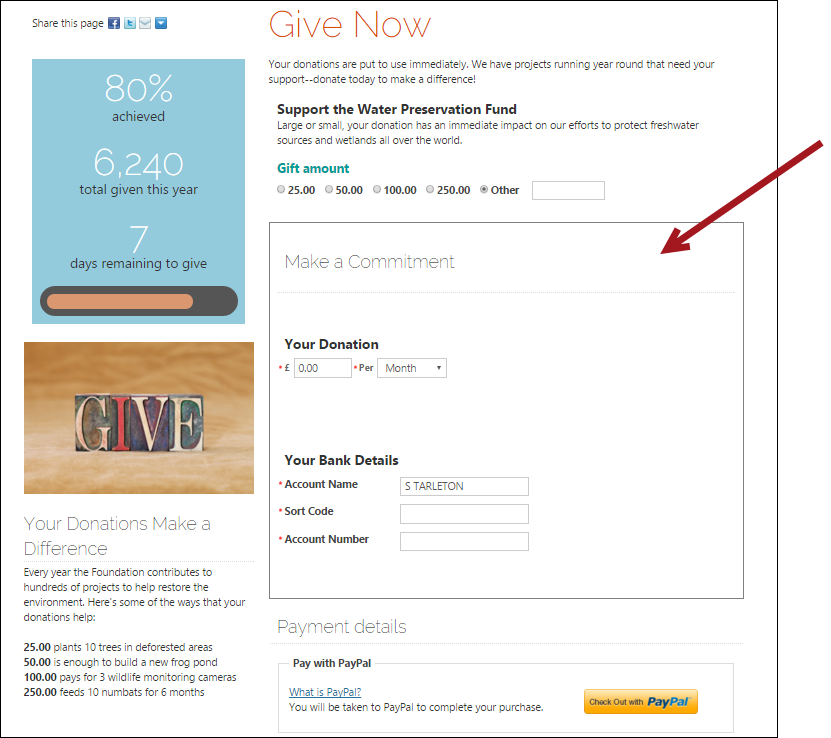
This content item is used specifically with UK Standing Orders, and allows an authenticated public user to make a recurring donation by Standing Order. These types of donations are also known as Commitments. In order to use this content item, you must already have certain Standing Order configuration options enabled. See Setting up Standing Orders for more information.
Recurring Donation Creator
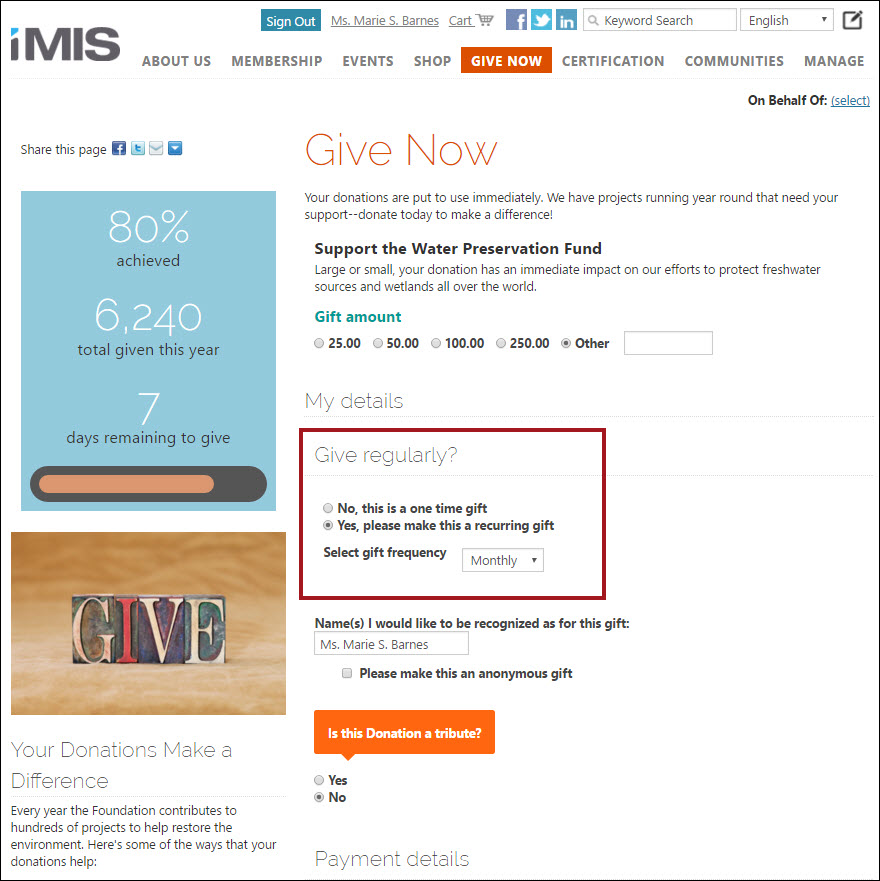
This content item provides donors with the opportunity to choose to make their one time donation recur over time. The setup options allow users to choose the frequency of their donations. This content item can be seen on the out-of-the-box Ongoing Giving content record (@/iCore/Fundraising/Donate).
To use this content item, make sure that the Allow users to set recurring donationss option on the Staff site under Settings > Commerce > Automatic payments is checked. See Configuring AutoPay for more information.
📘 Note
The Recurring Donation Creator is only available if you have set up AutoPay.
Recurring Donation Pledge Creator
📘 Note
The Recurring Donation Pledge Creator is only available if you have set up AutoPay.
The Recurring Donation Pledge Creator content item generates invoices based on a specified date. Staff users can view automatic recurring donations that are due after a specific date, and then those pledge invoices are created. The option to allow recurring donations must be enabled from the Staff site.
This content item is not a stand-alone content item, and should be used with the following content items:
An out-of-the-box example of these content items used together can be found at Fundraising > Automatic payments > Process payments:
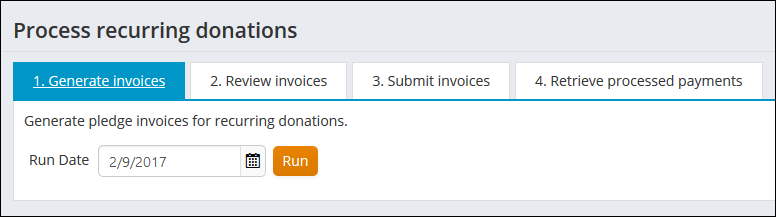
To modify or make customizations to this content item, it is suggested that this page and all of its out-of-the-box content be copied and pasted into a Shared Content folder (@/iCore/Fundraising/AutoPay).
Tribute Gift Editor
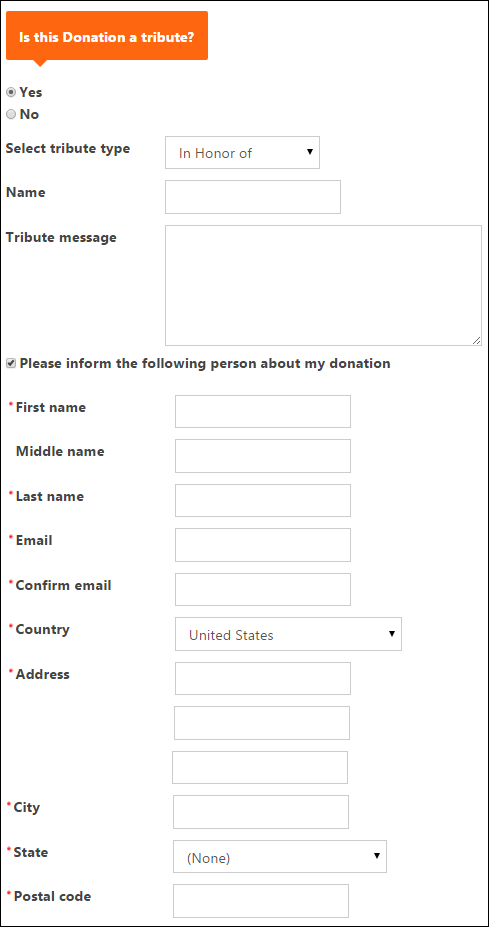
- Description - When you add the Tribute Gift Editor to your donation page, donors have the option to indicate if their donation is a tribute. They can choose to make their donation in honor or in memory of someone and enter a tribute message. If they choose to notify someone of their donation, the recipient information they enter creates a new contact in your database. The creation of duplicate contacts is minimized by checking to see if another contact already exists with the same name and address, or name and email address.
- Usage Scenario -
Updated about 2 months ago