

New Features and Enhancements
In this release of iMIS, we’re excited to announce new features that will elevate your member’s engagement levels, improve your business processes, enhance your website’s overall data security, and limit your time spent in the iMIS Desktop so that more of your regular business processes are performed on the web.
New Features
Determine member engagement with Scoring statistics
The iMIS 2017 release is excited to announce Scoring calculations and statistics. iMIS Scoring is a way for you to statistically display a member or donor's overall "score" with your organization. The criteria that define these score calculations are compiled using IQA queries. Out-of-the-box, you are provided score formulas that calculate overall engagement for individuals and organizations.
This engagement is determined by factors such as number of donations, community subscriptions, event registrations, and product purchases. In order to classify score percentages even further, each score comes with specific score categories. These categories group similar scores together, allowing you to efficiently compile various score details.
An individual or organization's overall engagement score can be seen on their profile pages. The score displays in a donut graph, along with the percentage and category. There are also two scoring dashboards where score information can be reviewed. Contact-specific scoring information can be reviewed from the Overall dashboard, and organization-specific scoring details can be reviewed from the Organizations dashboard. These dashboards provide you at-a-glance information about score statistics.
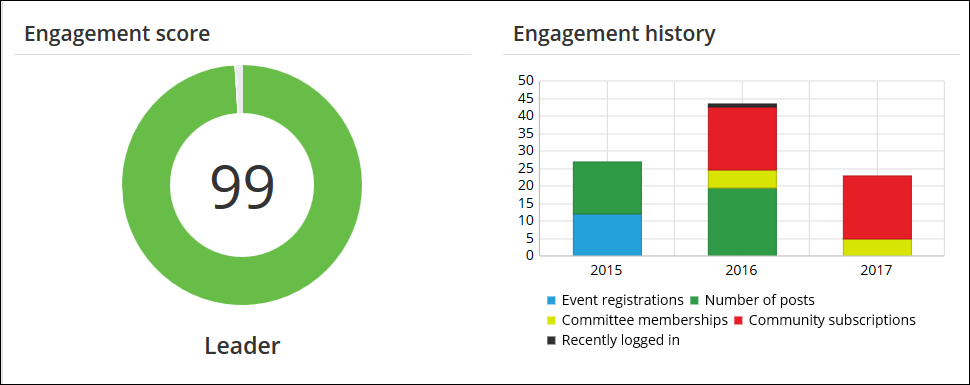
You are able to tailor the out-of-the-box formulas and create your own formulas with the Scoring - Plus license. This license gives you full control over scoring, allowing you to define an unlimited number of scores. How you decide to define and calculate scores is totally up to you, and the criteria that are important to you will define your contacts' overall score.
Over 100 pre-built SSRS reports, queries, and dashboards added to the Staff site
For the iMIS 2017 release, we have added over 100 pre-built SSRS reports, queries, and dashboards that are ready for you to begin using. Several of the new reports might be familiar to you because they are existing Crystal reports in the iMIS Desktop. These reports have been reimagined and elevated into SSRS reports that are fully functional in the iMIS Staff site.
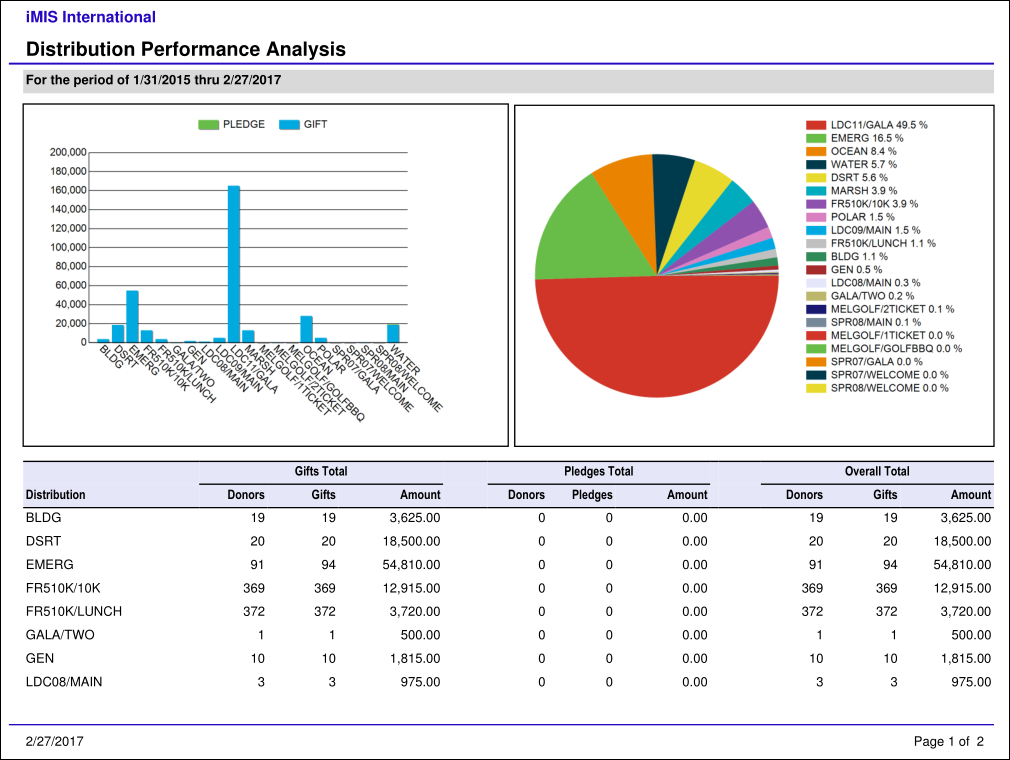
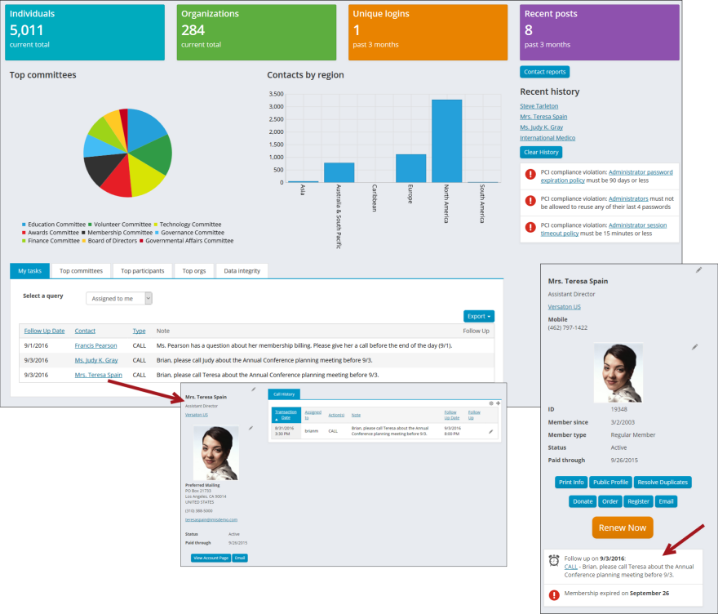
Additional dashboards and queries have been added to the Staff site with our goal of continuous performance improvement in mind. These dashboards operate off of query-generated information that allows you to review and measure real-time statistics in an at-a-glance fashion. Each dashboard can be tailored to suit your unique needs so that the information that is important to you is always readily available.
SSRS reports
The following reports have been added to the Staff site:
- Appeal Activity Report
- Campaign Activity
- Distribution Activity By Campaign
- Distribution Activity Report
- Distribution Performance Analysis
- Donor Renewal Analysis
- Donor Trend Analysis
- Fund Activity Report
- Fund Performance Analysis
- Gift Confirmation Report
- Legacy Campaign Performance Analysis
- Meeting Giving Detail
- Meeting Giving Summary
- Memorial Tributes
- Pledge Details
- Pledge Income Forecast
- Previous/Current Event Giving Comparison Details
- Previous/Current Giving Comparison Details
- Previous/Current Giving Comparison Summary
- Soft Credit
- Source Code Performance Analysis
- Yearly Giving Comparison
- Deferred Income Detail
- Deferred Income Matrix Summary
- AR Cash Transactions
- Credit Card Authorization Audit
- Credit Card Post Authorization
- General Ledger Journal Daily Summary
- General Ledger Journal Detail
- General Ledger Journal Monthly Summary
- Inventory Transactions By Date
- Promotion Analysis
- Backorder Summary Report
- Order Detail Report
- Product Inventory Quantity Analysis
- Product Sales by Category
- Event Invoice
- Event Certificates
- Event Program Item Certificates
- Event Registration Confirmation
- Meeting Roster - Order System Style
- Event Status Detail
- Event Status Summary
- Combined Badge and Tickets
- Function Tickets
- Change Log
- Activity by Name
- Activity by Type
- Member Profile
- 3 Up Labels A4
- 3 Up Labels
- Dues Cash Distribution
- Outstanding Dues Balances by Member
Dashboards
The following dashboards are available with the iMIS 2017 release:
- AutoPay Membership: This dashboard offers a high-level visual summary of all auto-renew memberships. Features include a list of recurring members, and a bar chart showing recurring membership revenue by member type.
- AutoPay Fundraising: This dashboard offers the ability to view and administer automatic recurring payments and enrollments for donations. Information offered on the dashboard includes cancelled recurring enrollments, payment history for users who are signed up for recurring payments, any failed recurring payment transactions, and credit cards that might be expiring in the near future or are already expired.
- Moves management: Staff users can view major donor statistics, giving amount, and revenue from the Moves management dashboard. Organizations can harness this data to better understand who to target for giving, review the status of all moves managers, and review the potential major donors for future giving.
- Individual events: Each individual event contains its own dashboard. These dashboards have been updated to be inline with existing iMIS dashboards. New features added to the event-specific dashboards include a cancelled registrations query, a program item list that links to the program item display for each item, and the option to print tickets with or without badges.
Strengthened PCI security enhancements throughout iMIS
In an effort to maintain PCI compliance and strengthen overall security in iMIS, several security related updates were implemented in this release. Associated changes relate to passwords, encryption, multi-factor authentication, and credit card retention and storage.
iMIS 20-300 Multi-factor authentication
Passwords
System administrators can enforce password expiration, password reuse, and session timeout requirements to all administrator and non-administrator users separately. These enhanced password security options comply with PCI 3.2 guidelines.
The key-encrypting key can now be reset through the iMIS Scheduler site. From the Scheduler page, iMIS SysAdmins can reset the encryption keys and re-encrypt cardholder data, as well as change the key-encrypting key file.
Multi-factor authentication
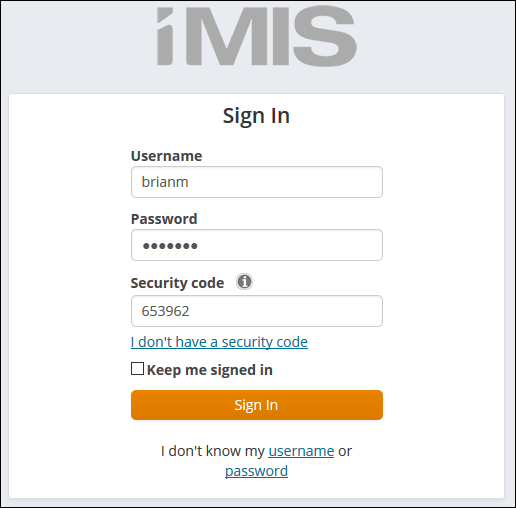
Multi-factor authentication is being introduced to provide PCI-compliant sign-in security. Each time a system administrator logs in to iMIS, they are prompted to enter a security code. Without a valid security code, authenticated access to iMIS is prohibited. For authenticated access to the Advanced Accounting Console, system administrators must enable this feature in the Staff site. System administrators must perform the initial multi-factor setup through the I don’t have a security code link in the Contact Sign In content item.
Outdated credit card data can be removed from databases with the PCI Data Retention Cleanup task, and users are able to configure the number of days this data is retained.
The AR/Cash Credit Card Authorization window has moved to the Staff site. You can set up or modify gateway accounts through the Staff site (go to Settings > Finance > Gateway accounts).
Desktop functionality migrated to the web
In an ongoing effort to migrate Desktop functionality to the Staff site, many different business processes that were previously available in the Desktop only, are now available on the Staff site. Each of the below drop-downs define what was added, and link off to more information about where the new Staff-site location can be found.
Community
The following enhancements outline functionality that was exclusively on the iMIS Desktop, and is now available on the Staff site:
| |||
|
| ||
Membership
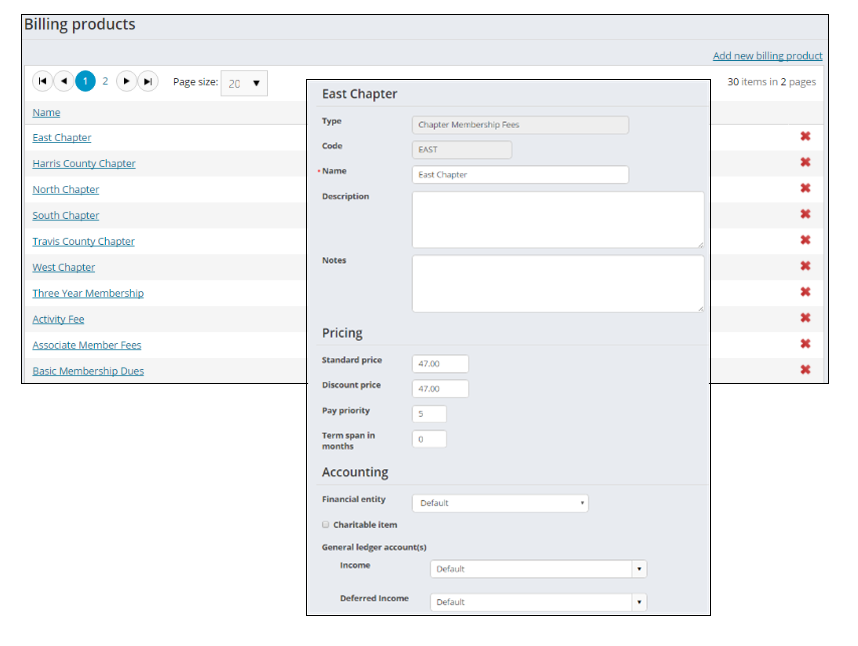
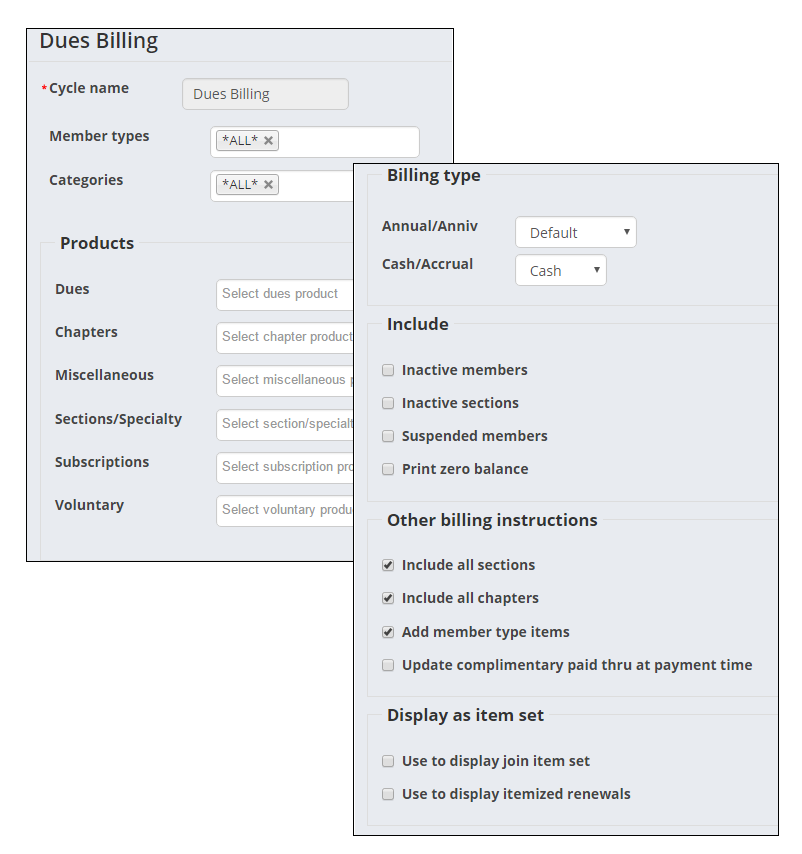
The following enhancements outline functionality that was exclusively on the iMIS Desktop, and is now available on the Staff site:
| |||
| |||
|
| ||
|
| ||
Events
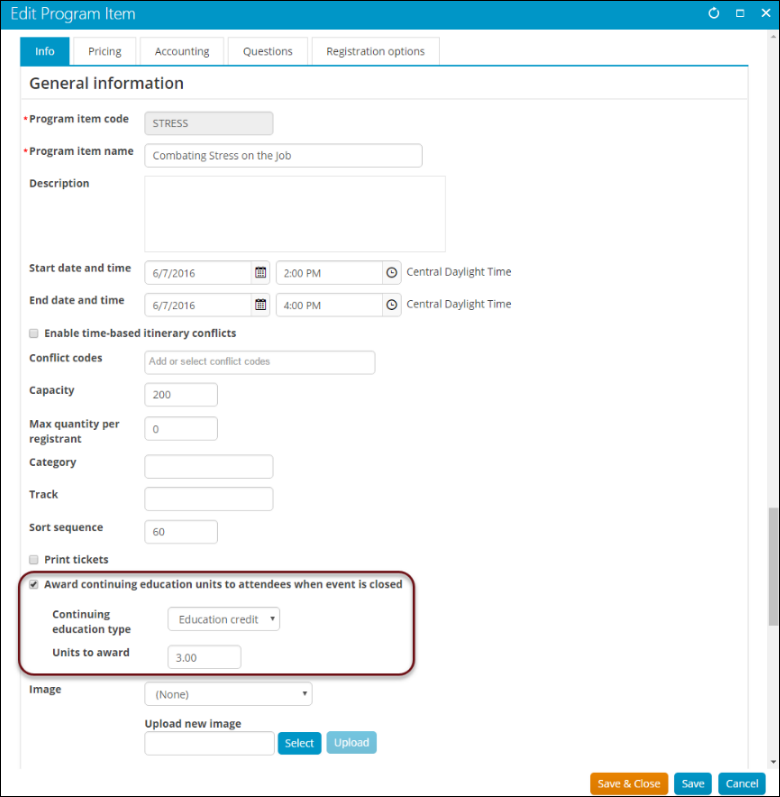
The following enhancements outline functionality that was exclusively on the iMIS Desktop, and is now available on the Staff site:
| |||
| |||
| |||
| |||
|
| ||
Commerce
The following enhancement outlines functionality that was exclusively on the iMIS Desktop, and is now available on the Staff site:
|
Fundraising
The following enhancement outlines functionality that was exclusively on the iMIS Desktop, and is now available on the Staff site:
|
|
System settings
| |||
| |||
|
| ||
Additional Enhancements
Community

- Verify member addresses: The Address Verification Service (AVS) has been enhanced to automatically validate addresses on the Web for Australia, Canada, New Zealand, the United Kingdom, and the United States. Additionally, United Kingdom users are able to search for their address simply using their postal code.
- Administer volunteers: Your members can sign up as volunteers using out-of-the-box pages that are included in iMIS Quick Start Sites. Volunteers can self-manage their information. Staff users also have additional abilities to administer volunteer information. iMIS also includes several out-of-the-box automated alerts to help with volunteer management.
Membership

Joins and renewals
- Join as a member from your profile page: Non-members and inactive members have the ability to join as a member directly from their profile pages.
- Renew membership in advance: Members are able to renew their memberships before they are due for renewal directly from their profile pages. The point in time in which they are eligible for renewal is a time specified during configuration.
- Enable joins for community administrators: Community administrators can now join users without using On Behalf Of. This is done by including an ID in the URL that links to the Join product.
Payments
- Review membership invoices: Before processing a payment, the Review invoices tab allows staff users to review records for the invoice and other payment details.
- Verify direct debit payments: Staff users can confirm that direct debit payments have been successfully processed by the payment gateway.
- Review existing recurring payment instructions: Users can review and edit existing automatic payment instructions for recurring payments.
Events

Creating an event
Event templates are meant to be used as the foundation for recurring or similar events. Staff users can also copy existing events and use that information in a new event, or save that event as a template.
When defining an event, Staff users can select from three different options:
- Create a new event
- Choose a template
- Copy existing event
Event details
- Add to calendar: Members are able to add an iMIS event to their Yahoo!, Google, or iCalendar calendars directly from your iMIS event page.
- Issue confirmations: Staff users can issue event confirmations for all event registrants by either emailing those with an email address, or printing letters for those without an email address. Event registrants can access their event confirmations from the Recent Interactions log on their profile page.
- Event registration details: Users can view event registration details using the View registration link found on the Registrants tab of a selected event, and from the My upcoming events query on a user's account page. Details include the registrant's program item registrations and responses to event questions.
- Print confirmations and invoices: Event confirmations and invoices can be printed from the event registration details page. The Print Confirmation button displays for all registrations, while the Print Invoice button is displayed when an invoice is created for an event registrant.
- Additional Event Certificate parameters: The Event Certificates report has been updated with new parameters that allow the certificate to be customized with the financial entity's logo, and a signature.
- Add pricing groups: Pricing groups can now be added to event registration options and program items. This allows for Staff users to designate special pricing to chosen groups, including dynamic groups. These pricing groups can be applied to other events, or to additional program items and registration options in the same event.
Commerce

Payments
- iATS for the UK: The iATS gateway offers support for members and customers to make single and recurring payments with credit cards in the United Kingdom.
- Vantiv/WorldPay payment gateway: Vantiv/WorldPay is available for making single, non-recurring transactions, as well as recurring donations and recurring membership renewals using AutoPay and the DataVault tokenization engine. Use of the DataVault is required for Vantiv/WorldPay. In order to use Vantiv/WorldPay you must have a license key.
- View and edit autopay details: The Automatic Payment Enrollments content item displays recurring enrollments and allows authorized users to view recurring enrollments, as well as edit automatic payment option details with the Payment Option Manager.
- Rotate gateway keys: System Administrators can easily reset the gateway encryption key directly from a command line. This process rotates the gateway encryption key and re-encrypts existing gateway passwords.
Store
Select a financial entity: A Financial entity can be defined from the Accounting tab when creating or editing a product.
Marketing

- Account Statement communication template: The out-of-the-box Account Statement communication template features an attached account statement for each email recipient.
- Logging communication senders: The Sent By column in the Communication log details who sent each communication. The Communication log query was also updated with four optional search filters.
- Resend or Download communications: Staff users are able to Resend and Download communications directly from the Interaction Log.
Certification

The new Certification API allows you to add, update, and delete certification programs and certification program registrations defined with a third-party product. The iMIS SDK site displays examples of how to use the Certification API for third-party certification conversations.
Staff users have the ability to migrate any certification programs that have been defined in the iMIS Desktop to the Staff site in order to better manage iMIS Certification programs and registrations.
Finance

-
Finance added to the sitemap: A Finance section has been added to the Staff site's sitemap. The functionality in this section has been moved from other various Staff site sections. The functionality that now exists under Finance is Invoices, View batches, and Advanced Accounting Console.
- Printing AR statements from account pages: Authenticated users can view and print AR statements from their account pages using the View Statement button.
Fundraising

Donations and gift items
Find donor gifts: Easily search for and view donor gifts using Find gifts located under Fundraising. Users can quickly find donor gifts by a chosen query, then acknowledge and engage these donors as they see fit.
Automatic payments
- Automatically process recurring donations: The Process recurring donations scheduled task allows you to automatically generate the next recurring donation invoices and send them to DataVault for payment. Once the payments are retrieved, they are applied to the iMIS invoice.
- Review recurring donations: When processing payments, the Review invoices tab allows staff users to review recurring donations before processing the payment.
- Verify recurring donation payments: Staff users can verify direct debit payments to ensure that payments have been successfully processed by the payment gateway.
- Review recurring payment instructions: Staff users can review existing recurring payment instructions for a user, as well as edit the automatic payment instructions for recurring payments.
Gift Aid
Include voluntary gifts in tax claims: A special value of [Gifts in Web Joins and Renewals] has been added under Appeal Types in the Gift Aid Tax Reclaim content item. This ensures that payments for voluntary gifts, which are included as part of your membership fees, are also included in claims.
Tribute notifications
Notify tributees: Once a donor submits a gift with a request to notify a contact, staff users are able to print and/or email a notification for the specified tributee using new out-of-the-box templates and queries.
RiSE

Site Builder
Update website favicon and enable cookie warnings: Each website's Look and feel tab was updated with Favicon, Mobile favicon, and Show a cookie warning configuration options. The Favicon and Mobile favicon configuration options allow iMIS webmasters to further customize their sites, enhancing visual branding. The Show a cookie warning option enables a banner that informs EU users about website cookies, and is in compliance with the EU’s ePrivacy directive. This option can be further tailored with a warning message and banner location, among other customizations.
Page Builder
- Add styling to specific RiSE pages: Specific styles can be applied to certain RiSE pages using the Page container CSS class property.
- Offer downloadable documents: Staff users can add links to Downloadable documents on their organization's iMIS sites.
- When managing content, staff users are able to select conditions and specify a target URL or shortcut for the redirect from the Properties tab of a specific content record.
Dynamic Content Items
The following information details enhancements made to specific content items:
- Summary Display: Additional configuration options have been added to the Summary Display content item to give users the ability to hide the content item if there are no results from the query; users can also hide fields without data. Additional base class options, Limit users who can view data for other contacts and Select an IQA query, were also added.
- Big Button Panel: The Big Button Panel was updated with the option Limit users who can view data for other contacts. When enabled, the content item will hide if the logged-in user does not have access to edit the selected contact.
-
Content Html: When opened, the Content Html content item window is automatically expanded, and the option to restore the window down (
 )was removed. In addition, a Toggle Full Screen Mode button was added to the toolbar that further expands the editor.
 - Query Menu: You can configure a query with filters to automatically display the search results using the new Show initial results for queries with optional filters option in the Query Menu content item.
- Query Chart Viewer: The Query Chart Viewer content item has been enhanced to display data in a dynamic Funnel or Pyramid chart type.
- Data Showcase: Users can specify the @SelectedID variable when defining data sources in the Data Showcase content item in order to filter the results based on the currently selected user.
- Panel Editor: A new configuration option, Allow users to add, has been added to Panel Editor for multi-instance panels. Previously, enabling the configuration option Allow users to edit would allow users to edit existing entries to the panel, as well as add new entries to the panel. Now, the two options have been separated. On upgrade, existing panels with Allow users to edit will automatically have Allow users to add enabled. You can also add a new or update existing panels from the Panel Designer navigation item located within RiSE.
Theme Builder
- RiSE-built website templates: System administrators and content authority group members can create custom website templates by using Theme Builder in RiSE. Creating a custom, RiSE-built template allows you to modify your website’s logo, navigation, header, footer, and layout without ever needing access to the server.
- Additional website theme: The Great Barrier Reef Responsive theme was added as another option for iMIS webmasters who want to create easily navigable websites suitable for mobile devices. A new master page template, Natural Heritage Sites Responsive has also been added. Both theme and master page are available out-of-the-box. The Member Responsive site has been updated to use this theme.
Intelligent Query Architect
- Reorder query filters: Staff users can reorder multiple filters on a query using up/down buttons. Filters cannot be moved between filter sets.
- Limit query field lengths: Authorized users can modify the size of IQA fields using the Length property, which has been added to the Display tab. Defining a numeric value for the Length property gives users the ability to limit the number of characters allowed in a field. This field is only available for string/varchar fields.
- Caching query results: The configuration option, Use cached results, has been added to the Summary tab for Advanced queries. Enabling this option allows for future requests of the query data to be served faster. Depending on the complexity or return size of queries that display summary lists, it may be necessary to cache the query results. Areas that would benefit from cached query results are Staff site Dashboards and member profile pages.
Business Object Designer
Easily copy a Business Object: A Save As button was added to the Business Object Designer so that existing business objects can be easily copied and saved.
Panel Designer
Multi-selection in a panel: When configuring a Panel Editor text property with Pre-defined values selected, you can enable Allow multi-selections to allow users to select multiple values for a single property. The property values appear in a list with checkboxes from which users can choose.
Process automation
Expired content clean-up task: Staff users receive expiration notices for content and navigation that have expired and will be removed with the Content and Navigation Workflow out-of-the-box task.
Settings

- Purge the system cache: A button, Purge System Cache, has been added to the About iMIS page, and is only available to system administrators. The Purge System Cache button will reset the System Parameter and System Configuration (System Setting) cache, the Cache Server (Redis™), and it will reset the iBO cache.
-
Set the time zone of a hosted database: System Administrators can set the time zone of a hosted iMIS database instance independent of other databases on the same server. If multiple instances are hosted on the same server, they do not have to use the time zone of the database server.
- Translation language display name: The language Display Name in the translation drop-down can be modified.
-
Automatically create user credentials: When a contact’s email already exists without a related user account in an organization’s database, and the contact submits a Forgot my username request, user credentials will be automatically generated and emailed to the contact. To use this feature, enable the Allow “Forgot my username” to automatically create user credentials for existing contacts system setting option.
- Synchronize the Staff site and the Desktop or AAC: Users can manually synchronize system settings from the Desktop or Advanced Accounting Console to the Web. Any changes made in either the Desktop or the Advanced Accounting Console can be reflected on the Web with the push of a button.
-
Disable indexed items: Staff users can define types of items for which indexing can be disabled. Item types that are disabled are also removed from the existing search index. Staff users can also rebuild the search index in one action, or Staff users can define individual categories in the index to be rebuilt.
-
Notify community subscribers: Staff users can configure the message that is displayed to a subscriber to a community item when the item is updated. To configure this setting, enter text in the Notification message when a subscribed community is updated field.
Implementation
- Remove historical encryption data: The ability to remove historical encryption data has been migrated from the DB Maintenance utility. iMIS SysAdmins with Terminal access can log in to the iMIS Scheduler page and select to Remove Historical Encryption Data.
- Content Browser utility: The Content Browser utility can be used to find queries referenced by content, and alternatively, find content referenced by queries.
- Workbook Converter: The Workbook Converter can be used to add data, as well as update that data when running subsequent data conversions through the use of the Name.MAJOR_KEY value. When you create a contact using the Workbook Converter, the value specified in the ID column for that contact is saved as the MAJOR_KEY value for the corresponding row in the Name table. You can use the specified ID to update or modify that data row or add or modify data related to the contact represented by that ID.
Documentation
- A search filter has been added to the helpsite as a means of creating more concise and targeted searches. Helpsite users can conduct searches in specific areas of the helpsite.
- In order for helpsite users to know that an article contains , a button was added to articles with correlating videos. Clicking the button, which is located right underneath the title of the article, takes you to the video section located at the bottom of the article. This eliminates the need to continuously scroll through large documents to get to the video.
-
Adding filters and links to IQA queries
-
Adding new pages to websites
-
Advanced email
-
Creating websites
-
Setting up a simple query
-
Setting up and editing an event
-
Setting up Join Now for organizations
-
Setting up registration options for events
Upgrade Changes
These following upgrade changes should be reviewed before upgrading to iMIS 2017 (20.2.64).
WarningInstalling .NET 4.6.2 is required for iMIS 2017 (20.2.64) and is supported for previous versions of iMIS beginning with iMIS Q4 2015 (version 20.2.26), but is not compatible with versions prior to iMIS Q4 2015. If you have multiple versions of iMIS installed on the same server and those versions are different, only those versions beginning with iMIS Q4 2015 can be installed on the same server as iMIS 2017. Versions of iMIS prior to iMIS Q4 2015 must be installed on a separate server without .NET 4.6.2 installed.
Passwords and Security
🚧 Warning
It is important that you are on the latest Service Pack to ensure protection from known security vulnerabilities. See the iMIS 2017 Service Pack page for more details. Download the latest Service Pack from the ASI Support Portal.
The iMIS application must be installed using an internal network address
Due to security considerations, iMIS prefers application and client components be installed on the same internal network. Customers will have difficulty remotely accessing an iMIS client (Desktop or Advanced Accounting Console) from an external network; by default the iMIS Application and Client must be connected to the same internal (192.168.x.x, 172.16.x.x through 172.31.x.x, or 10.x.x.x) network. However, this range can be extended by adding the IntranetIps line below to the web.config file in the SystemParams configuration area as follows, where 203.0.113.0/24 is an example IP address block representing the address range of the network segment where your iMIS Desktop workstations or terminal server are installed:
<iMIS>
	<SystemParams>
	    <add key="IntranetIps" value="::1,127.0.0.1,10.0.0.0/8,192.168.0.0/16,172.16.0.0/12,203.0.113.0/24" />
	</SystemParams>
</iMIS>
Otherwise, customers attempting to remotely connect to an iMIS client on a network that is external to the network on which the iMIS application server is located will be unsuccessful.
🚧 Warning
If your organization stores credit card data via iMIS, PCI DSS v3.2.1 requirement 1.3.6 specifies that your iMIS SQL server be in an internal network zone, segregated from your DMZ and other untrusted networks. Even if you do not store credit cards, this is a best practice for protecting the privacy of your organization and constituents' personally identifiable information (PII) data. If your iMIS application server or iMIS Desktop/AAC workstations or terminal servers have difficulty accessing your SQL server, be sure to allow those SQL DB IP addresses access to the SQL servers ports 1433 and 1434 in your firewall configuration.
Password reset token configuration removed from Web.config
The configuration setting for the password reset token (<add key="Authentication.PasswordResetTokenExpireMinutes" value="20" />), which allowed users to define the number of minutes the reset password token is valid, will no longer be defined through the web.config file. Any changes to this setting in the web.config file will be ignored.
The web.config setting has been replaced with an Account management setting, Authentication.PasswordResetTokenExpireMinutes, which is accessible from the Staff site (Settings > Contacts > Account management). For more information, see PasswordResetTokenExpireMinutes.
Session timeout settings modified for PCI compliance
The following changes have been made to the Session timeout settings in accordance with Payment Card Industry Data Security Standard (PCI DSS) regulations:
- The Enable session timeout system for system administrators (located at Settings > Contacts > Authentication > Session timeout) is now enabled by default to prevent misuse of idle user sessions. After the session timeout minutes are set, system administrators will receive a two minute warning that their session is about to time out. For more on this setting, see Session Timeout.
- A pop-up message notifying users that their session is about to time out has been added. This pop-up works in conjunction with existing Session timeout settings. When a user's session is about to time out, they will be prompted to Sign Out or Stay Signed In.
-
Additionally, two Session timeout account notification messages have been added to the Account management section of the Staff site. The SessionTimeoutWarningMessage displays two minutes before a user's session times out, and the SessionTimeoutMessageSystemText lets the user know that the session has timed out. Both notification messages are customizable.
PCI-compliance security measures must be enabled for SysAdmins
PCI compliance requires that the following features be enabled and active for SysAdmins by the completion of installation or upgrade:
-
Password Expiration -- SysAdmin passwords must expire within at least 90 days or less.
-
Password Reuse -- SysAdmin cannot reuse any of their last four passwords or more.
-
Session Timeout -- The SysAdmin session must timeout after 15 minutes of inactivity or less.
PCI-compliance requirements allow these features to be made more restrictive, for example, you could set passwords to expire every 60 days, but these requirements cannot be turned off.
📘 Note
If your organization does not process credit card transactions, the PCI requirements do not apply. Contact ASI Technical Support for assistance with disabling these features.
If you want to enhance your security further, these features can also be applied to non-administrators. In the Staff site, go to Settings > Contacts > Authentication. However, these values can be set as desired. There is no requirement for minimum values for non-administrators. For non-administrators, these features can be enabled or disabled as desired.
Connecting to the Advanced Accounting Console using HTTPS
For PCI compliance, https is enabled by default. After upgrading, you must make sure you update the Server URL in your Advanced Accounting Console. If you do not update the Server URL, you will not be able to use the Advanced Accounting Console. You must have a valid SSL certificate to use the Advanced Accounting Console when https is enabled.
Default servers are required to have an SSL binding
For PCI Compliance and overall security purposes, default websites are required to have an SSL binding. For more information about setting an SSL binding, see Setting up an iMIS site at the root of an IIS website.
Password lockout when requesting an authentication token from the REST API
When requesting an authentication token from the REST API, the system will correctly lock the associated account after five incorrect password attempts.
Password-related methods have been modified
The following methods have been modified:
- The method SetUserPasswordWithLogin no longer sends a communication to users when their password has been changed by staff.
- Communications sent using the methods SetUserPassword and SetUserPassword2 no longer contain the new password.
Changes to the EncryptString and DecryptString method calls
The EncryptString(string source) and DecryptString(string source) method calls (found in Asi.Security.Utility.Encryptor) are now using AES 256 (Advanced Encryption Standard) instead of triple DES (Data Encryption Standard). An overload was added for both: EncryptString(string source, bool useAES) and DecryptString(string source, bool useAES). If you are using these method calls in any custom code and you want to continue using the old DES encryption, you must call EncryptString(source, false) and DecryptString(source, false).
Key-encrypting key
iMIS keys use encryption for securing sensitive cardholder information. The encryption keys used to store this data are also encrypted using a string stored in a key-encrypting key file. The key-encrypting key file is created during upgrade, as is the random starting position within the key-encrypting key file.
🚧 Warning
It is recommended that you do not modify or remove the key-encrypting key file. It is possible to irreparably damage the ability to retrieve encrypted information, which will prevent you from being able to log in to iMIS. If you inadvertently change or delete the key-encrypting key, contact ASI Technical Support immediately.
Third-party gateway Xtenders
🚧 Warning
Any third-party payment gateway Xtenders that need to encrypt or decrypt passwords will not work after the introduction of the key-encrypting key. If you are using ActiveX extensions for Crypto, ASI recommends you do not upgrade your system at this time.
Security enhancement for password reset functionality
In order to provide enhanced security, the length of time for which password reset tokens are valid has been shortened. The email, which is sent to a customer in response to a request to reset their password, will be valid for 20 minutes from the time it is sent. If the customer does not create a new password within this time period, they will be required to submit a new request.
To adjust the expiration duration, go to Account management in the Staff site and configure the Authentication.PasswordResetTokenExpireMinutes setting.
Enhanced password security to meet PCI compliance
iMIS now provides enhanced password hashing to secure all user login passwords. This enhanced password security complies with PCI 3.2 guidelines.
Your users might be unable to sign in with a valid password in the following situations:
- If you have already strengthened the hashing algorithm to one not supported by this upgrade, and your users have already reset their passwords in response.
- If your users have passwords that do not meet current password requirements.
If your users are unable to sign in due to the enhanced password hashing, you must let your users know they will have to reset their passwords.
The ability to remove historical encryption data has migrated to iMIS Scheduler page
The ability to remove historical encryption data has been migrated from the DB Maintenance utility. iMIS SysAdmin users with Terminal access can log in to the iMIS Scheduler page and select to remove historical encryption data.
Existing donation pages
Update content item connections on existing donation pages
For existing donation pages, you must ensure you manually connect the Submit Order Button Link content item as an Object Consumer to the Payment Creator content item before you can begin receiving donations after upgrading. This action can be performed before you are upgraded, or after you have already upgraded.
Self-hosted customers can use the Content Browser utility to identify all affected content records.
📘 Note
This change is to ensure that all clients remain in compliance with PCI 3.2 guidelines.
Existing Join product links
Include Contact ID in Join URL
Existing Join page links need to be updated to include the contact ID in the URL. This allows company administrators to join contacts without using On Behalf Of.
System requirements
SQL Server 2012 requires Microsoft Report Viewer 2012 Runtime for subreport display
Upgraded systems using SQL Server 2012 require an installation of the Microsoft Report Viewer 2012 Runtime to properly display SSRS subreports. Failure to install this application will result in subreports not loading, accompanied by an error message. SeeMicrosoft Report Viewer 2012 Runtimefor more information.
.NET version update not compatible with older versions of iMIS
Installing .NET 4.6.2 is required for iMIS 2017 (20.2.64) and is supported for previous versions of iMIS beginning with iMIS Q4 2015 (version 20.2.26), but is not compatible with versions prior to iMIS Q4 2015. If you have multiple versions of iMIS installed on the same server and those versions are different, only those versions beginning with iMIS Q4 2015 can be installed on the same server as iMIS 2017. Versions of iMIS prior to iMIS Q4 2015 must be installed on a separate server without .NET 4.6.2 installed.
Discontinued support of Internet Explorer 8-10
Earlier this year, Microsoft announced the end of support for Internet Explorer versions 8, 9, or 10. Microsoft will no longer provide critical security updates for these unsupported versions, which may introduce vulnerabilities to your data. Therefore, effective in the next release, iMIS no longer supports Internet Explorer versions 8, 9, and 10. Be sure to review the system requirements for supported browsers.
For more information, see System Requirements.
Discontinued support of Windows 8.0 operating system
Microsoft no longer supports the Windows 8.0 operating system. This means that users will not receive automatic fixes, or critical updates, which leaves systems running on this version open to security breaches. As a result, effective in the next release, iMIS will not support Windows 8.0. Please review the System Requirements for supported operating systems.
CsContact business object
New business object: CsContactBasic
A new business object, CsContactBasic, has been added. This business object is for basic contact information, and is more efficient than CsContact.
Use the following business objects when querying:
- CsContactBasic – for basic contact information from the Name table
- CsContact – for financial or group membership information
- NetContact – if you need a GUID contact key
Many sample queries have been updated to use the new CsContactBasic business object.
Deprecated, replaced, and new items
New configuration option for the Invoice Payment Link content item
The Invoice Payment Link content item has a new configuration option, Enable join button for non-members and inactive members. This option enables a Join Now button on a contact's profile page. Staff users and company administrators can use this button to join as a member on behalf of the contact.
This new option is not enabled by default; however, this option is automatically enabled when the Invoice Payment Link content item is added to a content record.
Removal of ContentWorkflow.exe
The ContentWorkflow.exe has been removed and replaced with the Content and Navigation Workflow scheduled task in iMIS Process Automation. After upgrading, ensure that this task has been enabled and correctly configured in order to receive expiration notices of content and navigation that will be removed.
Removal of TributeNotificationContactID
The TributeNotificationContactID field has been removed from the GiftReport table, and removed from the related business objects (GiftHistory and GiftsReceived). The data from this column can be referenced from Trans_Notify.NOTIFY_ID.
Trans_Notify is a multi-instance table which more accurately reflects multiple notify contacts if the a tribute was entered through the iMIS Desktop or the Advanced Accounting Console. If any custom IQA queries or reports relied on the TributeNotificationContactID column, they must be updated to use either:
- CsTransNotify.Notify Id if showing all notify contacts per tribute is desired.
- FirstNotifyContactPerGift.Notify Id if showing just one notify contact per tribute is desired.
The FirstNotifyContactPerGift business object works for tributes made through the web where only one notify contact is allowed. This business object also keeps the donation from appearing multiple times within a query even if it has multiple notify contacts. To find queries that may need updating, we recommend running the Query Browser utility and clicking the Find All button in the section Scan for Bad Queries.
Removal of Content Html C# script blocks
On upgrade, C# script blocks will be removed from out-of-the-box Content Html content items. Any copied Content Html content items will no longer support C# script blocks, including any custom code that was added to any content. Once these content items are saved and published the C# script block will be removed.
JavaScript script blocks will continue to be supported.
Contact Account Creator simplified
The Confirm email and Confirm username fields have been removed from the Contact Account Creator content item.
Unsupported website themes
The following master pages and associated themes are no longer supported, and will eventually be removed:
- Forest: Aspen, Aspen Mobile, Aspen2, Birch
- Planets: Mars, Mercury, Venus
- Mountains: Everest
Each of these themes is marked as Deprecated in the Starter Database. If you are currently using one of these out-of-the-box themes, we recommend using a different theme, or creating and applying a copy of the theme. See Using out-of-the-box-themes for more information.
Crystal reports deprecated from the Staff site
Crystal Reports 9 runtime will no longer be installed, and 32-bit Crystal reports have also been deprecated from the Staff site. Crystal Report functionality for the Desktop and Advanced Accounting Console has not changed and will remain the same. User-created Crystal reports will not be deleted from the Staff site, but iMIS will not recognize the report as an accepted file format to be displayed. If you are using any of these reports, it is recommended that you recreate the report using IQA.
All iMIS Crystal reports have been removed from the Staff site, along with the following Continuum navigation items:
- Campaign reports
- Segmentation reports
- RFM reports
- Process Manager reports
Desktop source codes
Previously, source codes were created using general lookup/validation tables. In this release of iMIS, source codes are no longer created using general lookup tables, and are instead created through iMIS Marketing Campaigns. See Setting up campaigns for more information related to source codes.
Removal of Email a Friend
The Email a Friend functionality is deprecated. If you have links pointing to the Email a Friend page, you will see a message. The Social Share content item is the suggested replacement.
Data contracts, API, SDK
EntityManager class removed from API
EntityManager class was removed from the API including the FindSingle method. As a replacement, you should use Find(QueryData query) and FindByIdentity(IdentityData identity).
Consolidated SOA data contracts
Breaking changes have been made to the SOA data contract libraries. All SOA contracts are now consolidated to one Asi.Contracts.dll library. Namespaces and class names remain unchanged. Projects referencing data contract libraries will require updating
Remotely accessing the REST API
As a security enhancement, users must now be granted permission to remotely access the REST API. To grant access, add the RemoteService security role to approved users.
Changes to internal API for IQA
Some breaking changes to internal ASI API signatures have been made, including the internal API for IQA. This does not affect the supported SOA consumers.
Process any unposted import batches
Changes have been made to the way that import batch data is stored. Previously, import batch data was saved to the file system. Now the import batch data will be saved to the iMIS database in the ImportBatch table.
Before upgrading, be sure to completely process and post all previously uploaded import files including:
- Donations
- Campaign source codes
- Friendraising activities
- Standing Order payment files
Any previously processed import batch data will not be imported into the ImportBatch table.
The following SOA data contracts have been removed:
-
Asi.Soa.Communications.DataContracts
- ImportSourceCodeBatchsummaryData
- ImportSourceCodeBatchData
- ImportSourceCodeBatchRequest
-
Asi.Soa.Core.Datacontracts Namespace
- ImportLogData
- ImportLogDataCollection
For more information, see the iMIS SDK Developer Guide.
Multi-factor authentication preventing login with MembershipWebService API
If multi-factor authentication is enabled, system administrators will not be able to log in using the MembershipWebService API. System administrators must either log in as a non-system administrator user, or disable the multi-factor authentication in the Staff site.
Google Maps API key now required
A change to Google's API requires that users have a Google Maps API key in order to utilize Google Maps on their websites. To obtain a Google Maps API key, see the Google Maps API documentation. To enter this key in iMIS, go to Settings > RiSE > Quick setup, and enter the key in the Google Maps API key field.
📘 Note
Depending on your usage, you may need to begin paying for this service. See Google's API Usage Limits for more information.
Database
The DB Maintenance Tool and Panel Editor
When using the DB Maintenance Tool to add a multi-instance data source for use by the panel editor, the DB Maintenance Tool will no longer create the trigger asiUDMBO_<table name>_Insert. For tables created prior to this release, you should manually delete the same trigger if you intend to use the table as a multi-instance panel editor data source.
DemoDB renamed to StarterDB
Formally known as DemoDB, the StarterDB is an existing database that is preconfigured with sample data, such as out-of-the-box Quick Start Sites. When installing iMIS, select StarterDB from the Use an existing database drop-down.
Accessing the WSDL metadata definition
In order for the WSDL definition to be properly accessed by third-party vendors, the out-of-the-box web.config file for the Scheduler site must be modified:
- Open the C:\AsiPlatform\Asi.Scheduler_[your instance]\web.config file.
- Change the line:
<serviceMetadata httpGetEnabled="true" httpGetUrl="" />to the following:
<serviceMetadata httpGetEnabled="true" httpGetUrl="" httpsGetEnabled="true" httpsGetUrl="" />
Default publishing server must be enabled for process automation tasks to run
The Default publishing server must be enabled.
First, configure the Redis caching service to be accessible by any secondary servers:
- Locate the Redis folder on the Default server at C:\Program Files (x86)\Redis.
- Edit the redis.windows-service.conf configuration file. Change the line:
bind 127.0.0.1to the following:
bind 0.0.0.0📘 Note
This will expose the Redis service publicly.
- Do the following to prevent unauthorized access through Redis:
- By default, Redis uses port 6379. Limit access to this port to specifically trusted IP addresses only. At a minimum, this includes the addresses of any secondary iMIS servers.
- To secure the host service’s port, configure Internet Protocol Security (IPSec) to prevent unauthorized access. For complete walkthroughs of Internet Protocol Security (IPSec) on Windows, see Microsoft’s IPSec guidance.
- To verify that the Redis Internet Protocol Security (IPSec) is working as expected, download the Redis Desktop Manager to a machine that should not have access. Attempt to connect to the Redis server. You should be unable to connect to the Redis server.
If the Default publishing server is disabled, your scheduled tasks will not run. If the Default publishing server is changed, then you must restart both the new and the former Default publishing servers.
For multi-server installs, you must use the same Default publishing server for all servers. Modify the web.config file for secondary servers to point to the primary server's URL:
- Locate the web.config files in the root of the website:
- C:\Program Files (x86)\ASI\iMIS\Net\web.config
- C:\AsiPlatform\Asi.Scheduler_[your instance]\web.config
📘 Note
If you are not self-hosted, you must contact your host for assistance modifying web.config files.
- Modify the following in the web.config file:
- Modify the
<setting key="EntityManagerDefaultBaseUri" value="https://[line to point to the primary server's URL. - Modify the
<setting key="localhost" value="[line to include a value for the primary server’s machine name.
- Modify the
Publishing Server Code must be unique on all servers
In multi-server installs, the Publishing Server Code must be unique on all servers. The upgrade process will ensure there is only one publishing server marked Default:
- If you do not already have an existing publishing server, the upgrade process will create a publishing server that is then set as Default.
- If you have a single existing publishing server, the upgrade process will set that publishing server as the Default.
- If you have more than one existing publishing server sharing a database, the upgrade process will set one of the publishing servers as the Default per database.
After upgrade, you can verify the existence of a single default publishing server by going to RiSE > Maintenance > Publishing servers. The Default column will indicate which publishing server is the default.
Setting different time zones for instances on the same server
System Administrators can set the time zone of an iMIS database instance independent of other databases on the same server. If multiple instances are hosted on the same server, they do not have to use the time zone of the database server.
Upon upgrade, the new time zone setting is set to the pre-upgrade time zone of the database server. If hosting multiple databases on one server, you might decide to modify the time zone on a database instance. Before you change this setting, go to Setting the system Time zone to review items to be aware of.
Install and upgrade utilities
Connect to a database when launching the Content Browser and Query Browser
The ContentBrowser.exe and QueryBrowser.exe now require database information before launching, such as the SQL Server Instance, Database User, Database Name, and User Password.
Existing iMIS instances created using the Multi-Instance Utility cannot be upgraded
The current iMIS Installer is not aware of existing iMIS instances created using the Multi-Instance Utility available in previous versions of iMIS, as those instances were not created using an installer. The Multi-Instance Utility functionality is now part of the iMIS Installer. iMIS instances created using the Multi-Instance Utility cannot be upgraded using the iMIS Installer. However, the instance can be recreated using the iMIS Installer.
Communities content in the search index
Removal of Communities content from the search index
If you modified your C:\AsiPlatform\Asi.Scheduler_[your instance]\web.config file to prevent Communities from being indexed for search, that file is overwritten upon upgrade and your modified code is removed.
There is a new system setting to address disabling publishers, which will respect the disabled Communities publishing. The Communities checkbox in the Indexing preferences settings page will be deselected, and Communities will not be indexed for search.
Licensing
Process automation
Users that have not purchased the Process automation - Plus license have been provided a limited ability to modify out-of-the-box alerts and tasks that includes adding and editing triggers, data sources, and actions. For more information, see Process automation FAQ.
Scoring
Users that have not purchased the Scoring - Plus license have been provided limited Scoring abilities.is now a licensed feature in iMIS:
- Scoring - Standard allows users to use and make basic changes to any starter formula included with iMIS, enable or disable specific score formulas, redefine starter-score formulas, display a contact's engagement score on your website, create Process Automation alerts (if licensed for Process Automation), and use scoring data in your own dashboard queries.
- Scoring - Plus gives users full control over scoring, allowing users to define an unlimited number of scores and reconfigure existing scores.
For more information, contact your AiSP or ASI Technical Support.
Payments
Changes to iATS and SecurePay payment gateway configuration
When configuring the iATS or SecurePay payment gateway, you must specify the Host URL. If no Host URL is specified:
- The ASI-hosted tokenization engine will default to the North American URL for iATS.
- SecurePay uses the Merchant ID and Password to determine whether a live or test URL should be used.
AutoPay service address moved and renamed
The AutoPay service address has been moved from Commerce to Finance under general Settings. It is now called DataVault service address.
Queries and reports
Recurring membership queries have been updated
The following IQA queries have been updated to remove the column Frequency:
- $/Membership/DefaultSystem/Queries/AutoPay/Automatic payment enrollments
- $/Membership/DefaultSystem/Queries/AutoPay/Members enrolled in automatic payments
- $/Samples/Dashboards/AutoPay/Membership/Auto-pay membership details
- $/Samples/Dashboards/AutoPay/Membership/Cancelled membership enrollments
AR Statement report has been updated
The AR Statement report has been renamed as Account Statement. The updated report features an optional ID parameter, and a new header alignment.
Fundraising SSRS reports have been updated to remove legacy Appeal
Desktop Fundraising SSRS reports that made reference to an Appeal have been renamed to label the data as Source Code. This change is consistent with the Staff site Marketing module.
Certain user-created event queries and reports require a new filter
With the addition of event templates, the CsEvent business object was modified. This modification prevents event templates from appearing in system query results. However, if you are using a custom query or report that does not use a CsEvent business object but is still returning event templates (for example, custom SQL data sources for an SSRS report, custom business objects, or custom IQAs), you will need to modify the data source so that event templates do not appear in the results.
If the report or business object contains the Meet_Master table, then apply the following filter:
Meet_Master.Template_State_Code=0
Otherwise, you need to join tables to Meet_Master and apply the filter.
Contact security queries have been updated to return unique results
The AllUsersAccessQuery has been modified. By default, this query ($/Samples/Security/UserAccess/Contacts available to all users) is now configured so that the Only display unique results option is enabled. This ensures that duplicate contact rows are not returned, as this can cause the query to fail and search indexing to be interrupted, resulting in new contacts not being searchable through the keyword search.
Interaction Log type of Print
Currently, every issued receipt that was sent has an Interaction Log type of Email. After this release, the Interaction Log type will now include either Print or Email. Issued receipts that were printed previous to this release will continue to have the Interaction Log type of Email.
Recurring donation invoice queries have a hidden InvoiceRefNum column
The following queries used by the Batch Invoice Payment Processing content item have been updated to include a hidden code_InvoiceRefNum column:
- Find recurring donation invoices
- Find recurring donation invoices ALL
- Find recurring donation invoices TODAY
If you have created custom queries that are used by the Batch Invoice Payment Processing content item, you must update those queries to include the code_InvoiceRefNum column. Use the following values:
- Property - Reference Num
- Alias - code_InvoiceRefNum
If your queries are not updated, you will receive an error.
Scoring queries use new business object
Scoring queries now use the new business object, NetContactBasic. This business object is now the preferred method to get the Contact Key. It prevents duplicate records from being created for combo records.
Updated 19 days ago