

Defining order types
Order types determine the number and types of stages an order goes through in processing. Different order types require different processing stages. Order types must be defined before orders can be entered and processed. Each time a product order is entered, an order type must be selected. Order types that have been assigned orders cannot be deleted.
Order types fall into one of four system-defined order type categories:
- Standard
- Debit memo
- Credit memo
- Pro forma
You can define an unlimited number of order types for each order type category. The category selected for an order type determines the available Type options, or order processing stages, for the order type. Of the available Type options, you select which are required, and determine if an order type affects inventory.
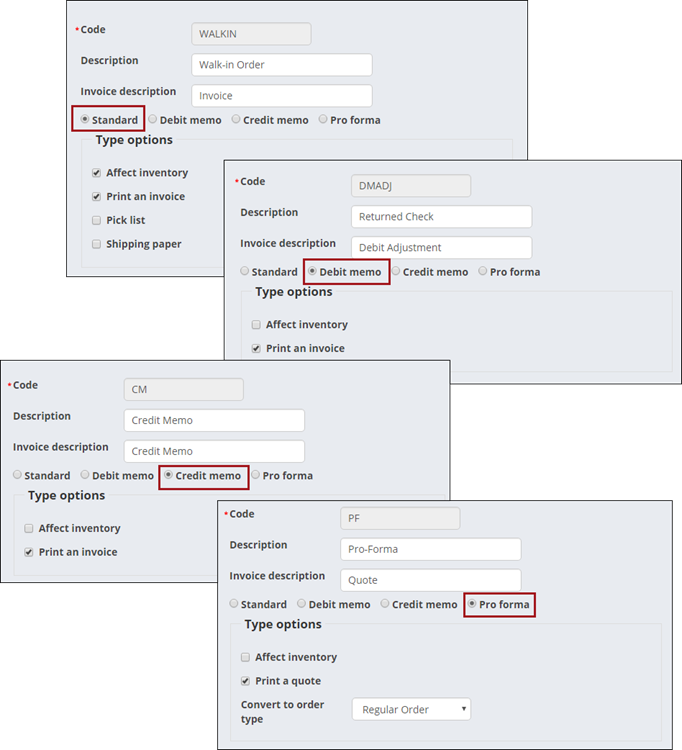
Do the following to define order types:
- From the Staff site, go to Settings > Commerce > Order types.
- Select Add new order type.
- Enter a Code for the order type.
- Enter a full-name Description for the order type.
- Define an Invoice description. This description will be printed on invoices.
- Select a category for the order type:
- Standard – Enable to classify an order type as a standard order.
- Debit memo – Enable to classify an order type as a debit memo order.
- Credit memo – Enable to classify an order type as a credit memo order.
- Pro forma – Enable to classify an order type as a pro forma order. Create pro forma order types only after defining standard order types. This allows you to select a valid standard order type from the Convert to order type drop-down.
- The category selected determines which Type options are displayed:
- Affect inventory – Enable if you want the order type to affect product inventory. For example, a standard order would reduce a product's physical inventory, and a credit memo order would increase a product's physical inventory if the Affect Inventory option were enabled.
- Print an invoice – Enable if you want the order type to generate a printed invoice for invoiced orders.
- Pick list (Displays for Standard order types only) – Enable to process the order type through the Print pick list order processing stage. A pick list will print for the order type.
- Shipping paper (Displays for Standard order types only) – Enable to process the order type through the Print shipping papers order processing stage. Shipping papers (Packing Slips) will print for the order type.
- Print a quote (Displays for Pro forma order types only) – Enable to process the order type through the Print quotes order processing stage. An order Quotation will print for the order type.
- Convert to order type (Displays for Pro forma order types only) – Select the default order type for converted pro forma orders.
- Click Save & Exit.
Updated 3 months ago