

Commerce gallery
Address Selector
-
Description - Displays and changes the specified address of the current contact.
- Address path - (required) Specify the SOA object for the address you want to display and control through this content item:
- Cart.ShippingAddress - The shipping address for the current cart
- Cart.CreditCardAddress - The credit card billing address for the current donation
- Donation.CreditCardAddress - The credit card billing address for the current donation
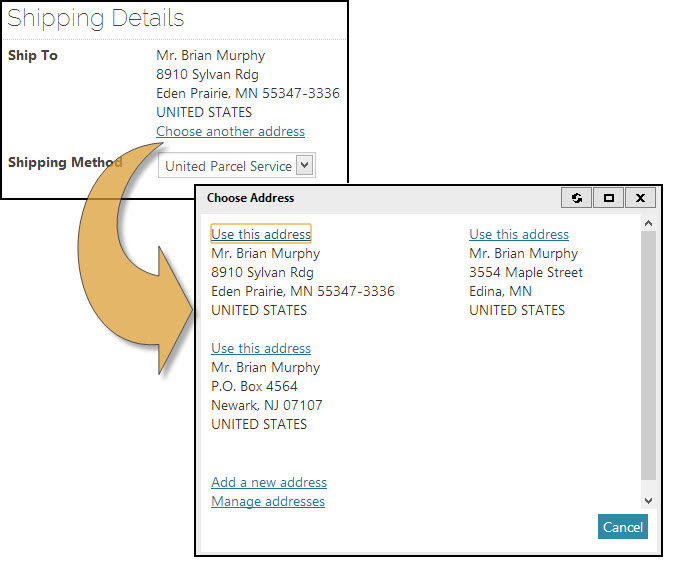
- Display button only - (Events only) To minimize the area that the content item takes up in Event showcases, this option shows only a graphical button in place of the Address Selector's title (if any), address, and Choose another address link. The button opens the selector window.
- You can add this to a content record as a standalone content item, but it is also included in other content items to support address selection. For example, Shipping Method Selector incorporates this content item and uses the Cart.ShippingAddress path to display and change the shipping address in the cart.
- The Manage addresses link displays the Account Profile page. The Account Profile page is hard coded to the content page (@/iCore/Contacts/ContactLayouts/Account_Page). The URL parameter AccountPages=Personal is also passed.
- The Add a new address link in the Choose address window allows entry of a new address for this contact. In RiSE-based sites, you can create more than one address with the same custom purpose (defined in the ADDRESS_PURPOSE table), but multiples are not allowed for the primary purposes (defined in Customer Setup > Address and Notes). If no custom purposes are defined, and the user has already created an address for each of the three primary purposes, then the Add a new address link does not display.
Configuration details
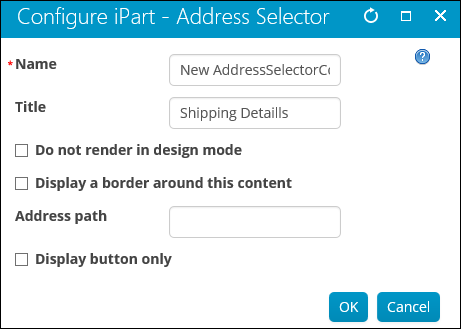
- Address path - (required) Specify the SOA object for the address you want to display and control through this content item:
- Usage Scenario - When shipping, the Address Selector can be used to change the address that the items are being shipped to.
Auto Pay Instructions Creator
-
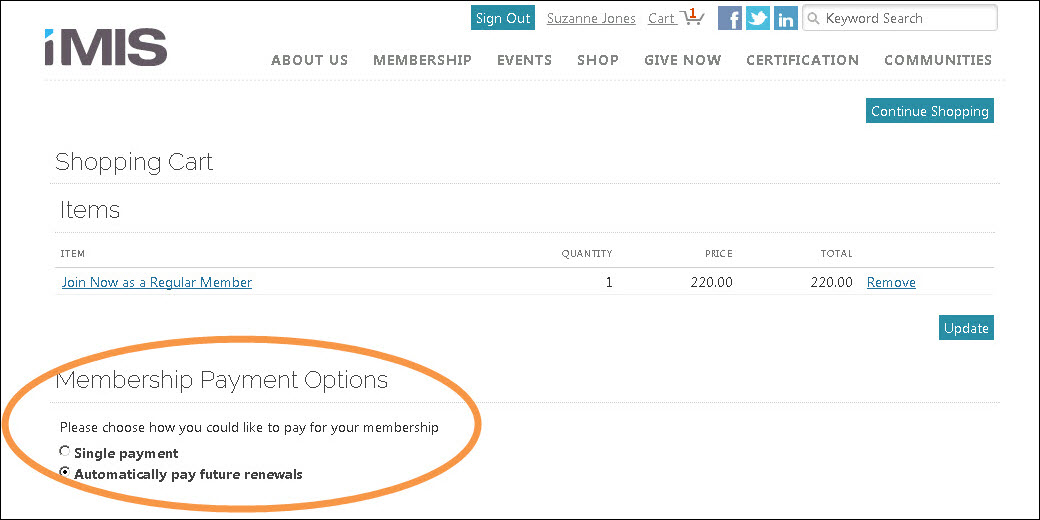
Description - Creates an automatic payment instruction for membership renewals and recurring donations.
- This content item will only be displayed when there is a Join Now product or an accrual renewal invoice in the Cart.
- The option to allow recurring donations must be enabled from the Staff site (Settings > Commerce > General).
- This content item is only available to those who have a license key.
Configuration details
- Usage Scenario - When the configuration option is enabled, users are able to elect to automatically renew their membership dues. This option is available to members through their shopping cart.
📘 Note
The Auto Pay Instructions Creator is only available if you have set up AutoPay. For more information, refer to Automatic payments (AutoPay).
Cart Charges Display
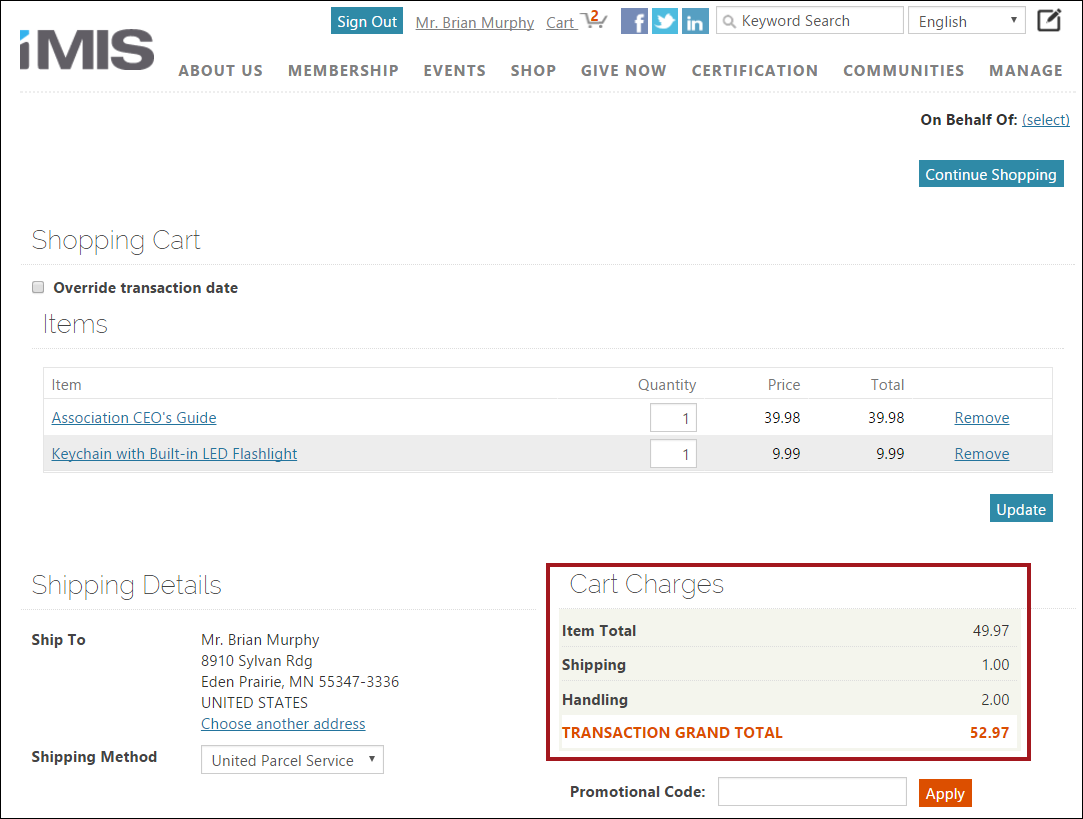
This content item displays a read-only view of the total for the items in the shopping cart, shipping charges, handling charges, and tax (if any). Place this content item on the shopping cart page of your online store.
This content item can be seen on the out-of-the-box Cart page (@/iCore/Store/StoreLayouts), and is commonly used with the following content items:
Cart Checkout Button Link
Place this content item on product detail pages to take the shopper immediately to the cart, if items are pending. This allows users to checkout easily and quickly.
This content item can be seen on out-of-the-box Item Detail page (@/iCore/Store/StoreLayouts), and is commonly used with the following content items:
Cart Details Display
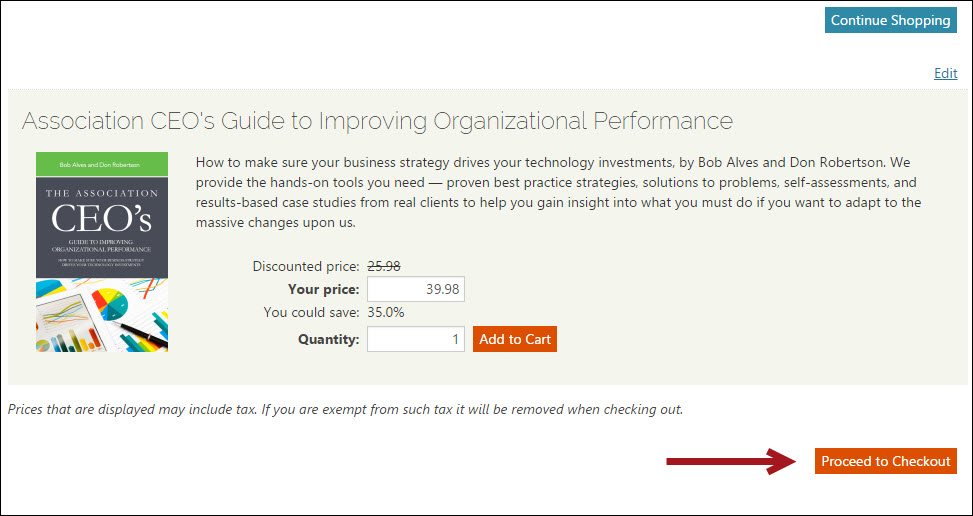
- Description - Displays the contents of the shopping cart and allows for quantity changes and deletions.
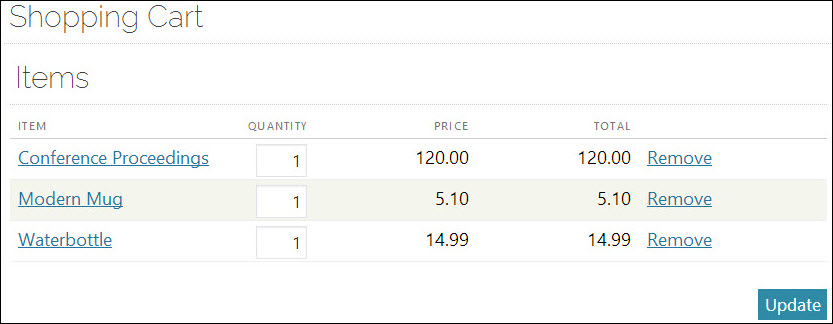
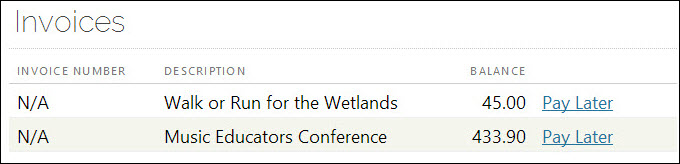
- Usage Scenario - Items that have been placed in the shopping cart appear in the Items area, and if any invoices have been selected for payment, they appear in the Invoices area.
Confirmation Display
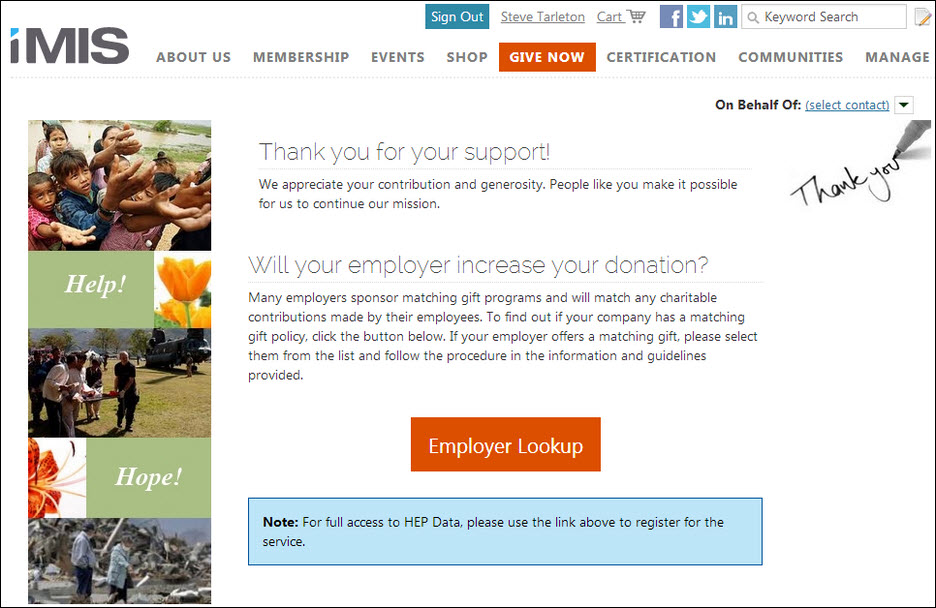
- Description - The Confirmation Display content item generates a custom message that is displayed to the customers upon successful completion of a transaction, for example, a donation. The content item also initiates an email to the user containing the confirmation message.
- Usage Scenario - When you would like to thank a website user for making a donation.
Continue Shopping Button Link
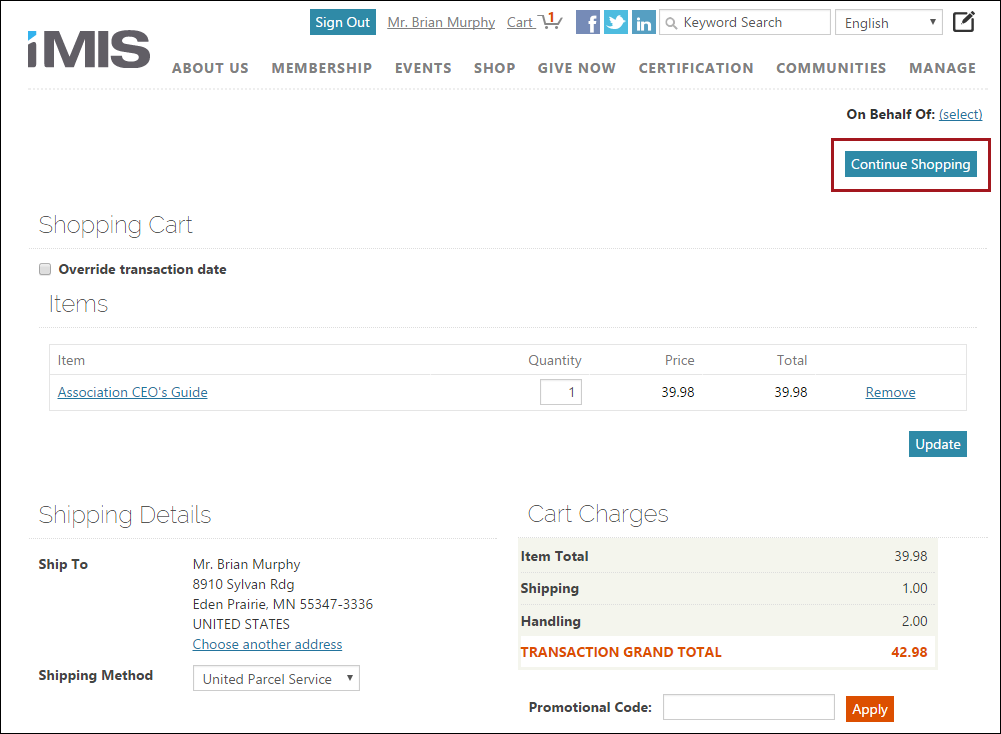
The purpose of this content item is to return the shopper to the shopping page you specify. For example, a customer has the ability to add an item to their cart, such as a book, and choose to continue shopping.
This content item can be seen on out-of-the-box product detail pages or shopping cart pages. It is commonly used with the following content items:
EFT Gateway Account Administrator
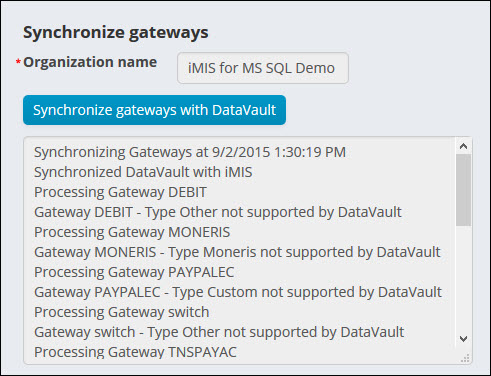
- Description - This content item enables users to synchronize their payment gateway settings between the Advanced Accounting Console and their websites.
- Usage Scenario - As a staff user, I can set up my payment gateways using the Advanced Accounting Console, and then synchronize those settings with my websites.
📘 Note
The EFT Gateway Account Administrator is only available if you have set up AutoPay.
Invoice Payment Link
This content item is used to display a button for any of the following reasons:
- When the selected contact has unpaid invoices that are due, the button can be configured to display as a “Pay open invoices” option.
- When the selected contact is a member and is due for membership renewal, the button can be configured to display as a “Renew Now” option, allowing for the member to renew their membership directly from their profile page.
- When the selected contacts is a non-member or inactive member, a “Join Now” button can be configured to display so that they may register as a member directly from their profile page. Staff users and company administrators can use this button to join as a member on behalf of the contact.
- When the selected contact is a member and is not due for renewal (their membership has not yet expired), but they are eligible to renew their membership in advance. The point in time in which they are eligible for renewal (when the button begins showing) is a time specified during configuration. See Allowing members to renew in advance for more information.
- When the selected contact is an expired member, they are eligible to renew, even though their Paid through date has passed. See Allowing members to renew after their paid-through date has passed for more information.
When selected, the invoice appears as a single item in the cart. Users do not have the option to selectively pay for individual line items within the invoice.
This content item can be seen on the out-of-the-box pages Account Page and Account Page Staff, and is commonly used with the following content items:
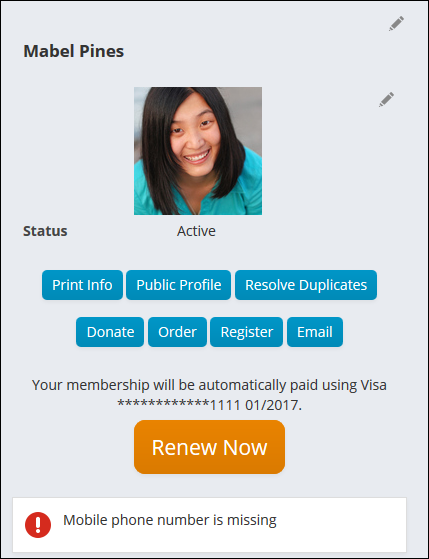
The Invoice Payment Link content item provides the ability to configure messages to be displayed along with the button. Staff users can configure two separate messages:
- Message - Enter text to be displayed above the button. For example, you could enter a message that explains to users what to expect when they click the button, or why the button is displayed on their profile page.
-
Message when AutoPay Instruction exists - If there is a recurring instruction available for the user, this message will be displayed in place of the Message field text. This text can also be modified to display the payment method and due date attached to the payment instruction:
- Payment method - Add [PaymentMethodSummary] to the message text.
📘 Note
This content item can only be used to pay for the most recently billed renewal invoice. Unpaid invoices for previously billed renewal billings cannot be paid with this content item. This may be an issue if your organization has closely-recurring billing cycles, or if some of your users renew multiple memberships through your organization and those memberships have different billing cycles.
Item Creator
The Item Creator content item allows for the creation of products, gifts, or both:
- Product - Items appear in the Shop list and allow users to create diverse products for sale, such as merchandise, billing and subscription items, and publications.
- Gift - Allows users to create fundraising gift items that appear as available donation options. Each gift item defined must be linked to a Financial entity.
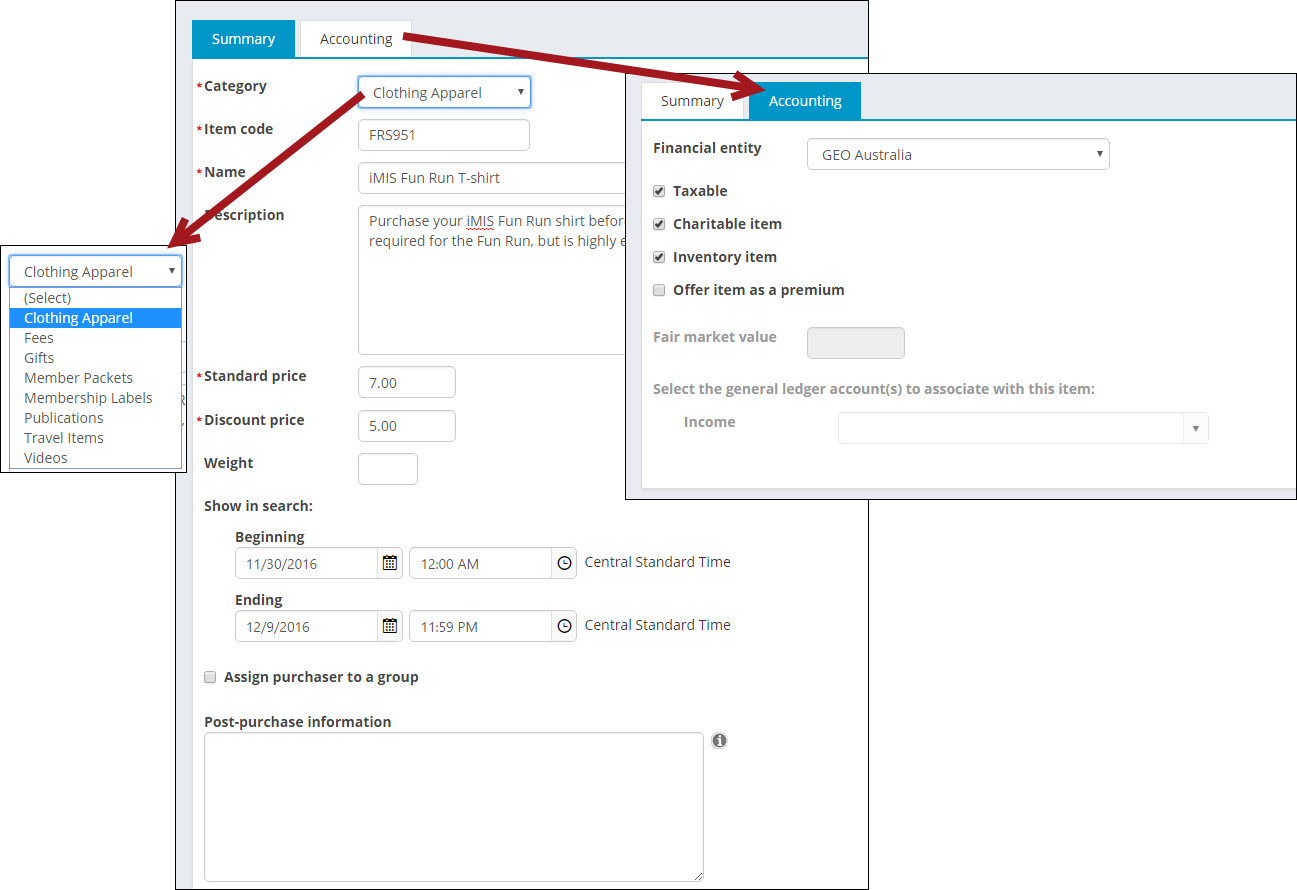
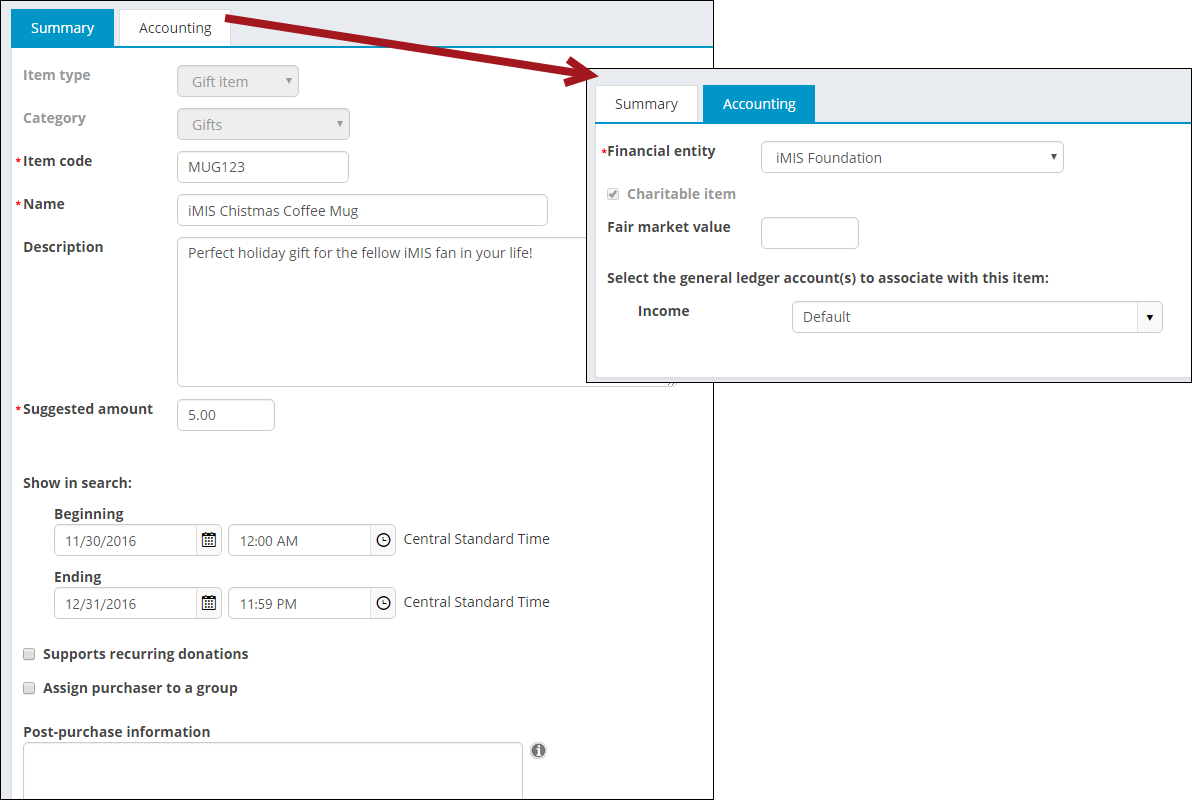
Out-of-the-box, this content item can be found at Commerce > Add product and Fundraising > Add gift item.
Open Invoice List Display
- Description - Allows users to pay listed open invoices on the individual and organization account pages. Organizations can choose to restrict the invoices by a specific financial entity. Once selected, only the open invoices for that financial entity will display.
- Usage Scenario - Instead of paying for every open invoice, you can select which invoices you would like to add to your cart.
📘 Note
The Open Invoice List Display content item supports displaying up to 1000 open invoices for a contact.
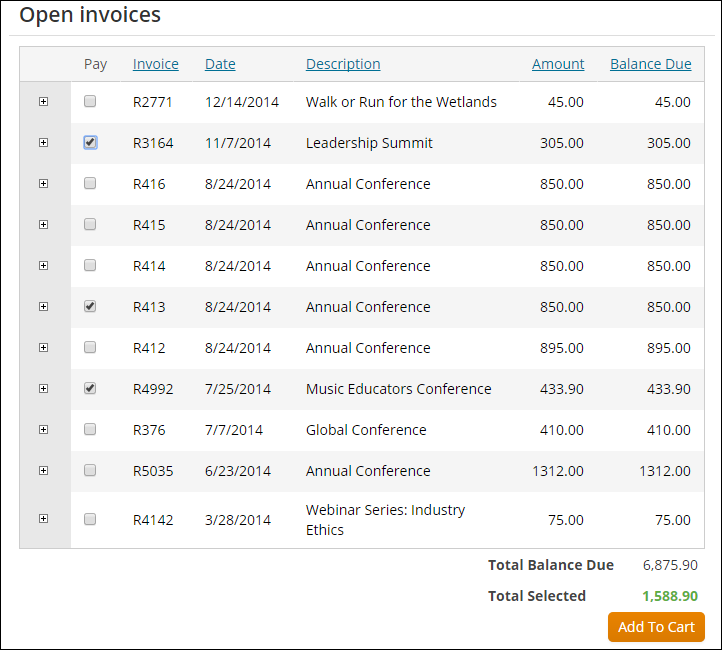
Additional configuration options
- Limit users who can view data for other contacts - (enabled by default) If this option is enabled, only staff authorized users can view information for contacts other than themselves. This prevents other users from changing the ID in the URL to access another contact's data. Authorized users include staff and Group Member Administrators for a group to which the contact belongs. Disable this option to allow all users to view information for other contacts, such as for a public profile. If this option is disabled, the system security settings determine whether a user must be logged in to view information for other contacts.
- Restrict invoices by financial entity - From the drop-down, select a financial entity to filter the open invoices that are displayed. Once selected, only the open invoices for the specified financial entity are displayed.
-
Display options when no invoices are due - Select the option for how the content item is displayed when no open invoices are due:
- Hide content - When no invoice is due, the content item does not display.
- Show empty grid with message - The empty grid displays with the No open invoice message displaying in the middle of the grid.
- No open invoices message - (required) Enter a message to be displayed when no invoice is due.
-
Include the following invoice types – Select the invoice type you want to be displayed in the Open Invoice List Display content item. You can select multiple invoice purposes to be shown on the same instance of the content item.
This option is only available with Service Pack D or later. -
Include only invoices due within days – Limit the invoices that are displayed in this content item. If the Due Date on the invoice does not fall within the date range specified, the invoice will not be displayed. If this option is not selected, the field is disabled.
This option is only available with Service Pack D or later.
📘 Note
This option is disabled by default. When enabled, the default value of this option is 60.
Order Confirmation Display
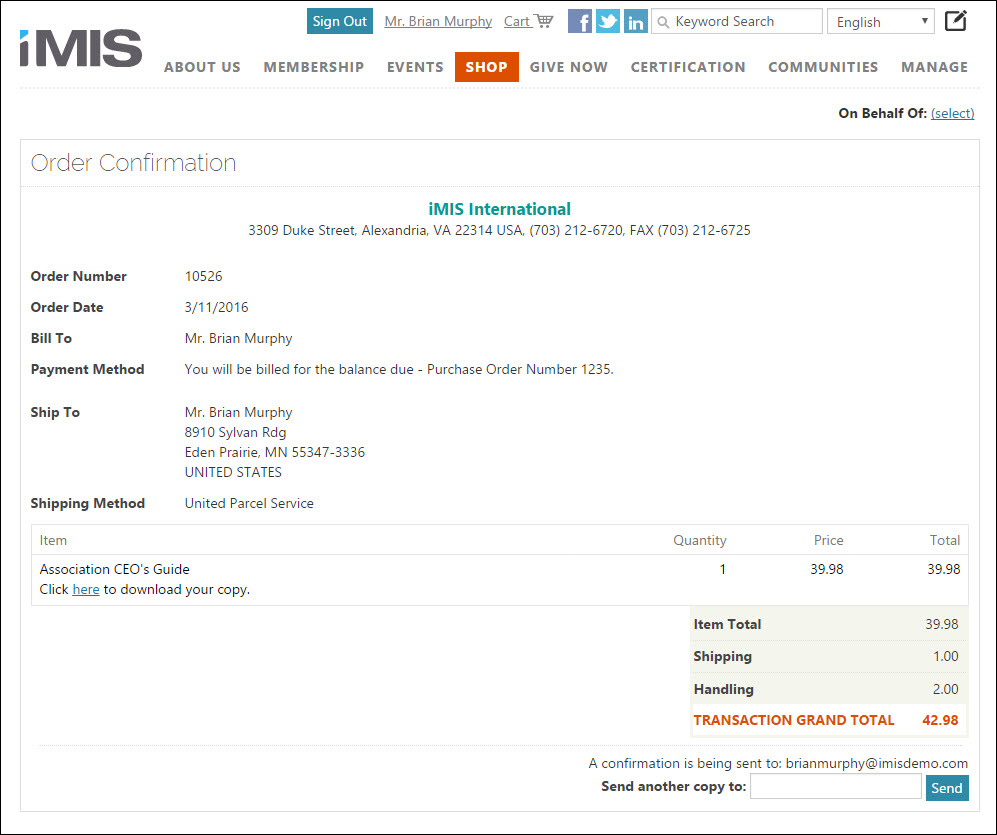
Use this content item to display a confirmation message for a submitted order and send a confirmation email to the sold-to party. You can also send an additional confirmation email to a specified email address.
This content item can be seen on the out-of-the-box Order Confirmation page (@/iCore/Store/StoreLayouts), and is not a standalone content item. It must be used with the Submit Order Button Link content item. The Submit Order Button Link lets you specify what content record to use for the order confirmation. See Setting up an Order Confirmation template for more information about order confirmations.
Payment Creator
-
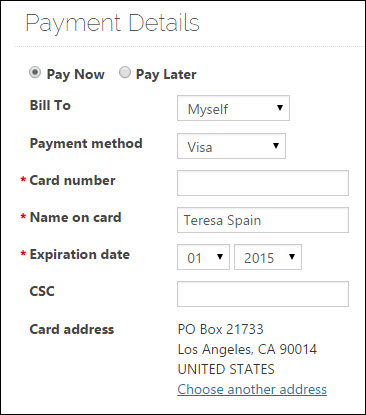
Description - This content item can be used to accept payment details in a shopping cart or on a donation page. In both cases, use this content item with other content items to complete a transaction. Select a processing type that best fits your use of this content item:
- Cart - This is the default purpose. Select this option if you want the orders submitted for processing from a shopping cart.
- Donation - Select this option if you are placing the Payment Creator on a donation page, or are using it for donation purposes. To use this content item, it must be connected with other content items. See Creating online donation pages for more information.
- Usage Scenarios:
Payment Method Set Creator
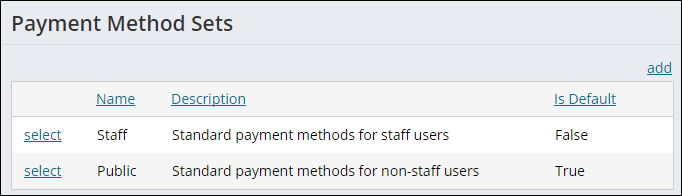
- Description - Allows for tailoring of payment method sets and assigning those sets to specific contexts or websites.
-
Usage Scenario - On the Staff site, go to Settings > Commerce > Payment method sets. You can manage existing payment method sets, or add new payment methods to existing payment method sets.
The add option will not display if the website you have created has not been copied and published. See Creating a site for more information.
Promotion Creator
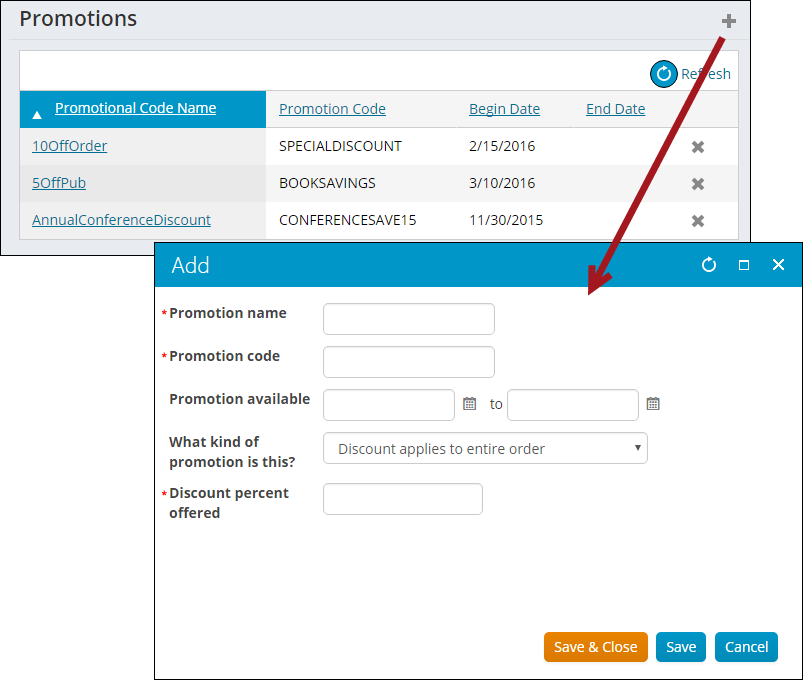
The Promotion Creator lets you create and manage promotions that grant a percentage discount to an entire order, within any date restrictions that you define. It also lets you create promotions that grant either a percentage or a fixed-amount discount for one or more specific products or product categories in the order. It provides the discount codes that Promotion Manager accepts and validates in the cart during checkout. From the Staff site, go to Commerce > Promotions to add or edit the promotions you created. For more information, see Defining promotion codes.
Promotion Manager
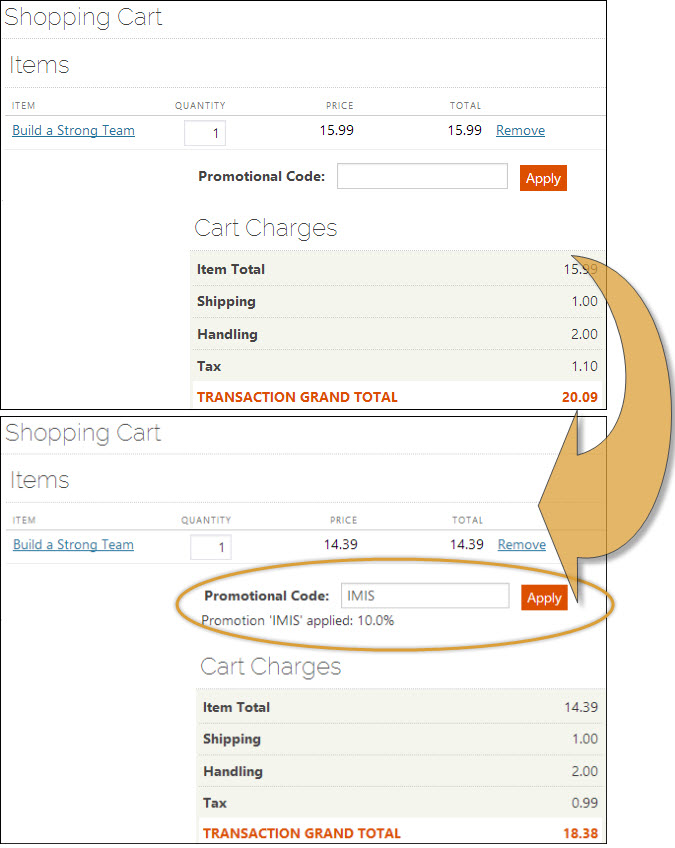
- Description - This content item lets you make use of the discounts defined through the Promotion Creator. It provides a space for shoppers to enter a promotion code that is applied to their entire order.
- Usage Scenario - When adding an item to your cart there will be an area to enter a promotional code. After entering this code both the item listed in the shopping cart and the transaction grand total will represent the new total.
Recurring Donation Expected Payments
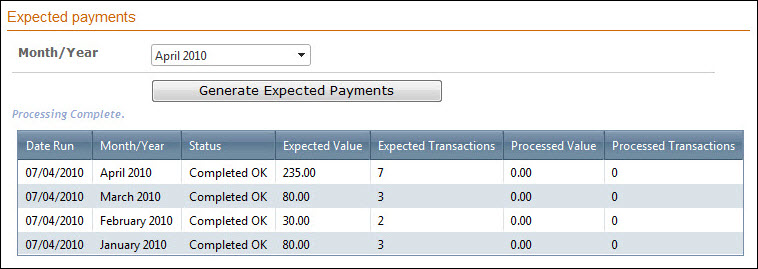
- Description - Generates the expected standing order donations for a given month.
- Usage Scenario -
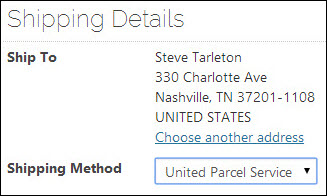
Shipping Method Selector
- Description - Displays and changes the Ship To address of the current contact, and specifies the shipping method as it will be used to fulfill their order from the website.
- Usage Scenario - The Shipping Method Selector works with the Address Selector content item in order to change the Ship To address. This content item also provides the customer with various shipping method options.
Submit Order Button Link
- Description - Submits the current order and displays the confirmation page you specify. This content item can also be used to submit a donation.
- Usage Scenario - You would use this in the Cart and on a Donation page.
Updated about 2 months ago