

European taxation (VAT)
Value-Added Tax (VAT) is a tax levied on goods and services sold within the European Union (EU). iMIS supports VAT, so you can tailor your organization’s taxation method for the EU member countries in which you have operations. Applicable taxes then will be calculated automatically based on a customer’s country.
To charge VAT, you multiply the net price by the VAT rate (to calculate how much VAT to charge) and then add that amount to the net price to give the gross (inclusive) price:
Net price = £100
+ VAT due at 20% = £20
= Gross price = £120
When is VAT included in the price?
Almost always. By law, the prices advertised in retail shops must include VAT, so no additional tax is charged at checkout. Products advertised in magazines, catalogs, websites, price lists, and other literature may be aimed at the public, businesses, or both. By law, if they are meant only for the public, then prices must include VAT. If they are meant for both public and business, then VAT-inclusive prices are usually given.
Exception – Prices quoted between organizations (companies) are often VAT exclusive, because VAT might be claimed back by a company and so should not affect the budget.
When is VAT shown on bills and receipts?
Most retail prices on bills and receipts include VAT, so it is not shown separately. However, some might list the VAT as a separate line, just to report how much tax is included in the price. Invoices from VAT-registered suppliers (like builders) must show a separate amount for VAT, as well as the VAT Registration Number of the business.
To specify whether you want VAT-inclusive or VAT-exclusive pricing, you enable a setup option. See Configuring VAT accounting options.
Configuring iMIS for VAT
📘 Note
VAT has a separate license key. You must be licensed for VAT to enable it as a taxation method.
Implement your VAT configuration in the following order:
- Enabling VAT for the default organization — Gives you access to the VAT options in iMIS.
- Defining VAT and intrastate country codes — Lets you verify that the codes are correct for your needs before you do any configuration based on this table.
- Defining VAT tax categories - Lets you set up the tax categories that you need iMIS to use.
- Defining VAT tax codes — Lets you set up the tax codes that you need iMIS to use. If these tax codes are missing from the Product_Tax table, any taxes calculated equal zero.
- Configuring financial entities for VAT — Lets you set company information (such as registration codes and numbers) for each organization that will collect VAT.
- Setting up Company Flow Down for VAT — Enables VAT tab data for the company contact to flow down to company members.
- Configuring VAT accounting options — Lets you select options for calculating taxability and including VAT in pricing and fees.
- Defining VAT Rules for Events — Lets you add special rules for your virtual and other-country events.
- Verify that the Default country for your website (in the Staff site, go to Settings > Contacts > General) matches the EU Country you selected for your Default organization (go to Settings > Finance > Financial entities).
📘 Note
Enabling VAT automatically disables the Default or Canadian taxation method for an organization. The VAT and Canadian taxation methods are mutually exclusive.
Enabling VAT for the Default Organization
Before you can configure iMIS to handle VAT for your organization, you must select VAT as a Taxation method for your Default organization. After that, you can create the specific VAT tax codes used by the different areas of iMIS. After enabling the VAT taxation method, be sure to restart iMIS for the change to take effect.
📘 Note
VAT has a separate license key. You must be licensed for VAT to enable it as a taxation method.
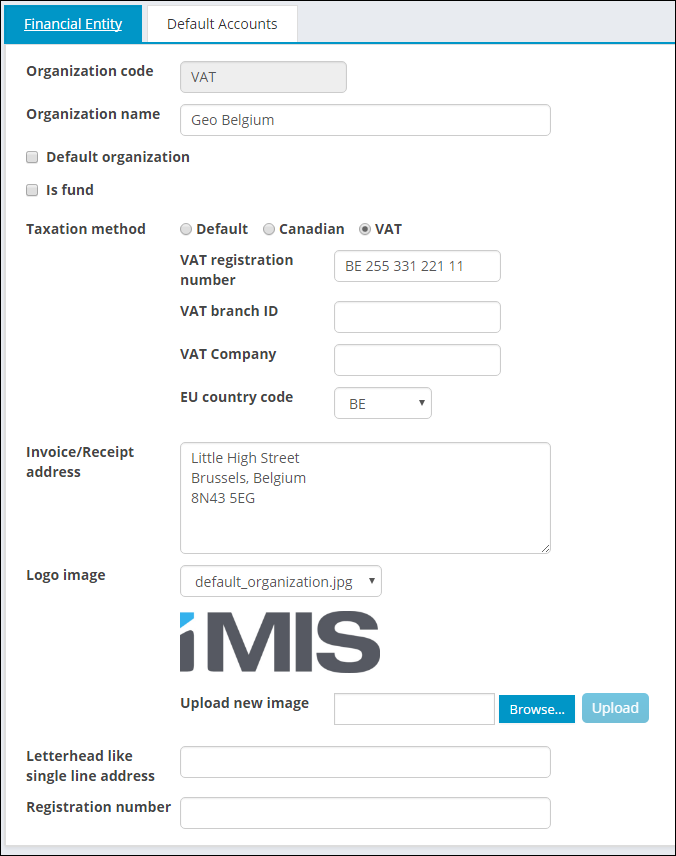
Do the following to enable VAT for the Default organization:
- From the Staff site, go to Settings > Finance > Financial entities:
- If adding a new organization, select Add new financial entity and enter a code for the organization in the Organization code field.
- If updating an existing organization, select an organization from the Code list.
- Enable Default organization.
- For Taxation method, enable VAT:
- VAT registration number — Enter the numeric part of an alphanumeric VAT number. Length and structure will vary depending on country. For example, FR 224 852 654 12 is used in France and BE 422 544 865 is used in Belgium.
- VAT branch ID (optional) — Enter the VAT branch ID for an organization.
- VAT Company (optional) — Enter the VAT company for an organization.
- EU country code— Select the corresponding country code.
📘 Note
If the drop-down populates the wrong EU country code, you first need to fix the entries in your Countries table and then update the entry here. See Countries for more information.The country that you set for your Default organization must match the System default country that you specify for your website. See General Contact Settings for more information.
- Registration number (optional, Fundraising) — Enter the registration number associated with an organization or fund. Fundraising organizations must have a registration number (Canada) or tax identification number (United States) to claim and verify tax-exempt status.
- Click Save.
Defining the EU Country Code
The EU country code is a two-character code assigned to each European member country. Do the following to define a country code:
- From the Staff site, go to Settings > Addresses > Countries.
- Select a country for edit.
- In the EU country code field, enter the two-character code assigned to the specific EU country.
- (optional) Enter the country code in the ISO 3 Digit Code field. This code is used for reporting purposes.
- Click Save & Exit.
See Countries for more information about the fields in this window.
Defining VAT tax categories
Tax categories are general collections of items that have common taxation rules. You must define the appropriate tax categories before you can define products and functions that use tax-by-customer-location taxation logic.
📘 Note
Tax categories are only applicable when using the VAT taxation method. Tax categories can be used to differentiate between standard rated, reduced rated, and zero rated products.
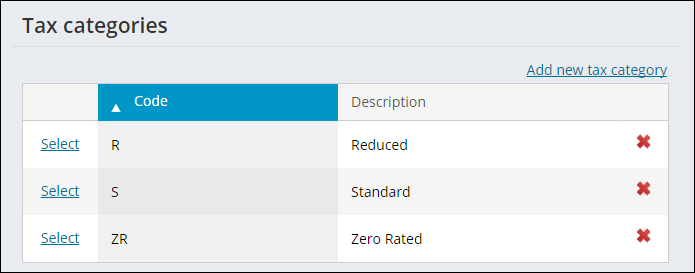
To define new tax categories, do the following:
- From the Staff site, go to Settings > Finance > Tax categories.
- Select Add new tax category.
- Enter the tax category Code.
- Enter the tax category Description.
- Click Save.
Defining VAT tax codes
If you are using different VAT tax rates, you must define the different rates in iMIS before you can apply them to any type of event, product, or order. You do so in the Tax codes window. The following sections include examples of various VAT tax codes.
Defining VAT-exempt tax codes
Different events and products might require defining different VAT rates:
- From the Staff site, go to Settings > Finance > Tax codes.
- Select Add new tax code.
- In the Code field, enter VAT_EXEMPT.
- Enter a full Name for the VAT_EXEMPT tax code.
- From the drop-down, select the correlating Account.
- (optional) Select the Tax category.
- (optional) Select the VAT country.
- Click Save.
📘 Note
(VAT taxation enabled) Only one Tax code may exist for each unique Tax category and VAT Country combination e.g. there is only one Tax code which defines the Standard (Tax Category) tax rate for the United Kingdom (VAT Country). When a product or function is marked as Tax based on customer location, the Tax Category of the product and the VAT Country of the customer is used to lookup the relevant Tax Code.
Defining VAT zero-percent tax codes
Do the following to define a VAT zero-percent tax code:
- From the Staff site, go to Settings > Finance > Tax codes.
- Select Add new tax code.
- Enter a Code for VAT zero-percent.
- Enter a Name for the VAT zero-percent tax code.
- Select an Account to associate with this code.
- (optional) Select the Tax category.
- (optional) Select the VAT country.
- Click Save.
Configuring financial entities for VAT
After defining the country codes, enter the country code and additional VAT information for one or more financial entities (organizations):
- From the Staff site, go to Settings > Finance > Financial entities.
- Select an organization enabled for VAT taxation from the Code list.
- Enter the VAT registration number to be used to collect VAT.
- (optional) Enter the VAT branch ID.
- (optional) Enter a value in the VAT Company field.
- Select the EU country code.
- Repeat for any additional financial entities (organizations) as needed.
- Click Save & Exit.
📘 Note
The EU country code must be set up at Addresses > Countries to select it at this time. See Countries for more information.
Setting up Company Flow Down for VAT
You can enable User-defined company flow down for the VAT registration number, VAT country, and VAT exempt fields if both of the following are true:
- Your iMIS database includes both Company and Individual customer types
- The customers of a company are linked to the company record
Company flow down is useful for pre-populating related entries with common information (such as Main Address, County, and Telephone) and other additional user-defined company flow down fields:
- From the Staff site, go to Settings > Contacts > System options.
- In the User-defined company flow down field, enter the fields to display. For example, to display all VAT fields, enter:
- Click Save.
Name_Fin.VAT_REG_NUMBER,Name_Fin.VAT_COUNTRY,Name_Fin.USE_VAT_TAXATION
Configuring VAT accounting options
Because organizations differ in how they need to charge VAT and handle pricing, iMIS gives you several global options that affect tax calculation and pricing of your order processing and events.
📘 Note
For technical discussions and examples of VAT issues and scenarios, go to iMIS Community: http://www.imiscommunity.com/value_added_taxation_vat.
If your default organization is configured for VAT, you will see additional VAT accounting options (from the Staff site, go to Settings > Finance > General):
VAT setup:
-
Tax based on — Lets you change the method for evaluating taxation:
- Bill to data — Applies VAT based on the Bill to contact’s location.
- Ship to / Recipient data (default) — Applies VAT based on the Ship to location. This supports point-of-sale requirements for which contacts have different Ship to addresses, or make purchases intended for others, such as a manager registering an employee at a different site.
📘 Note
See Taxation based on Bill To versus Ship To for more information. - Define prices as VAT inclusive (non-reversible) — When enabled, all system-defined prices for taxable products, events, shipping, and handling are considered VAT inclusive. This means that you can define products and registration fees with the gross (tax-included) amounts that you will advertise to your members and the public. Once you enable VAT-inclusive pricing, the option appears grayed out, because the setting is permanent.
-
Tax code values to substitute and explain 0% VAT rates (optional) — If you populate them, these optional fields help you document the reason for VAT exemptions. You can select select from the existing zero-rated VAT tax codes to specify ones to globally substitute as reason codes for each of three situations:
- Contact is VAT exempt (system-wide)
- Contact is VAT registered elsewhere in EU (Order entry)
- Contact is outside of EU (Order only)
In the same way, Event VAT Rules also let you select a Substitute Tax Code for any rule that prevents taxation (see Defining VAT Rules for Events). These codes allow you to report and document tax exemptions as required.
🚧 Warning
To upgrade quickly to VAT inclusive pricing, back up your database and run the DB Maintenance standalone utility, which can perform a one-time conversion of your VAT-exclusive product prices and registration fees to be VAT-inclusive. In the DB Maintenance utility, select the Options tab, and click Convert to VAT Inclusive. Once your data is converted, the command enables the Define prices as VAT inclusive setting for you.
Taxation based on Bill To versus Ship To
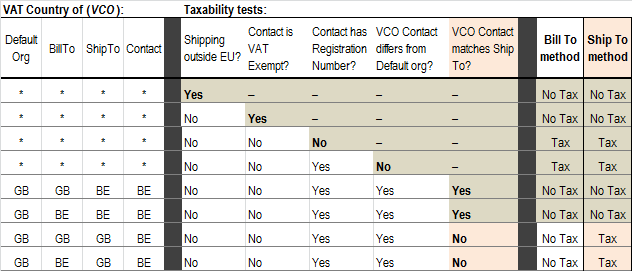
The Tax based on options determine when iMIS does not charge VAT:
| Bill to data | Ship to / Recipient data |
|---|---|
|
|
Definitions:
- All orders have an associated financial entity. Each financial entity specifies a VAT country.
- VAT Exempt means having the VAT Exempt option enabled for a contact.
-
VAT registered requires having a VAT Registration Number specified for a contact. If so, whether a contact is VAT registered then depends on the tax method and the value in VAT Country:
- Bill to Data — If VAT Country is blank, the contact is VAT registered in the VAT Country of the order’s financial entity. (Exception: Web orders honor the original iMIS VAT implementation by first trying to establish the order’s financial entity from product lines.)
- Ship to / Recipient data — If VAT Country is blank, the contact is not VAT registered.
The following table shows how VAT taxes apply to orders according to each Tax based on setting. You can substitute your EU countries for the ones used here (GB - Great Britain, BE - Belgium).
How taxation methods use the VAT information on a contact's record
The VAT settings on each contact’s record affect when VAT is applied. From the Staff site, go to Settings > Finance > General, then scroll down to the VAT setup section. This section lets you choose to calculate taxes by Ship to / Recipient data (see Taxation based on Bill To versus Ship To). The following diagrams show the essential differences in how the two methods use each contact’s VAT values.
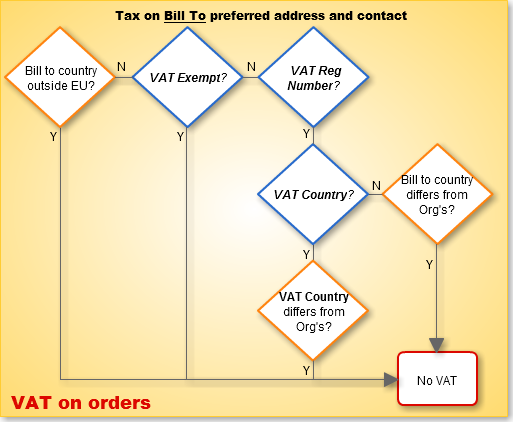
If the Bill To contact has no Preferred Billing country, iMIS assumes it is the country of the order’s financial entity.
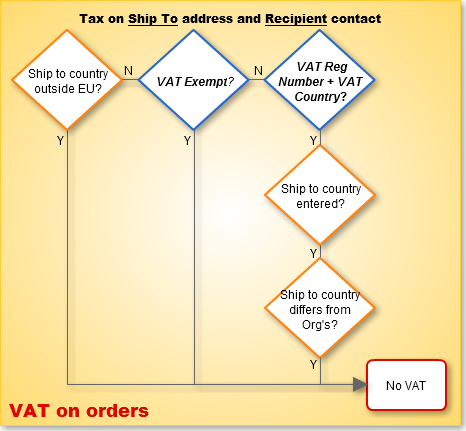
If the order has no shipping country, iMIS assumes it is the country of the order’s financial entity.
iMIS calculates VAT based on Ship to just as Amazon.co.uk does, with two exceptions:
- iMIS allows each customer to supply VAT registration for one country only.
- iMIS cannot change rates based on the country to which an item is shipped.
Defining VAT Rules for Events
To comply with Place of Supply requirements, you can use the VAT Rules table to define when not to charge VAT tax on taxable functions. These rules have limited scope: they only apply to taxable functions of VAT-enabled events that have a VAT Rule specified in the event’s definition. These special rules are optional, and you do not need these rules at all unless your organization faces one of these situations:
- You hold online (virtual) events — The new Place of Supply rules have requirements that apply to online events, as these specifically fall into the new General Rules (under Article 44 and 45).
- You hold in-person events in another EU country — If you hold an event in another EU country that has different guidelines for when to charge VAT, then you need to define a new rule set.
- Your tax advisor determines that the default approach of charging VAT to all non-exempt registrants is insufficient.
📘 Note
Consult your tax advisor or audit firm for questions and validation of your rule sets.
You can create as many rule sets as you need to handle the situations you must support, if any. In all cases, your registrants see only confirmation that their fees include the required VAT taxes. In the Advanced Accounting Console, go to Settings > Events, and click VAT Rules.
Click to view image
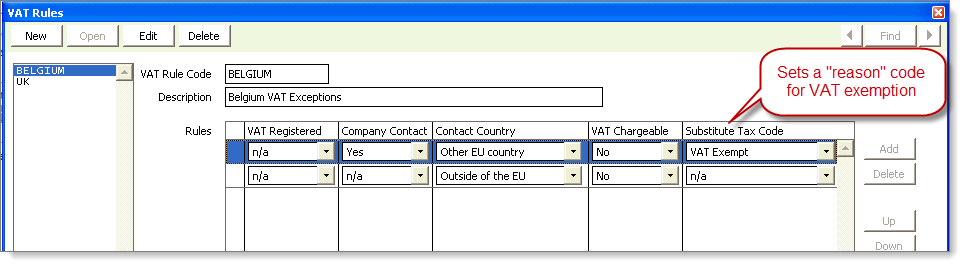
- VAT Registered — Whether the registrant has a VAT Registration number entered.
-
📘 Note
Include both Name_Fin.VAT_REG_NUMBER and Name_Fin.USE_VAT_TAXATION in the User Defined Company Flow Down list.
- Company Contact — A registrant whose own record or whose parent record has a member type that is defined as a Company Record in the Member_Types table.
-
Contact Country — Refers to the country specified in the registrant's address (regardless of parent record) as determined using the VAT country codes you defined:
- Same as place of supplier — The registrant is in the same VAT country as the event’s entity.
- Other EU country — The registrant is in a different EU country from the event’s entity.
- Outside of the EU — The registrant is outside of the EU.
- VAT Chargeable — The Yes option exists for rare cases in which you need to insert a Yes rule to ensure a correct VAT charging situation isn't overridden by a more general No rule below it.
-
Substitute Tax Code — This optional field is available only when VAT Chargeable is No. It lets you select one of your zero-rated VAT tax codes as the reason for why the situation is not taxable. For example:
- The contact is VAT Exempt
- The contact is registered in a different EU country
- The contact is outside of the EU altogether
These codes allow you to report and document tax exemptions as required.
Where do VAT rules apply?
If an event function is marked Taxable, VAT taxes can be charged. If the event itself also specifies use of a VAT Rule, iMIS determines whether to charge VAT according to your rules of exclusion.
How do rule sets work?
When a VAT event specifies a rule set, iMIS determines whether to charge the registrant VAT by testing each rule for a match. Starting with the top rule, iMIS stops only when all three conditions (whether VAT Registered, whether a Company Contact, and location) are met. If no rules are satisfied, VAT is charged as usual.
Example rule set: Online Events
| VAT Registered | Company Contact | Contact Country | VAT Chargeable |
|---|---|---|---|
Yes | n/a | Other EU country | No |
Example rule set: Belgium events in France
| VAT Registered | Company Contact | Contact Country | VAT Chargeable |
|---|---|---|---|
Yes | n/a | Same as place of supplier | No |
No | Yes | Same as place of supplier | No |
Setting up entities for other EU countries
If you hold events within the EU but outside of your EU country, you might need to set up multiple entity processing for each country involved in order to keep your financial records separate. The issues are:
- Whether you hold an event in another EU country (for example, a Paris conference for your Brussels-based association)
- Whether that country has different guidelines for when to charge VAT
Do the following to set up entities for other EU countries:
- From the Staff site, go to Settings > Finance > Financial entities , to define the entities for which you need to keep separate financial records:
- Select Add new financial entity.
- Create organizations for each additional EU country, ensuring the Taxation method is VAT and completing the VAT fields that appear.
- Enable multi-entity processing: From the Staff site, go to Settings > Finance > General, then enable Multiple entities.
- Define default accounts for your entities.
- Set up cash accounts for your entities.
- Set up Due to/due from processing.
- Verify the Default country for the website (From the Staff site, go to Settings > Contacts > General).
- When defining events that need this special VAT tracking, select your new entity codes as needed.
Defining a set of VAT Rules
Do the following to define a set of VAT rules:
- In the Advanced Accounting Console, go to Settings > Events, and click VAT Rules.
- Click New.
- Create a VAT Rule Code. Add a Description (optional) to explain the rule set and to display in the drop-down list during Event definition.
- Change the n/a (not applicable) defaults to Yes or No as needed to define the test for evaluating the taxability. The n/a values behave as either Yes or No in the evaluation.
- Click Add to activate rows for any additional rules you need.
- Use Up or Down to arrange the rules in the order you want them to evaluate, from the top.
- Click Save, then close the window or select New to create another rule set.
📘 Note
Clicking Delete removes only the row that is currently highlighted.
Applying VAT Rules
Each event can use one set of rules that you defined for its taxable functions, but the registration process still lets you override function-level tax codes:
- From the Staff site, open an event for edit:
- Go to Events > Find events, and search for the event.
- Select the event, then select Edit.
- Click the Pricing tab.
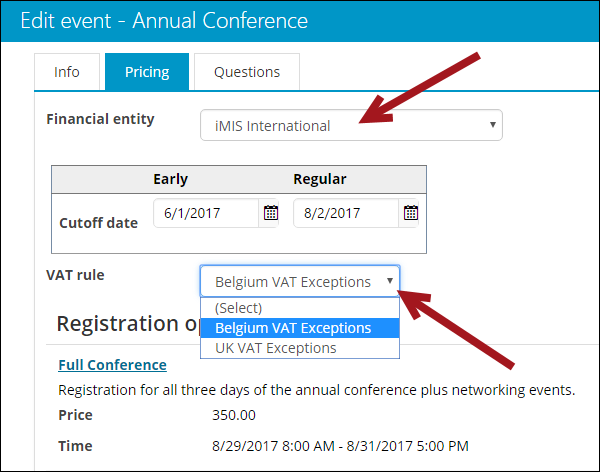
- From the Financial entity drop-down, select the correct VAT Organization name for the accounting of these transactions.
- Select a VAT rule to apply to the event.
- When defining each event function, enable the Taxable option as appropriate.
- During registration, be aware that in some cases (such as when a registrant's company is VAT Exempt), enabling Add to master during registration causes taxes to be recalculated on functions, changing their cost.
If this happens, you are prompted to click OK, confirm the registration details, adjust the payment amount as needed, then click Save.
How VAT Rules test Contact Country
The tests for Contact Country are the most involved part of VAT Rules. Unless the selection is n/a, the country of the registrant’s address evaluates as follows:
- Which address is evaluated? The test uses the country associated with the registrant’s address on the registrant's account page in the Staff site. This address defaults to the registrant’s preferred mail address, but the criteria evaluation always uses the address as it appears in the user interface, including any manual address overrides.
- Is the registrant outside the EU? If the registrant’s country is not assigned a VAT Country Code in the Country Names table, then the country is considered to be outside the EU.
- Is the country blank? If the registrant’s country is not populated, then it is assumed to be the same as the country of the default organization. The default organization’s country is established according to the VAT Country Code assigned to it.
-
Is the registrant within the EU? The registrant’s country is considered in the EU if either of the following are true:
- The registrant’s country is populated and the country is assigned a VAT Country Code in the Country Names table.
- The registrant’s country is not populated and the registrant’s location is assumed to be the same as that of the default organization.
-
What is the supplier country? If the registrant’s country is determined to be within the EU, then the registrant’s country is either the same as the supplier country or a different country. For this evaluation, iMIS must know what the supplier location is (normally the location from which the event is hosted). The following logic derives the EU Country to be used as the supplier location:
- If the event is assigned an entity (which should be the case if the event is being held in a country other than the home country of the organization), the supplier location is set to the VAT country code for that entity.
- If the event is not assigned an entity, then the supplier location is set to the VAT country code of the default organization.
- Is the Registrant’s country the same as place of supplier or elsewhere in EU? Once the registrant’s country is determined to be in the EU and the supplier country location is known, then this test is simple. If the VAT Country Code associated with the registrant’s address matches the VAT Country Code associated with the event supplier location, then the registrant location is considered the same as place of supplier. If the VAT Country Codes do not match, then the registrant location is considered in another EU country.
Examples of VAT Rules
🚧 Warning
These examples show how to define and use VAT rules. Do not take this as tax advice.
For these examples, assume you have a home base in the United Kingdom (default org has VAT enabled and VAT Country is GB) and you have upcoming events where your tax advisor has given different VAT treatments:
- In-person event in UK – All registrants (except those flagged as VAT Exempt), regardless of location, should pay VAT. No VAT Rule is needed; let the default VAT treatment apply.
- Online event – Following the General Rule under Articles 44 and 45, the tax advisor has said that, in addition to those flagged as VAT Exempt (who are never charged VAT under any circumstance), all registrants who are VAT Registered and in an EU country other than that of the default organization should be excluded from VAT. All others, including those in the same country and those outside of the EU, should be charged VAT.
- Event in France – The French guidelines for this event state that all companies as well as those who are VAT registered and who have a French address should not be charged VAT. All others, except for those flagged as VAT Exempt, should be charged VAT.
- Event in Italy – The Italian guidelines and tax advice for this event state that all company contacts in either a different EU Country or one outside the EU should be exempt from VAT. The VAT registration status connected to the registrant has no bearing.
Rule: None; the VAT Rule drop-down should remain blank when the event is defined.
Rule: Create a rule with a single criteria line only:
| VAT Registered | Company Contact | Contact Country | VAT Chargeable |
|---|---|---|---|
Yes | n/a | Other EU country | No |
Rule: Since the guidelines allow for either a Company Contact or a contact whose VAT Registration Number is populated to be excluded, create a rule with two rows:
| VAT Registered | Company Contact | Contact Country | VAT Chargeable |
|---|---|---|---|
Yes | n/a | Same as place of supplier | No |
n/a | Yes | Same as place of supplier | No |
Rule: Since the guidelines specify only company contacts in a country other than Italy, create a rule with two rows:
| VAT Registered | Company Contact | Contact Country | VAT Chargeable |
|---|---|---|---|
n/a | Yes | Other EU country | No |
n/a | Yes | Outside the EU | No |
📘 Note
When defining events that are held in a country other than the home location of the organization, you must assign an entity code to the event.
Setting up VAT for Events
VAT taxation for an event involves applying VAT to event functions and hotel rooms. After defining VAT tax codes, you can enter the tax codes for individual event functions and hotel rooms.
📘 Note
Because services are consumed in the country in which they are delivered, all customers are considered taxable.
Before you begin
- Enable the VAT method.
- Define the VAT codes.
- Define the VAT tax categories. This is only required if you intend to use Tax by Location functionality.
- Verify the Default country for the website (in the Staff site, go to Settings > Contacts > General).
Applying VAT to an event function
Do the following to apply VAT to an event function:
- From the Staff site, go to Events > Find events.
- Open the desired VAT event.
- To apply VAT to an event registration option, do the following:
- Select Edit for the overall event.
- Click the Pricing tab.
- Select the desired registration option.
- Click the Accounting tab.
- To apply VAT to an event program item, do the following:
- Scroll down to the program items, then select the desired VAT program item.
- Select Edit.
- Click the Accounting tab.
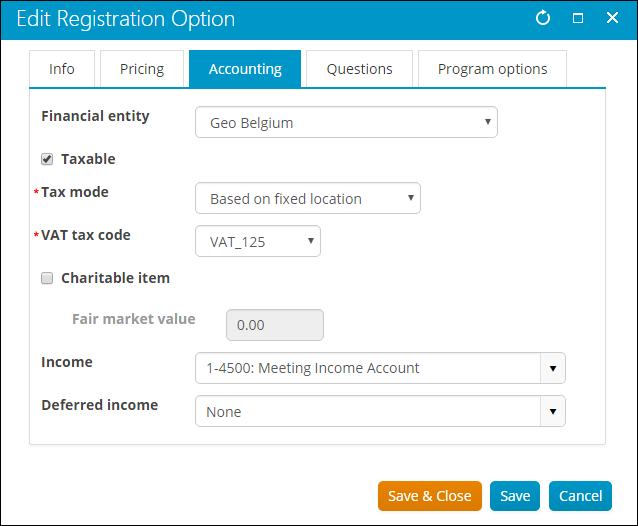
- Enable Taxable to display the VAT tax code drop-down.
- Select a Tax mode:
- Based on customer location - Uses the VAT taxation rate of the customer's country.
- Select a VAT tax category for the event function. This is required if the event function is taxable and taxed by customer location. Otherwise, the option is disabled.
- Based on fixed location - Uses the tax based on the selected VAT tax code.
- Select a VAT tax code. This is required if the event function is taxable but not tax by customer location, or if the product is taxable by location and the system pricing is defined VAT inclusive. Otherwise, the option is disabled.
- Based on customer location - Uses the VAT taxation rate of the customer's country.
- Click Save & Close.
Setting up VAT for commerce transactions
VAT taxation for commerce involves applying VAT to product categories, individual products, and shipping and handling charges. Unless a customer has a nontaxable status, VAT shipping and handling taxes are calculated on both taxable and nontaxable product purchases. Whether tax applies depends on the location of the customer relative to the organization:
- If the customer is in the same EU country, VAT applies.
- If the customer is in a different EU country but has no VAT number (private person, some types of organizations), VAT applies.
- If the customer is in a different EU and has a VAT number, VAT does not apply.
- If the customer is outside the EU, VAT does not apply.
🚧 Warning
Tax settings at the product level override those at the category level. That is, if you enable taxes for a category but not for a product in that category, no taxes are calculated. If you disable taxes for a category but enable them for a product in that category, taxes are calculated.
Best practice: Before applying VAT tax codes to products and product categories, consult with an expert on VAT rules and regulations.
📘 Note
You can override any applied VAT taxes at order entry.
Before you begin
- Enable the VAT method.
- Define the VAT codes.
- Define the VAT tax categories. This is only required if you intend to use Tax by Location functionality.
- Verify the Default country for the website (in the Staff site, go to Settings > Contacts > General).
Applying taxation to a product
Do the following to apply taxation to a product:
- From the Staff site, go to Commerce > Find products.
- Select the desired product, then select Edit.
- Click the Accounting tab.
- Enable Taxable.
- Select a Tax mode:
- Based on customer location - Uses the VAT taxation rate of the customer's country.
- Select a VAT tax category for the event function. This is required if the event function is taxable and taxed by customer location. Otherwise, the option is disabled.
- Based on fixed location - Uses the tax based on the selected VAT tax code.
- Select a VAT tax code. This is required if the event function is taxable but not tax by customer location, or if the product is taxable by location and the system pricing is defined VAT inclusive. Otherwise, the option is disabled.
- Based on customer location - Uses the VAT taxation rate of the customer's country.
- Click Save & Close.
Applying taxation to a product category
Do the following to apply taxation to a product category:
- From the Staff site, go to Settings > Commerce > Product categories.
- Select the edit icon for an existing Product Category.
- Enable Taxable. The Tax code field is displayed.
- Select a VAT Tax code for the product category.
- Click Save.
Applying taxation to a single product
Do the following to apply taxation to a single product:
- From the Staff site, go to Commerce > Find products.
- Search for and open the desired product, then select Edit.
- Click the Accounting tab, then enable Taxable.
- Select a Tax mode:
- Based on customer location - Uses the VAT taxation rate of the customer's country.
- Select a VAT tax category for the event function. This is required if the event function is taxable and taxed by customer location. Otherwise, the option is disabled.
- Based on fixed location - Uses the tax based on the selected VAT tax code.
- Select a VAT tax code. This is required if the event function is taxable but not tax by customer location, or if the product is taxable by location and the system pricing is defined VAT inclusive. Otherwise, the option is disabled.
- Based on customer location - Uses the VAT taxation rate of the customer's country.
- Click Save & Close.
Applying taxation to shipping and handling charges
- From the Staff site, go to Settings > Commerce > System options.
- Scroll down to the Add-on charges area.
- Enable Apply sales tax to shipping charges and Apply sales tax to handling charges.
- Click Save.
Setting VAT data for a contact
Before entering an order for a customer, you need to enter the VAT details for the customer on the Financial tab on a contact's account page. This ensures that these details print on invoices.
Do the following to enter VAT details for a contact:
- From the Staff site, go to a contact's account page.
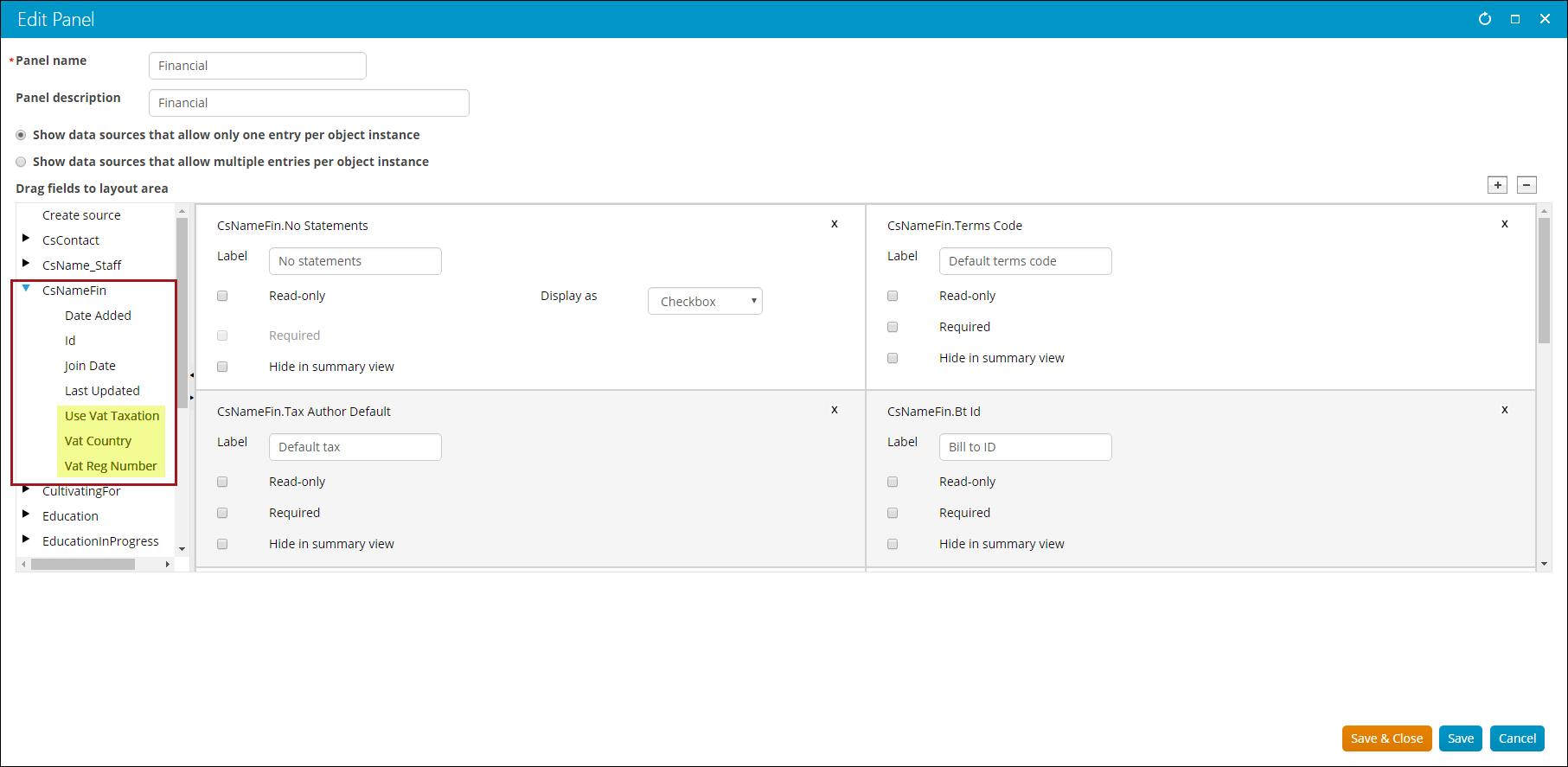
- On the Financial panel, select the gear icon. You can edit the items that are displayed on this panel.
- Expand the CsNameFin source in the list.
- Drag the following fields to the layout area:
- Use VAT Taxation - Enable if this customer is not exempt from VAT in all cases, regardless of VAT Rules.
- VAT Reg Number - Enter the VAT Registration Number for the customer. The VAT Registration Number on the VAT tab corresponds with a customer’s VAT exempt status. If a value is entered in the VAT Reg Number field, a customer will be considered exempt and will not be charged VAT.
- VAT Country - Select the VAT country from the drop-down list.
📘 Note
iMIS only processes VAT Registration Numbers issued by countries within the EU. If you enter a VAT Registration Number for a country outside the EU, VAT processing will be incorrect.
Overriding VAT for a registrant (event attendee)
When entering an event registration, a customer’s VAT details will display on the Register a customer window’s Overview tab, allowing you to decide whether or not to keep the VAT defaults which you defined at the function level. This is especially useful for international events with registrants from different countries.
- In the Advanced Accounting Console, go to Events > Register for an event.
- Select the Overview tab.
- Click New.
- Enter an Event code (select the lookup icon to look up an event code).
- Enter the registrant’s ID (select the lookup icon to look up an ID). The registrant’s name and address information will display on the Register for an event window’s data area.
- Enter the registrant’s First and Last name.
- (optional) To add the registrant to your iMIS database, enable the Add to Master option, which creates an ID.
- Complete the registrant’s information, including company, address, and phone.
- Select the Overview tab.
- Enter the Date. The date defaults to the batch date if Batch Control is used; otherwise, the date defaults to the system date.
- If needed, override the Class code.
- Enter the Bill To ID if it is different from the registrant’s ID (select the find icon to look up an ID).
- If needed, override the VAT code on the event functions the registrant selected:
- Double-click an event function.
- Enter the number of registrants in the Qty field.
- Enter the VAT code in the Tax Code field (select the lookup icon to look up a tax code). The tax calculated for the function displays in the VAT field.
- Click Save.
If the registrant has no record, click Add to go to the Attendee tab:
Overriding VAT on an order
When entering an order, a customer’s VAT details will display on the Overview tab of the Orders window, allowing you to decide whether to keep the VAT defaults which you defined at the product or product category level. This is especially useful for international organizations with customers from different countries. In addition, transaction records are not created for a zero-dollar line item.
When entering orders, VAT is charged to a customer even if the Ship to address’s Country field is blank on the Ship to Info tab as long as the following are set on the Organization Names window:
- VAT is enabled for the Default Organization.
- VAT Country is set to a valid European country code.
Do the following to override VAT on an order:
- In Advanced Accounting Console, go to Customer Service > Orders to open the Orders window. The Overview tab displays by default.
- Click New.
- Enter the Order Type (select the find icon to look up an order type).
- Enter the Bill to ID (select the find icon to look up an ID). The VAT Summary information displays after entering the Bill to ID.
- If needed, override the Order Date. The Order Date defaults to the batch date if batch control is used; otherwise, the date defaults to the system date.
- If applicable, enter a Purchase Order.
- Enter an order Source code (select the find icon to look up a code).
- If needed, override the default Shipping Method.
- If needed, override the default payment Terms.
- If applicable, enter a percentage discount for the order in the % Discount field.
- If applicable, enter a backorder Priority for the order.
- Enter and modify each product:
- Enter a Product code (select the find icon to open the Product Find window and look up a product), and press Tab. The Description field populates automatically.
- If you need to override any of the product’s defaults, double-click the product line-item to open its Product Detail window:
- Enter or override the VAT Tax Code for the product (select the lookup icon to look up a code).
- Override the default Net or Gross unit prices. As you change either price, the other price and the tax recalculate automatically.
- (Multi-warehouse) If needed, override the product’s default Warehouse.
- Enter the product’s specific order information in the available user-defined fields.
- Enter the number of products ordered in the Quantity field.
- If applicable, enter a percentage discount for the product in the % Disc field.
- Press Tab to add the product to the order. The product will display in the list of Product Line Items, and your cursor will be in the Product field.
📘 Note
Entering a product-level discount in the % Disc field overrides any order-level discount entered in the % Discount field. However, product-level discounts are applicable for a given product only and do not affect entire order-level discounts. - Click Save to enter the order, and process the order through the stages appropriate for the order type.
Modifying reports and invoices for VAT
To help with VAT reporting, key reports include details about the VAT being collected for the order:
- The new ORDER-Order Status- Order Detail Report VAT (Crystal) report includes the customer's VAT details, such as VAT Exempt status or a VAT registration number and country. The charges at the bottom include explanation of the VAT portion, if any, including the percentage that applies and the net amount being collected.
- The MEETING-Confirmations- Confirmation Letter (Crystal) report shows the amount of VAT tax included in the registration fee.
iMIS ships with an invoice standard report that includes an analysis of the VAT. In order to use this report, you need to modify the invoices in iMIS:
- Select Utilities > Report Specs to open the Report Specifications window.
- Scroll and select the specific report you wish to modify (Omnis only):
- Select MEETING-Invoices-Print Invoices to modify Event Invoices
- Select ORDER-Invoices-Activity Menu Items to modify Order Invoices
- Select a standard Omnis report
- Click Clone.
- Tab to the Title field, and place a period at the beginning of the title.
- Click Parameters to open the Detail Report Parameters window.
- Change the Rpt. File / Format to OEInvoiceVAT.
- For standard reports and Order Invoices:
- Enter the VAT tax codes in the Options field. Precede each tax code by VAT_, for example, VAT_EXEMPT, VAT_0, and VAT_196.
- For Event Invoices, do not change the Options.
- Click Save.
📘 Note
Putting a period at the beginning of the title places the report first in the alphabetical report category, making it the default.
Validating VAT
iMIS does not automatically validate VAT Codes, but there are several validation options you can configure:
Setting VAT validation options
You can decide whether to validate VAT codes, and whether to force a user to enter a valid VAT code before proceeding:
- In the Advanced Accounting Console, go to Settings > Membership > Configure membership options.
- Click Advanced, and then click Edit.
- Under VAT Validation Options, select one of the following:
- None – Disables the VAT validation options
- Allow User to Override Validation – The user can proceed even with a code the VAT validation process finds invalid
- Enforce Validation – The user cannot proceed with a code that the VAT validation process finds invalid
Hyperlinking to VAT validation websites
You can hyperlink to the EU website that provides VAT validation (or any other VAT validation site). The hyperlink you set up will appear on the VAT tab on the Manage Customers window.
Do the following to hyperlink to VAT validation websites:
- In the Advanced Accounting Console, go to Settings > Membership > Configure membership options.
- Click Advanced, and then click Edit.
- Under VAT Validation Hyperlink Options, select Show. Default values appear in the Text and URL fields, which you can override:
- If Text is blank but Show is selected, iMIS uses the default text VAT Country Validation.
- If URL is blank, iMIS uses the default value:
http://ec.europa.eu/taxation_customs/vies/vatRequest.html
- Select Save, close all windows, and restart iMIS for the changes to take effect.
Validating VAT codes with a stored procedure
To automatically validate VAT codes, you can write a VAT validation stored procedure and attach it:
- From the Staff site, go to Settings > Addresses > Countries.
- Select the country.
- In EU country code, enter the desired country code.
- In the Validation procedure field, enter the name of the stored procedure to run against any VAT codes entered into the system.
- Click Save.
Validating the number of VAT code characters
To automatically validate the number of characters in VAT codes entered (since code lengths vary by country), you can specify VAT code length parameters:
- From the Staff site, go to Settings > Addresses > Countries.
- Select the country.
- In the VAT Validation area, enter a Minimum size of VAT number and/or a Maximum size of VAT number.
- Click Save.
Updated about 2 months ago