

Managing files
Using the Content Html content item, you are able to create a link that provides a downloadable document.
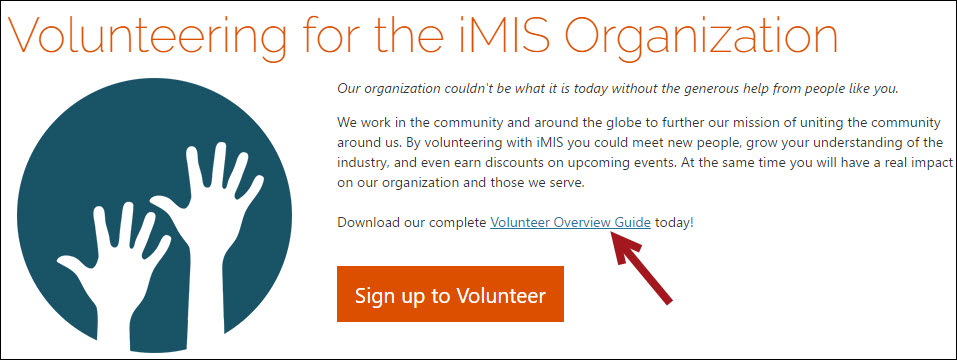
These documents can be managed from RiSE > Page Builder > Manage files. From here, system administrators and content authority group members are able to manage existing and upload new documents. If there is a document in the Document System that you wish to provide as a downloadable document, you must move or reupload the document to the Uploaded files folder ($/Common/Uploaded files).
NoteYou can increase the allowed size of uploaded files for your system. See Increasing maximum upload file size for more information.
To insert a link to a downloadable document, do the following:
- Create a new content record with the Content Html content item, or edit an existing record to insert a link.
NoteIf the content record you are working with is new, you must save the content record before you are able to upload a new downloadable document.
-
From the editor toolbar, select the content link manager icon:
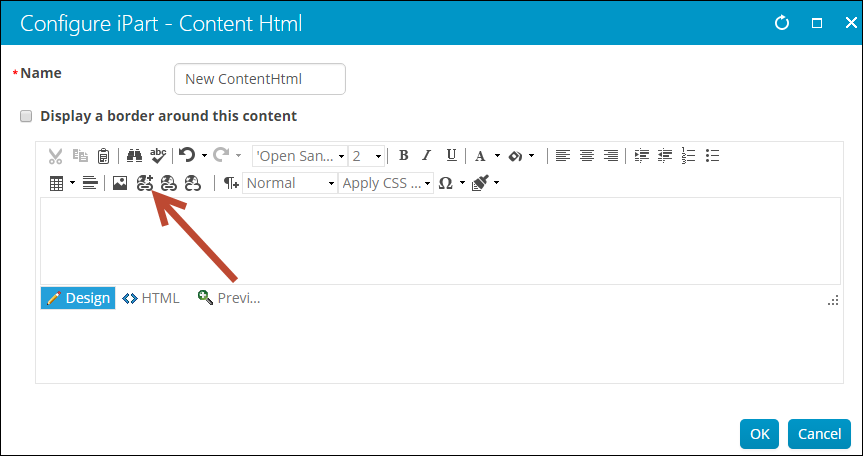 3. Choose a Link type:{`
Content or URL
This link allows users to travel to a separate webpage.
- Enter the Link text.
- To define the Content or URL do one of the following:
- Select content from the Document Browser.
- Type in a content record's direct path. For example, @/iCore/DefaultStaff.
- Type in a shortcut URL. This will preserve the link even if the content is moved in the document system. The shortcut must conform to the format ~/Shortcut.
- Type in a direct link. For example, http://www.help.imis.com.
- Enter a CSS Class that will be applied to the link.
- If the Content or URL is pointing to an iMIS content record, select a Default website.
- Enter or select a Source code to associate this link with a marketing campaign.
- Enter Additional URL parameters to include in the link. To add multiple URL parameters, follow this format: param1=value1¶m2=value2¶m3=value3
`}
Downloadable document
This link allows users to download a document:
- Enter a link description for Link text.
- From Document, select the desired file, or upload a new file by clicking New. If the content record you are working with is new, you must save the content record before you are able to upload a new file.
- Click OK.
- (optional) Enter a CSS class for the link.
📘 Note
To manage these files, go to RiSE > Page Builder > Manage files.
- Click OK.
Updated 3 months ago