

Defining promotion codes
You can define promotions (discount codes) that apply to the entire order, within any date restrictions that you define. Currently, a discount that applies to the entire order can only be a percentage discount. This discount applies to every order line in the cart, without type-specific exclusions.
You can also create promotions (discount codes) that apply only to specific items or item categories, and these discounts can be either percentages or fixed amounts. Only one promotion code can be applied per cart checkout.
Promotional discounts are not supported for membership fees.
NotePromotional codes can be applied to charitable events and products, but cannot be applied to donations (where donor selects or enters an amount).
Creating a promotion
To create a promotion, you need access to the Promotion Creator Content Item, which enables you to create and manage promotion codes that give a percentage discount.
- From the Staff site, go to Commerce > Promotions.
- Click the Add icon.
- Enter a Promotion name. This name is for internal use, and should use a naming convention that takes advantage of sorting group discounts together. This allows for simple promotion management.
- Enter a Promotion code. This is the code that will be shared externally with your customers to provide the discount.
- Enter availability dates unless you want your code to never expire.
- For What kind of promotion is this?, decide if the code will apply to the entire cart or to specific items or kinds of items that might be in the cart. Discounts can only apply to sales products, event registration options, and event program items.
- Discount applies to entire order: Currently, this percentage discounting applies to every order line in the cart to which discounts apply.
-
Discount applies to specific item(s): The discount will only apply to the specific items you select. Click the Add icon to select an item and define a new item discount, either percentage or fixed amount.
- Select the Item category from the drop-down, then choose the individual items you want the discount to apply to.
- For event discounts, choose the Event Function category and select each individual registration option and program item that the discount should apply to.
-
Discount applies to specific item categories: The discount will apply to the entire category. Click the Add icon to select an existing category and define a new category discount, either percentage or fixed amount.
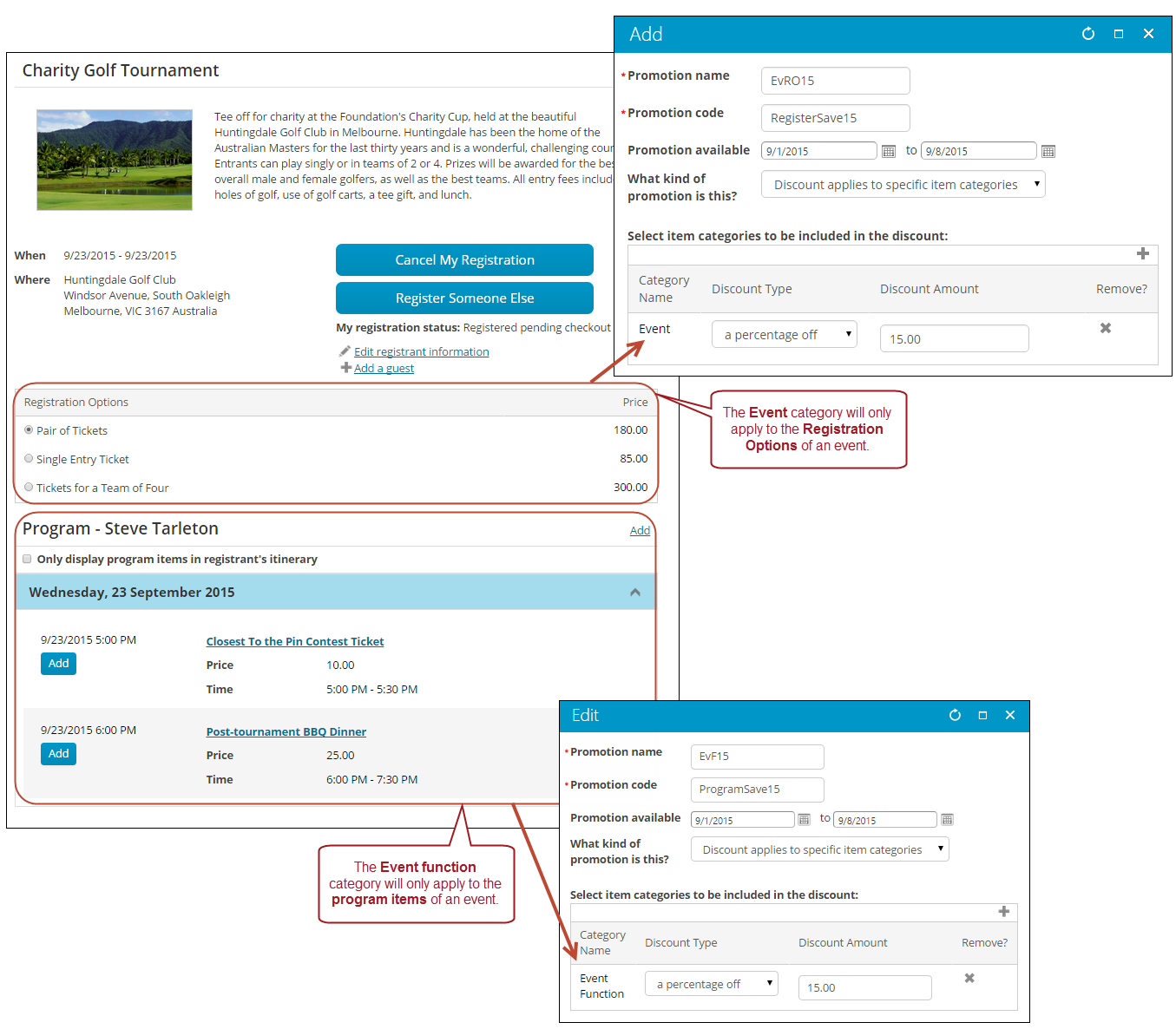
- To apply the discount to event registration fees, choose the Event category. Your events must have registration options defined in order to apply this discount.
- To apply the discount to event program items, choose the Event Function category.
- To apply the discount to an entire registration including registration fees and program items, choose both the Event and the Event Function categories.
Example: Event category versus Event Function category
Let's say for example a user has the Pair of Tickets registration option and the Closest to the Pin Contest Tickets program item in their cart, but only has the ProgramSave15 promotion code. The 15% discount amount will only apply to the price of the Closest to the Pin Contest Tickets. The Pair of Tickets registration option will be full price.
Example: Using the Event and Event Function categories together
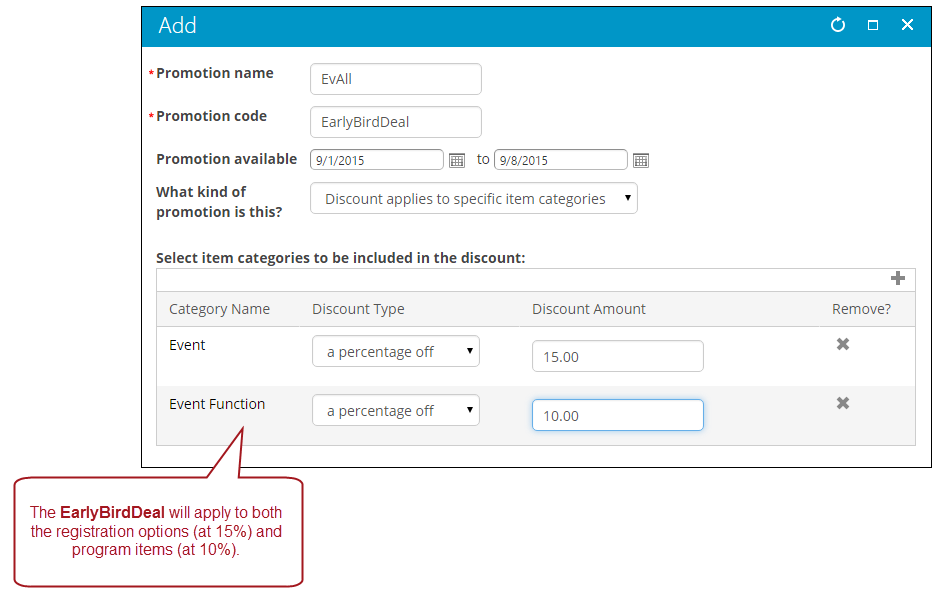
Since only a single promotion code can be applied at checkout, you could create a single promotion with the Event and Event Function categories selected. This would apply the specified discounts to both the registration options and program items.
Applying promotions
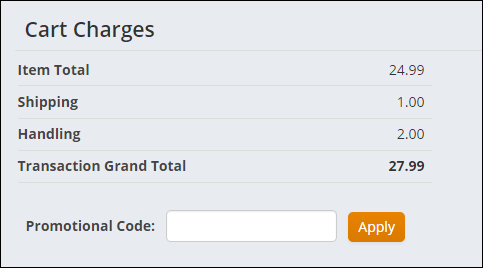
The Promotion Manager content item lets you make use of the discounts that you define using the Promotion Creator. It lets shoppers enter a promotion code to apply to their entire order. When the code is valid, the order lines update to the new reduced amounts. The content item hides itself if no promotions have been defined or if the cart is empty.
📘 Note
If a staff user has done a price override for an item in the cart, the promotion code will not apply to that line item.
Updated 3 months ago