

Configuring AutoPay
NoteIn order to use AutoPay you must have a license key. For more information, contact your AiSP or ASI Technical Support.
The following are required in order to use AutoPay:
- An AutoPay license key. For more information, contact your AiSP or ASI Technical Support.
- A tokenization engine (ASI-hosted or self-hosted). Contact ASI Hosting for more information about the ASI-hosted tokenization engine.
- Configure AutoPay through the Staff site.
- An iATS, Payflow Pro, SecurePayor Vantiv/WorldPay payment gateway account.
NotePayflow Pro only supports credit cards with AutoPay.
Configuring AutoPay settings
Do the following to initially configure recurring transactions:
- Connect iMIS to a tokenization engine:
- From the Staff site, go to Settings > Finance > General.
- Enter the DataVault service address. This is the address to the tokenization engine. You must have access to a tokenization engine in order to perform recurring transactions. Enter the DataVault service address in the following format:
-
Select the appropriate Recurring donations or Auto-renewing memberships option (Settings > Finance > Automatic payments):
- Recurring donations:
- Donations are recurring by default - Select this option to allow all donations to be recurring. Donors can disable this function at the time of transaction.
- Allow donors to change the amount of their donation - Option to allow donors to modify the amount of an active recurring donation.
- Allow donors to choose their collection date - Option to allow donors to choose the billing date for their recurring donations.
- Donors may select - 1 or 15 only - Billing will occur on the 1st or 15th of the month.
- Donors may select - Any day 1-28 - Billing will occur on the date selected, between the 1st and the 28th of the month.
- Auto-renewing memberships:
- Memberships are auto-renewing by default - Makes all sitewide memberships auto-renew by default. Members can disable this function at the time of transaction. This setting is disabled when Memberships are required to be auto-renewing is selected.
- Memberships are required to be auto-renewing - Have all memberships auto-renew. Members cannot opt out once enabled. This setting disables Memberships are auto-renewing by default when selected.
- Recurring donations:
- Save these settings.
https://ServiceHostName/DataVaultServiceNameWhere
ServiceHostNameis the name of a server andDataVaultServiceNameis the web site alias.📘 Note
Contact ASI Hosting for more information about the ASI-hosted tokenization engine, or contact your administrator for your self-hosted tokenization engine.📘 Note
You can review the status of your AutoPay setup by referring to the AutoPay status page. As you progress through your setup, the rows in the AutoPay status page will change from red to green. - Enter gateway information (from the Staff site, go to Settings > Finance > Gateway accounts). You can set up multiple gateways. For more information, refer to documentation for your preferred gateway.
- Synchronize your payment gateways with the ASI-hosted tokenization engine. Simply adding and saving a payment gateway in iMIS will not synchronize this information with the tokenization engine.
- From the Staff site, go to Settings > Finance > Automatic payment gateways.
- Select Synchronize gateways with DataVault to synchronize the gateways you defined and saved in iMIS with the ASI-hosted tokenization engine.
- (optional) Recycle the AsiSchedulerPool. If you are not self-hosted, you must contact your host for assistance recycling the AsiSchedulerPool.
📘 Note
This step is necessary only if you encounter issues after adding a payment gateway.- Open the IIS administrative utility. Go to Start > Administrative Tools > Internet Information Services (IIS) Manager.
- In the left navigation panel, go to Sites > Default Web Site. Select to view the Default Web Site Content by Content View.
- Select the Asi.Scheduler_your instance application for the instance you installed.
- Do one of the following:
- Right-click and select Manage Application > Browse. An ASP.Net page will open.
- In the Actions pane, select Browse. An ASP.Net page will open.
- Close the browser. The Asi.Scheduler_your instance service is now enabled.
- Add a new payment method/cash account tied to the gateway you added. If there is an existing payment method to which you want to add a new gateway, you must edit the existing method to select the new gateway. Remember to save. To associate your new gateway with an existing payment method, you must edit the payment method to add the new gateway code. For more information, refer to Creating and editing payment methods.
- To make your new payment method display on website, you must add the payment method/cash account to a payment method set. For more information, refer to Adding payment methods to a payment method set.
📘 Note
Only those gateways that are supported will display as synchronized with the DataVault.
Do the following:
Configuring automatic membership renewals
With AutoPay enabled for Membership, when prospective members join an organization or when they renew their memberships, they can select an option to have their future membership renewals automatically paid.
Defining a billing cycle for AutoPay renewals
An AutoPay billing cycle must contain the following options:
- Use for web joins is enabled. This allows the billing cycle to be treated as a set of product components. For more information, see Creating a new billing cycle.
- Add Member Type Items is enabled. This ensures the billing cycle is a membership billing cycle. For more information, see Setting up billing cycles.
- Specify one Member Type only. This is the Member Type that is assigned to the new member.
Any billing cycle (either cash-based or accrual-based) can be used for generating a renewal billing for subsequent membership periods. However, there are specific considerations that must be taken into account for allowing online membership renewals, or supporting automatic renewals through AutoPay.
Processing of automatic renewal payments through AutoPay is available only for membership renewals that have been billed using an accrual-based billing cycle. For more information, see Processing automatic membership renewals.
Displaying AutoPay as an option for members
Prospective regular members can elect to enroll in the automatic payment of membership renewals when they join your organization and existing regular members can enroll when they renew their membership. When prospective or existing members select this option, their membership is paid through AutoPay when their next renewal is billed.
In order to offer automatic payment of membership renewals, your content should include an Auto Pay Instructions Creator content item. This content item is displayed to website users only when there is a Join Now product or an accrual renewal invoice in the Cart. If your Cart does not already include the Auto Pay Instructions Creator content item, edit the Cart content record to add this content item in the location you would like it to appear on the Cart page.
Defining an itemized membership renewal set
All members who have been billed for renewal (regardless of whether they were billed on a cash or accrual basis) can renew online. However, members renewing online will only be presented with an itemized list of billing components and the option to make modifications if certain conditions exist.
Renewals billed using accrual-based cycles (this would include members enrolled in automatic renewals) are not presented with an itemized list of products.
Renewals billed using cash-based cycles are presented with an itemized list of products if a billing cycle is defined with the following conditions:
- Specify one Member Type only. This ensures the correct products are offered for the appropriate Member Type. This also allows the option to offer additional products that might not have been billed as part of the original renewal, for example, Voluntary Contributions.
- The Use to display itemized web renewals option is enabled. For more information, see Creating a new billing cycle.
📘 Note
If you do not have a billing cycle defined that meets these conditions, then existing members will still be able to renew online, but they will not be offered an itemized list of subscription products. You can continue to bill members using a single billing cycle that applies across multiple Member Types, but you must create separate billing cycles for each Member Type if you want to offer an itemized list of products during online renewal.
Any members who have not opted to automatically renew their memberships, and are billed using an accrual-based cycle, can renew online but they will not be offered an itemized list of products.
When billing members who have enrolled in automatic renewals, Staff users must choose an Ad Hoc search to select only those members who have elected to renew their memberships automatically. Staff users can select an Ad Hoc search for members who are enrolled in AutoPay (to be used with the Accrual-based billing cycle), or those who have not enrolled in AutoPay.
Organizations offering automatic membership renewal should maintain a minimum of two billing cycles:
- Accrual-based – This billing cycle is used for those members who have elected to automatically renew their membership and have an existing AutoPay instruction. Organizations will not be able to simply search for existing AutoPay instructions, as they cannot be found using an Ad Hoc search.
- Cash-based – This billing cycle is used for those members who have elected not to automatically renew their membership. This billing cycle can be used for Join Now transactions.
📘 Note
Organizations must switch their billing cycle default to accrual.
Configuring automatic recurring donations
When making a donation online, donors are invited to make recurring donations with monthly, quarterly or annual automatic payments. Staff users can cancel payments at the donor’s request.
Creating a recurring donation page
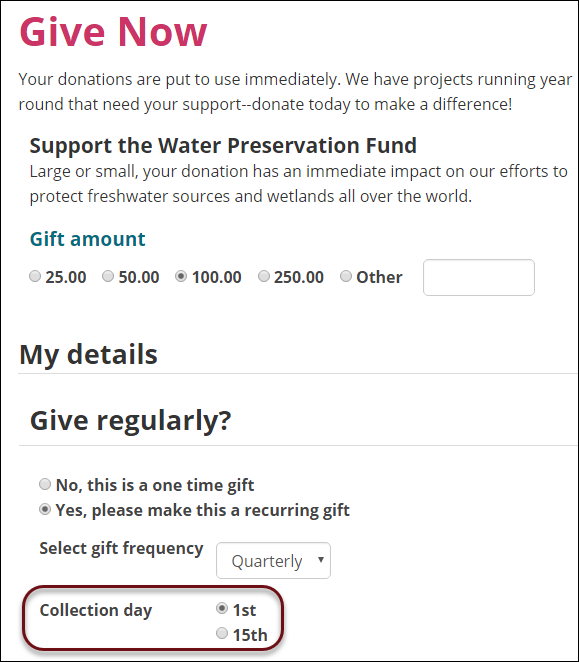
When a donor wants to make an easy, one-click donation, the donor can use the Give Now page. Recurring Donations takes Give Now one step further and allows your donors to elect to automatically continue giving monthly, quarterly, or annually. The Give Now page, when configured with AutoPay, allows your donors to select the frequency of their recurring donation.
For more information, refer to Building a custom donation page.
Setting a collection day for recurring donations
Recurring donors can choose the day they want to be billed for their automatic payment enrollments. The collection day setting is configured on the Staff site by going to Settings > Finance > Automatic payments .
Staff users can set the Collection Day to be either the first or the 15th of the month, or allow donors to choose a day ranging from the first of the month to the 28th. Recurring donors will see the available collection days on the Give Now pages of your organization's site at the time of transaction.
Updated about 2 months ago