

Working with communication templates
Do you regularly send standardized email messages, such as renewal notices or birthday greetings, to engage your contacts? Do you need an easy way to create and manage the numerous email templates your organization uses? To create and manage email templates, you can quickly access iMIS Communications in the Staff site from Marketing > Communication templates.
The following can be done with iMIS Communications:
- Compose an email template
- Choose email recipients by selecting an IQA query
- Add query data sources to the template allowing you to insert merge fields from additional data sources in the message
- Send an email directly to the recipients
Defining a new email template
- From the Staff site, go to Marketing > Communication templates > New > Communication.
- Compose the email.
Click for details
- Enter the From, Subject, Type, and email message. If needed, click the Cc or Bcc links under the To field to enter Cc or Bcc email recipients.
📘 Note
If you enter multiple email addresses in the To field, any addresses entered in the Cc or Bcc fields will receive a copy of the communication for each recipient address listed in the To field, rather than receiving a single copy of the original communication.- If every recipient address entered in the To field cannot be resolved then the communication will fail to send.
- If one address in the To field is valid then the communication will send to that particular address and ignore any addresses that could not be resolved.
- The Type field provides your members with classes of email to opt in and out of.
- If you would like a staff person to receive the order confirmation template as well, you must enter their email address in the Bcc field.
- (optional) By default, email addresses display in the From, To, Cc and Bcc fields. If you would like to display a friendly name, simply enter the friendly name in the field before the email address. For example, “Your Organization Name <[email protected]>” will display to recipients as “Your Organization Name.”
- (optional) Save As to save an email for future or repeated use.
📘 Note
For advanced email, 64 characters is the maximum length that can be used for the From email address. If the email address is provided through a query-supplied value, ensure that the supplied email does not exceed 64 characters. The email address will be shortened when the email is sent if it exceeds the maximum character length.📘 Note
For advanced email, 50 characters is the maximum length that can be used for the friendly name. If the friendly name is provided through a query-supplied value, ensure that the supplied name does not exceed 50 characters. The friendly name will be shortened when the email is sent if it exceeds the maximum character length.Click for details
All information in your email is included in the saved drafts including the recipient list, attachments, and message content.
Make sure to label your communications carefully. Saved email drafts include all information from the saved communication, including the contact list query. It is recommended to use a naming convention to identify your query in any saved email drafts. For example enter "All Members Thank You Communication" instead of "Thank you communication" to avoid any confusion about the content of the draft.
- Enter the From, Subject, Type, and email message. If needed, click the Cc or Bcc links under the To field to enter Cc or Bcc email recipients.
-
Click Choose Recipients to select the contacts to whom you will send the email.
Click for details
- Click Select to select the query you want to use as the primary data source. This query retrieves the contacts to whom you will send email. By default, the SelectedContact query, which retrieves the selected contact (i.e., the contact you are signed in as or working on behalf of) is the primary data source. See Creating a list of contacts to email for more information.
- Deselect the names of any contacts that you do not want to receive the email. By default, the maximum recipients returned by communication queries is 500. If your query returns more than 500 recipients and you would like to deselect someone that isn't shown, you will need to modify the limit in the web.config file.
- To continue composing your email template, click Return to Compose.
- Two parameters in your communication are auto-filled. The To field includes the parameter {#party.Email}, and the salutation field includes {#party.FirstName}. These values, along with any other party fields, will only be resolved if your recipient query has a valid column that identifies the contact's ID.
📘 Note
The query must have a column that identifies the contact’s ID. Also, if the query contains filters with required or optional prompts, it must have default values because they cannot be changed when the email is sent.📘 Note
If the query contains filters with required or optional prompts, you cannot deselect recipients from the list. -
(optional) Click Additional Data Sources to associate additional data sources with the email template. Fields from the data sources can be inserted in the email message. The party data source, which provides basic information about email recipients, is a default data source.
Click for details
- Click Add data source.
- Select a query.
- If needed, change the Alias for the data source. The Alias is how you refer to the data source when creating the email communication. Fields from the data source will be prefixed by the Alias in the Insert field drop-down. The default Alias is the query name.
- Click OK.
- To edit a saved data source, click its edit icon and make the necessary changes.
- Click Return to Compose.
🚧 Warning
(Service Pack M or later) When creating a new communication template or editing an out-of-the-box template, the Additional Data Sources will have a Default query with an Alias of party. Do not remove this data source! You may add additional data sources, but the Default data source should remain to ensure that the email is received.If a filter in the additional data source matches a display column in the recipient query, the property is used to link the two queries. For example, if the additional data source uses ContactKey as a filter, and the recipient query uses ContactKey as a display column, their information can be linked. On the filter tab in the additional data source query, the Comparison type should be set to Equal, and the Prompt should be set to Required.
When the additional data source does not use filters or uses non-matching filters, the same data will be returned for each recipient. These data sources are useful when you want to insert standalone information, such as the name of a program administrator, that is not related to the recipient list in the email message.
If an additional data source returns multiple data rows, a foreach statement can be used in the body of the communication to display data from each of the rows.
- (optional) Use the Insert field drop-down to add fields to be merged for each recipient. Available fields include columns from the recipient query and added data sources and also commonly used contact properties. Any fields that are not found from the defined data source will resolve as blank.
Inserting and formatting data
- {#party.FirstName} - Use this parameter to address all recipients by their first name
- {#party.Email} - Use this parameter in the To field to send the communication to all contacts in your query
📘 Note
You can reformat these fields with a formatting string. To specify a format, add format=”FORMAT_HERE” inside the brackets, with FORMAT_HERE specified by .NET Framework Standard Format Strings. For example: {#iqa.DataAdded format="d"}. - format=“C” - Currency: Convert 123.456 to $123.46 ("C", en-US)
- format=“d” - Short date: Convert 6/15/2009 1:45:30 PM to 6/15/2009 (en-US)
👍 Example
{#ProgramItems.BeginDate format="d"} - format=“D” - Long date: Convert 6/15/2009 1:45:30 PM to Monday, June 15, 2009 (en-US)
There are both Date/Time and Number formats available:
For more information on formatting types, please reference the .NET framework.
Use placeholders within the content and the title to denote areas that will resolve against the data sources. Placeholders may also be used to populate attributes within HTML tags, such as the src attribute of <img> and <a> tags. Placeholders are specified using { } notation. For example:
{datasource[.property... ] [attributes]}The
{#...}placeholder embeds data into the content or title at the placeholder location. The placeholder consists of the following components:- datasource - The name of the data source.
- property - (optional) The name of the property. May be chained together using dot notation. For example, prop1.prop2.prop3. Where the property is a collection, a specific item may be accessed using [i] notation. For example, .Address[1] would return the item at index position 1 from the Address collection.
- attributes - (optional) A space delimited set of attributes, some of which require values. Multiple attributes may be specified:
- uppercase - Convert the data to uppercase
- lowercase - Convert the data to lowercase
- format - Format non-string values, such as Format="d", for date (search MSDN for iFormattable)
- noencode - Do not HTML encode the data. This is useful where the data contains HTML markup that you wish to be rendered in the browser.
👍 Example
<strong>{#Party.FirstName noencode}</strong>
-
(optional) To include repeating data in the email from an associated data source, use the {foreach} placeholder. For more information, see Inserting repeated data in a communication.
📘 Note
To see a live example of the {foreach} placeholder in action, watch the Communication Creator - Advanced features video at the bottom of this page. -
(optional) To add a link to the communication, select one of the following from the Insert link drop-down:
Communication Preferences Link
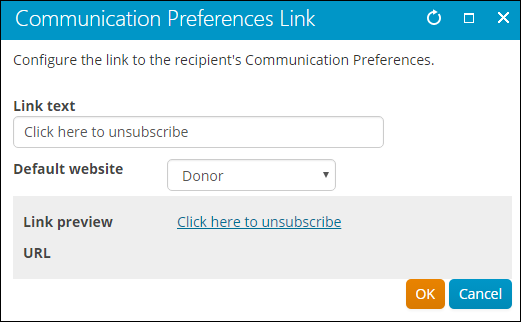
Select Communication Preferences Link to include a subscription preferences hyperlink in your email. This link will enable users to manage their email subscriptions directly, without logging in to your site.
📘 Note
Your query must include contacts in order for the subscription preferences link to work.- Provide the hyperlink text to appear in the email.
- Select a website from the drop-down. This is the website where users will manage their communication preferences.
- The link preview displays the hyperlink that will be inserted into the email. Once the link has been inserted into the email body, you can adjust it through the hyperlink designer or directly in HTML mode. Do not adjust any of the query parameters and always test any changes to the URL.
📘 Note
Ensure that the URL is accessible outside of your corporate network. If the hostname portion of the URL is localhost, or an internal server name, then the link will not work when your recipients try to click it. We recommend that you click the link to verify that you are taken to the correct page.
The hostname for your website is determined by a setting in RiSE. To set the hostname, go to RiSE > Site Builder > Manage websites in the Staff site. Select the website. On the Properties tab, the URL(s) pointing to the IIS website root setting determines the hostname.🚧 Warning
Testing the link inside your corporate network does not confirm it will work when accessed over the internet. Be sure to test the link from a device not connected to the network.Content or URL
Select Content or URL to insert a standard link into the communication:
- Enter the Link text.
- Define the Content or URL:
- Select content from the Document Browser.
- Type in a content record's direct path. For example, @/iCore/DefaultStaff.
- Type in a shortcut URL. This will preserve the link even if the content is moved in the document system. The shortcut must conform to the format ~/Shortcut.
- Type in a direct link. For example, http://www.help.imis.com.
- Enter a CSS Class that will be applied to the link.
- If the Content or URL is pointing to an iMIS content record, select a Default website.
- Enter or select a Source code to associate this link with a marketing campaign.
- Enter Additional URL parameters to include in the link. To add multiple URL parameters, follow this format: param1=value1¶m2=value2¶m3=value3
- Click OK.
Anchors
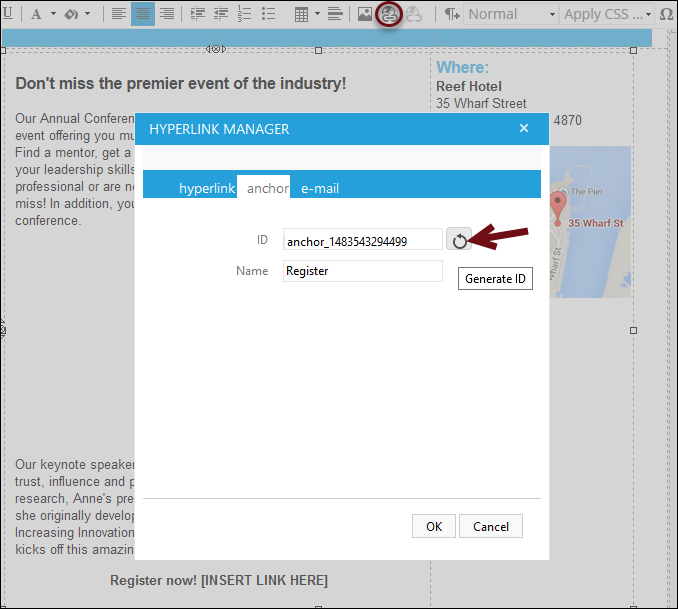
Adding an anchor link allows email recipients to jump to a specific location within the email:
- Highlight the word or sentence you want the link to jump down to.
- Click the Hyperlink Manager (Ctrl + K).
- Click the anchor tab.
- Generate an ID, and then enter a value for Name.
- Click OK.
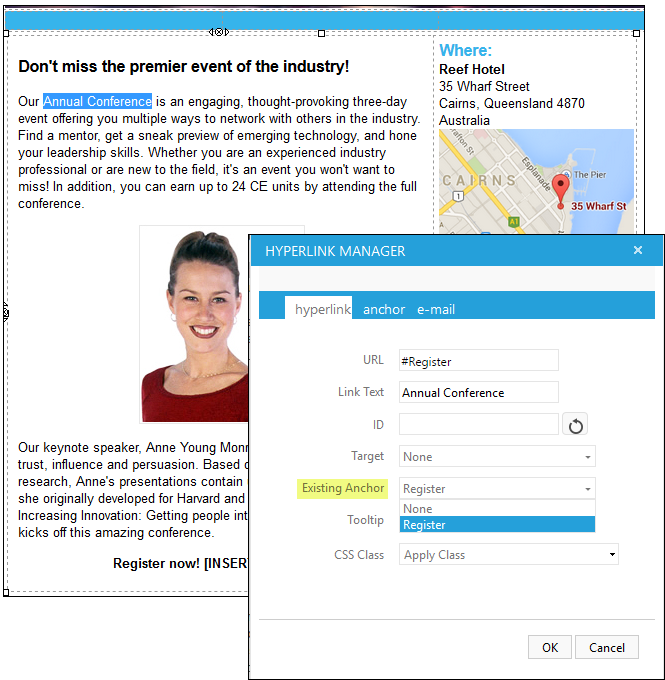
- Go to the text you want to link and highlight it.
- Open the Hyperlink Manager (Ctrl + K).
- Select the appropriate anchor from the Existing Anchor drop-down.
- Click OK.
- Select Add attachment to include a PDF or RDL (SSRS report) from the Document System as an attachment to your communication.
- Select Add attachment and navigate to the Document System folder where the file will be saved.
- Click New > Adobe PDF or Reporting Services Template.
- Click Select to browse for the file.
- Select the file, then click Open.
- Enter a file Description, then click Upload.
- Select the file, then click OK.
- Click Preview to view a preview of the email for each recipient. Click Prev or Next to review the email for each recipient.
- To save this email as a reusable template, click Save As. The email template is saved in the $/Common/Communications folder in the Document system.
- (optional) Enable Advanced email when sending mass (or bulk) emails for more efficient and immediate deliverability. See Setting up Advanced email.
- (optional) To send the email to the recipients immediately, click Send Now. A confirmation notification is displayed. The confirmation indicates that the number of messages attempted matches the number of results selected. Errors are listed individually explaining why the email was not sent.
- To review the status of your communication job, go to the Communication logs (Marketing > Communication logs). For more information, see Communication logs.
📘 Note
When opened as an attachment, reports containing subreports are not displayed properly in a PDF viewer. It is recommended that you do not send reports containing subreports as attachments.
You can also upload a PDF or RDL to be used as an attachment:
📘 Note
If you want to send a personalized report to each recipient, the RDL file should contain ContactId, CustomerId, ID, iMISId, PartyId, or StudentId as a parameter. If the RDL file does not contain one of these parameters, a static report, which only uses data sources within the report and does not use recipient list query data, is sent to the recipients.
📘 Note
You must enter From and To addresses to preview the email.
Inserting repeated data in a communication
You can use the {foreach} placeholder in communications to insert repeated data from queries. Before you begin building the queries you want to use as the repeated data in a communication, there are a few requirements you must be aware of:
- The recipient query must contain a display property that matches a filter property in the additional data source query.
- The filter property in the additional data source query must have a Prompt of Required.
This is the only way to link the recipient query and the additional data source query. If the additional data source (the one with the repeating data) is not linked to the recipient query (whom the communication is being sent to), all of the returned information in the additional data source query will be sent to all recipients.
Creating the queries and using the {foreach} placeholder
As a staff member, I want to send a communication to all event registrants of the Annual Conference to remind them of their event registration and the program items they registered for. To do this, I need to create two queries:
- A recipient query - This query is a simple query that will return every registrant who is attending the Annual Conference.
- Additional data source query - This query will return the program items that the registrants have registered for. In other words, this is the data that will be repeated throughout each communication.
Building the recipient query
Do the following to create the recipient query:
- From the Staff site, go to Marketing > Communication templates.
- Select the Queries folder, then select New > Query.
- Name the query. For this example, name it Annual Conference attendees.
- Select sources. This is where you identify where the data will be retrieved from.
-
Click Add Source, then select the sources you want retrieve data from. For this example, select the following three sources:
- CsRegistration
- CsEvent
- NetContactData
-
If one or more of the sources do not have Relations, add a Custom relation. For this example, add the following Relations:
- Custom (When CsEvent.Event Code = CsRegistration.Event Code)
- Custom (When CsRegistration.Bill To Id = NetContactData.Bill to ID)
-
Select filters. This is where you will specify what information from the sources that you do and do not want. For this example, modify the results to only return registrants of the Annual Conference:
- Select the csEvent.EventCode property.
- Enter the event code in the Value field. For this example, the Value is ANNCONF.
- Click the plus (+) icon to add the filter.
-
Select display. This is where you define what properties you want to use in the communication. For example, the event name, attendee name, and event beginning and ending dates. For this example, use the following display properties:
- CsEvent.End Date
- CsEvent.Event Code
- CsRegistration.Full Name
- NetContactData.Id
- CsEvent.Begin Date
- CsEvent.Title
- CsRegistration.Order Number
- Click Run to see the results of the query.
- Click Save As and save the query in the Queries folder.
- Click OK.
This information could be manually entered in the communication, but say in a week you need to send the same communication to the attendees of the Music Educators Conference. All you would need to do is edit the query Event Code (Value). The property fields you choose to display will automatically populate for the Music Educators Conference, and your communication will be ready to send in seconds!
📘 Note
Notice that the query in this example contains a display property of NetContactData.Id. For the two queries to be successfully linked together, a display property from the recipient query (the query you are building now) must match a filter property from the additional data source query (the query you will build next). For this example, we are using the NetContactData.Id display property to link the two queries. This is something we will revisit when creating the additional query.
Building the additional data source query
Do the following to create the additional data source query that will return what program items each registrant of the Annual Conference has registered for:
- Create a new query and Name it AC Program Items.
- Select sources and choose the following sources:
- CsFunction
- CsRegFunctions
- NetContactData
- Give the sources the following Relations:
- Custom (When CsFunction.Product Code = CsRegFunctions.Product Code)
- Custom (When Cs.RegFunctions.Bill To Id = NetContactData.Bill to ID)
- Select filters. For this example, we want the program items:
- Select the Cs.Function.Is Event Registration Item property, and set the Value to (Any).
- Next, we need to add the filter that will link this query to the first query. Select the NetContactData.Id property and set the Prompt to Required.
- Click the plus (+) icon to add the properties.
- Select display. Choose the properties you want available in the communication. For this example, choose the following properties:
- CsFunction.End Date
- CsFunction.FunctionDescription
- CsFunction.Title
- CsFunction.Begin Date
- Click Save As, and save the query in the Query folder.
- Click OK.
📘 Note
The Prompt must be set to Required in order for the queries to properly communicate.
Now you can begin composing the communication with repeated data by using the {foreach} placeholder.
Composing the communication and using the {foreach} placeholder
📘 Note
This example assumes you have already constructed the queries in Building the recipient query and Building the additional data source query.
The following example assumes you are a staff member who wants to send a communication to all registrants of the Annual Conference. The purpose of the communication is to remind the registrants of the conference date, and to remind them of the program items they registered for. To do this, you want to use a formula so you can send the same communication to all registrants, and not have to worry about customizing the email for each individual person.
Before you can begin composing the communication, you need to make sure the two queries you will use in the communication are properly constructed, and contain all required components.
Once your queries are correctly designed, you can begin composing the communication. To use the {foreach} placeholder in a communication, do the following:
- From the Staff site, go to Marketing > Communication templates.
- Open the Templates > Samples folder to select an out-of-the-box template, or select New > Communication to use a blank communication. For this example, use the Event Reminder template.
- Select Choose Recipients. Select the Annual Conference attendees query.
- Click OK. The list of recipients appears.
- Select Return to Compose.
- Select Additional Data Sources.
- Select Add data source. Select the additional query to include in the communication. For this example, select the AC Program Items query.
- You can change the data source Alias, or leave it as the title of the query. For this example, the Alias is renamed to ProgItems.
- Click OK, then select Return to Compose.
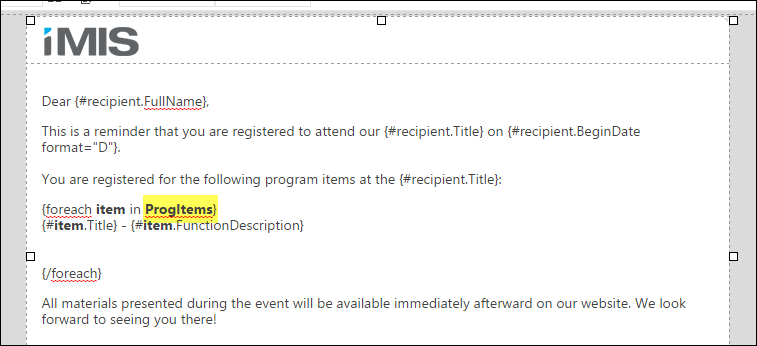
- Format the program items (the repeated data) by using the {foreach} placeholder:
- For this example, you want to list the program items the recipients are registered for. This will require including repeated data. To do this effectively, you have to use an opening and closing {foreach} placeholder. The content between the opening and closing placeholders is the inner content that is repeated.
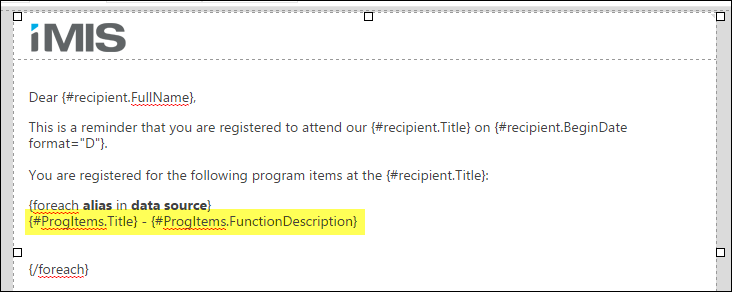
- Before you begin changing the formula, insert the repeated data fields. For this example, you want the program item title with its function description to be the repeated data. From the Insert field drop-down, select ProgItems.Title and ProgItems.FunctionDescription.
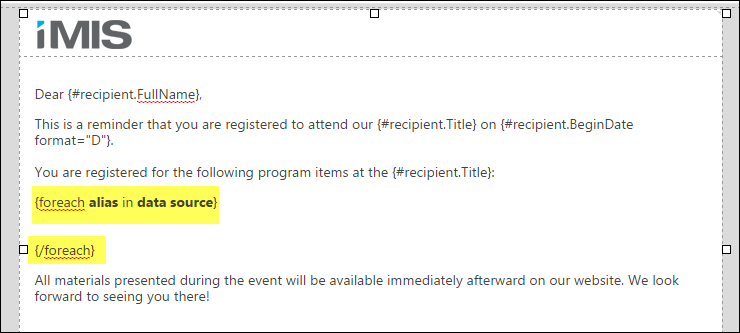
- Begin replacing alias and data source with content that will generate the repeated program items:
- Change alias to items. Once you change the alias in the formula, you must change the alias in the repeated data fields.
- Change data source to the Alias name you gave it in step 8.
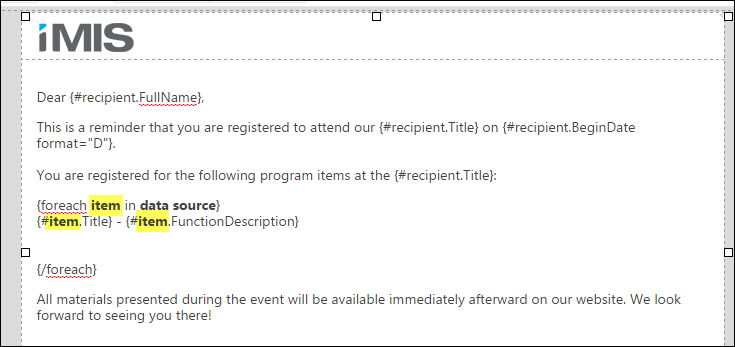
The opening {foreach} placeholder must conform to the syntax {foreach alias in data source}.
📘 Note
Remember, the alias in this formula can be named anything you choose, it just has to be consistent throughout the formula.Click to view image
📘 Note
The content within the brackets is case sensitive. - Click Preview.
- Click Prev and Next to see how each recipient's program items are different.
The communication creator allows users to use information from queries in the communication. For example, click the Insert field drop-down. You will see the display fields from the recipient query you just selected.
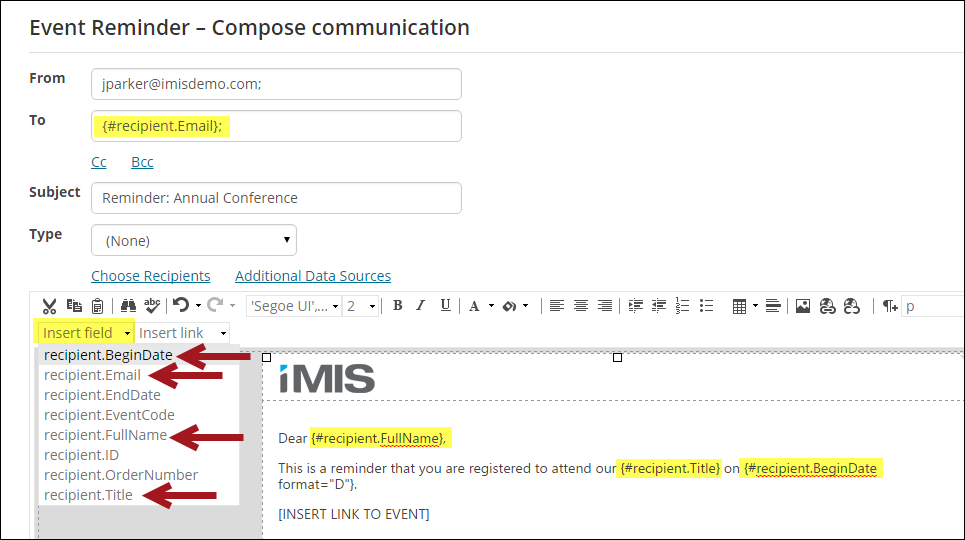
However, you also need to include the program item information. To do this, you will need to add an additional data source (query).
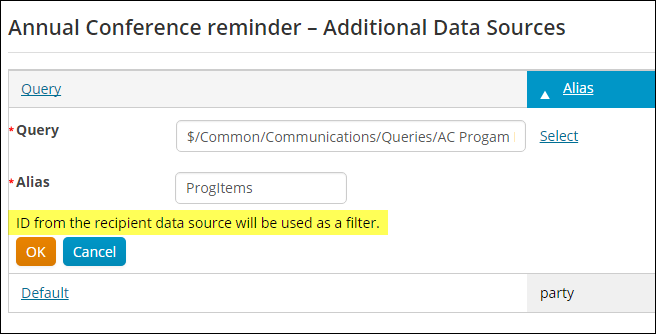
If the two queries are properly linked together, the message ID from the recipient data source will be used as a filter is displayed. It is important that the two queries are linked together because this ensures each recipient will only receive program item information pertaining to them. If the queries are not properly linked, recipients will receive program item information for all recipients, and not just themselves.
📘 Note
The Alias is used to identify the data source when inserting a field into the communication from the Insert field drop-down, so a short Alias is recommended.
Now when you select the Insert field drop-down, the display properties from the AC Program Items query are listed. You can insert information from the additional data source query into the communication. Edit the query at any time to add additional fields to this drop-down.
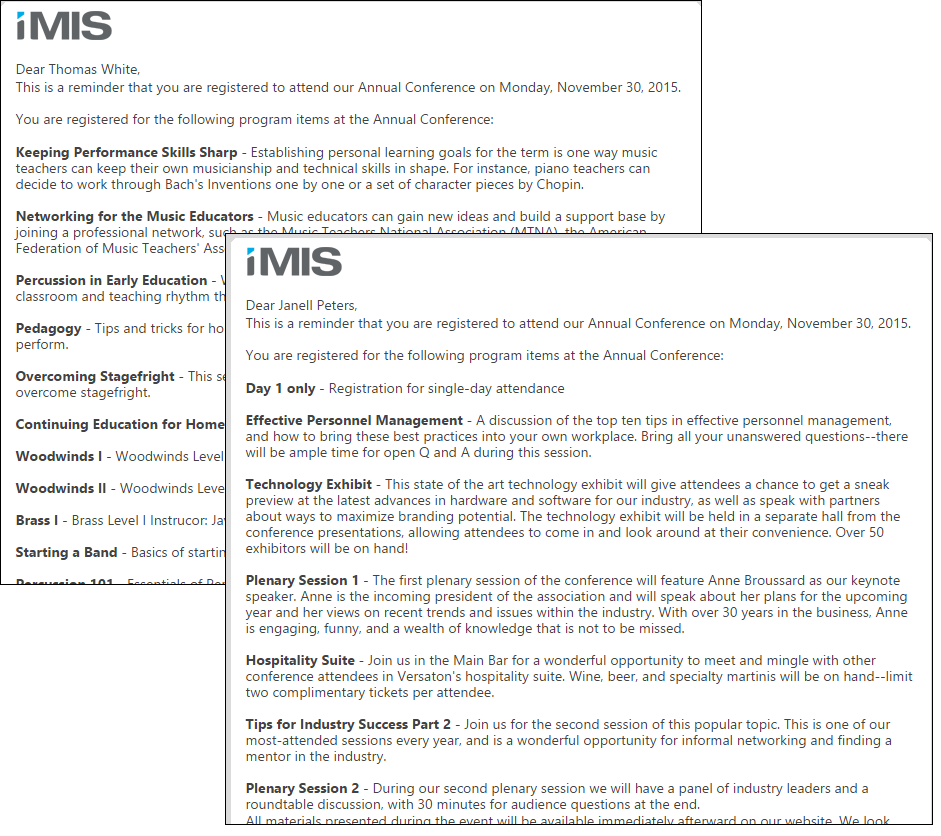
Advanced {foreach} formula information
The following is a more complex syntax of the opening {foreach} placeholder:
{foreach alias in source [orderby [property,...]] [limit [number]]}
This syntax consists of the following components:
- alias - A name for a record in the data source that contains the repeating data.
- source - A data source associated with the email that contains the repeating data. Within the {foreach} placeholder, the source is referred to by the alias for the additional data source.
-
orderby -(optional) To sort the data, use the orderby keyword followed by a comma-delimited list of properties to sort the data by.
- A maximum of 5 sorting properties may be specified.
- Property names must refer to properties in the data source.
- Do not specify a data source in the property names. The data source is ordered before the optional limit clause is applied.
- limit - (optional) To limit the number of records processed in the data source, use the limit keyword followed by the maximum number of records. Limit is applied after the entire collection has been sorted using the orderby clause.
- You can use HTML tags within the placeholders to format the repeating data. Add the HTML tags in the HTML view. For example, you can use the <ul> tag to create a bulleted list.
- In the following example, merge fields from an associated data source (aliased as lines) that retrieves product order information would repeat in the email. The l is the alias within the {foreach} placeholder for a record in the data source. The descriptions, quantity ordered, unit price, and extended amount properties are repeated for each record in the query results. The quantity ordered property is formatted to use 0 decimal places.
{foreach l in lines}
{#l.Description} {#l.QuantityOrdered format="0"} @ ${#l.UnitPrice} = ${#l.ExtendedAmount}
{/foreach}
Several lines in the email sent to a contact might look like the following:
- Certification Practice Exam 1 @ $39.00 = $39.00
- Conference Practice Exam 1 @ $39.99 = $39.99
- Software Basics: New Hybrid Edition 1 @ $19.99 = $19.99
📘 Note
In this scenario, the email uses a recipient query with a display property that matches a filter property in the additional data source. This links the recipient query and the data source, so only product information for the contact receiving the email displays. If the data source with the repeating data is not linked to the recipient query, all of the records in the data source will be listed in the email.
Customizing the out-of-the-box templates
Do the following to customize a communication template:
- From the Staff site, go to Marketing > Communication templates.
- Select the Templates folder, then select the Samples folder.
- Open the email template. The email editor displays.
- Click Save As.
- Name the template something unique to your organization, then save the template in a Shared Content folder.
- Reopen the template and edit as needed.
- Click Preview to view a preview of the email for each recipient. Click Prev or Next to review the email for each recipient.
- Click Send Now. A confirmation notification is displayed. The confirmation indicates that the number of messages attempted matches the number of results selected. Errors are listed individually explaining why the email was not sent
📘 Note
Communications with span styles applied to bullet or numbered lists do not properly display in Adobe Reader.
You can also email a single contact from their staff account page or a group of contacts retrieved in a Query Menu content item. In the email editor, you can choose to Open a saved email template.
Setting up a Default communication template
You can now tailor a default template that can be used whenever a new communication is composed. Simply follow the steps below:
- Navigate to Marketing > Communication templates > Templates > Samples.
- Select the Default template.
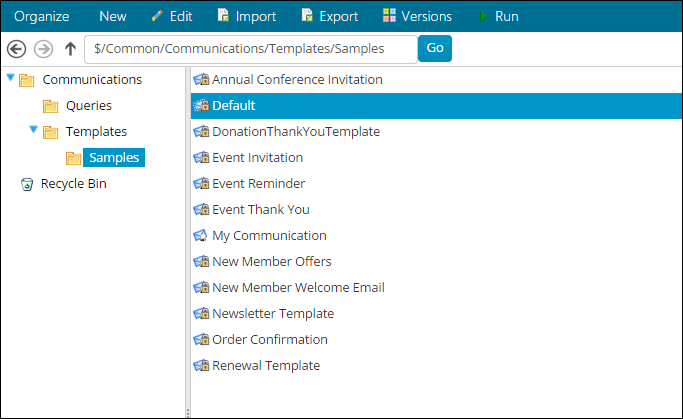
- Copy and Paste the template to the Templates folder in order to avoid having your template overwritten during an upgrade.
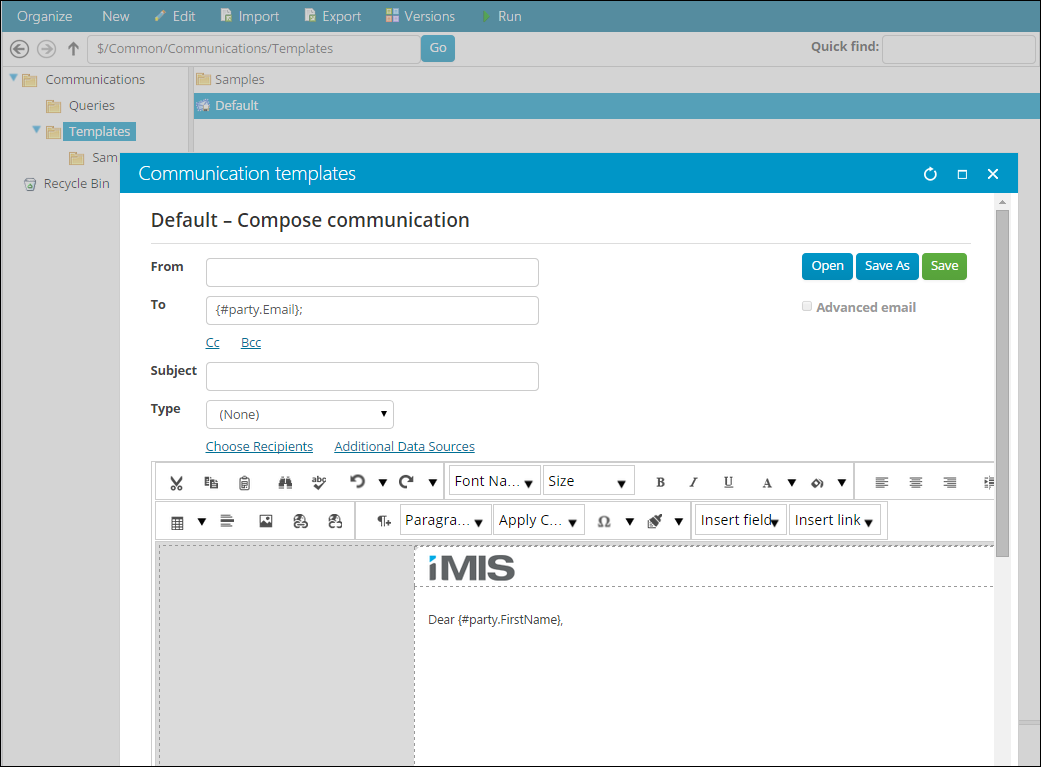
- Edit the template as needed.
🚧 Warning
Do not rename the template. In order for the template to be set as the default template, it must be titled “Default.” There should only be one template titled “Default” within the Templates folder. If there are multiple templates entitled “Default,” then the most recently created default template will be used.
- Select New > Communication to view your new default communication template.
📘 Note
If a Default template is not defined in the Templates folder, the standard Communication Creator message designer will be used for new communications.
Accessing and modifying a saved communication template
To access a saved communication template, do the following:
- Open the template directly from the Document system
- Email a contact from their staff account page and choose to Open in the email editor
- Email a list of contacts retrieved in a Query Menu content item and choose to Open in the email editor
To modify a saved communication template, do the following:
- From the Staff site, go to Marketing > Communication templates.
- Locate the template, then click Edit.
- Once you are finished, click Save to overwrite the initial template, or click Save As to create a new template.
Updated 3 months ago