

Meeting Closer
Meeting Closer allows you to easily manage both open and closed/hidden meetings so that your iMIS meeting’s environment can remain organized and up to date. With Meeting Closer you can do the following:
- Close/Hide a Meeting or Expo and generate meeting and function activity records for attendees.
- Generate speaker activities.
- Automatically generate CEUs if a function has a CEU assigned.
- Maintain registration detail for future reporting.
- Re-open a meeting so that it can be cloned in iMIS or built-in iMIS reports can be run.
System requirements
The following system specifications are required to successfully run Meeting Closer:
- iMIS 2017
- Machine running Meeting Closer must be able to connect to Application Server.
Meeting Closer for iMIS EMS
Meeting Closer will continue to work with the following iMIS environments:
- EMS On-Prem
- Advanced 20/20
If you require the Meeting Closer functionality to close and re-close meetings to continuously generate CEUs, then we highly recommend keeping Meeting Closer for your organization. See Meeting Closer Transition to iMIS EMS.
Installing Meeting Closer
It is best practice for all users to be on the same version of Meeting Closer. Do the following to install Meeting Closer:
- Download the app from the Support Portal.
- Unzip the folder and navigate to the unzipped folder.
- For Win Vista/7/2008,right-click on the Setup.exe and run as Admin.
- The Setup Wizard will open. Click Next.
- The license Agreement will display. Click I accept.
- Click Next.
- Verify the default installation folder. Click Next.
- Click Install to start the installation. A screen will then show, displaying the progress of the install.
- A screen will confirm that Meeting Closer has been successfully installed. Click Finish.
Setting up Meeting Closer
Do the following to set up Meeting Closer:
- Launch Meeting Closer from your installation path.
- Log into Meeting Closer using your iMIS user name and password.
- DSN represents your iMIS 10 ODBC server location.
- The web server represents your iMIS 15 (and above) application server location.
NoteYou may be prompted for a license key. If so, please enter the one that CSI provided. If you need a new license key, please contact support.
- You may be prompted saying that Meeting Closer needs to update the Database Server. Click OK.
- You will then be prompted to enter your database SA credentials. If so, enter them and click OK.
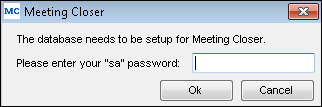
Meeting Closer is now ready to use.
About the License Key
When you first log into Meeting Closer, the license process will attempt to register your license key automatically by calling back to CSI to get your iMIS information.
If the information that CSI has on record is accurate then you will not be prompted with any license key information. It will update your license information automatically.
If the process cannot call CSI or the license key information does not check out with what CSI has on record, then you will be prompted to enter a license key manually. You will need to obtain this key by contacting support. After the license key has been validated and entered, you will be able to use Meeting Closer on your iMIS database. Since the license key is stored in your iMIS database, you will only need to enter this key once per database. Installing Meeting Closer on a new computer will not require you to re-enter your license key.
NoteChanging the “Licensed To:” name for iMIS will require a new license key. If the license key detects a change in this, it will follow the same process as above trying to call back to CSI to verify your product information. In most cases, if you are prompted for license information it is likely that we do not have your updated iMIS information. Contact support with a screen shot of the current iMIS System Setup and a new key will be emailed to you.
Log into iMIS as an administrator (manager)
Click on File > System Setup in the top toolbar
Copy and send to support
Using Meeting Closer
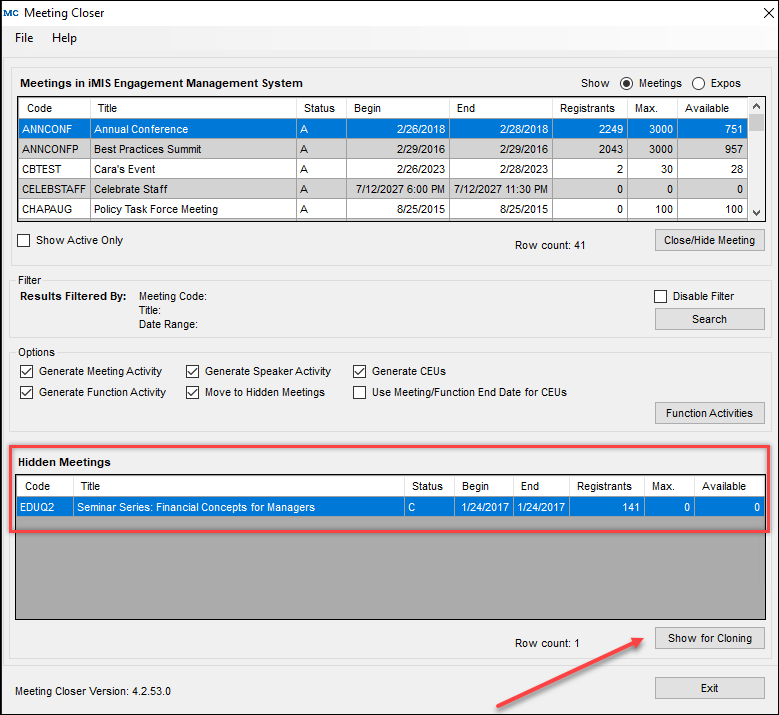
the following is the main Meeting Closer interface. You can selectively hide, close, and show meetings here.
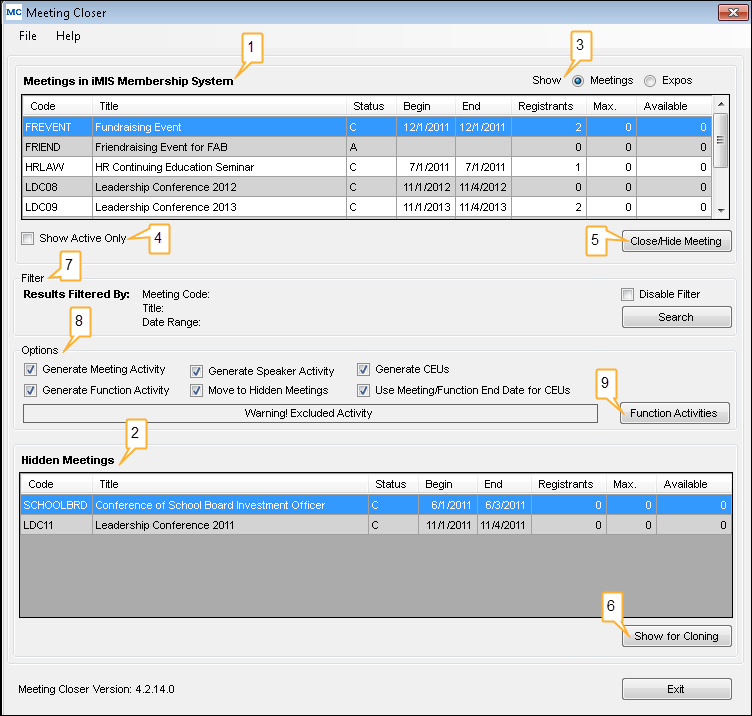
- Meetings in iMIS Membership System: List of all meetings that iMIS can see. This is the same view you see in Define an Event in iMIS.
- Hidden Meetings: Section displaying all meetings that have been closed and hidden from iMIS. Meetings listed in this section can be re-opened and then cloned in iMIS.
- Show: To show Meetings or Expos, simply select either option respectively in the upper right corner. You can selectively hide/close expos here.
- Show Active Only: When checked, Meeting Closer will only display meetings that are active in iMIS.
- Close/Hide Meeting: When an open meeting has been selected from the Meetings In iMIS section, this button becomes enabled. Click Close/Hide Meeting to close and optionally hide the selected meetings. Depending on which options are enabled, Meeting and/or Function Activities will be generated. If a meeting has been closed/hidden previously with Meeting Closer, no new activities will be generated. See How to Close a Meeting for more information.
- Show for Cloning: When a closed/hidden meeting has been selected in the Hidden Meetings section, the Show for Cloning button becomes enabled. Click this button to make the selected meeting available for cloning. See How to Show a Meeting for Cloning for more information.
- Filter: With Meeting Closer, you have the ability to filter your meeting results. When clicking Search you have the ability to define a filter by meeting code, meeting title, and/or date range. When you want to remove this filter, check Disable Filter on the right hand side of the box, above Search.
- Options: When you select a usage option, Meeting Closer remembers the selection between uses on a per machine basis. See Options for more detailed information about each checkbox.
- Function Activities: This button brings up a window that allows you to select for which functions you want to generate activities. See Show Function Activity Window for more information.
WarningExcluded Activity: When one or more functions are excluded in the Function Activity window, a warning will appear in the options area of Meeting Closer.
Options
The following options are available:
- Generate Meeting Activity: This option can be turned on or off for the selected meeting(s) you want closed/hidden. When this option is turned on, an activity record will be created for every person that attended the meeting. It is recommended that you always turn this option on when closing/hiding meetings.
- Generate Function Activity - This option can be turned on or off for the selected meeting(s) you want closed/hidden. When this option is turned on, an activity record will be created for each meeting function that a member attended. This option provides an addition level of activity detail.
NoteMeeting Closer will never update or delete an existing activity (Meeting, Function, Speaker, CEU) nor will it create a duplicate. It will, however, create new Meeting, Function, Speaker, and CEU activities for any new attendees added since the meeting was original closed/hidden provided you re-open the meeting, and then re-close the meeting.
NoteIf you have chosen to generate Function Activity and the function does not have a Begin Date (it was left blank in iMIS), then the meeting’s Begin Date will be used when creating the Function Activity Record.
- Generate Speaker Activity - This option can be turned on or off for the selected meeting(s) you want closed/hidden. When this option is turned on, an activity record with type Speaker will be created for all speakers in all functions. Only turn this on if you use speakers in your meetings.
- Move to Hidden Meetings - This option can be turned on or off for the selected meeting(s) you want closed/hidden. When this option is turned on, meetings are moved so iMIS cannot see them, and they are hidden from the Define an Event view. If you highlight a meeting in Hidden Meetings and click Show for Cloning, the meeting will appear in iMIS again.
- Generate CEUs - This option can be turned on or off for the selected meeting(s) you want closed/hidden. This option creates CEU Activities and will update the Certification system if you are licensed for it. It is recommended you leave this box checked unless you have a specific reason for NOT creating CEUs. Remember, once a meeting is closed/hidden, opening and reclosing/hiding will NOT recreate or overwrite existing CEUs. HOWEVER, CEU activities will be created for any NEW attendees.
- Use Meeting/Function End Date for CEUs - This checkbox makes certification item completion dates be the function or meeting end date rather than the default current date. This setting is database wide.
Show Function Activity Window
This button brings up a window that allows you to select which functions you want to generate activities for. By default all functions in a meeting have activities generated for them. By highlighting a function in the Function Activity window and clicking Exclude, meeting closer will not generate an activity for that function. This feature is global to all users of the database and is remembered between Meeting Closer sessions.
When one or more functions are excluded in the Function Activity window, a warning will appear in the options area of Meeting Closer.
NoteRegardless of the settings here, Meeting Closer will still generate all CEU and Speaker activities for the meeting. This only affects function activities.
Closing a meeting
Do the following to close a meeting:
- In the Meeting Closer window, highlight one or more open meetings that you want to close/hide. Multiple meetings can be selected by holding down the Ctrl key and clicking on the meeting name.
- Under Options, confirm all desired check boxes are selected.
- Click Close/Hide Meeting.
- You will be asked to verify that you want to close the selected meeting(s). Click OK.
During the closing process, a status screen will be displayed. Once all activities have been created, you will see the meeting in the list of Closed Meetings.
The meeting(s) will no longer be displayed in iMIS.
Warnings That May Be Displayed When Closing a Meeting
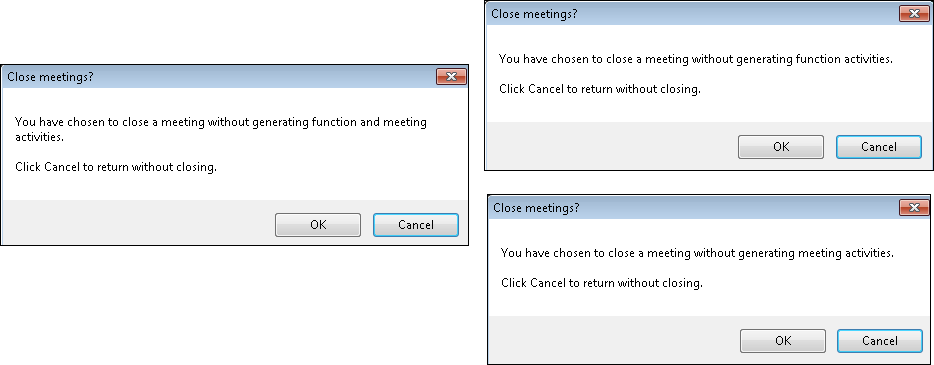
The above warnings are displayed when you close a meeting without checking either of the Generate Meeting/Function Activity checkboxes (left) or without checking the Generate Meeting Activity checkbox (right) or without checking the Generate Function Activity checkbox (bottom center). Click Cancel not to close the meeting.
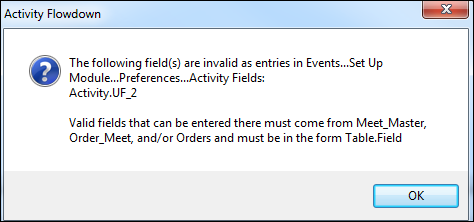
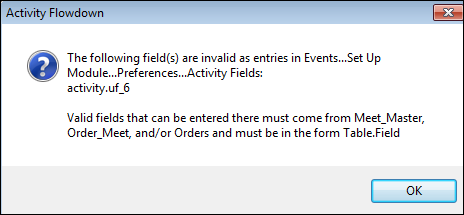
This warning is displayed if there is incorrect data in the Activity Fields. The Activity flowdown fields must be from Meet_Master, Order_Meet, or Exhb_Meet tables, otherwise Meeting Closer is not able to properly link the fields and an error will occur. For instructions on how to fix this error, see the Flowdown section.
Event System Preferences
If you receive the above warning about “Activity Flowdown”, see the following screenshot. Do the following to view the setup in iMIS of how fields are being mapped to meeting activities:
- Go to Events > Set up Module > Preferences.
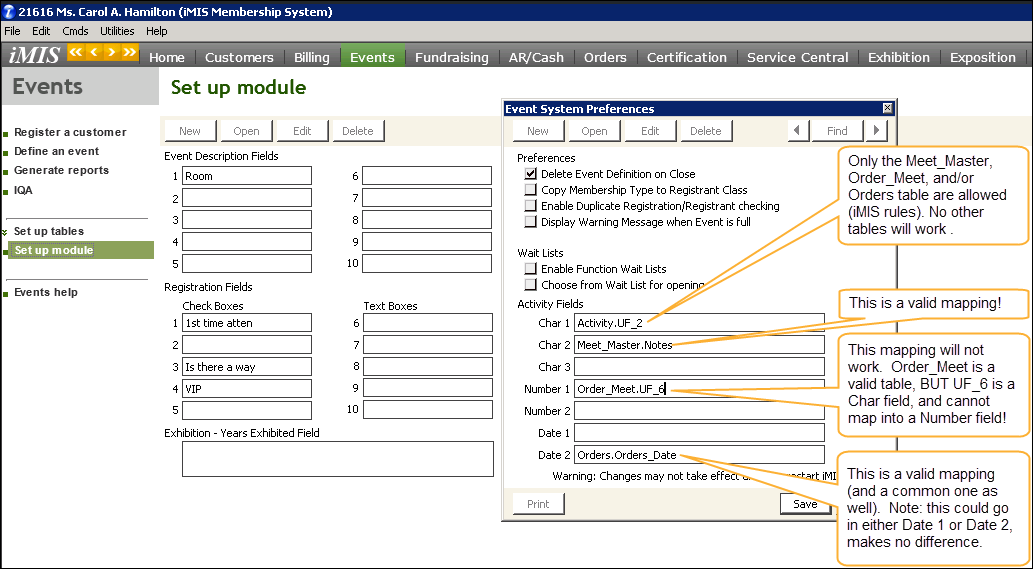
- Click Edit or New. You will be able to map fields from either the MEET_MASTER, ORDERS, or ORDER_MEET tables. No other table can be used here. iMIS will not give you a warning if you do not set this up correctly.
NoteiMIS will allow you to type in anything here, but if you do not have this set up correctly, iMIS will ‘ignore’ your field mappings, and they will not be mapped over to the activity when the meeting is closed. Meeting Closer, however, DOES warn the user if it detects a problem with field mappings here.
Below is a screen shot showing some general rules:
Showing a meeting for cloning
Do the following to show a meeting for cloning:
- In the Meeting Closer window, highlight one or more meetings that are hidden from iMIS. Multiple meetings can be selected by holding down the Ctrl key and clicking on the meeting name.
- Click Show for Cloning.
At this point the previously closed meeting will appear in the Meetings In iMIS list.
This meeting will now appear as a closed meeting visible in iMIS. You can generate reports based on this meeting or clone this meeting.
Updating the purge routine for Meeting Closer users
Because Meeting Closer does not erase data in the Orders table, people that attended events that have been closed with Meeting Closer cannot be deleted from iMIS using its built-in purge script. This is by design as Meeting Closer allows you to re-open meetings and if individuals were dropped from the database, the meeting counts would no longer be correct. CSI recognizes that some users will still want to drop these members and provides a modified purge script for this purpose.
This modification will not drop anyone with a balance in an event; the event needs to be paid off first. In addition, the client must be made aware of the significance of dropping these individuals if they still intend to re-open events at a later date.
Do the following to modify the Member Drop Script:
- Log into iMIS as Manager.
- Navigate to Utilities > Report Specs > SYSTEM-Purge- Membership Purge for MS SQL.
- Click Clone.
- Rename the Title to Membership Purge for MS SQL - Include Closed Meetings
- Click Parameters.
- Click in the Parameters box and press Ctrl-Z.
- Scroll down to the following lines that are highlighted, highlight the code and delete it
- Replace it with the following code:
UPDATE          p
SET                 p.OPEN\_ORDERS = 1
FROM             Purge\_Ctrl\_ie p,Orders o
WHERE           p.ID = o.BT\_ID AND o.STAGE not in ('CLOSED','CANCELED','COMPLETED') and o.ORDER\_TYPE\_CODE<>'MEETING'
UPDATE          p
SET                 p.OPEN\_ORDERS=1
FROM             Purge\_Ctrl\_ie p, Orders o
WHERE           p.ID = o.BT\_ID
AND o.ORDER\_TYPE\_CODE='MEETING' and o.BALANCE>0
UPDATE          p
SET                 p.OPEN\_ORDERS=1
FROM             Purge\_Ctrl\_ie p, Orders o, Order\_Meet om, Meet\_Master mm
WHERE           p.ID=o.BT\_ID
          AND o.ORDER\_TYPE\_CODE='MEETING'
AND o.ORDER\_NUMBER=om.ORDER\_NUMBER AND om.MEETING = mm.MEETING and mm.STATUS not like 'C%'- Click OK then Save.
- Use Membership Purge for MS SQL - Include Closed Meetings instead of the original script.
Reporting
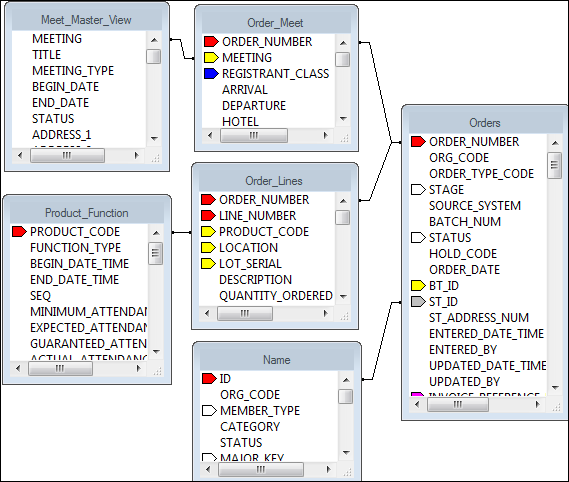
Once a meeting has been closed/hidden with Meeting Closer, it is no longer displayed in the Meetings window in iMIS. You can use the Meet_Master_View to report on all open and closed meetings.
The following is a sample relationship diagram that you could use to produce a report that displays attendee, meeting, function and pricing information:
Flowdown
In iMIS, you have the ability to flowdown additional activity fields when you close a meeting. If you choose Events > Setup Module and then click Preferences, you get the following screen:
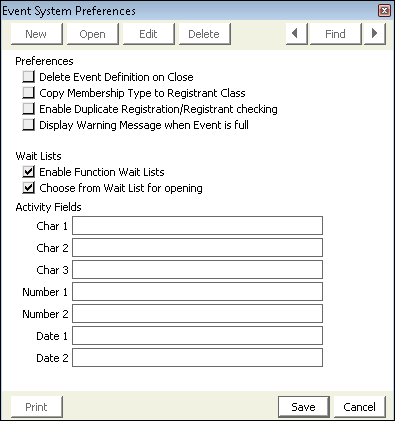
The Activity flowdown fields must be from either the table Meet_Master or Order_Meet, otherwise Meeting Closer is not able to properly link the fields and an error will occur.
The following error is generated due to and invalid table (Activity) being referenced in the Event System Preferences Window.
NoteThe error shows the path, in iMIS, to get to the Preferences window, and also gives the name of the faulty entry. The meeting will NOT be closed, and clicking OK will return back to Meeting Closer window. The user is now expected to correct the issue in Event System Preferences.
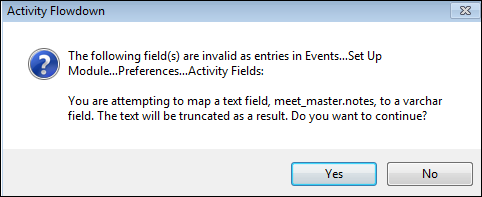
The following Activity Flowdown window is not an error, but a warning. It is letting the user know that the field being mapped (in this case, NOTES) may be truncated on the Activity record. Clicking Yes will continue Meeting Closer. Clicking No will stop meeting closer, and return the user back to the main MC window.
NoteYes is the default (and recommended).
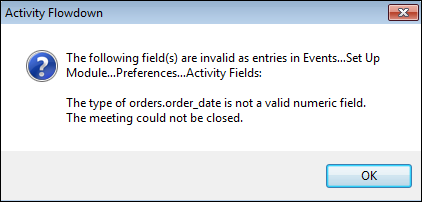
The following screenshot shows a different type of error…in this case, the ‘type’ of field being mapped does not match the type denoted in the Event System Preferences window. The specific example shows a ‘date’ field being mapped to a ‘number’ column – which will not work. Again, the error box shows the user the path in iMIS to this Event System Preferences window, and the error (hopefully) directs them to the correct fix.
Activity
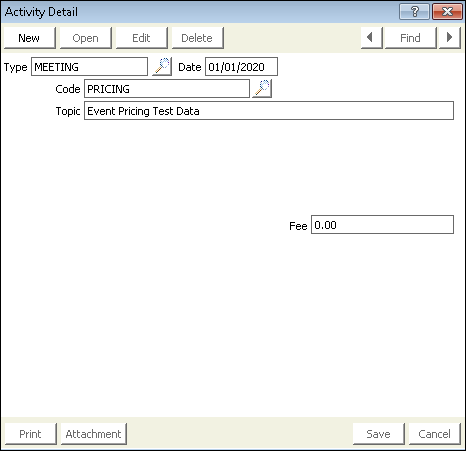
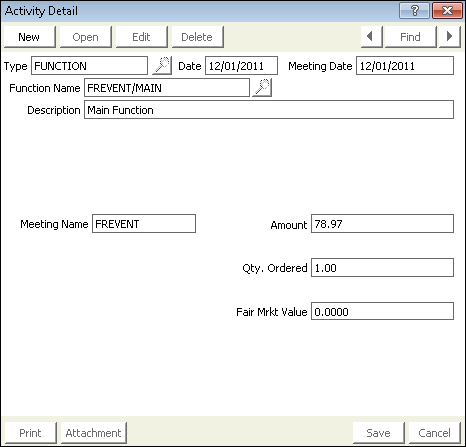
The following are examples of Meeting & Function Activity records that get created when you close a meeting.
Meeting Activity:
Function Activity:
Updated 3 months ago