

Managing individual events
In the Staff site, every event in iMIS has its own unique console. From a single location, staff event managers are able to see at-a-glance statistical information, run reports and print badges, view registrants, and view and edit event and program item details.
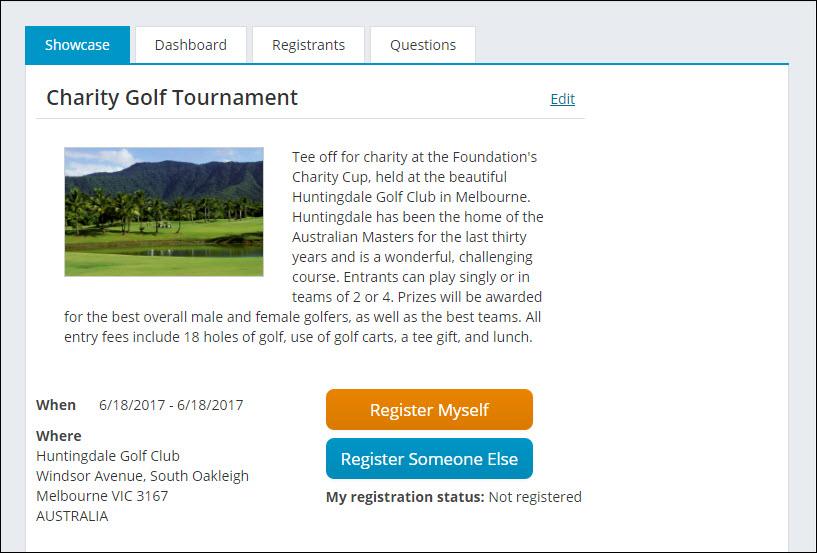
Showcase
The Showcase tab is the landing page for events, and displays the same information your event registrants see. Event details, functions, and options are configurable from this section. For more information about using the showcase tab, please see Creating an event and Registering for events.
Dashboard
The event-specific Dashboard tab provides a quick view of important, up-to-date registration information and statistics for a specific event. The dashboard information is configurable. See Tailoring the dashboards for more information.
Running reports
The Run reports button displays several event-specific reports that can be immediately run. The following is a list of the available reports:
Print badges
Displays a report containing registrant badge information. The badges display the full name, informal name, title, organization, city, state/province, and country of each registrant. This report is configured to print badges on Avery 5392 badge stock. To configure the Print Badges report results, you can adjust the following parameters:
- Event Code: The unique event identification code determined during your initial event set up.
- (optional) First Name begins with: Enter a first name to display badges only for people with that name.
- (optional) Last Name begins with: Enter a last name to display badges only for people with that name.
- Include Guests: Select Yes or No from the drop-down list. If you select Yes, guests are grouped together with the primary registrant and their badge will display only their name and a note that they are a guest of their primary registrant.
- PDF and Excel icons: Select an icon to export the report as the designated file type.
📘 Note
You must export a report as a PDF in order to preserve the Avery 5392 formatting for printing.
Print confirmations
Prints event confirmation notices for the selected event, including line item prices and amount due. To configure the Print confirmations report results, you can adjust the following parameters:
- Display Organization Logo: Select Yes or No from the drop-down. If you select Yes, the organization’s logo will be included on the report.
- Display Organization Name: Select Yes or No from the drop-down. If you select Yes, the organization’s name will be included on the report.
- (optional) Registrant ID: Enter the ID of an event registrant to display a confirmation for that individual.
📘 Note
You must export a report as a PDF in order to preserve formatting for printing.
Registrant directory
Displays a report that lists all event registrants and their information. To configure the Registration Directory report results, you can adjust the following parameters:
- Event: The name of the event.
- Include Cancelled: Select Yes or No from the drop-down list. If you select Yes, canceled registrations are included in the report and are distinguished by an asterisk (*).
- Include Guests: Select Yes or No from the drop-down list. If you select Yes, guests are grouped together with the primary registrant and their badge will display only their name and a note that they are a guest of their primary registrant.
- Include Email: Select Yes or No from the drop-down list.
- Include Full Address: Select Yes or No from the drop-down list.
-
Include Phone: Select Yes or No from the drop-down list.
- PDF and Excel icons: Select an icon to export the report as the designated file type.
📘 Note
You must export a report as a PDF in order to preserve formatting for printing.
Registration option registrants
Displays a list of registrants and the organizations they belong to for each registration option. To configure the Registration Option Registrants report results, you can adjust the following parameters:
- (optional) Report Title: Enter a descriptive title for your report.
- Event: The name of the event.
- Show Registrants for: Select either Registration Options or Program Items in order to display the registrants that are listed for each option.
- Include Cancelled: Select Yes or No from the drop-down list. If you select Yes, canceled registrations are included in the report and are distinguished by an asterisk (*).
- Include Wait List: Select Yes or No from the drop-down list. If you select Yes, guests are grouped together with the primary registrant and their badge will display only their name and a note that they are a guest of their primary registrant.
- PDF and Excel icons: Select an icon to export the report as the designated file type.
📘 Note
You must export a report as a PDF in order to preserve formatting for printing.
Program item registrants
Displays a list of registrants and the organizations they belong to for each program item. To configure the Program Item Registrants report results, you can adjust the following parameters:
- (optional) Report Title: Enter a descriptive title for your report.
- Event: The name of the event.
- Show Registrants for: Select either Registration Options or Program Items in order to display the registrants that are listed for each option.
- Include Cancelled: Select Yes or No from the drop-down list. If you select Yes, canceled registrations are included in the report and are distinguished by an asterisk (*).
- Include Wait List: Select Yes or No from the drop-down list. If you select Yes, guests are grouped together with the primary registrant and their badge will display only their name and a note that they are a guest of their primary registrant.
- PDF and Excel icons: Select an icon to export the report as the designated file type.
📘 Note
You must export a report as a PDF in order to preserve formatting for printing.
Print certificates
Prints certificates of completion for each attendee of the selected event. To configure the Event certificates report results, you can adjust the following parameters:
- (optional) ID: Enter the name of the event.
- (optional) Title: Enter a descriptive title for the type of certificate: for example, a Certificate of Completion.
- (optional) Completion Text: Enter the completion text.
- Display Event Name: Select Yes or No from the drop-down. If you select Yes, the event name will be included on the report.
- Display Event Dates: Select Yes or No from the drop-down. If you select Yes, the date of the event will be included on the report.
- Include Financial Entity Logo: Select Yes or No from the drop-down. If you select Yes, the logo of the Financial Entity will be included on the report.
📘 Note
The Include Financial Entity Logo parameter uses the logo of the Financial entity for the selected event, if there is one defined. If there is no Financial Entity defined for the event, the logo parameter uses the Meetings entity. If there is no entity defined for Meetings, the entity defined as the default Financial Entity for the system will be used. 📘 Note
You must export a report as a PDF in order to preserve the formatting for printing.
Planning report
Displays a summary of the event definition, with an option to include function summaries and their planned attendance
Configure the Event Planning Report results by adjusting the Include Functions parameter. Select Yes or No from the drop-down. If you select Yes, all functions tied to the event, along with their details, will be included.
📘 Note
You must export a report as a PDF in order to preserve the formatting for printing.
Weeks out report
Displays the number of registrants for the selected event by the number of weeks prior to the event’s begin date. Select an Event from the drop-down to display registrant information.
📘 Note
You must export a report as a PDF in order to preserve the formatting for printing.
📘 Note
Event questions can be reported on using the FormDefinitionFieldData and FormFieldResponseData business objects.
Printing tickets
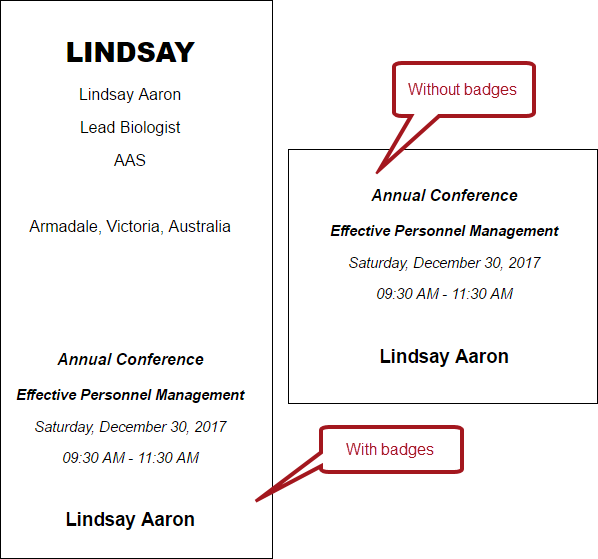
This button displays when Print tickets is enabled for at least one registration option or program item of the event. When Print tickets is enabled, you are able to print tickets With badges or Without badges for registrants of the program items and/or registration options. There are separate pages for each registrant.
Registrants
The Registrants tab presents a listing of all the registrants for a selected event.
Viewing a registrant's individual registration
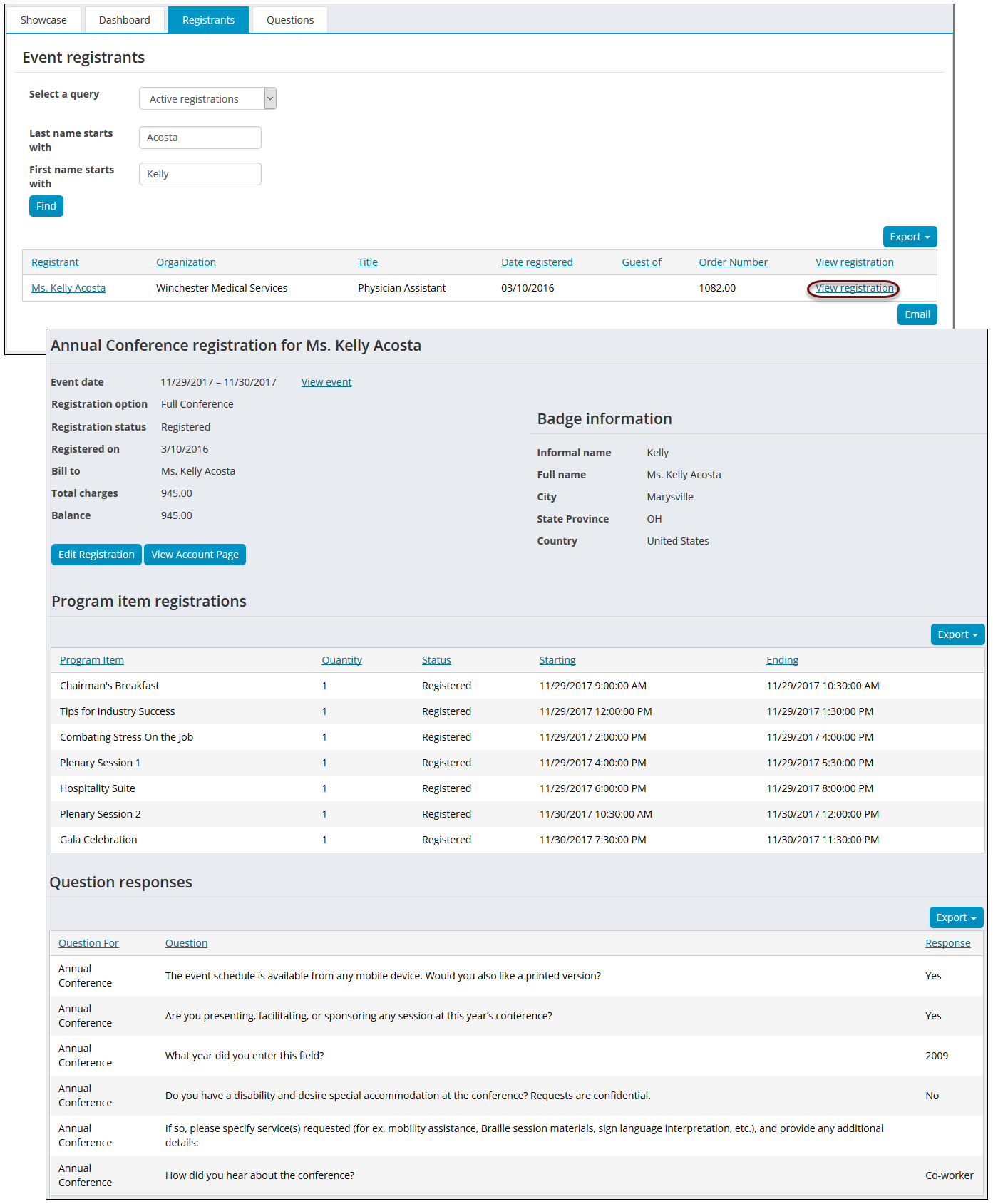
Staff users can view the registration details of each registrant by selecting the View registration link.
📘 Note
The View registration link is also available on the participation tab of the account page, under the My upcoming events section.
The View registration link displays the event registration details page. This page includes the event dates, a View event link that opens the event page, registration option, registration status, the date the registrant signed up for the event, the Bill to name, the total registration price, and the remaining balance.
The registrant’s Badge information is also shown on the details page. This includes the registrant’s Informal name and Full name, City, State/Province, Country, and who they are a Guest of (if applicable).
The Edit Registration link goes to the event Showcase, and allows Staff users to modify the registrant’s event registration details On behalf of the registrant.
Clicking the View Account Page opens the registrant’s account page.
Printing event confirmations
Event confirmations can be printed from the event registration details page by clicking Print Confirmation. This button is displayed for all event registrations. See Event confirmation report alert for more information.
Printing confirmations from the event registration details page will update the Confirmation Sent date. For more on event confirmations, see Issuing event confirmations.
Printing event registration invoices
Event registration invoices can be printed from the event registration details page by clicking Print Invoice. This button will only display when an invoice has been created for the registrant.
📘 Note
The EventInvoiceReport shortcut can be used to change what report prints when using the Print Invoice button by modifying where the shortcut points to.
See Event invoice report alert for more information.
Viewing program item registrations and question responses
Staff users can also view the registrant’s Program item registrations, including the program item name, the quantity, and the start and end date and time for the program item. The registrant’s responses to event questions are also included.
The program item registrations list, and the registrant’s responses to the event questions can be exported and printed.
Questions
The Questions tab displays registrant responses to event-level questions. Answers are displayed in a percentage format for yes/no questions, in a graph format for multiple-choice questions, and as a collapsible list for open-ended response questions.
Event questions can be reported on using the FormDefinitionFieldData and FormFieldResponseData business objects.
Updated about 2 months ago