

Setting up moves management
Major gifts fundraising requires a highly individualized and hands-on approach. Moves management is a system for planning and reporting the relationship between the organization and a potential donor, specifically targeting major gifts.
Your moves management plan can include the identification of your most loyal donors and the steps to cultivating the relationship over a period of time. This increases your understanding of the constituent and enhances their engagement with your organization so that they are ready to support your cause at the right time.
Moves Management allows you to provide your staff with a strategic process for a positive and rewarding relationship with their prospects and donors. Moves Managers record significant interactions during the donor journey, which helps your organization better forecast gift revenue (pipeline). Since staff are empowered to act strategically, you can meet goals with greater efficiency.
Each Moves Manager (solicitor) is assigned the responsibility for cultivating a relationship with specific constituents and tracking the progress of the plan. In large organizations, a number of Moves Managers may report to a Major Gifts Manager.
Moves management dashboard
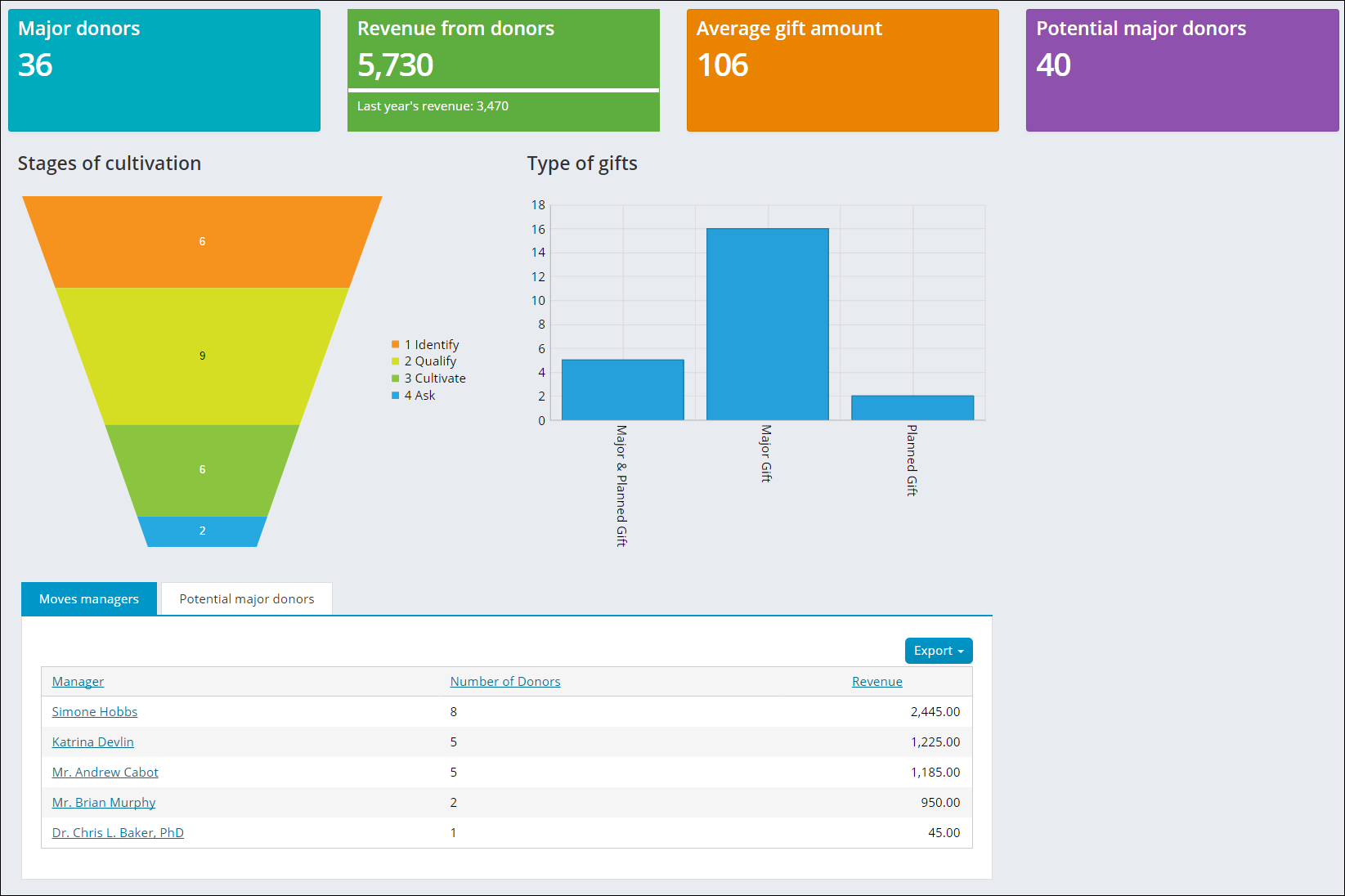
Staff users can view major donor statistics, giving amount, and revenue from the Moves management dashboard. Organizations can harness this data to better understand who to target for giving, review the status of all moves managers, and review the potential major donors for future giving.
The following information can be found in the Moves management dashboard:
- The total number of major donors
- The amount of revenue generated by major donors compared with that of last year's revenue
- The average gift amount
- The number of potential major donors
- Chart view of the amount of major donors in certain stages of the cultivation process
- Chart view of the types of gifts received
- An alert for Recent Major Donor gifts showing the name of the donor, the gift amount, and the date the gift was received
- A list of all moves managers and their number of donors
- A list of all potential major donors with their work phone number, email address, and their giving amount
📘 Note
A potential major is considered to be anyone who has given over 1000.00 this year and currently does not have a moves manager assigned to them.
Tailoring the Moves management dashboard
The Moves management dashboard can be tailored to reflect various areas of major donor information. The content items in the dashboard rely on IQA queries found in three different folders at $/Samples/Dashboards/MovesManagement/OverallDashboard. To improve dashboard performance, select Use cached results, or you can deselect this option for an up-to-date display.
🚧 Warning
Do not modify a system query. Make a copy of the query and apply the changes to the copy. Any system query that is modified will be overwritten on an upgrade. See Tailoring default navigation and content for more information on tailoring out-of-the-box content.
To tailor the Moves management dashboard, do the following:
- Go to RiSE > Page Builder > Manage content > Staff Dashboards > Moves management and make a copy of the dashboard content record.
- Add the dashboard content record to a Shared Content folder.
- Make the desired changes to the Moves management dashboard.
- Save & Publish the new content.
- Modify the Moves management dashboard shortcut:
- Go to RiSE > Site Builder > Manage shortcuts.
- Edit the StaffMovesManagementLanding shortcut.
- In the URL or content record select the new content record and Save.
Designating a Moves Manager
- From the staff member's account page, select the Giving tab.
- Click the edit icon for the Donor info panel.
- Enable Is a moves manager.
- Click Save.
Assigning a Moves Manager to a Major Donor
- From the donor/prospect's account page, select the Giving tab.
- Click the edit icon for the Donor info panel.
- From the Moves manager drop-down, select a contact to associate with the donor/prospect.
- Click Save.
Navigate to Fundraising > Moves management > My major donors to review your major donors.
Setting up a cultivation plan for a Major Donor
- Sign in as a Moves Manager.
- Select Fundraising > Moves management > My major donors.
- Select a contact.
- Click the icon to edit the Cultivation plan:
- Select the Gift type and Estimated value.
- Enter the Planned ask time.
- Select the Cultivation stage and Quality.
- Add any Note that is important to the plan.
- From the Identified by drop-down, select the method by which this donor was identified as a major donor.
- Click Save.
- Click the icon to edit Cultivation Activities:
- Select the Type of Move for the activity.
- Enter a Date and Note about the activity.
- Enter a Follow Up Date and Follow Up Note about the activity.
- Click Save & Close.
Updated 3 months ago