

Defining Publication Product Codes
You maintain individual publications belonging to a subscription (volumes or issues) on the Set up subscriptions window.
Set up subscriptions window
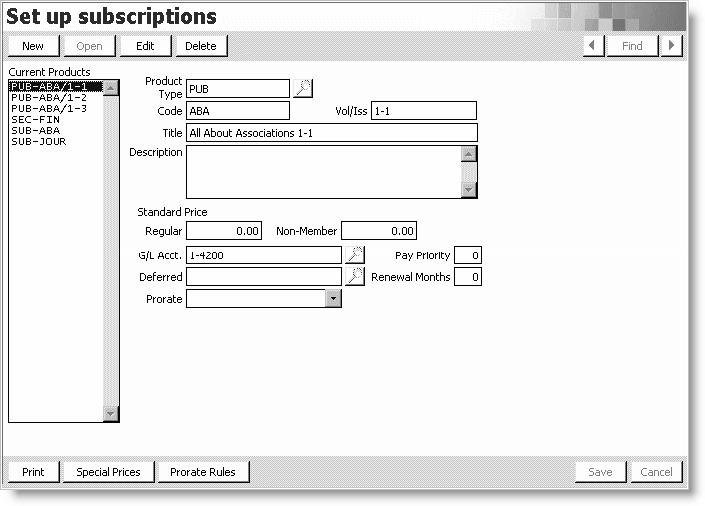
To define a subscription product
- From Subscriptions, select Set up tables > Subscriptions to open the Set up subscriptions window.
- Click New.
- Enter PUB for the Product Type. The Vol/Iss field displays.
- Enter the product Code. The code entered should not contain any spaces or special characters other than an underscore.
- Enter the Vol/Iss number for this publication. Slashes are not allowed in the product code. Separate the Vol/Iss number with a dash.
- Enter the product Title.
- (optional) Enter the product Description.
- (optional) Enter the Regular pricing information.
- (optional) Enter the Non-Member pricing information.
- (optional) Enter the G/L Account.
- (optional) Enter the Pay Priority.
- (optional) Enter the Deferred account number.
- (optional) Select the Prorate rule from the drop-down list.
- Click Save.
- Repeat steps to enter each publication code for each volume/issue of this subscription.
Updated 6 months ago
Did this page help you?